Press the in-game camera menu or map controls, or use Content Manager/Custom Shaders Patch for extra camera options.
I’ve spent years tuning setups and recording laps in Assetto Corsa, so I know the camera system well. This guide shows you how to change cameras on Assetto Corsa with clear, practical steps. You’ll learn the basic in-game methods, how to bind keys and controllers, and how to unlock pro-level camera control using Content Manager and community tools. Read on and you’ll be switching cockpit, chase, and cinematic angles like a pro.
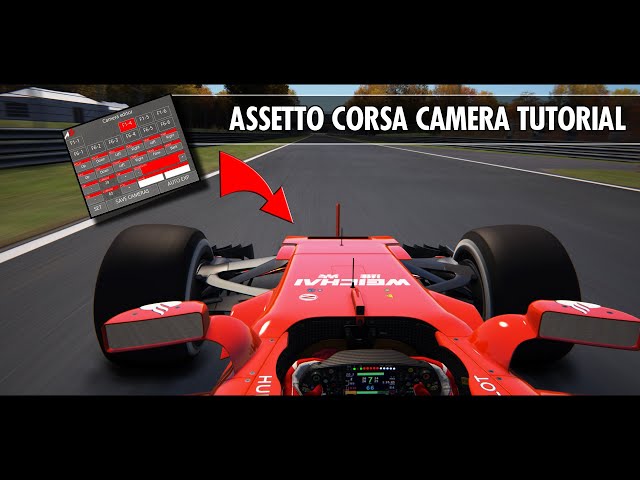
Understanding the camera system in Assetto Corsa
Assetto Corsa uses several camera types that serve different needs. Some are meant for racing feedback, like cockpit and chase. Others are for visuals, like bonnet or external. The game keeps camera settings simple by default. Mods and tools expand that massively.
Knowing how to change cameras on Assetto Corsa starts with recognizing the main camera groups. This helps you pick the right view for practice, races, or filming laps. I’ll walk through each camera type and how to switch between them cleanly.

Camera modes and when to use them
Each camera mode has strengths. Use the right mode for focus and comfort.
- Cockpit view — Best for realism and correct steering feel. Great for racing and sim setups.
- Chase view — Good for awareness and a clear view of the car body. Helpful when learning lines.
- Bonnet/hood view — Gives a fixed, forward view. Useful for broadcasts and clean visuals.
- External/flyby view — Good for cinematic shots and showing car motion.
- Replay/free camera — Use this to create cinematic content and study driving lines.
If you want to learn how to change cameras on Assetto Corsa for video or replay work, the replay/free camera will be your go-to option. It gives full freedom to pan, zoom, and orbit.

How to change cameras in-game — step-by-step
These steps work for the base game. They focus on menu and control binding, so you won’t rely on guesses about hotkeys.
- Open the main pause or options menu while driving or in replay.
- Find the camera or view section. This lists available camera presets.
- Select a camera preset (cockpit, chase, bonnet, external, replay).
- To switch faster, go to Settings > Controls > Camera (or similar). Bind keys for:
- Next/previous camera
- Toggle cockpit/chase
- Toggle HUD camera
- Save your control profile. Test the keys during a session.
Practically, learning how to change cameras on Assetto Corsa this way gives you speed and reliability. If you plan to record, set dedicated hotkeys and test them before racing.

Using keyboard, controller, and wheel — best practices
Different input devices handle cameras differently. Here’s how to set them up.
- Keyboard — Easiest to bind multiple keys. Use one key for cycling views and another for toggle cockpit.
- Controller — Map shoulder buttons for quick camera swaps. Keep one accessible button for “next camera.”
- Wheel/Pedals — Bind camera change to a spare button on the wheel base. This keeps your hands on the wheel.
If you play in VR, you’ll still need quick camera toggles for replays and screenshots. Practice how to change cameras on Assetto Corsa with your device before joining races.

Using Content Manager and Custom Shaders Patch (CSP)
Content Manager plus CSP is the most popular unofficial toolset for Assetto Corsa. They add more camera control. Here’s what they offer and how to use them.
- Content Manager — A launcher and UI that exposes camera apps and hotkeys.
- CSP Camera Apps — Provide smooth chase, freecam, and cinematic transitions.
- Extra features — Field of view (FOV) sliders, look-around smoothing, and remote cameras.
How to change cameras on Assetto Corsa with Content Manager:
- Install Content Manager and enable Custom Shaders Patch.
- Open Content Manager, go to the CSP or Camera apps.
- Choose an app like “CSP Camera” or “Free Camera.”
- Assign hotkeys in Content Manager for quick changes.
- Use the free camera for replays and the CSP chase for smooth race footage.
These tools give pro-level control and are widely used by sim racers and content creators.
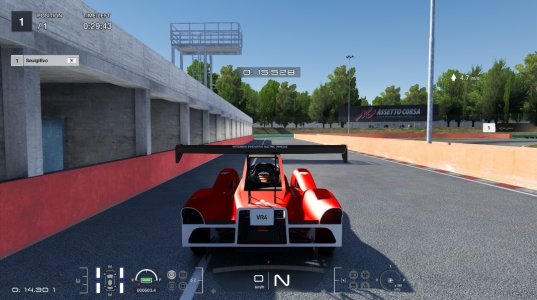
Advanced: replay camera, freecam, and editing camera files
The replay system unlocks advanced camera control. Use replay to inspect driving or to create video.
- Enter replay mode after a session.
- Use on-screen controls to scrub time.
- Switch to free camera for placing the camera anywhere.
- Use orbit and dolly controls to craft cinematic shots.
Advanced users can tweak camera behavior via configuration files or community camera definitions. Always back up files before editing. If you want full customization, community camera packs let you add fixed external rigs or vehicle-follow rules. Knowing how to change cameras on Assetto Corsa at this level means you can match broadcast-style shots.

Troubleshooting and common issues
When camera controls fail, check these common fixes.
- Keys not responding — Check the Controls menu and rebind the key. Conflicting profiles cause silent failures.
- Camera stuck in one view — Reload the session or open the camera menu. If mods are active, disable them to test.
- Performance drops with freecam — Free camera and CSP effects can increase CPU/GPU load. Lower settings if needed.
- VR camera oddities — Ensure VR settings and CSP VR camera apps are configured. VR often needs specific hotkeys.
If you still struggle after trying these steps, revert to a default control profile and test without mods. This narrows down the cause.

Personal experience: what I learned and practical tips
I record laps and host online races. Early on, I changed cameras by guessing keys. That wasted time. Here are lessons I learned.
- Bind two keys — one to cycle views and one to toggle cockpit. It speeds up transitions.
- Use Content Manager for recording. Its camera apps make smoother shots.
- Test camera views in practice sessions. Don’t change cameras mid-race without testing.
- Save profiles per setup. I have a profile for wheel, one for controller, and one for VR.
These tips come from working with Assetto Corsa daily. They help you learn how to change cameras on Assetto Corsa without breaking focus.

PAA-style questions you might ask
How do I switch to cockpit view quickly?
You can bind a dedicated key to toggle cockpit view in the Controls or use Content Manager to assign a hotkey. Quick toggles keep your hands on the controls.
Can I set a default camera for all sessions?
Yes. Save your control profile and camera settings in the launcher or Content Manager. Some community tools also allow per-car default cameras.
Do camera mods affect performance?
Yes. Smooth chase and freecam with effects can use more CPU/GPU. Lower shadow and render settings to keep frame rate stable.
Is the free camera available in multiplayer?
Free camera is mainly for replays and single-player. Some servers permit external spectating, but multiplayer live freecam is limited for fairness.
Can I record cinematic footage easily?
Use Content Manager + CSP freecam and assign smooth movement keys. Record with a capture tool and stabilize FOV and smoothing for the best results.
Frequently Asked Questions of how to change cameras on assetto corsa
How do I bind keys to change cameras?
Open Settings > Controls, find the camera section, and assign keys for next/previous or toggle camera. Save the profile and test in a practice session.
Can I change cameras while in a race?
Yes, you can switch cameras during a race if you have hotkeys bound. Avoid frequent switches during close racing to keep focus and control.
Are there better camera tools than the base game?
Yes. Content Manager and Custom Shaders Patch add more camera apps, smoothing, and hotkey control for filming and racing.
How do I use the replay free camera?
Enter the replay after a session, pause, and switch to free or cinematic camera. Then move, orbit, and zoom to frame shots.
Why is my camera key not working?
Check for key conflicts, ensure the correct control profile is active, and disable conflicting mods. Reset to default controls to test.
Conclusion
Mastering camera control changes your Assetto Corsa experience. You can race with better feedback, record cleaner footage, and create cinematic laps. Start by binding simple hotkeys, then add Content Manager and CSP for advanced options. Test your setup in practice runs and save profiles so you never lose your preferred view. Try these steps today, tweak as you go, and share what camera setup works best in the comments or on community forums.

Jamie Lee is a seasoned tech analyst and writer at MyTechGrid.com, known for making the rapidly evolving world of technology accessible to all. Jamie’s work focuses on emerging technologies, product deep-dives, and industry trends—translating complex concepts into engaging, easy-to-understand content. When not researching the latest breakthroughs, Jamie enjoys exploring new tools, testing gadgets, and helping readers navigate the digital world with confidence.