Introduction
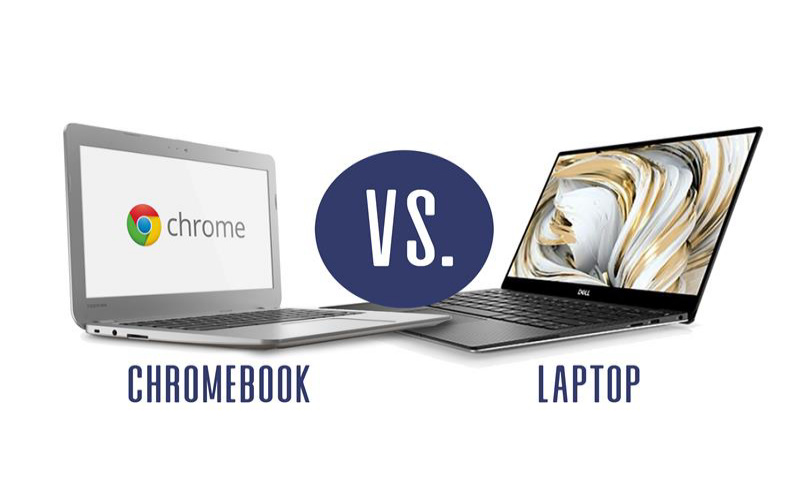
For shoppers in the United States, the main difference is simple: a Chromebook is a type of laptop that runs chromeos, while “laptop” usually refers to portable computers running Windows, macOS, or Linux. Chromebooks focus on web apps, cloud storage, long battery life, simple setup, and lower prices. Traditional Windows and Mac laptops usually support more desktop programs, advanced tools, local storage, and demanding games.
A Chromebook may be enough for school, email, web browsing, video calls, streaming, and basic office work. A Windows or Mac laptop is often better for professional software, advanced photo or video editing, engineering tools, local file work, and high-end gaming.
The right choice depends less on the shape of the computer and more on which operating system and apps your daily work require.


Chromebook vs. Laptop: The Quick Answer
A Chromebook is a laptop built around Google’s ChromeOS. It uses the Chrome browser and web-based services as its main tools. Many models also support Android apps, and some support a Linux development environment.
A conventional laptop usually runs Windows, macOS, or Linux. It can install a wider range of desktop programs directly onto the computer.
| Feature | Chromebook | Windows or Mac laptop |
|---|---|---|
| Operating system | ChromeOS | Windows, macOS, or Linux |
| Main software model | Web apps, Android apps, and some Linux apps | Desktop apps, web apps, and system software |
| Typical price | Often lower, though premium models exist | Very broad range |
| Setup | Usually quick and simple | May require more setup and updates |
| Internet use | Strongly suited to online work | Can support both online and offline work |
| Storage | Often smaller local storage with cloud use | Usually more local storage options |
| Gaming | Browser games, Android games, and some cloud gaming | Wider PC game support, especially Windows |
| Professional software | Limited by app compatibility | Better support for specialized programs |
| Battery life | Often strong, but varies by model | Varies widely by model |
| Maintenance | Usually simple | Can require more troubleshooting |
The word laptop describes the hardware form: a portable computer with a screen, keyboard, battery, and trackpad. A Chromebook is therefore also a laptop. The difference is mainly the software platform and the tasks it supports.

What Is a Chromebook?
A Chromebook is a portable computer that runs Google’s ChromeOS. ChromeOS is based on the Linux kernel, but users generally interact with a simple desktop and the Chrome browser rather than a traditional Linux command line.
Chromebooks are designed for people who spend much of their time online. Common tasks include:


- Browsing websites
- Writing documents
- Checking email
- Joining video meetings
- Watching streaming video
- Using school or work portals
- Managing files in cloud storage
- Editing simple photos
- Using browser-based business tools
Google Docs, Microsoft 365 for the web, Gmail, Google Drive, Zoom, Canva, and many learning platforms can work well on a Chromebook. However, the exact experience depends on the service and whether it offers a full web version, an Android app, or only a Windows or Mac desktop program.
How ChromeOS handles files and apps
ChromeOS can save files on the device or in cloud services. Many Chromebooks include Google Drive integration, but you can also use other cloud providers through a browser or app.
ChromeOS supports several types of software:
- Web apps: These run in a browser and need an internet connection for some or all features.
- Android apps: Many newer Chromebooks can install Android apps from Google Play, but app support and quality vary.
- Linux apps: Compatible models can enable a Linux development environment. This is useful for some coding tools, but it does not make a Chromebook identical to a Windows or Mac computer.
- Chrome extensions: These add features to the Chrome browser, but they are not the same as full desktop programs.
A Chromebook cannot normally install Windows .exe programs in the same way as a Windows PC. It also cannot run standard Mac applications. Compatibility should be checked before buying.

What Is a Traditional Laptop?
A traditional laptop is a portable computer that runs a general-purpose operating system such as Windows, macOS, or Linux. These systems can install desktop software directly and usually provide broader control over files, settings, accessories, and system functions.
A Windows laptop may support programs such as:
- Microsoft Office desktop applications
- Adobe Creative Cloud software
- QuickBooks Desktop
- AutoCAD and other computer-aided design tools
- Full desktop video editors
- PC games
- Specialized workplace software
A Mac laptop can run software made for macOS, including many creative, development, education, and business tools. A Linux laptop can provide strong control for developers and technical users, although software support varies by program.
Traditional laptops also tend to offer more choices for:
- Processor speed
- Memory capacity
- Internal storage
- Graphics performance
- Ports
- Screen size
- Upgrade options
- Professional software support
These extra choices can be useful, but they may also make buying and maintaining the computer more complex.

The Main Differences Between a Chromebook and a Laptop
1. Operating system
The operating system controls how the computer runs apps, manages files, installs updates, and connects to hardware.
ChromeOS is streamlined and centered on the Chrome browser. Windows and macOS are broader desktop systems with larger software libraries and more advanced system controls.
This difference affects nearly every buying decision. Two computers may have similar processors and screens, yet behave very differently because they use different operating systems.
2. App compatibility
A Chromebook works best when the programs you need have a web version or a supported Android version.


A traditional laptop is usually the safer choice when you need desktop software that was made for Windows or macOS. This includes many professional, school, business, engineering, music, and creative applications.
Before buying a Chromebook, make a list of the exact apps you use. Do not rely only on the program’s name. Check whether the version you need is:
- Available in a browser
- Available through Google Play
- Compatible with ChromeOS
- Limited compared with the Windows or Mac version
- Dependent on a work or school system
For example, Microsoft 365 can be used through the web on a Chromebook, but the web version may not include every feature found in the Windows or Mac desktop apps.
3. Internet and offline use
Chromebooks are not useless without internet access, but they are built with online services in mind. Google Docs, Sheets, and Slides can support offline work when offline access is enabled before the connection is lost. Some Android apps also work offline.
Still, online dependence can be a problem if you often travel, work in places with weak service, or use tools that need large local files.
Windows, macOS, and Linux laptops can also use cloud services, but they generally offer more fully offline desktop software. This makes a traditional laptop more flexible for long flights, remote locations, and local media work.
4. Storage
Many Chromebooks include less internal storage than similarly priced Windows laptops. This is not always a problem because ChromeOS encourages cloud storage and web-based work.
Local storage matters more if you keep:
- Large video files
- Photo libraries
- Music collections
- Game installations
- Offline maps
- Engineering or design files
- Large software packages
A Chromebook with 64GB or 128GB of storage may be adequate for browser work. It can feel restrictive if you expect it to serve as a large local file archive.
5. Performance
Performance depends on the exact processor, memory, storage, cooling system, and software. A Chromebook is not automatically faster than a Windows laptop, and a Windows laptop is not automatically more powerful.
ChromeOS can feel responsive on modest hardware because the system is relatively focused. However, browser tabs, video calls, extensions, Android apps, and cloud documents can still use substantial memory.
For basic use, 4GB of RAM may work on some low-cost Chromebooks, but 8GB is a more comfortable target for frequent multitasking. Buyers should treat this as a practical guideline, not a universal rule. A specific model’s processor and storage also matter.
6. Battery life
Chromebooks often offer good battery life because ChromeOS and their hardware may use relatively low power. Actual results vary with screen brightness, processor type, video calls, apps, and battery health.
Windows and Mac laptops range from short battery life on powerful gaming models to very long battery life on efficient models. The operating system alone does not determine battery performance.
Use manufacturer claims as estimates. Look for independent testing under comparable conditions when battery life is a deciding factor.


7. Security and updates
ChromeOS uses features such as verified boot, sandboxing, automatic updates, and multiple user profiles. These features can reduce routine maintenance, but no computer is immune to scams, harmful downloads, stolen passwords, or unsafe websites.
Every Chromebook model has an Auto Update Expiration date, often called its AUE date. Google publishes this date for supported devices. After that date, the device may not receive the same automatic ChromeOS updates and security support.
Check the AUE date before buying a used or older Chromebook. This is one of the most important differences between a new device and an inexpensive used model.
Windows and macOS also provide automatic security updates, but support periods and update policies differ by device and operating system version.

Chromebook or Laptop: Which Is Better for Your Needs?
The better choice depends on your main tasks, not on the label alone.
Choose a Chromebook if you mainly:
- Browse the web
- Use Gmail or other webmail
- Write school papers
- Use Google Workspace
- Join video calls
- Stream movies and music
- Use online learning systems
- Need a simple computer for a child or student
- Prefer automatic updates and simple maintenance
- Want to spend less on basic computing
A Chromebook may also work well as a second computer for travel or light home use.
Choose a Windows laptop if you need:
- Desktop Microsoft Office features
- PC games
- Adobe desktop applications
- Engineering or design software
- Business software made only for Windows
- Broad accessory and peripheral support
- More local storage and hardware choices
Windows is often the most flexible option for mixed personal, school, and work needs.
Choose a Mac laptop if you need:
- macOS-specific software
- Apple development tools
- A workflow built around other Apple devices
- Certain creative or professional applications
- Strong integration with iPhone, iPad, or other Apple products
A Mac is not automatically better than a Chromebook or Windows laptop. It is better for people whose software and devices fit macOS.
A simple decision test
Ask these four questions:
- What are the three programs I use most?
- Do those programs have a full ChromeOS version?
- Do I need to work without internet access?
- Do I need local storage, advanced graphics, or special accessories?
If your answers are mostly browser-based and lightweight, a Chromebook may be enough. If one essential program requires Windows or macOS, choose a compatible traditional laptop instead.

Chromebook vs. Laptop for Students
For many students in the United States, a Chromebook can handle school portals, research, writing, online quizzes, video lessons, and shared documents. School districts also often manage Chromebooks remotely, which can simplify account setup and security.
The main risk is software compatibility. Some classes require desktop applications for programming, engineering, art, music, accounting, or advanced media work. Students should check course requirements before buying.
Parents should also check:


- Screen size and keyboard comfort
- Webcam quality
- Battery life
- Wi-Fi compatibility
- School account requirements
- AUE date
- Warranty and repair options
- Whether the school provides the device
A low-cost Chromebook is not a good deal if it cannot run a required class program.

Chromebook vs. Laptop for Work
A Chromebook can suit workers who use browser-based systems such as customer portals, email, online documents, scheduling tools, and cloud dashboards. It can also be useful for remote work when the employer provides web applications.
A traditional laptop is usually safer for work if the job requires virtual private network software, local databases, desktop accounting tools, advanced spreadsheets, remote desktop tools, or specialized business programs.
Ask your employer or IT department about:
- Supported operating systems
- Required security software
- Virtual private network support
- Remote desktop access
- Printer and scanner compatibility
- File-sharing rules
- Browser requirements
- Company device management
Do not assume that a Chromebook will work simply because your employer uses Google Workspace. The company may still require Windows-only security or business software.
Gaming: Is a Chromebook Good for Games?
Chromebooks can handle browser games, many Android games, and some cloud gaming services. A few models are designed for gaming-focused cloud use, with features such as high-refresh-rate screens or gaming accessories.
They are generally not the best choice for installing and running a large library of demanding PC games locally. Windows laptops offer much wider support for PC game launchers, graphics drivers, game controllers, and dedicated graphics cards.
Cloud gaming also depends on a reliable internet connection, suitable network speed, and service availability. It can reduce the need for powerful hardware, but it does not remove network delay or subscription costs.
If local gaming is a priority, compare Windows laptops with the required graphics hardware. Check each game’s system requirements rather than choosing by brand name.

Common Mistakes to Avoid
Buying by price alone
The cheapest computer may have limited memory, slow storage, a poor display, or a short support life. Compare the complete package, including the processor, RAM, storage, screen, keyboard, warranty, and update period.
Assuming every Chromebook is the same
Chromebooks range from basic models to premium devices. They can differ greatly in speed, screen quality, ports, durability, and update support.
Confusing web access with full app support
A website may work in Chrome while missing features found in a desktop application. Test the exact workflow you need before switching platforms.
Ignoring the Auto Update Expiration date
This is especially important for used Chromebooks. A low purchase price may not justify buying a device near the end of its official update period.
Assuming offline work will always work
Enable offline access before you need it. Open important files and test your workflow while disconnected from the internet.
Buying more power than you need
A powerful laptop adds cost, weight, fan noise, and sometimes lower battery life. If your work is limited to email and documents, you may not benefit from workstation-level hardware.
Buying too little power for specialized work
If you edit large videos, run virtual machines, use CAD software, or play demanding games, a basic Chromebook or entry-level laptop may create frustrating limits.

A Practical Buying Checklist
Before you buy, complete this short check:
- List your required apps. Include school, work, creative, accounting, and gaming software.
- Check the operating system requirement. Look for official Windows, macOS, ChromeOS, Android, or web support.
- Decide how much local storage you need. Include photos, videos, games, and offline files.
- Choose a comfortable screen and keyboard. These affect daily use more than small processor differences.
- Check memory and processor details. Aim for enough capacity for your usual number of tabs and apps.
- Review update support. For Chromebooks, check the official AUE date.
- Check ports and accessories. Confirm support for USB devices, external displays, headphones, printers, and memory cards.
- Review the return policy and warranty. This gives you a way to test app compatibility safely.
- Test your essential workflow. Sign in, open your files, connect your accessories, and confirm that required tools work.
The best result is not the computer with the most features. It is the computer that runs your required tasks with the fewest compromises.

Key Takeaways
- A Chromebook is a type of laptop that runs ChromeOS.
- Traditional laptops usually run Windows, macOS, or Linux.
- Chromebooks are well suited to web apps, schoolwork, email, streaming, and simple office tasks.
- Windows and Mac laptops support a wider range of desktop applications.
- Check app compatibility before buying either type.
- Check a Chromebook’s Auto Update Expiration date, especially when buying used.
- Choose a traditional laptop for demanding games, specialized software, and heavy local file work.
- Choose a Chromebook when simple setup, cloud work, portability, and value matter most.
Frequently Asked Questions
Is a Chromebook considered a laptop?
Yes. A Chromebook is a laptop that uses ChromeOS instead of Windows, macOS, or Linux. “Laptop” describes the portable computer category, while “Chromebook” identifies a specific operating system and software ecosystem.
Can a Chromebook replace a Windows laptop?
It can replace a Windows laptop for browser-based work, school documents, email, streaming, and many cloud services. It may not replace one if you need Windows-only programs, advanced games, specialized workplace tools, or full desktop applications.
Can Chromebooks run Microsoft Office?
Chromebooks can use Microsoft 365 through the web, and some models can use Microsoft Android apps. Features may differ from the Windows or Mac desktop versions. Check Microsoft’s current support information and the needs of your specific work.
Are Chromebooks safer than laptops?
ChromeOS includes security features that can reduce some common risks and maintenance tasks. However, a Chromebook is not risk-free. Strong passwords, multi-factor authentication, safe browsing, updates, and careful handling of files still matter.
Can I use a Chromebook without Wi-Fi?
Yes, for some tasks. Certain documents, downloaded files, media, and apps can work offline. You must enable and test offline features in advance, and some services require an internet connection.
Are Chromebooks good for college?
They can be good for students whose courses use web tools, documents, research, and video meetings. College students should check department requirements first because engineering, design, media, computer science, and business courses may require Windows or macOS software.
Conclusion
The difference between a Chromebook and a laptop comes down mainly to the operating system and the software it can run. A Chromebook is a simple, cloud-focused laptop that works well for everyday online tasks. A Windows or Mac laptop usually offers broader app support, stronger offline features, and more options for advanced work.
Before choosing, identify your essential programs, internet needs, storage requirements, and update expectations. If those needs fit ChromeOS, a Chromebook may provide an efficient and affordable computer. If they do not, choose a Windows, Mac, or Linux laptop that supports the software you depend on.

Everett Ashford is a tech reviewer at mytechgrid.com specializing in SSDs, cameras, TVs, earbuds, headphones, and other consumer electronics. He provides honest, data-driven reviews based on hands-on testing and real-world performance analysis. Everett simplifies complex tech details to help readers make smart, confident buying decisions.