Check your motherboard's manual for supported SSD form factors (2.5-inch, M.2) and interfaces like SATA or NVMe. As a tech enthusiast who has built and upgraded dozens of PCs over the years, I've seen the confusion firsthand. The promise of a lightning-fast computer is exciting, but it quickly fades when you're staring at a dozen different acronyms and connectors. This guide is designed to cut through that noise. We will walk you through a simple, foolproof process of how to know what SSD is compatible with my pc, ensuring you buy the right drive the first time and unlock your computer's true potential.

Understanding the Basics: SSD Form Factors and Interfaces
Before you can pick the right SSD, you need to speak the language. The two most important terms to understand are "form factor" and "interface." Think of the form factor as the drive's physical shape and size, while the interface is the type of connection it uses to talk to your computer. Getting these two right is the foundation of a successful upgrade.
Form Factors: The Physical Shape
The form factor determines if the SSD will physically fit inside your computer. For most consumer PCs and laptops, you will only encounter two main types.
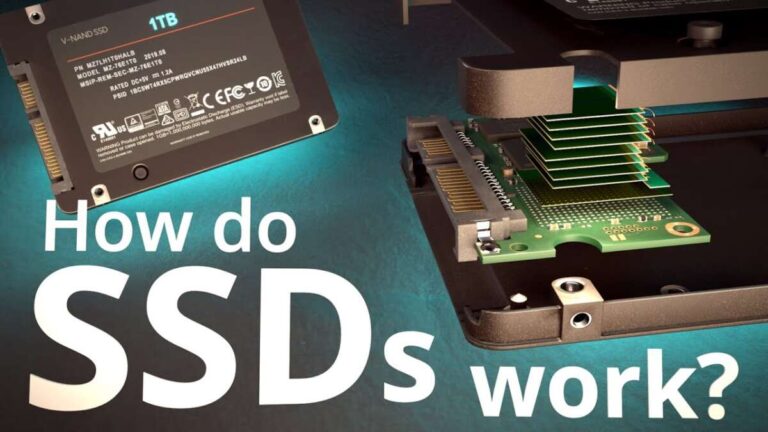
- 2.5-inch SATA SSD: This is the most traditional form factor. It looks like a thin, rectangular plastic case, identical in size to a standard laptop hard drive. This makes it a perfect drop-in replacement for older mechanical hard drives in both desktops and laptops, using the same mounting brackets and cables.
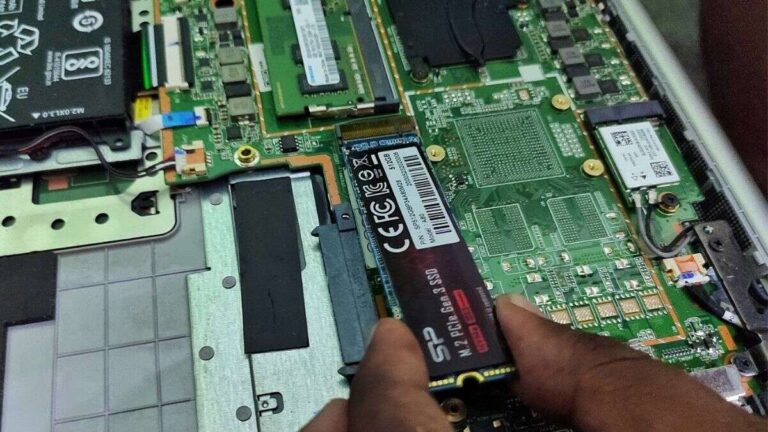
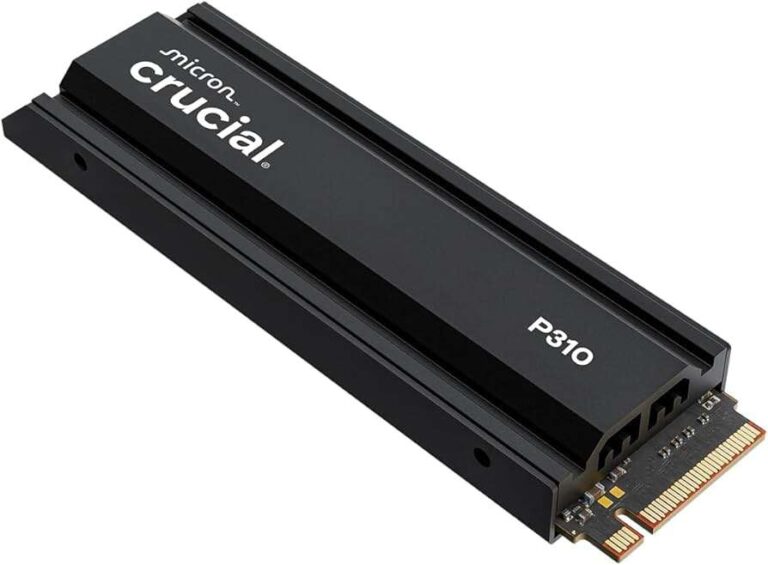
- M.2 SSD: This is the modern standard for speed and convenience. M.2 drives are much smaller, resembling a stick of chewing gum. They plug directly into a dedicated M.2 slot on the motherboard, eliminating the need for any extra power or data cables. This makes for a much cleaner and easier installation, especially in compact systems.
Interfaces: The Connection Type
The interface dictates the speed of your SSD. While the form factor is about the physical fit, the interface is all about performance. It's the technology that transfers data between the drive and the rest of your PC.
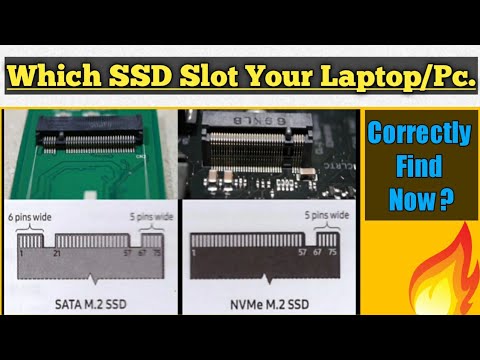
- SATA (Serial ATA): This is the older, more established interface. It's used by all 2.5-inch SSDs and some M.2 SSDs. While it's slower than its modern counterpart, a SATA SSD is still a monumental leap in performance over a traditional hard disk drive (HDD), with speeds typically maxing out around 550 MB/s.
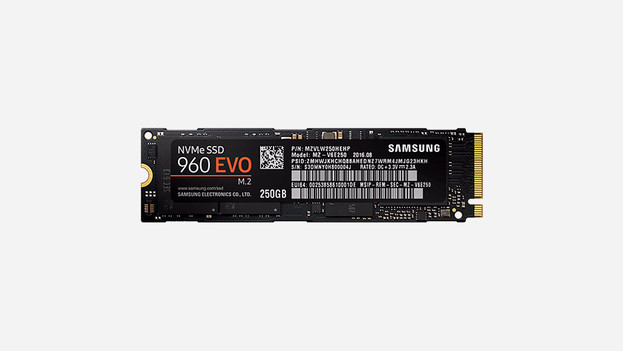
- NVMe (Non-Volatile Memory Express) via PCIe: This is the interface built for speed. It uses the high-bandwidth PCIe lanes on your motherboard, the same ones used by powerful graphics cards. NVMe is exclusively found on M.2 form factor drives and can deliver speeds that are five, ten, or even twenty times faster than SATA. This is the best choice for professionals, gamers, and anyone who demands the absolute fastest performance.
A crucial point to remember is that an M.2 slot is not automatically an NVMe slot. Some motherboards have M.2 slots that only support the slower SATA interface. This is a common point of confusion, which is why checking your specifications is so important.
How to Check Your PC's Compatibility: A Step-by-Step Guide
Now that you understand the terminology, it's time to investigate your own system. Follow these steps to determine exactly what kind of SSD your computer can handle. This methodical approach is the key to figuring out how to know what SSD is compatible with my pc.
Step 1: Identify Your Computer Type (Desktop vs. Laptop)
First, consider what you're working with.
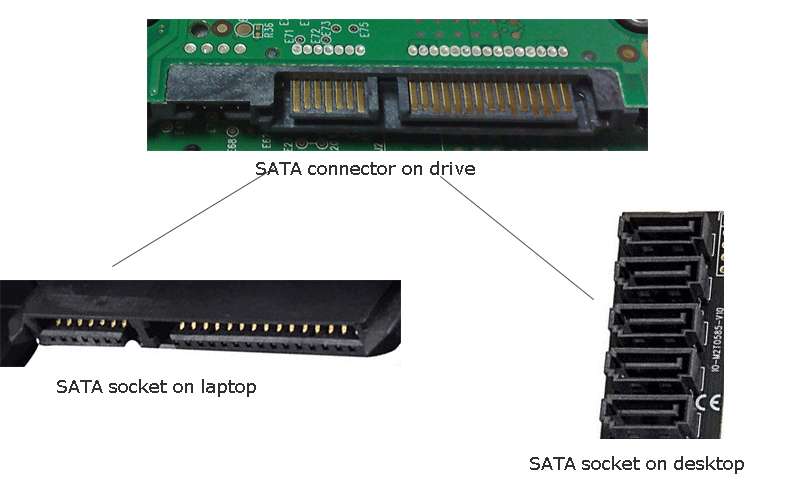
- Desktops are generally more forgiving. They have more physical space, usually containing multiple SATA ports for 2.5-inch drives and often an M.2 slot on modern motherboards. Upgrading is typically straightforward.
- Laptops are more constrained. Space is limited, and they might have only a single 2.5-inch bay or one specific M.2 slot. Knowing the exact model is critical for laptops.
Step 2: Find Your Motherboard or Laptop Model
This is the most important piece of information you need. For Windows users, the easiest way to find this is:
- Press the
Windows Key + Rto open the Run dialog. - Type
msinfo32and press Enter. - In the System Information window, look for "System Model" for a laptop or prebuilt PC, or "BaseBoard Product" for the motherboard model in a custom-built desktop.
Write this model number down. It is your golden ticket to finding the correct specifications.
Step 3: Consult the Manufacturer's Manual or Website
With your model number in hand, head to your favorite search engine. Search for "[Your Model Number] specifications" or "[Your Model Number] manual." This will lead you to the official product page or a downloadable PDF manual.
Once there, look for a "Specifications," "Storage," or "Expansion Slots" section. This will explicitly state:
- The number of SATA ports available.
- The number of M.2 slots.
- Crucially, the type of M.2 slot (e.g., "M.2 2280, PCIe Gen3 x4" means it supports a 2280-sized NVMe drive).
I learned this lesson the hard way. I once got so excited about a great deal on an NVMe SSD that I bought it without checking. It turned out my motherboard's M.2 slot was SATA-only. The drive wouldn't work, and I had to go through the hassle of a return. A five-minute check of the manual would have saved me a week of frustration.
Step 4: Physical Inspection (For the More Adventurous)
If you can't find your manual online or want to be absolutely certain, a physical inspection is the final step.
- For desktops, turn off and unplug the PC. Open the side panel and look at the motherboard. You will see clearly labeled SATA ports and potentially an open M.2 slot, which looks like a small, horizontal connector with a screw hole nearby.
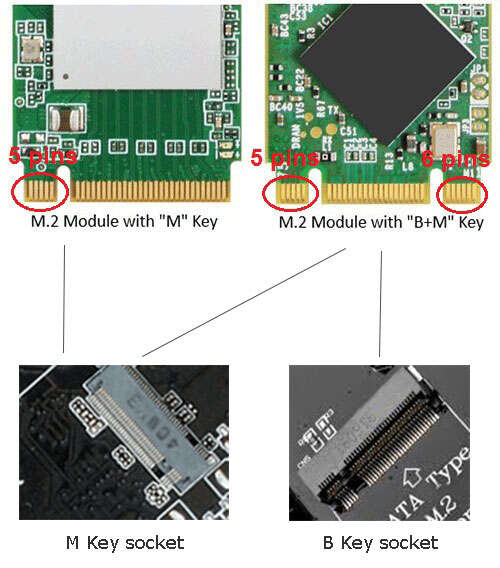
- For laptops, this can be trickier, so only proceed if you are comfortable. After powering down, you would remove the bottom panel. Inside, you can see if there is a 2.5-inch drive caddy or an M.2 slot. M.2 slots on motherboards are "keyed"—they have a notch that prevents you from inserting an incompatible drive. This physical barrier is another way to help confirm compatibility.
Putting It All Together: Choosing the Right SSD
You've done the research and now know exactly what your system supports. This is where you make your decision. The question of how to know what SSD is compatible with my pc is now answered, and you can shop with confidence.
For Desktops
Your options are usually plentiful.
- If you have open SATA ports and a drive bay, a 2.5-inch SATA SSD is a cost-effective and powerful upgrade. It's the perfect choice for a secondary games drive or as a primary boot drive if your motherboard lacks an M.2 slot.
- If you have a free M.2 slot, first confirm if it's NVMe or SATA. If it supports NVMe, a PCIe NVMe M.2 SSD is the ultimate choice for your operating system and most-used applications. The speed difference is immediately noticeable.
For Laptops
Your choices are more specific.
- If you are replacing an old 2.5-inch hard drive, a 2.5-inch SATA SSD of the same thickness (usually 7mm) is the direct, easy replacement.
- If your laptop has an open M.2 slot, this is a fantastic opportunity. Check the required physical length (e.g., 2280, 2260, 2242) and interface (NVMe or SATA) from the manual. Adding an M.2 SSD as a boot drive while keeping your old hard drive for storage is a popular and effective upgrade path.
Frequently Asked Questions
Can I use any M.2 SSD in any M.2 slot?
No, this is a common misconception. You must match the interface supported by the slot—SATA or NVMe. An NVMe SSD will not work in an M.2 slot that is wired only for SATA.
Is an NVMe SSD always better than a SATA SSD?
For raw speed, yes, NVMe is significantly faster. However, for everyday tasks like booting up, loading games, and general web browsing, a quality SATA SSD still provides a massive performance boost over a mechanical hard drive.
How do I know what size M.2 SSD my motherboard supports?
The motherboard or laptop manual is the best source. It will list the supported sizes as four-digit numbers like 2280 (22mm wide by 80mm long), which is the most common standard today.
Do I need any special cables for an M.2 SSD?
No, and that's one of their biggest advantages. M.2 SSDs plug directly into the motherboard and are secured by a single small screw, eliminating cable clutter.
Will a faster SSD make my old computer feel new?
Absolutely. Upgrading the storage from a traditional spinning hard drive to any type of SSD is arguably the single most impactful upgrade you can make to improve the perceived speed and responsiveness of your computer.
Conclusion
Determining SSD compatibility doesn't have to be intimidating. By breaking it down into a simple process—identifying your system, checking the manufacturer's specifications for form factor and interface, and then making an informed choice—you can confidently select the perfect drive. You've now mastered how to know what SSD is compatible with my pc.
Now it's your turn to take action. Use the steps outlined here to investigate your own system and prepare for an upgrade that will truly transform your computing experience. Feel free to share in the comments which SSD you've chosen to breathe new life into your machine

Everett Ashford is a tech reviewer at mytechgrid.com specializing in SSDs, cameras, TVs, earbuds, headphones, and other consumer electronics. He provides honest, data-driven reviews based on hands-on testing and real-world performance analysis. Everett simplifies complex tech details to help readers make smart, confident buying decisions.