Use AirPlay for wireless streaming or a Lightning/USB-C to HDMI adapter for a wired connection.
I’ve helped friends, clients, and my own family get their iPads on the big screen. I know the steps that work and the pitfalls to avoid. This guide walks you through how to connect ipad to tv with easy options, clear steps, and real tips from my hands-on experience. You’ll learn wireless and wired methods, device-specific notes, troubleshooting, and ways to improve picture and sound. Read on and you’ll be ready to mirror, stream, or extend your iPad to any TV.
:max_bytes(150000):strip_icc()/how-to-connect-the-ipad-to-your-tv-wirelessly-or-with-cables-1994480-5bd9717c59494c05b8dd5ff5e905750f.png)
Why mirror or connect your iPad to TV?
Connecting your iPad to a TV makes videos, photos, games, and apps easier to enjoy. You can watch streaming shows on a big screen. You can show slides or photos to a group without crowding around a small device. It also helps when you want better sound or a larger display for video calls and gaming.
If you wonder how to connect ipad to tv for work or fun, this section explains the common needs. I often use my iPad to present slides live over AirPlay. It is fast and simple. Sometimes I use an HDMI cable for steady playback.
Main methods to connect iPad to TV
Here are the reliable methods to learn how to connect ipad to tv. Choose one based on your gear and needs.
- AirPlay (wireless streaming and mirroring)
- Works with Apple TV and many smart TVs that support AirPlay.
- HDMI adapter (wired mirror or extend)
- Use Lightning to Digital AV Adapter or USB-C to HDMI for newer iPads.
- Streaming devices (Chromecast, Roku, Fire TV)
- Use compatible apps or casting features for some apps.
- Smart TV apps and native casting
- Some apps let you cast to the TV directly from the app.
- Older connections (VGA or composite)
- Useful for older TVs and projectors with proper adapters.
Each method changes how you set up and the quality you get. Next, we break down each method with steps and tips on how to connect ipad to tv.
How to use AirPlay to connect iPad to TV
AirPlay is the easiest wireless way to mirror or stream from iPad to TV. It is best for quick sharing and smooth screen mirroring.
Steps to use AirPlay:
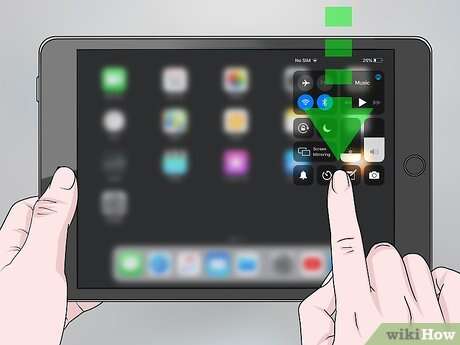
- Make sure your iPad and TV or Apple TV are on the same Wi-Fi network.
- Open Control Center on your iPad.
- Tap Screen Mirroring.
- Select your Apple TV or AirPlay-compatible TV.
- Enter the code on the TV if asked.
Tips and notes:
- Use a 5 GHz Wi-Fi band for less lag.
- If video stutters, move the router closer or reduce network load.
- Some apps block AirPlay for DRM reasons, like certain streaming services.
I once tried mirroring a 4K video over a slow network. The video lagged badly. Switching to a wired HDMI adapter fixed it instantly. That taught me to test both wireless and wired methods for important events.
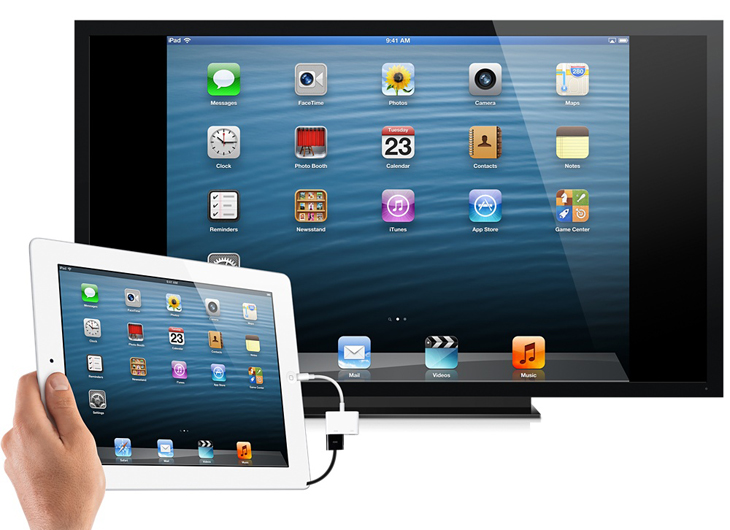
How to connect with a wired HDMI adapter
A wired connection gives steady video and sound. It is best for high-quality playback and low latency.
What you need:
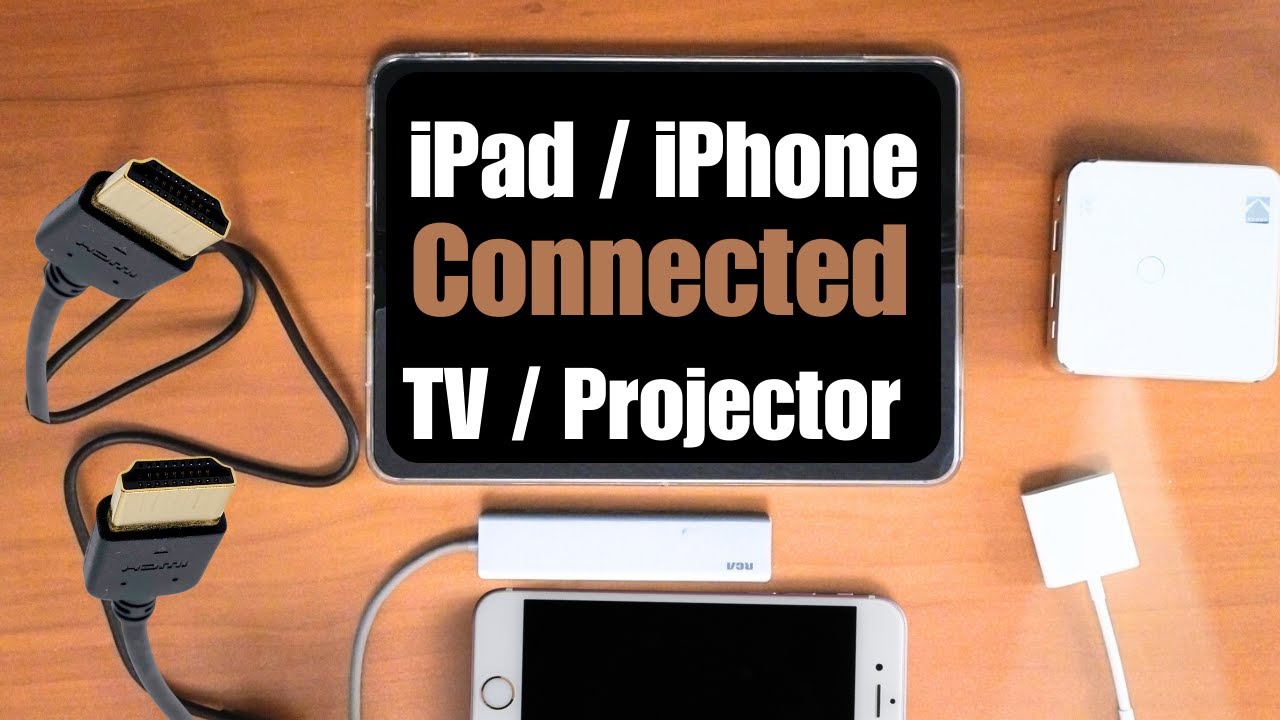
- For iPads with Lightning port: Lightning to Digital AV Adapter.
- For iPads with USB-C: USB-C to HDMI adapter or cable.
- An HDMI cable to connect the adapter to the TV.
Steps to connect:
- Plug the adapter into the iPad.
- Connect the HDMI cable to the adapter and the TV.
- Switch the TV to the correct HDMI input.
- Your iPad screen should mirror instantly.
Practical tips:
- Power the adapter if you plan long sessions; some adapters have a pass-through port.
- For 4K iPads or TVs, check the adapter supports 4K at 60Hz.
- If you see only black screen, try unlocking the iPad or checking cable seating.
I rely on a USB-C to HDMI cable for my presentations. It removes network issues and keeps the display smooth. If you need flawless video or gaming, wired is my go-to.
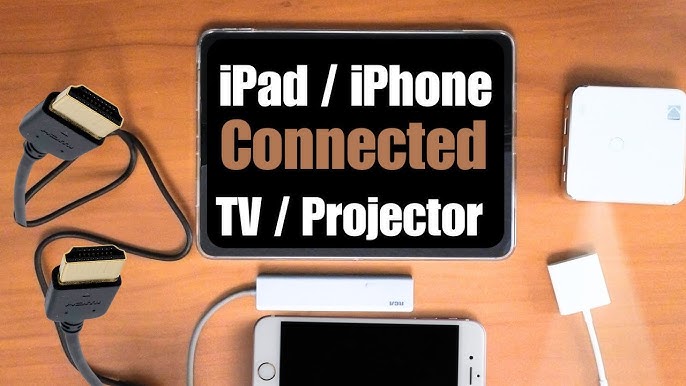
Using streaming devices: Apple TV, Chromecast, Roku, Fire TV
Streaming devices offer flexible options when your TV lacks AirPlay or HDMI ports are inconvenient.
Apple TV:
- Best match for AirPlay.
- Use AirPlay steps to connect iPad to TV wirelessly.
Chromecast:
- Some apps support casting from iPad.
- Use the app’s Cast button to send content to Chromecast.
- Full screen mirroring is limited without third-party apps.
Roku and Fire TV:
- Offer apps that support casting or screen mirroring in select cases.
- Some third-party apps can mirror the iPad screen to these devices.
Practical note:
- Casting works great for supported apps like YouTube or Netflix.
- For full device mirroring to Chromecast or Roku, you may need extra apps or a computer as a bridge.
I use Chromecast for music and short videos. For full-screen demos, Apple TV gives the most consistent mirror experience.
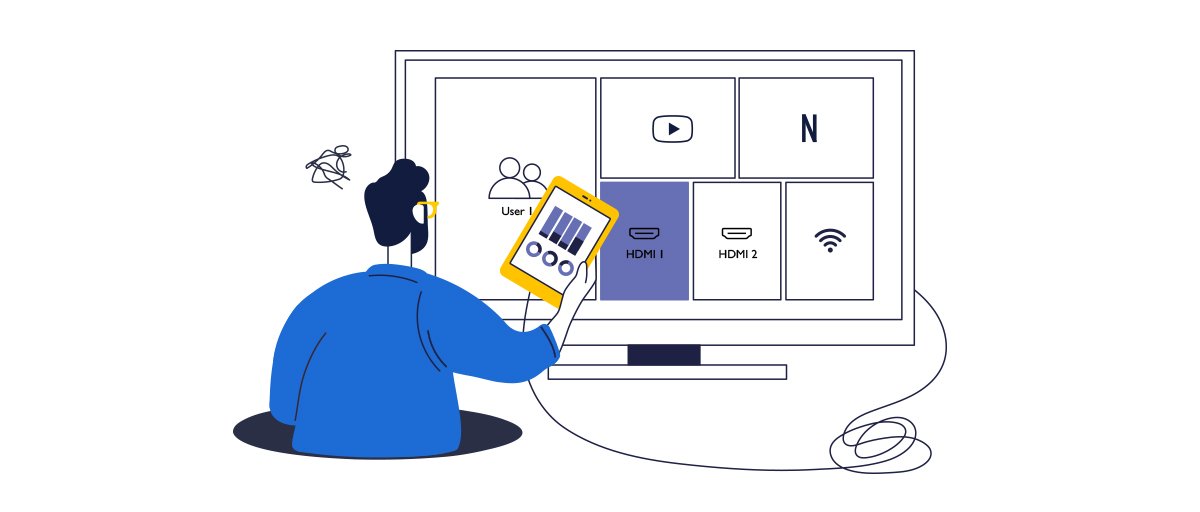
Troubleshooting common issues when you try to connect iPad to TV
Problems happen. Here are quick fixes I use when things go wrong.
Issue: AirPlay device not showing
- Make sure both devices are on the same Wi-Fi.
- Restart Wi-Fi, iPad, and TV or streaming device.
Issue: No sound over HDMI
- Check TV input audio settings.
- Ensure adapter supports audio and cable is not damaged.
Issue: Video lag or stutter
- Use wired HDMI for stable playback.
- Move devices closer to the router or use a wired Ethernet connection for the TV device.
Issue: App won’t allow AirPlay or casting
- Some apps restrict streaming due to licensing.
- Try using the app on Apple TV or log into the TV app directly.
Issue: Resolution or black bars
- Some apps use fixed aspect ratios.
- Check TV zoom and iPad display settings.
When I prepare a demo, I always test early. I check cables and run a short playback before guests arrive. That has saved me from last-minute stress more than once.

Tips for best picture and audio quality
Follow these tips to get the most from how to connect ipad to tv.
- Use a high-quality HDMI cable for wired setups.
- Pick adapters rated for your iPad model and resolution.
- Keep Wi-Fi traffic light for AirPlay streaming.
- Set TV picture mode to a natural or movie setting for accurate color.
- Use TV audio settings or an external soundbar for better sound.
- Close unused apps on the iPad to free system resources.
Small changes make a big difference. For streaming sports or action movies, a wired HDMI connection often gives the smoothest, sharpest image.

Frequently Asked Questions of how to connect ipad to tv
What is the easiest way to connect my iPad to a TV?
AirPlay is the easiest if your TV or Apple TV supports it. It is wireless, quick, and usually requires only a few taps.
Can I use a USB-C iPad with an HDMI TV?
Yes. Use a USB-C to HDMI adapter or cable and plug it into the TV’s HDMI port to mirror the iPad screen.
Do I need Wi-Fi to mirror my iPad to the TV?
For AirPlay you need Wi-Fi to connect both devices to the same network. Wired HDMI does not require Wi-Fi.
Why does my iPad show a black screen on the TV?
A loose cable, a non-powered adapter, or incompatible adapter can cause a black screen. Check connections and power the adapter if needed.
Will connecting iPad to TV drain its battery fast?
Wired connections can use more battery, especially when charging is not available. AirPlay uses Wi-Fi and uses less screen power but still drains the battery over time.
Conclusion
You now know several reliable ways how to connect ipad to tv. Pick AirPlay for quick wireless sharing. Use a Lightning or USB-C to HDMI adapter for power and steady playback. Try a streaming device if your TV lacks native support. Test your setup before an important event and keep spare cables or adapters handy. Ready to put your iPad on the big screen? Try one method now, and leave a comment to share your experience or ask a question.

Jamie Lee is a seasoned tech analyst and writer at MyTechGrid.com, known for making the rapidly evolving world of technology accessible to all. Jamie’s work focuses on emerging technologies, product deep-dives, and industry trends—translating complex concepts into engaging, easy-to-understand content. When not researching the latest breakthroughs, Jamie enjoys exploring new tools, testing gadgets, and helping readers navigate the digital world with confidence.