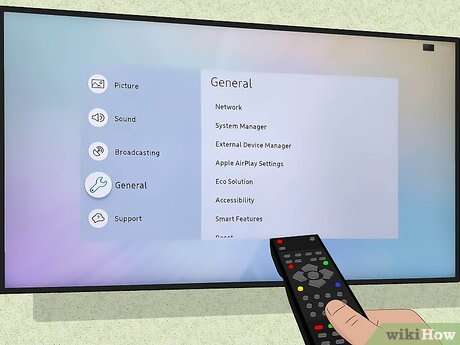
Plug the red, white, and yellow RCA cables from the DVD player into matching TV ports and select the AV input.
I’ve connected dozens of DVD players to TVs using the classic red, white, and yellow cables. In this guide I show clear, tested steps for how to connect dvd player to tv red white yellow, common mistakes to avoid, and simple fixes when the picture or sound won’t show. Read on for a friendly, authoritative walkthrough that gets your DVD up and running fast.

How to connect dvd player to tv red white yellow — quick overview
The red, white, and yellow cables are called RCA or composite cables. The yellow cable carries video. The red and white cables carry right and left audio. To connect, match each cable color to the TV port, then pick the TV’s AV input.
I will walk you through each step. You’ll see photos and tips to avoid common errors. This method works for most older DVD players and many TVs.
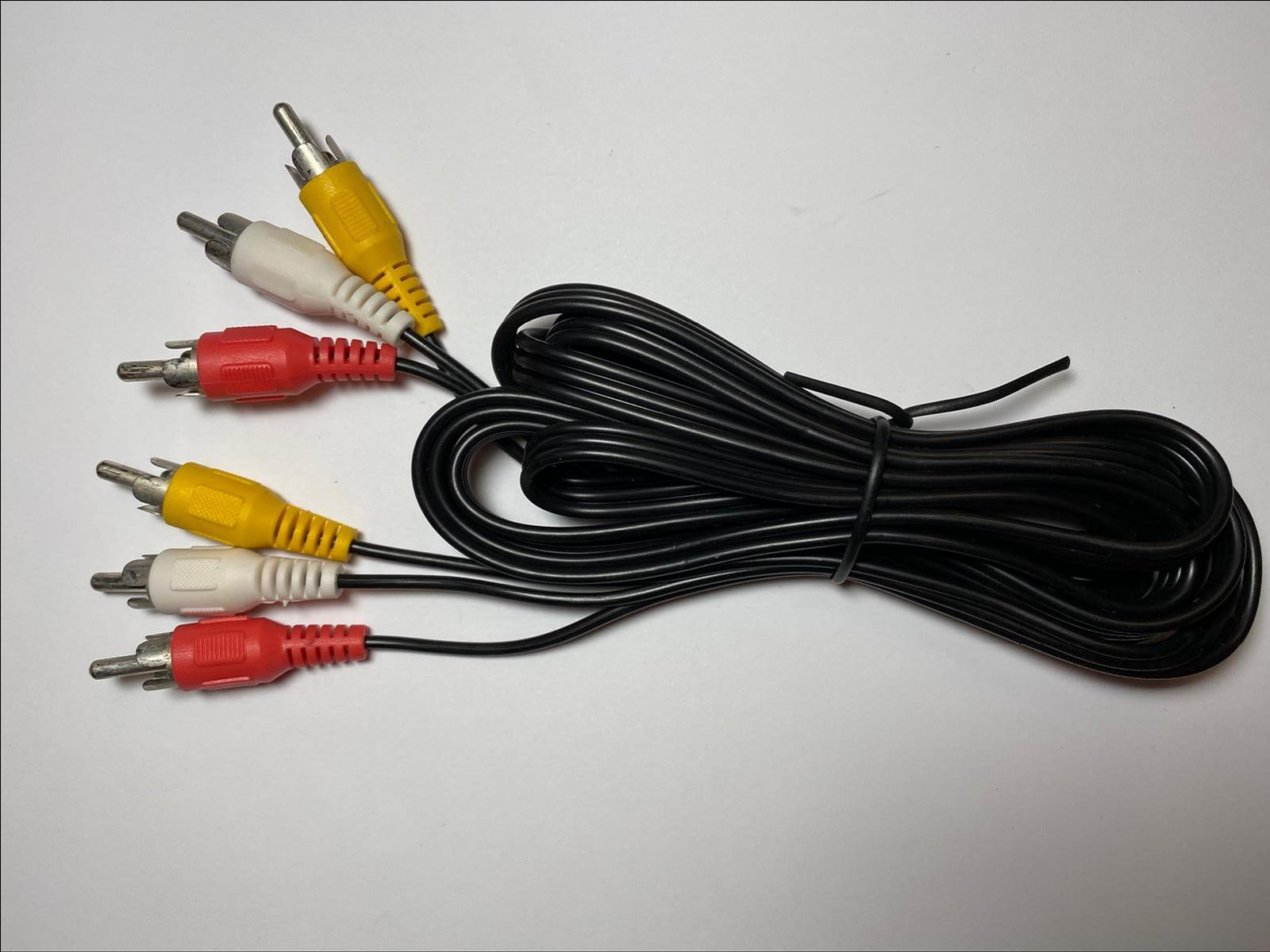
Identify the red, white, and yellow cables and ports
Look at the cable ends. The yellow plug is for video. The red plug is the right audio. The white plug is the left audio. On the TV, find three matching colored ports labeled Video, Audio R, and Audio L.
If ports are labeled AV or Composite, use them. Some TVs use a single AV jack with an adapter. If your TV lacks RCA ports, you will need a converter or different cable.

Step-by-step: How to connect dvd player to tv red white yellow
- Turn off both the TV and the DVD player.
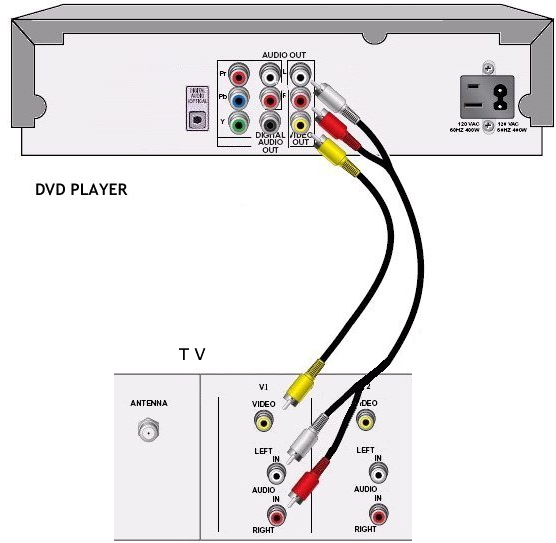
- Plug the yellow cable into the DVD player’s yellow video out port.
- Plug the yellow cable into the TV’s yellow video in port.
- Plug the red cable into the DVD player’s red audio out port.
- Plug the red cable into the TV’s red audio in port.
- Plug the white cable into the DVD player’s white audio out port.
- Plug the white cable into the TV’s white audio in port.
- Turn on the DVD player and the TV.
- Use the TV remote to select the AV, Input, or Source that matches the port you used.
- Play a DVD to test video and audio.
I once swapped audio plugs by accident and heard only mono sound. If you get no sound, check that red and white are in the correct jacks. Keep cable connections snug; loose plugs cause flicker or sound dropouts.

Troubleshooting common issues when connecting red white yellow cables
Image shows but no sound
• Verify red and white are in the TV audio jacks.
• Increase TV volume and confirm mute is off.
No image, black screen
• Ensure the TV input is set to the AV/composite source.
• Check the yellow cable for damage and secure connections.
Poor picture quality
• Composite (yellow) is standard definition. Expect lower sharpness than HDMI.
• Clean the cable ends and try a different cable.
Audio is only on one side
• Swap red and white jacks to test channels.
• Try a different DVD disc to rule out a bad track.
TV has no RCA inputs
• Use an RCA-to-HDMI converter box.
• Match the RCA colors on the converter to your DVD player, then run an HDMI cable to the TV.

Tips, safety, and best practices
Use short cable runs for best signal quality.
Label cables if you unplug often to avoid mix-ups.
Replace old, cracked RCA cables; cheap cables fail fast.
If you want better video, consider component or HDMI alternatives when available.
Unplug power before changing cables to avoid shorts.
From my experience, buying a good RCA cable under $10 avoids most issues. Also keep small photos of the TV ports on your phone so you can match colors quickly when helping friends or family.
Frequently Asked Questions of how to connect dvd player to tv red white yellow
How do I find the AV input on my TV?
Look for labels like AV, Composite, or Video on the TV’s side or back. Use the TV remote’s Input or Source button to cycle to the AV option.
What if my TV only has one combined AV jack?
Some TVs use a single 3.5mm AV port. Use the supplied adapter or a 3.5mm-to-RCA cable to connect the red, white, and yellow plugs.
Will the red white yellow cables carry HD video?
No. The yellow cable is composite video and is standard definition. For HD, use HDMI or component video when your devices support them.
Why is the screen black but the player shows it’s playing?
The TV is likely on the wrong input. Press Source or Input and pick AV or Composite. Also check the yellow cable for a loose connection.
Do I need a special setting on the DVD player for these cables?
Most DVD players auto-detect RCA connections. If audio or video problems persist, check the player’s output settings and ensure composite output is enabled.
Conclusion
Connecting a DVD player with red, white, and yellow cables is simple when you match colors, choose the correct TV input, and secure connections. Follow the step-by-step guide here and use the troubleshooting tips if something goes wrong. Try it now—hook up the cables, switch the TV to AV, and enjoy your movie night. Share your setup or questions in the comments, or subscribe for more easy home AV guides.

Jamie Lee is a seasoned tech analyst and writer at MyTechGrid.com, known for making the rapidly evolving world of technology accessible to all. Jamie’s work focuses on emerging technologies, product deep-dives, and industry trends—translating complex concepts into engaging, easy-to-understand content. When not researching the latest breakthroughs, Jamie enjoys exploring new tools, testing gadgets, and helping readers navigate the digital world with confidence.