Press F1 or V to switch views, or rebind camera in settings.
You want to master how to change camera in no hesi so your runs feel smooth and sharp. I’ve run hundreds of traffic sessions across Assetto Corsa, FiveM, and Roblox-style No Hesi servers. In this guide, I’ll show proven steps, simple fixes, and pro tips. If you want the clearest answer on how to change camera in no hesi, you’re in the right place.

Why camera control matters in No Hesi
A good camera makes speed feel natural and safe. It helps you read gaps, judge braking, and hold lines. The wrong view can cause crashes, motion sickness, or tunnel vision.
If you want to learn how to change camera in no hesi, start with the basics. Different platforms use different keys and settings. I’ll keep every step clear and short so you can try things fast.
I’ve tested these setups on a wheel, a controller, and keyboard. The goal is simple. Get a clean view with less shake, more awareness, and a stable horizon.
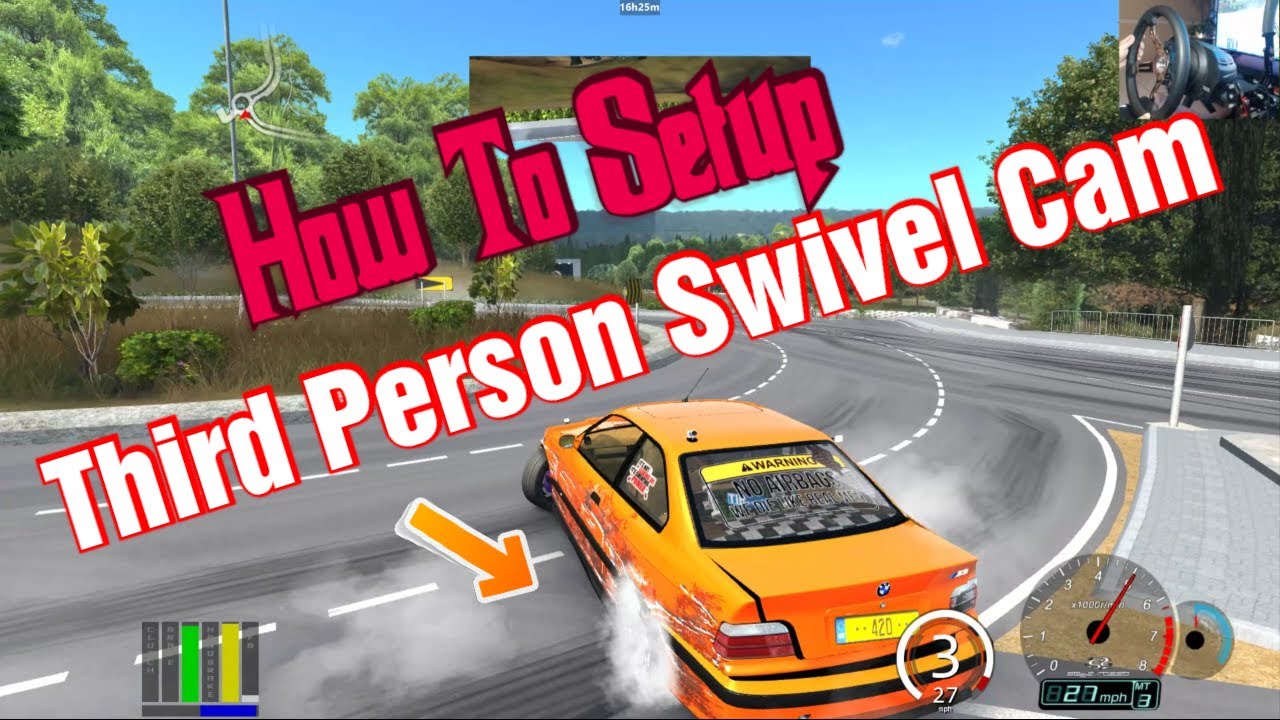
Step-by-step: change camera in Assetto Corsa No Hesi (PC)
Most No Hesi traffic runs happen on Assetto Corsa. Here is how to change camera in no hesi on AC, with default keys and custom binds.
Try the defaults first:
- Press F1 to cycle main driving views like cockpit, hood, bumper, and chase.
- Press F7 for a free camera drone. Use arrow keys or WASD to move. Use Q and E to go down or up.
- If F1 does nothing, your key bind likely changed.
Bind your own camera keys:
- Go to Options, then Controls, then Buttons.
- Find Next camera and Previous camera. Bind keys you like.
- Save the preset. Test in a quick session.
Pick views that match your style:
- Cockpit for immersion and accuracy.
- Hood or dash for speed and fewer obstructions.
- Chase for wide awareness, but it can feel floaty.
If you came here for how to change camera in no hesi and use Assetto Corsa, this covers 95% of cases.
Using Content Manager for camera and FOV
Most No Hesi players use Content Manager. It makes camera, FOV, and head motion easy. If you want a fast route on how to change camera in no hesi, CM is your friend.
Set up your camera binds in CM:
- Open Content Manager.
- Go to Settings, then Controls, then Buttons.
- Bind Next camera and Previous camera. Click Save.
Tune FOV and head motion in CM:
- Go to Settings, then Assetto Corsa, then View and UI.
- Set FOV. Try 38 to 50 on a single 24–27 inch monitor.
- Turn down head bob or lock to horizon for less shake.
Pro tip from my runs:
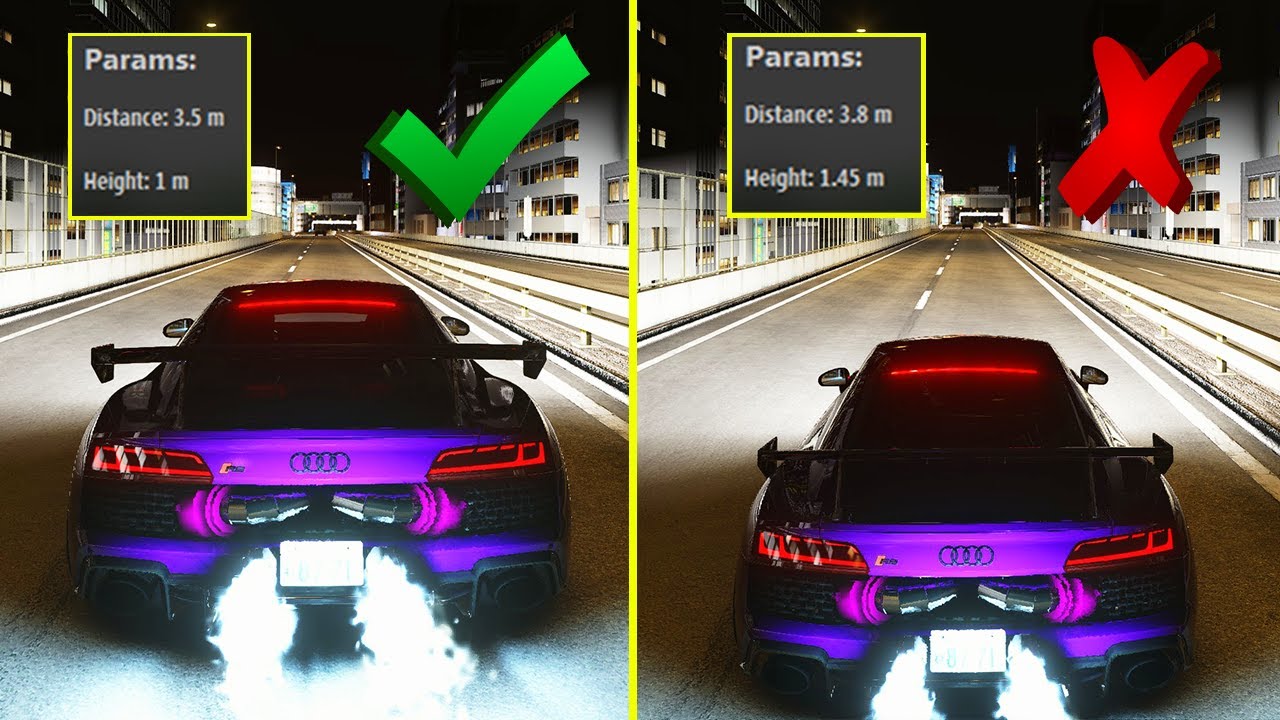
- Hood view with a slightly higher FOV gives clean traffic reads.
- Reduce motion effects for long sessions. It cuts fatigue.
If you need how to change camera in no hesi plus a stable FOV, Content Manager makes it simple.

Change camera on FiveM No Hesi servers
Some No Hesi servers run on FiveM. The camera control is simple. Here’s how to change camera in no hesi on FiveM.
Use the main toggle:
- Press V to cycle first-person, third-person close, and third-person far.
- Press V again to return to your favorite view.
Improve clarity:
- Open Settings, then Camera.
- Reduce motion blur and depth of field.
- Adjust first-person vehicle options if you prefer cockpit views.
Server scripts can limit camera modes. If V does not work, ask in chat or check server rules. This still counts as how to change camera in no hesi, but the server may enforce a view.
Change camera in Roblox No Hesi style games
Roblox has many No Hesi-style driving games. Controls can vary by game. Here’s how to change camera in no hesi on Roblox in a simple way.
Try these basics:
- Use the mouse scroll wheel to zoom in or out.
- Press Shift to toggle Shift Lock if allowed. It helps steady the view.
- Look for a camera icon in the UI. Many games add a button for views.
Check game settings:
- Press Esc, then click Settings.
- Set Camera Mode to Classic for standard third-person.
- Some games lock camera modes. Read the controls on the game page.
When players ask me how to change camera in no hesi on Roblox, I say this: test scroll, check UI, and read the controls. That covers most games fast.
Map camera controls to controller or wheel
If you drive with a controller or a wheel, map camera to a button. It saves time in traffic. It is also a core step in how to change camera in no hesi while driving.
For controllers:
- In Assetto Corsa or Content Manager, go to Controls, then Buttons.
- Bind Next camera to Y or Triangle. Bind Previous camera to a shoulder button.
- Test in a short traffic session.
For wheels:
- Use your wheel software to free a button.
- In-game, bind Next camera to that button.
- Save your profile and back it up.
I keep Next camera on a thumb button. I can swap views while passing without lifting. That is how to change camera in no hesi without losing focus.

Fix common camera issues fast
Sometimes the camera will not switch or feels wrong. Here is a quick fix list. It also answers how to change camera in no hesi when nothing works.
If the key does nothing:
- Rebind the key in Controls.
- Remove any software that grabs F-keys or overlays.
- Restart the game after saving binds.
If the camera is shaky:
- Lower head motion. Use lock to horizon or similar settings.
- Reduce FOV a little. Big FOV can amplify shake.
- Avoid mixed mods that change cameras without your input.
If the server seems locked:
- Some servers fix a camera for fairness or immersion.
- Ask an admin or check rules. Respect the setting.
Do these and you will restore control. This is the practical side of how to change camera in no hesi that most people miss.

Pro tips: best views, FOV, and motion settings
The right view depends on your goals. Here are setups that worked for me in busy traffic runs. These tips also improve how to change camera in no hesi and stick with that view.
For speed and awareness:
- Use hood or dash view with a modest FOV.
- Turn down head motion. Keep the horizon steady.
- Use audio cues for RPM. It helps with early shifts.
For immersion and precision:
- Use cockpit with clean mirrors and a clear wheel view.
- Set FOV using a calculator or a quick test at a standstill.
- Adjust seat height so you see the road edges.
For long sessions:
- Reduce shake and blur.
- Lower brightness at night to avoid eye strain.
- Keep your main camera consistent across cars.
If you want a single rule for how to change camera in no hesi and win, here it is: pick one view, tune it, and stick with it for a week. Consistency builds speed.

Frequently Asked Questions of how to change camera in no hesi
What is the fastest way to change views in Assetto Corsa?
Press F1 to cycle views. If it fails, set custom binds in Options or Content Manager.
Why does my camera not change on a No Hesi server?
Some servers lock the view. Ask an admin or read the server rules to confirm.
How do I change camera on FiveM?
Press V to cycle camera views. If it does not work, a script may enforce a specific view.
Can I map camera to my wheel?
Yes. Bind Next camera to a wheel button in the game controls. Save your profile so it sticks.
What is the best view for tight traffic?
Hood or dash view is the cleanest. It offers good depth and fewer obstructions.
How do I stop getting motion sickness?
Lower head motion and reduce FOV slightly. Keep the horizon stable and avoid heavy post-processing.
Does Roblox support custom camera keys?
It depends on the game. Use the scroll wheel, Shift Lock, or on-screen buttons when available.
Conclusion
You now know how to change camera in no hesi across Assetto Corsa, FiveM, and Roblox-style games. Set your binds, pick a clear view, and trim motion for comfort. Keep it simple and repeatable.
Use these steps today and test for one full session. Then tweak FOV and head motion until it feels natural. If this helped, share your setup, subscribe for more No Hesi guides, or drop a question so I can help you dial it in.
Related Posts


Jamie Lee is a seasoned tech analyst and writer at MyTechGrid.com, known for making the rapidly evolving world of technology accessible to all. Jamie’s work focuses on emerging technologies, product deep-dives, and industry trends—translating complex concepts into engaging, easy-to-understand content. When not researching the latest breakthroughs, Jamie enjoys exploring new tools, testing gadgets, and helping readers navigate the digital world with confidence.