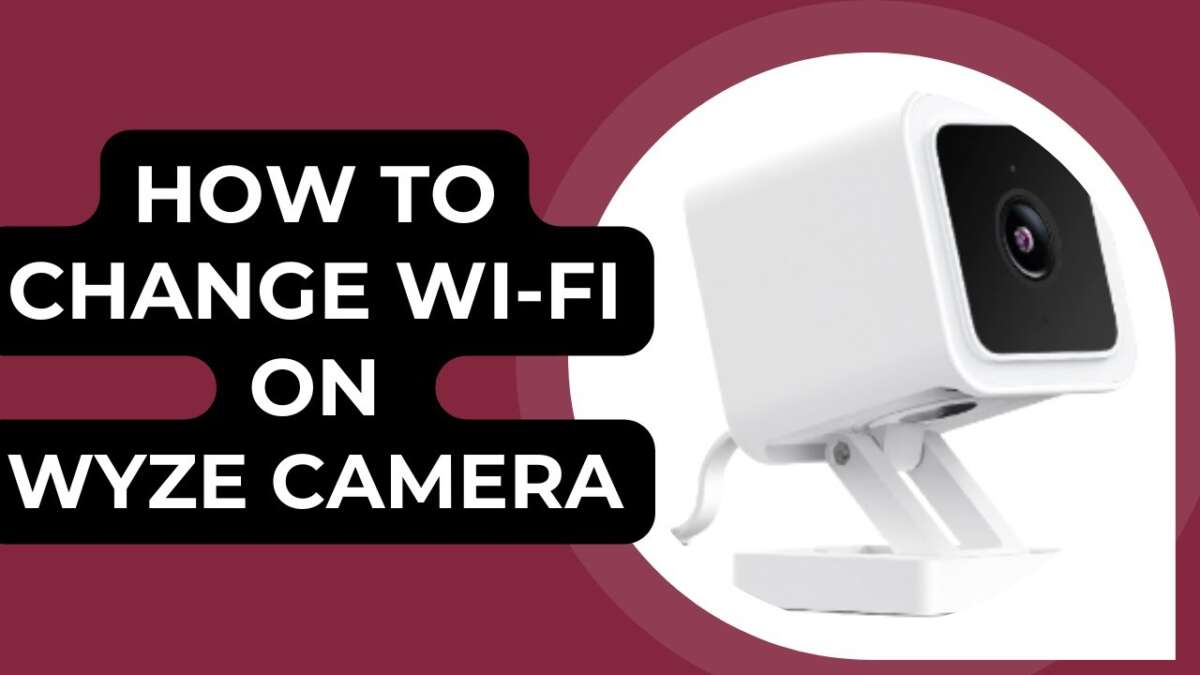
Open the Wyze app, start setup, scan the QR code, and join the new Wi‑Fi.
If you want a clean, frustration-free walkthrough on how to change network on Wyze camera, you’re in the right place. I’ve set up, moved, and reconfigured dozens of Wyze devices. In this guide, I’ll show you the exact steps, the gotchas with 2.4 GHz networks, what changes by model, and the fixes I use when things won’t connect. Stick with me and you’ll switch Wi‑Fi like a pro.

Before you switch: what matters for a smooth change
Most Wyze cameras use 2.4 GHz Wi‑Fi. A few newer models support 5 GHz, but many still do not. Check your model specs first. If your router uses a combined SSID for 2.4 and 5 GHz, make sure the 2.4 GHz band is enabled and accessible.
Use WPA2 or WPA/WPA2 security. Avoid WPA3-only or enterprise logins. Guest networks with client isolation often block cameras. Keep the SSID visible, keep the password simple to type, and avoid special characters that your keyboard may auto-change.
Have your phone near the camera and router during setup. Your phone should be on the same network you want the camera on. Update the Wyze app and make sure the camera has steady power.

What you need ready
- Wi‑Fi name (SSID) and password Make sure you know which band the SSID maps to.
- Your Wyze app signed in Use the owner account if you want to keep sharing and automations intact.
- Phone or tablet with Bluetooth and sound on You need to hear the camera voice prompts.
- A few minutes per camera Plan 2–5 minutes each. More if you troubleshoot.
- Optional: a paperclip for reset Some models use a pinhole reset.
I’ve learned that setting up next to the router cuts failures by half. Once connected, move the camera back to its final spot.

Step-by-step: how to change network on Wyze camera in the app
Many models let you start Change Wi‑Fi right from Device Info. If you see that option, use it. It keeps your events, rules, and shares intact.
- Open the Wyze app, tap your camera, then tap the gear icon.
- Tap Device Info, then Change Wi‑Fi or Wi‑Fi Network.
- Confirm the 2.4 GHz network you want. Enter the new password.
- Press the camera’s Setup button when prompted. Wait for “Ready to connect.”
- Scan the QR code shown in the app. Hold it 2–6 inches from the lens.
- Wait for “Wi‑Fi connected” and “Setup completed.” Test live view.
If the Change Wi‑Fi shortcut is missing, the next section shows another way. This is still the best path when it’s available. It’s the fastest way for how to change network on Wyze camera with minimal fuss.

Method 2: re-run setup without deleting the camera
You can reconfigure Wi‑Fi by running setup again. Do not delete the device. That way, your cloud events and settings stay linked.
- In the Wyze app, tap the plus icon, then Add Device.
- Choose Cameras, then select your camera model.
- When the app asks, hold the Setup button on the camera until you hear “Ready to connect.”
- Pick your new SSID and enter the password.
- Show the QR code to the camera. Move closer or farther until you hear a chime.
- Wait for the voice prompts. Tap Finish. Confirm live view and notifications.
This method works across models and is my default approach when people ask how to change network on Wyze camera and don’t see a dedicated button.

Model-specific notes and quirks
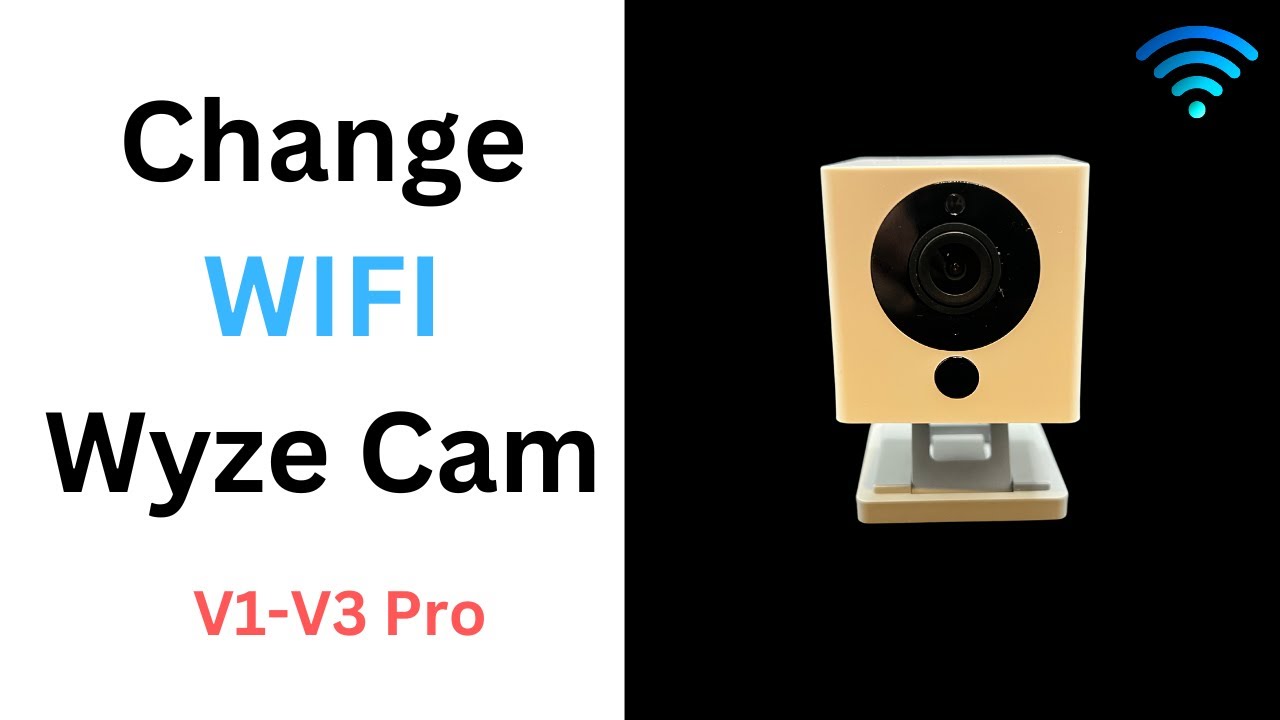
Wyze Cam v2, v3, and Floodlight Most use 2.4 GHz only. If your router is 5 GHz only, enable 2.4 GHz or make a separate IoT SSID.
Wyze Cam v3 Pro and newer Some firmware builds support a Change Wi‑Fi shortcut. They still connect best on 2.4 GHz.
Battery Cam Pro Dual-band support may be available, but 2.4 GHz still offers better range outdoors.
Wyze Video Doorbells You may need to remove the doorbell to reach the setup button. Have someone hold it while you scan the QR code.
Wyze Cam Outdoor with Base Station The base station uses Ethernet. Move or rehome the base station to the new router. Then re-pair the Outdoor cams if needed.
When in doubt, assume 2.4 GHz and a re-setup flow. That keeps how to change network on Wyze camera simple and consistent.
Troubleshooting: fixes that actually work
If the QR code won’t scan
- Turn your phone brightness to max. Clean the lens. Hold the code 2–6 inches away.
- Tilt the phone slightly. Move to softer lighting. Avoid glare.
If it fails at 1–3% or 90%
- Check the password. Try again slowly. I see typos cause most failures.
- Ensure the network is 2.4 GHz and visible. Split SSIDs if needed.
- Turn off MAC filtering or client isolation. Enable DHCP.
If the network won’t show up
- Disable hidden SSIDs during setup. Use channel 1, 6, or 11 at 20 MHz width.
- Avoid DFS channels on routers that support 5 GHz DFS.
- Reboot router and camera. Then start setup within 3 minutes.
If your phone is on 5 GHz only
- Temporarily connect your phone to the 2.4 GHz SSID with the same name you want for the camera.
- On mesh systems, pause band steering or create a 2.4 GHz IoT SSID.
If nothing works
- Power cycle the camera. Try another outlet.
- Try a different phone. Some phones randomize MACs and cause odd captive checks.
- As a last resort, do a factory reset. Hold the setup/reset button 10–20 seconds until the status light changes, then re-run setup. Check your model’s exact reset steps.
I use these steps every time someone asks how to change network on Wyze camera and the app keeps failing. Small tweaks fix most issues fast.

Moving to a new router or ISP: do it the smart way
If you’re replacing your router, the easiest path is to reuse your old SSID and password. Your Wyze cameras reconnect on their own. Make sure the new router keeps 2.4 GHz enabled and uses WPA2 or WPA/WPA2.
If you’re moving to mesh Wi‑Fi, create a dedicated IoT SSID for 2.4 GHz devices. Turn off client isolation on that SSID. If you need to re-run setup, stage cameras near the router first, then move them back.
When planning how to change network on Wyze camera for a whole house, do it one room at a time. Label cameras in the app by room. It’s faster and less confusing if something fails mid-way.

Security and privacy best practices after the switch
- Update firmware right after you connect. It improves stability and security.
- Turn on two-factor authentication for your Wyze account.
- Use a strong Wi‑Fi password and WPA2 or WPA3/WPA2 mixed mode.
- Keep SSID visible during setup. Hide it later if you prefer.
Finish these steps, and how to change network on Wyze camera becomes a one-and-done task. You’ll spend less time fixing, more time monitoring.

Common mistakes to avoid
- Deleting the camera in the app You usually don’t need to. Re-run setup instead.
- Using a guest network with isolation The app connects, but the camera cannot talk to your phone.
- Trying 5 GHz on 2.4 GHz-only models It won’t work, even if your phone connects.
- Hiding the SSID too early Make it visible for setup. Hide later if needed.
- Standing too far during QR scan Stay within a few inches and avoid glare.
Avoid these, and how to change network on Wyze camera is quick and drama-free.
Frequently Asked Questions of how to change network on wyze camera
Do I need to delete my camera to change Wi‑Fi?
No. Open the app and run setup again without deleting the device. Your events, rules, and shares will stay linked.
Can I do it without pressing the setup button?
Usually no. Most models require the Setup button to enter pairing mode. Some show a Change Wi‑Fi shortcut that still prompts for Setup.
Will I lose my recordings or settings?
Cloud events remain tied to your device if you don’t delete it. SD card footage stays on the card and is not erased by Wi‑Fi changes.
Why won’t my camera connect to 5 GHz?
Many Wyze models are 2.4 GHz only. Enable 2.4 GHz on your router or create a separate 2.4 GHz SSID for the camera.
What if I forgot my Wi‑Fi password?
Change or view it in your router admin app, then enter it during setup. If needed, temporarily rename the SSID to something short to reduce typos.
Conclusion
Changing your Wyze camera’s Wi‑Fi is simple when you follow the right steps. Use the in-app Change Wi‑Fi option if you see it, or re-run setup without deleting the device. Keep 2.4 GHz enabled, double-check the password, and scan the QR code up close.
Take five minutes today to switch one camera and note what worked. Then repeat across your home with confidence. If this helped, share it with a friend, subscribe for more smart home tips, or leave a comment with your own setup wins and lessons learned.

Jamie Lee is a seasoned tech analyst and writer at MyTechGrid.com, known for making the rapidly evolving world of technology accessible to all. Jamie’s work focuses on emerging technologies, product deep-dives, and industry trends—translating complex concepts into engaging, easy-to-understand content. When not researching the latest breakthroughs, Jamie enjoys exploring new tools, testing gadgets, and helping readers navigate the digital world with confidence.