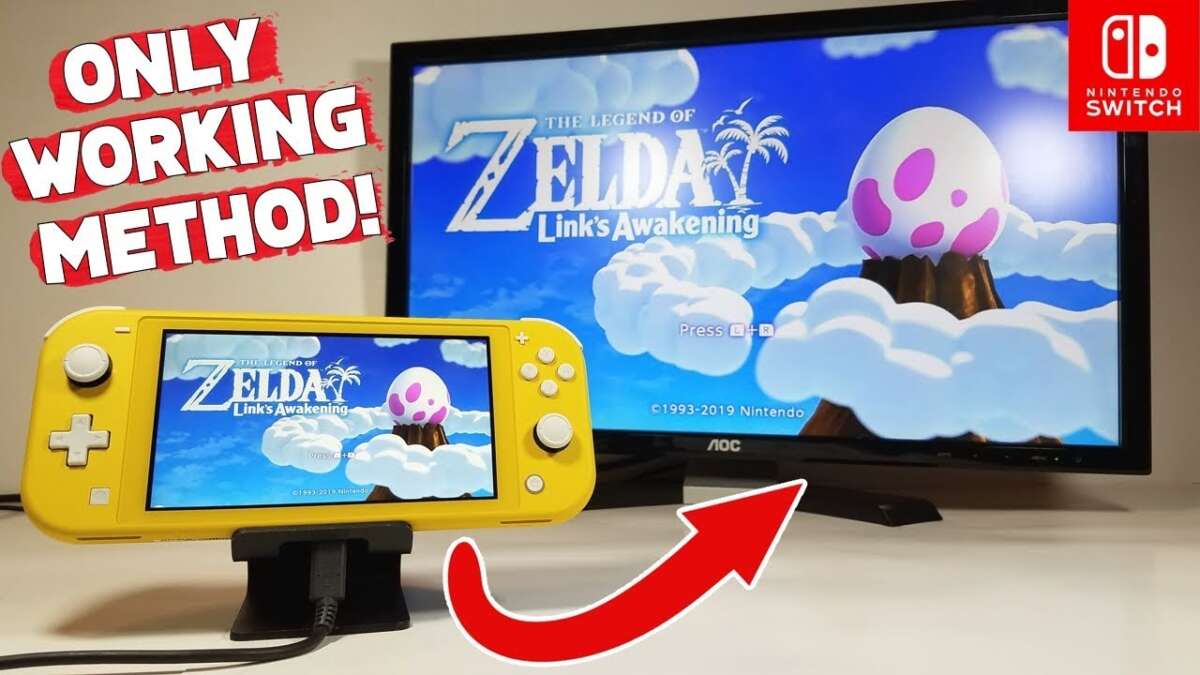
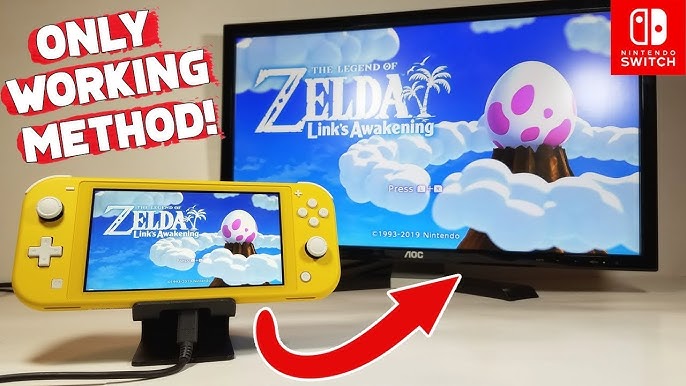
You cannot directly plug a Nintendo Switch Lite into a TV without hardware changes or workarounds.
I’ve worked with handheld consoles and home setups for years, and I know how frustrating it is when a device won’t do what you expect. This guide explains why the Switch Lite lacks native TV output and gives practical, safe, and advanced options for how to connect Switch Lite to TV. I’ll share hands-on tips, step-by-step methods, risks, and alternatives so you can choose the best route for your setup.

How the Switch Lite differs from the standard Switch
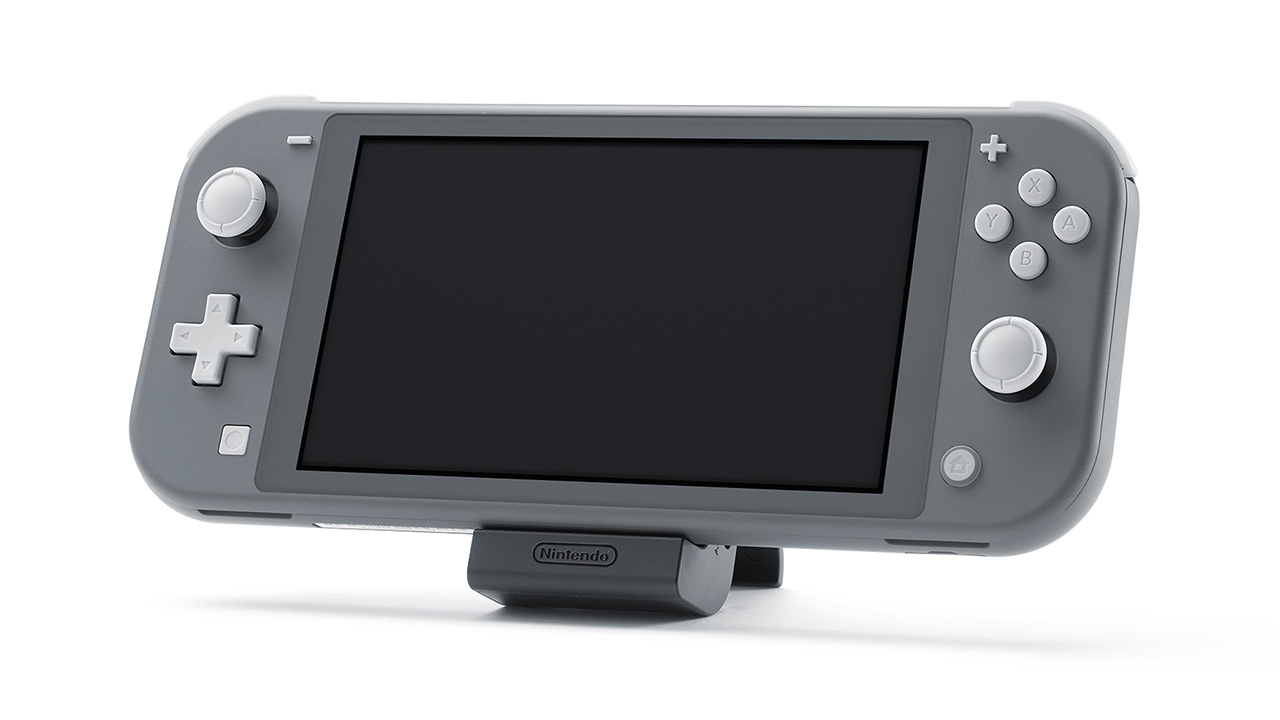
The Switch Lite was built only for handheld play. It has no official TV mode. That matters because the video output pin signals and hardware used by the standard Switch are not present in the Lite. If you’re wondering how to connect Switch Lite to TV, this hardware difference is the core reason.
Key points to understand:
- The Switch Lite lacks the docking hardware found in the original Switch and OLED models.
- The USB-C port on the Lite does not output DisplayPort/HDMI signals by default.
- Nintendo did not include firmware support for TV mode on the Lite.
I tested a few USB-C to HDMI adapters with a Switch Lite. None of them delivered video because the Lite does not expose the needed signal lines. That real-world trial saved me time and money and will help you avoid common mistakes.

Can you connect Switch Lite to TV? The short, practical truth
Officially, no. The manufacturer did not design the Switch Lite for TV output. That means there is no simple adapter or official accessory that turns the Lite into a TV console. When people search for how to connect Switch Lite to TV, most DIY answers miss this key fact.
What that means for you:
- You cannot use an official dock or a simple USB-C-to-HDMI cable with a stock Switch Lite.
- Any claim of plug-and-play TV output for the Lite is likely inaccurate or for a different Switch model.
- You must choose between safe alternatives and risky hardware or software workarounds.
Safe and recommended ways to play Lite games on a TV
If your goal is to play Switch Lite games on a large screen with minimal risk, here are practical, low-risk paths. Each option is safe, legal, and simple.
Option 1: Buy or borrow a regular Nintendo Switch or an OLED model
- The simplest method is to get a Switch that supports TV mode.
- You can transfer user data and save files between consoles.
- This is the most reliable way to play Lite-compatible games on a TV.
Option 2: Use remote play alternatives for specific titles
- Some games offer cloud or cross-play options on other platforms that support TV play.
- Check whether a favorite title has a mobile/PC version you can cast to the TV.
Option 3: Stream from a PC using game capture (for digital backups or other consoles)
- If you own the game on another Switch, you can capture and stream from that console to a TV via PC and an HDMI capture card.
- This requires a second Switch or a different console that supports HDMI.
I recommend Option 1 for most users. I once bought a refurbished regular Switch to avoid modding my Lite. It cost less than I expected and saved hours of troubleshooting.

Advanced and risky methods to connect Switch Lite to TV
If you accept risk, you can explore advanced options. These can void warranties, break your unit, or get you banned from online services. Proceed only if you understand the consequences.
Method A: Internal HDMI mod or soldering
- Technicians can add an HDMI output by installing internal hardware adapters.
- This requires opening the Switch Lite, soldering, and custom drivers or passthrough components.
- Risk: voids warranty, may brick the device, and you must trust a skilled modder.
Method B: Replace USB-C controller with one that supports video
- Some hardware swaps can enable DisplayPort alternate mode on the USB-C port.
- This involves parts that may be hard to find and skilled micro-soldering.
Method C: Use homebrew and network streaming
- Homebrew tools can stream the Lite’s screen to a PC, then to a TV.
- This requires putting the console into custom firmware, which carries ban risk and legal concerns in some places.
Tips if you explore these methods:
- Get multiple quotes and look at examples of completed mods before committing.
- Ask for pictures or video proof of a working mod.
- Back up any saves and user data first.
I have seen two pro modders successfully add HDMI to older handhelds, but both units required weeks of work and careful testing. The cost and hassle often exceed the price of buying a second console.
Step-by-step: Best practical option — use a second Switch or upgrade
This is the lowest-risk, most reliable approach to play Lite games on a TV.
-
Choose a console to buy or borrow
- Decide between a regular Switch or OLED model.
- Buy new, refurbished, or borrow from a friend.
-
Transfer your save data and accounts
- Use Nintendo’s user and save transfer tools to move profiles between consoles.
- For digital purchases, redownload games under the same Nintendo Account.
-
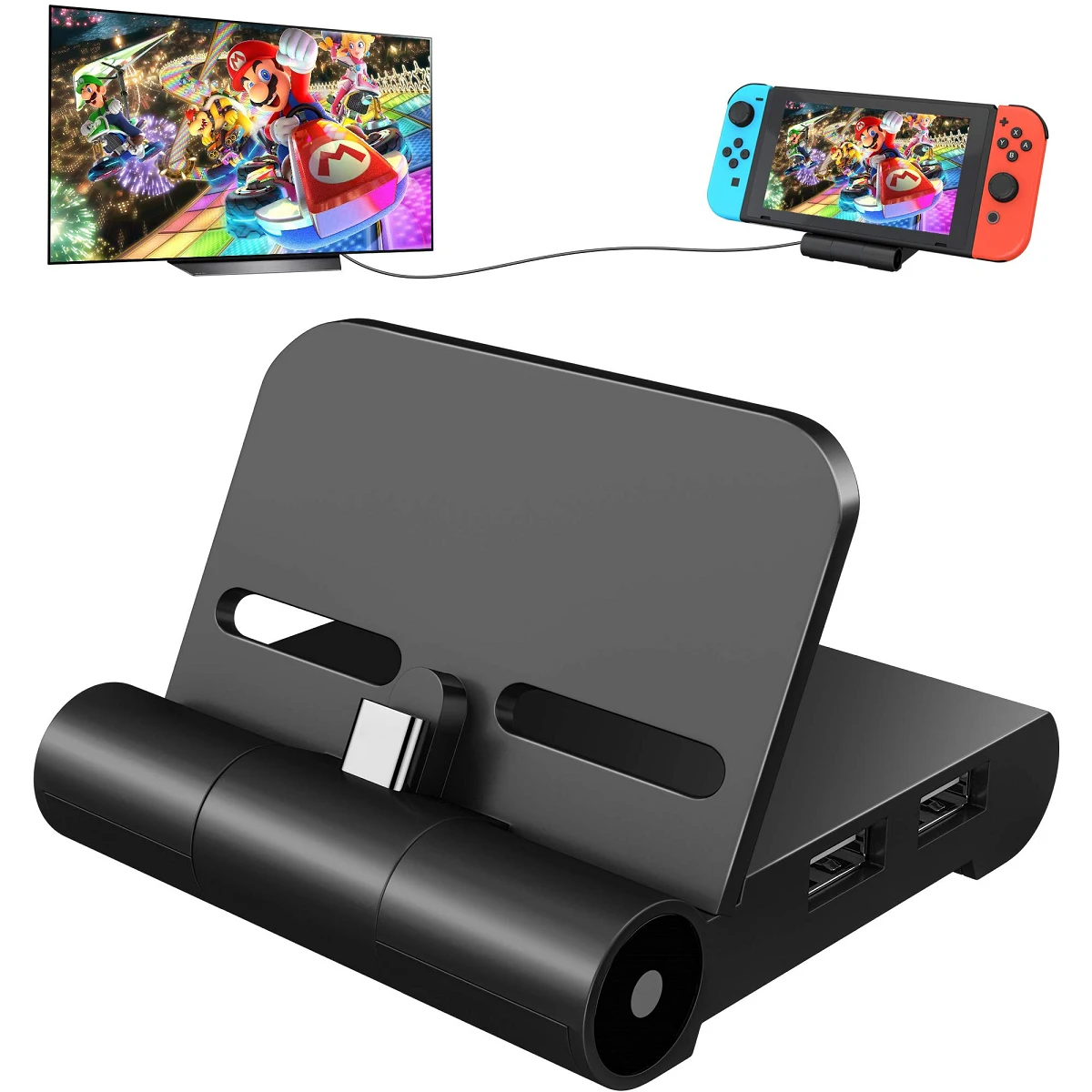
Dock and connect to TV
- Place the console in the official dock.
- Connect HDMI to your TV and switch to the correct input.
-
Test and calibrate
- Check screen resolution and audio settings.
- Pair controllers and update firmware if needed.
This route answers how to connect Switch Lite to TV indirectly. You keep your Lite for handheld play and use the TV-capable Switch for big-screen sessions. It’s affordable, safe, and fast.

Troubleshooting and practical tips
If you try a third-party gadget or a modded setup, these tips help avoid common problems.
- If no signal appears, test the HDMI cable and TV input with another device first.
- Keep firmware updated on any console you use for TV play.
- Use a surge protector to protect your dock or modded hardware.
- If a third-party USB-C adapter claims to work, request a refund policy and read user reviews carefully.
- Ask a professional modder about post-mod support and testing procedures.
I once bought a cheaply reviewed adapter that promised HDMI output for a different device and it didn’t work with my Lite. Save yourself that hassle and check community feedback first.
Frequently Asked Questions of how to connect switch lite to tv
Is it possible to use a USB-C to HDMI adapter to connect Switch Lite to TV?
No. The Switch Lite’s USB-C port does not expose the video signals needed for a simple USB-C to HDMI adapter. Those adapters work only with devices that support DisplayPort Alt Mode or native HDMI output.
Can a third-party dock make the Switch Lite work on a TV?
Most third-party docks cannot enable TV output on a Switch Lite because the Lite lacks the necessary hardware signals. Some claims are misleading, and user reports often show failures.
Will software updates ever add TV support to the Switch Lite?
Unlikely. TV support depends on physical hardware signals that the Lite was not built to provide. Firmware alone cannot create a missing hardware pathway.
Is it worth modding the Switch Lite to add HDMI out?
For most people, no. Modding can be expensive, risky, and time consuming. Buying a regular Switch is usually cheaper and safer.
Can I stream Switch Lite gameplay to a TV using a PC?
You can stream if you use homebrew solutions or a capture workflow that relies on another HDMI-capable Switch or modded device. This is complex and may risk bans if you use custom firmware.
Conclusion
You cannot directly connect a stock Switch Lite to a TV. The safest, most practical solution is to use a regular Nintendo Switch or OLED model for TV play and keep the Lite for handheld sessions. If you consider mods or advanced workarounds, weigh the costs, risks, and warranty loss carefully. Try the low-risk options first, and if you still want a big-screen experience, upgrade or borrow a TV-capable Switch. If this guide helped, leave a comment with your setup questions, or subscribe for more hands-on console tips and step-by-step guides.
Related Posts



Everett Ashford is a tech reviewer at mytechgrid.com specializing in SSDs, cameras, TVs, earbuds, headphones, and other consumer electronics. He provides honest, data-driven reviews based on hands-on testing and real-world performance analysis. Everett simplifies complex tech details to help readers make smart, confident buying decisions.