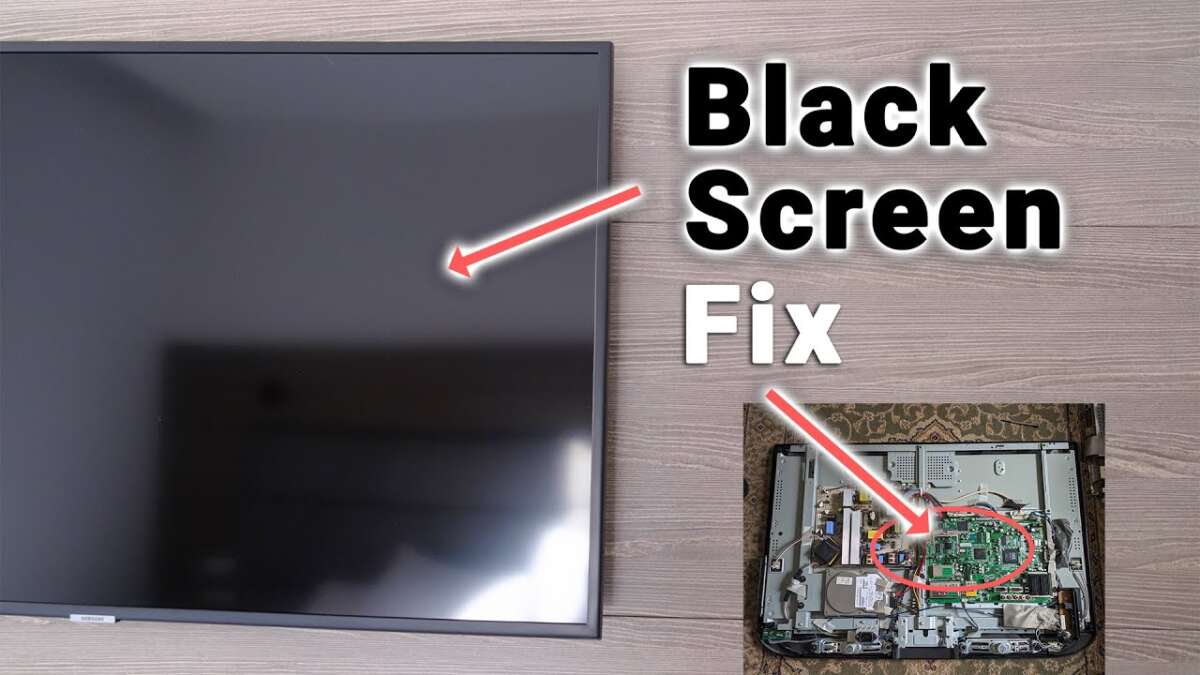
Restarting the TV, checking power and cables, and testing inputs fixes most black screen TV problems.
I’ve spent years troubleshooting TVs for friends and clients, and I know how frustrating a black screen can feel. This guide walks you through how to fix black screen TV problems step by step. I explain common causes, safe checks you can do at home, device-specific tips, and when to call a pro. Read on and you’ll gain practical skills to diagnose and often fix the issue yourself.
Common causes of a black screen
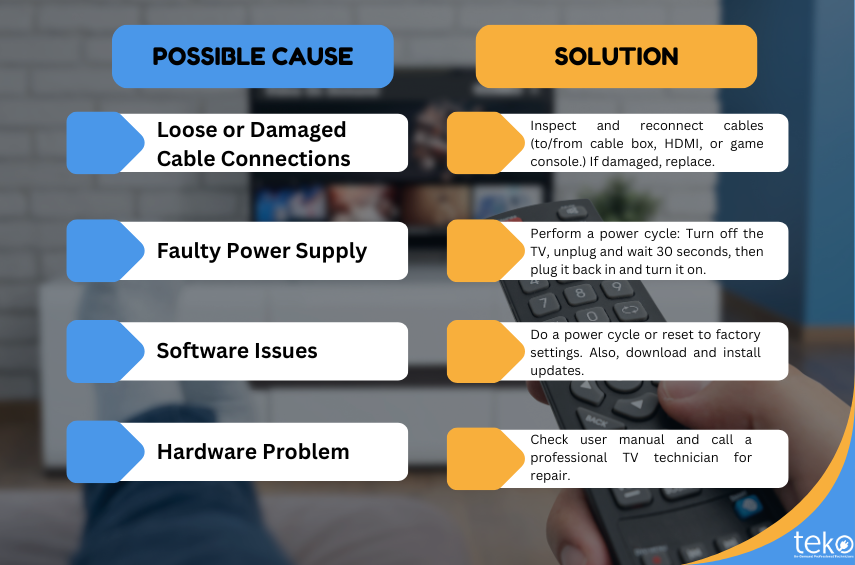
A black screen can come from a few main sources. It may be a simple power or connection issue, a bad input source, a firmware bug, or a hardware failure in the panel or power board. Knowing the likely causes helps you focus your tests and save time.
Typical causes include:
- Power issues — Loose power cords, tripped outlets, or failed power supplies.
- Input problems — Wrong input selected, bad HDMI cable, or a sleeping external device.
- Internal electronics — Backlight failure, T-CON board faults, or main board issues.
- Software errors — Corrupt firmware, failed updates, or bad settings.
From my experience, almost half of black screen calls were fixed by a power cycle or reseating cables. That shows why simple checks matter first.

Step-by-step troubleshooting: how to fix black screen TV
Follow these ordered checks. Do one step at a time and test the TV after each step to see if the black screen clears. This is the most effective way to learn how to fix black screen TV issues without causing more problems.
- Power cycle the TV
- Unplug the TV from the wall for 60 seconds. Press and hold the TV power button for 10–15 seconds. Plug back in and power on.
- Check the power source
- Try a different outlet. Test the outlet with another device or use a surge protector. Look for LED indicators on the TV power button or standby LED.
- Inspect cables and inputs
- Reseat all HDMI, component, and power cables. Swap HDMI ports and try a different cable. Use a working device like a laptop to test the input.
- Test with the TV menus
- Press the TV’s menu or settings button. If menus show, the panel is working and the issue is with the source device. If menus are black, it’s likely an internal TV problem.
- Soft reset and firmware
- Use the TV remote to perform a soft reset in the settings menu if menus are accessible. If the TV supports USB firmware updates, follow manufacturer instructions for a safe update.
- Backlight test
- In a dark room, shine a flashlight close to the screen while the TV is on and the sound is playing. If you see faint images, the backlight has failed and needs repair.
- Try a factory reset
- Only after backing up settings and trying other steps, perform a factory reset from the menu or using the remote key combo. This can fix deep software issues that cause a black screen.
These steps cover how to fix black screen TV situations in most homes. Keep notes of what you tried. That helps if you later need professional repair.
Check inputs, cables, and external devices
Many black screens come from external gear or cables. Focus here before opening up the TV or calling support.
Quick checks:
- Swap HDMI cables and ports. HDMI cables and ports fail often.
- Power the source device separately. Turn on a game console, cable box, or streaming stick before the TV.
- Disable HDMI-CEC on devices if the TV won’t wake or switches inputs unexpectedly.
- Test alternative sources like a DVD player or phone. If one source works, the problem is with the other device.
I once fixed a black screen by replacing a bent HDMI cable from a soundbar. Simple checks like this save time and money.

TV model-specific issues: LED, LCD, OLED, and smart TVs
Different TV types show different failure patterns. Understanding the difference helps you target the fix.
LED/LCD TVs
- Backlight or inverter failures present as a black or very dim screen with sound. Flashlight test helps identify this.
OLED TVs - Panel or driver failures can cause partial blackouts or vertical bands. OLED panels are costly to replace but rarely fail in young units.
Plasma and older TVs - Capacitor or power supply issues can cause black screens. These sets are often out of warranty, so weigh repair cost versus replacement.
Smart TV software - Streaming apps and OS issues can freeze the picture. Updates or factory resets often restore functionality.
When you troubleshoot, note the TV model and age. That guides parts availability and repair decisions.
When to repair, replace, or call a pro
Deciding whether to repair or replace depends on cost, age, and safety. Use this guide to decide how to fix black screen TV problems wisely.
Consider professional repair if:
- The TV is under warranty or has a known service program.
- The backlight or main board failed and the replacement cost is less than replacement TV value.
- You see smoke, burning smell, or loose capacitors — stop and call a technician.
Consider replacement if:
- Repair cost is over 50% of a new TV of similar size and features.
- The TV is very old and parts are scarce.
My rule: if the fix is a simple cable or firmware step, do it yourself. For power board or panel replacements, get a quote first.

Preventive tips and regular maintenance
Preventing failures is easier than fixing them. A little care extends TV life and reduces black screen events.
Maintenance tips:
- Use a surge protector to protect from voltage spikes.
- Keep vents clear and dust-free. Dust clogs cause overheating and failures.
- Update firmware when safe, and avoid interrupting updates.
- Place the TV where it gets good airflow and minimal direct sunlight.
I’ve seen TVs fail after heavy dust build-up in poorly ventilated cabinets. A monthly quick dust and check prevents that.
Tools and parts checklist for DIY fixes
If you plan to troubleshoot further, have these tools ready. They make checks safe and faster.
Useful items:
- A screwdriver set for TV back panels.
- A spare HDMI cable and test device like a laptop or streaming stick.
- A flashlight for the backlight test.
- Multimeter for basic power checks if you’re comfortable and trained.
- Soft cloth and compressed air for cleaning vents.
If you’re unsure about working inside a TV, stop and contact a trained repair service. Safety first.

Frequently Asked Questions of how to fix black screen tv
Why does my TV have sound but no picture?
If you hear sound but see no image, the backlight or panel is likely the issue. Try the flashlight test; if images appear faintly, the backlight needs repair.
How do I reset a TV with a black screen?
Unplug the TV for 60 seconds, press and hold the power button for 10–15 seconds, then plug it back in and power on. If menus appear, perform a soft or factory reset from settings.
Can a bad HDMI cable cause a black screen?
Yes. A faulty HDMI cable or bad port can prevent video while audio may pass in some setups. Swap the cable and try another HDMI port to test.
Is it worth repairing a TV with a black screen?
It depends on the repair cost vs the TV’s value. If the main board or panel repair costs over half the price of a new TV, replacement is usually better.
What does the flashlight test show?
Shining a flashlight on the screen while the TV is on reveals faint images if the backlight is out. Hearing sound with faint images indicates a backlight or inverter issue.
Conclusion
Black screens are usually solvable with a few clear checks: power cycle, swap cables, test inputs, and run simple firmware or menu tests. Start with the easy steps. If the TV menu is visible, the panel is likely fine and the issue is with a source or connection. If the screen remains dark and the flashlight reveals faint images, the backlight or power board likely needs repair.
Take action: try the step-by-step checklist above, document what you test, and make a smart repair or replacement choice. If this guide helped, leave a comment with your TV model and symptoms, or subscribe for more troubleshooting tips.

Everett Ashford is a tech reviewer at mytechgrid.com specializing in SSDs, cameras, TVs, earbuds, headphones, and other consumer electronics. He provides honest, data-driven reviews based on hands-on testing and real-world performance analysis. Everett simplifies complex tech details to help readers make smart, confident buying decisions.