Use an HDMI or DisplayPort, set resolution and scaling, then tweak refresh and input lag.
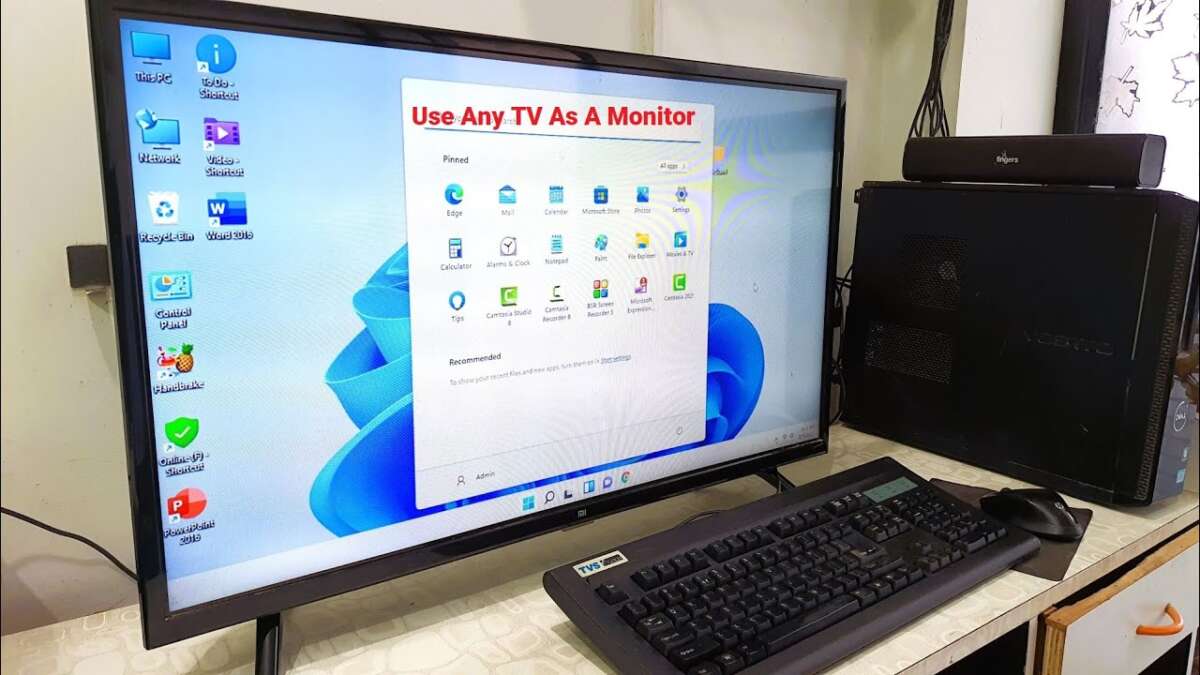
I’ve used TVs as desktop monitors for years, and I’ll walk you through how to use TV as desktop monitor step by step. This guide covers hardware, setup for Windows, Mac, and Linux, optimization tips, and common fixes. I’ll share real-world lessons from my tests and the best practices that save time and reduce headaches. Read on to get a reliable, comfortable setup with a TV as your main screen.

Why use a TV as a desktop monitor?
Many people choose a TV for a desktop screen to get more space for apps, video, and gaming. A TV can be a budget-friendly way to get a large display. But using a TV as a desktop monitor takes a few changes to work well. I’ll explain what to check and how to avoid common pitfalls so your experience is smooth and clear.

What you need: hardware and compatibility
Start by checking ports and specs. Your PC must have HDMI, DisplayPort, or a viable adapter. Modern TVs accept HDMI 2.0 or 2.1. These support 4K at higher refresh rates.
Make sure the TV supports the resolution and refresh rate you want. 4K at 60Hz is standard. 4K at 120Hz is better for gaming but needs newer ports. Also check HDR support if you plan to watch HDR content.
You will also want:
- A high-quality HDMI or DisplayPort cable rated for your TV’s resolution and refresh rate.
- If your computer lacks the right port, a reliable adapter or dock.
- A VESA mount or stand that fits your desk and the TV’s weight.
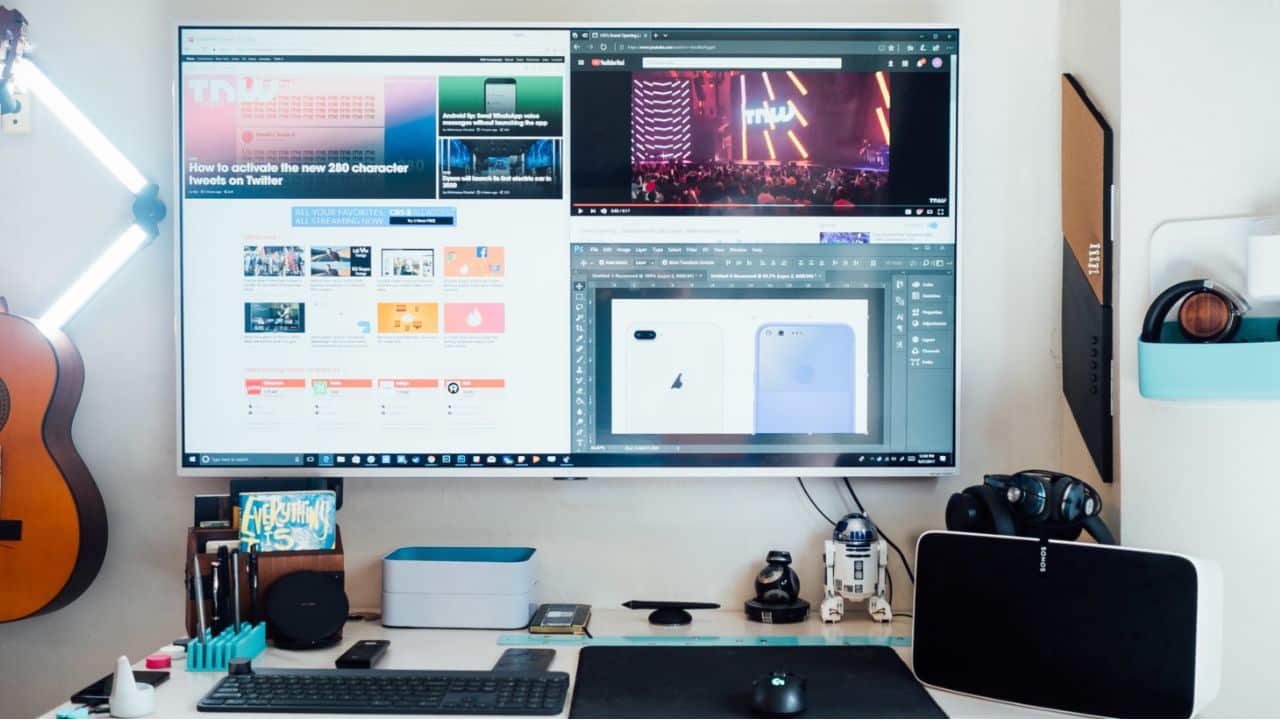
When planning how to use TV as desktop monitor, compatibility is the first hurdle. Match the TV’s inputs to your PC’s outputs. If they don’t match, get a good adapter.
Step-by-step setup: connecting and configuring
Follow these basic steps to start using a TV as a desktop monitor.
- Connect the cable
- Turn off both devices.
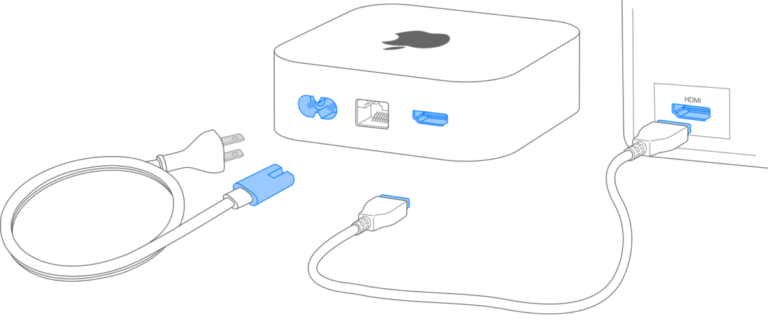
- Plug the HDMI or DisplayPort cable into the PC and the TV.
- Power on the TV and then the PC.
- Pick the TV input
- Use the TV remote to select the correct HDMI or DisplayPort input.
- The PC should detect the TV as a display.
- Configure display settings on Windows
- Open Settings > System > Display.
- Select the TV and set resolution to the TV’s native resolution.
- Set scaling so text and icons are comfortable.
- Choose Duplicate or Extend if you use multiple screens.
- Configure on macOS
- Open System Settings > Displays.
- Hold Option and click Scaled to see all resolutions.
- Choose the native resolution and adjust scaling for readability.
- Configure on Linux
- Use the display tool for your desktop environment or xrandr for fine control.
- Set the resolution and refresh rate to match the TV.
When you set up how to use TV as desktop monitor, always pick the native resolution. That gives the sharpest image. If text looks small, increase scaling rather than lowering resolution.
Optimizing picture quality: resolution, scaling, and sharpness
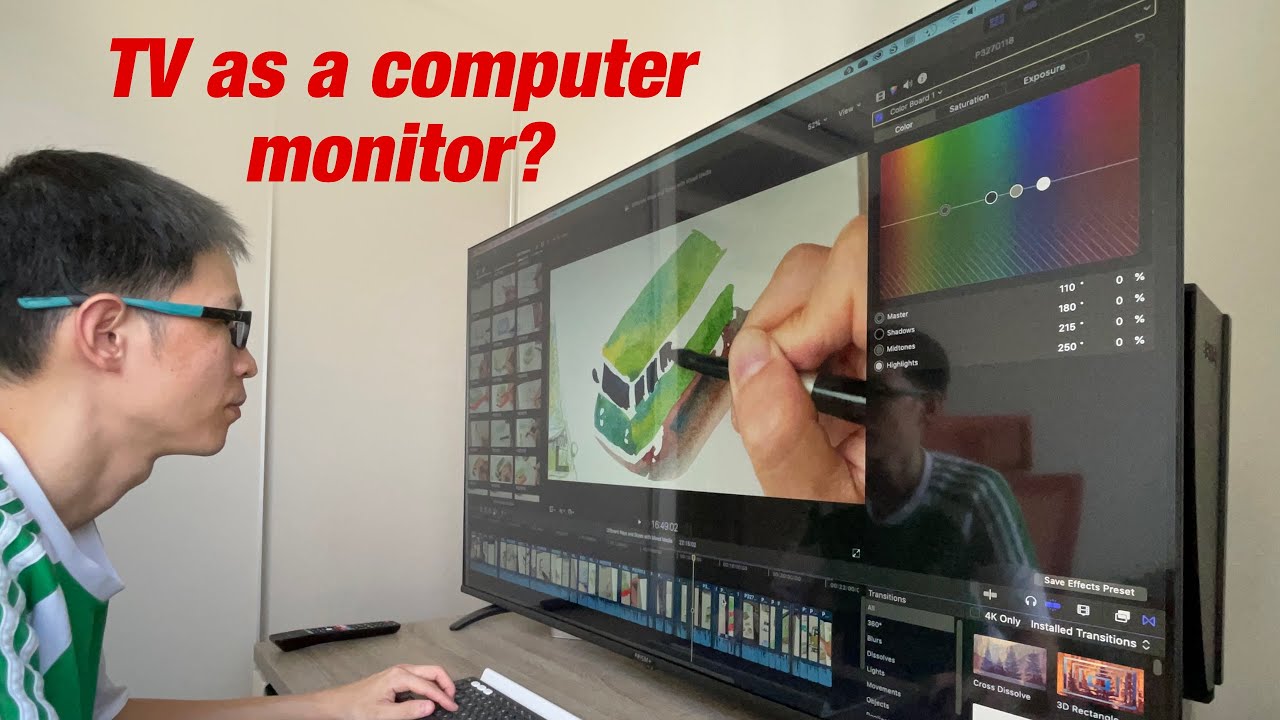
Right settings matter for comfort and clarity. Use the TV’s native resolution. That gives clear text and crisp images.
Set scaling to make text readable. On a 4K TV, 100% scaling often makes text tiny. Try 125% to 150% to find what feels right. For macOS, use the scaled presets.
Turn off aggressive post-processing on the TV. Look for picture modes like Game, PC, or Movie. These modes reduce motion smoothing and processing that can blur text. Disable motion interpolation and any “dynamic contrast” for best clarity.
Calibrate color and brightness. Keep brightness moderate. Too much brightness tires your eyes. If color matters, run a basic calibration or use the TV’s “Color Temperature” to get neutral tones.
When learning how to use TV as desktop monitor, remember that TVs are tuned for movies by default. Switching to a PC or Game mode improves text and reduces lag.
Reduce input lag and improve refresh rates
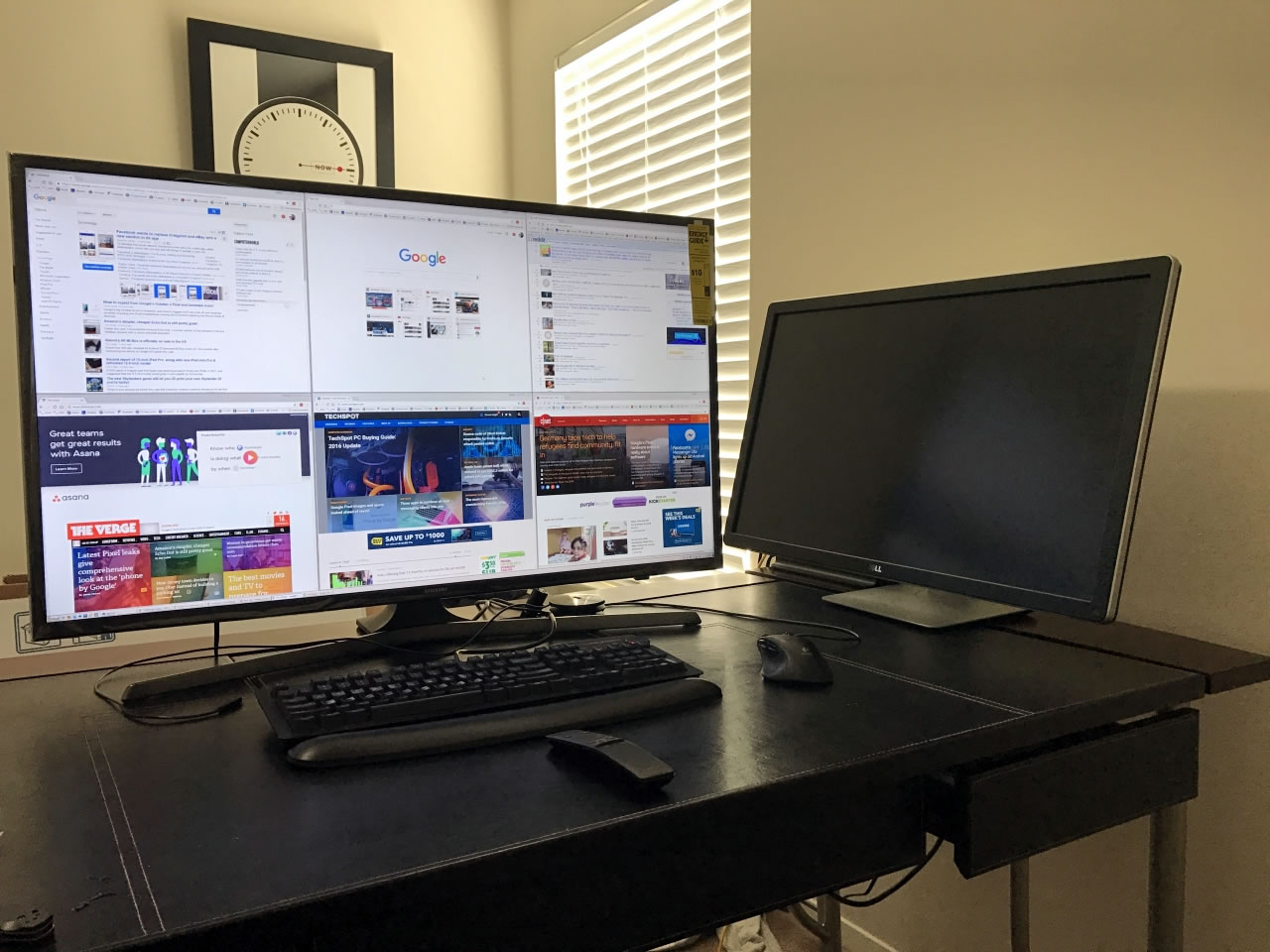
Input lag matters for productivity and gaming. High lag makes the cursor feel sluggish. To reduce lag:
- Use the TV’s Game or PC mode.
- Use HDMI 2.1 or DisplayPort if you need higher refresh rates.
- Use a cable certified for the TV’s bandwidth.
- In Windows, set the refresh rate under Advanced Display Settings.
If you want 120Hz at 4K, confirm the TV, cable, and GPU support it. Older GPUs may limit refresh rates. When you test how to use TV as desktop monitor for gaming, always check end-to-end support.

Audio, remotes, and peripherals
A TV gives built-in speakers, but sound quality varies. For clear audio:
- Use a soundbar or external speakers for better sound.
- If you want PC audio through the TV, set the TV as the default audio device in your OS.
- If audio sync issues appear, switch to an external speaker or adjust audio delay in the TV menu.
You can control the PC with the TV remote in some cases. Use HDMI-CEC if your TV and PC support it. Wireless keyboards and mice work fine. Consider a wireless keyboard with a trackpad for couch-style use.
When combining how to use TV as desktop monitor with entertainment, plan for sound. Good speakers add value and reduce reliance on TV speakers.
Troubleshooting common issues
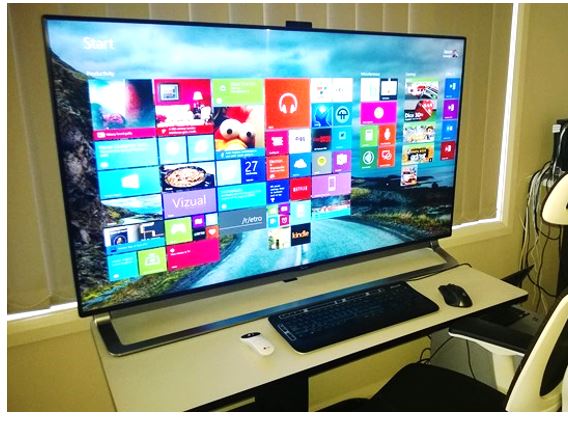
Here are fixes for common problems when using a TV as a monitor.
Issue: Blurry text
- Set the TV to PC mode.
- Use the native resolution.
- Increase OS scaling instead of lowering resolution.
Issue: No signal or black screen
- Check cable and input selection.
- Try a different HDMI port and cable.
- Update GPU drivers.
Issue: Overscan or edges cut off
- Turn off overscan or set “Just Scan” or “1:1 Pixel Mapping” on the TV.
- Use TV’s aspect ratio settings to maintain full image.
Issue: Flicker or unstable refresh rate
- Use a higher quality cable.
- Confirm the GPU supports the desired resolution and refresh rate.
- Update firmware on the TV if available.
Problem solving is a big part of how to use TV as desktop monitor. I often switched HDMI ports and modes before finding the perfect setting. Patience pays off.

Best TVs and buying tips for using a TV as a monitor
When choosing a TV to use as a desktop monitor, look for:
- Native resolution that fits your needs, usually 4K for large screens.
- Low input lag and a true Game or PC mode.
- HDMI 2.1 or DisplayPort support for high refresh rates.
- Good pixel density: for desktop use, aim for 40–43 inches for close desk viewing, 50–55 inches for more distance.
- A model with a reliable remote and firmware support.
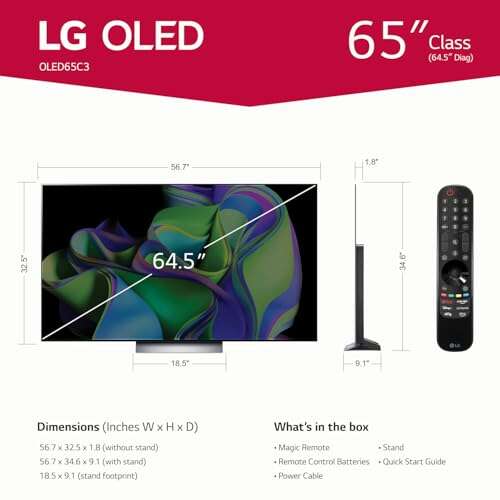
Avoid very large sets if you sit close. A 65-inch TV can be overwhelming at typical desk distance. Also check reviews for text clarity and motion handling.
Pros and cons of using a TV as desktop monitor
Pros:
- Larger screen for less money per inch.
- Great for media and split-screen work.
- Often includes smart features and streaming apps.
Cons:
- Lower pixel density at close distances can make text appear soft.
- TVs often use image processing that blurs small text by default.
- Potential input lag for fast-paced games.
Deciding how to use TV as desktop monitor comes down to your use case. For video and casual gaming, TVs are excellent. For fine text work and color-critical editing, a high-resolution PC monitor may be better.
Personal tips and mistakes I made
I once used a 55-inch 4K TV as my main monitor at 30 inches. Text felt small and my neck hurt after long sessions. I learned to:
- Choose a smaller size or sit further back.
- Switch to PC mode and disable motion smoothing right away.
- Buy a certified cable and check HDMI version compatibility.
Another mistake was trusting default TV picture presets. Tweaking scaling and contrast made a huge difference. These fixes improved clarity and comfort fast.
How to use tv as desktop monitor for gaming vs. productivity
For gaming:
- Prioritize low input lag and high refresh rate.
- Use HDMI 2.1 or DisplayPort if needed.
- Enable Game Mode and HDR if supported.
For productivity:
- Prioritize native resolution and readable scaling.
- Use a smaller screen size for closer desk work.
- Calibrate text clarity and turn off motion processing.
Adjusting how to use TV as desktop monitor for your tasks will get the best result. Gaming and office work have different needs.
Maintenance and long-term care
Protect the TV from burn-in if using it as a static desktop for long periods. OLEDs can have image retention with static UI elements. To reduce risk:
- Use a screensaver that moves occasionally.
- Avoid leaving static elements onscreen for many hours.
- Lower brightness for long sessions.
Keep firmware updated. Updates can fix compatibility and performance. Clean the screen gently with a soft cloth and a light cleaner made for screens.
Frequently Asked Questions of how to use tv as desktop monitor
Will my PC work with a TV as a monitor?
Most modern PCs will work with a TV as a monitor if they have HDMI or DisplayPort. Ensure the PC’s GPU supports the TV’s resolution and refresh rate for best results.
Is 4K TV good for desktop use?
4K TV can be great for desktop use, especially for split-screen work. You may need to increase scaling to make text readable at typical desk distances.
How do I fix blurry text on TV when used as monitor?
Switch the TV to PC or Game mode, use the TV’s native resolution, and adjust OS scaling. Disable motion processing and set sharpness to neutral.
Can I use HDMI to get 120Hz on a TV?
Yes, if your TV, GPU, and HDMI cable support HDMI 2.1. All three must handle the bandwidth for 4K at 120Hz.
Will using a TV as a monitor damage the TV?
Using a TV as a monitor won’t damage most modern TVs, but long static images can cause burn-in on some displays like OLED. Take precautions like moving elements and using screensavers.
Conclusion
Using a TV as a desktop monitor can give you more screen space and a great media experience when done right. Match ports, use the TV’s PC mode, set native resolution, and tweak scaling and sharpness. Learn from small mistakes like wrong size and default picture modes to get a comfortable setup. Try the tips above and test settings until you find what works best.
Take action: pick the right TV size, check ports, and try a short setup today. If this helped, leave a comment or share your setup tips below.

Everett Ashford is a tech reviewer at mytechgrid.com specializing in SSDs, cameras, TVs, earbuds, headphones, and other consumer electronics. He provides honest, data-driven reviews based on hands-on testing and real-world performance analysis. Everett simplifies complex tech details to help readers make smart, confident buying decisions.