Yes — you can move a SSD to another computer, but success depends on drive type, OS, and hardware compatibility.
I’ve worked on hundreds of PC upgrades and migrations, and I’ll walk you through exactly when and how can i move a ssd to another computer safely. This guide explains physical fit, bootability, licensing, drivers, cloning vs clean install, and real-world tips from my experience so you can make the move with confidence.
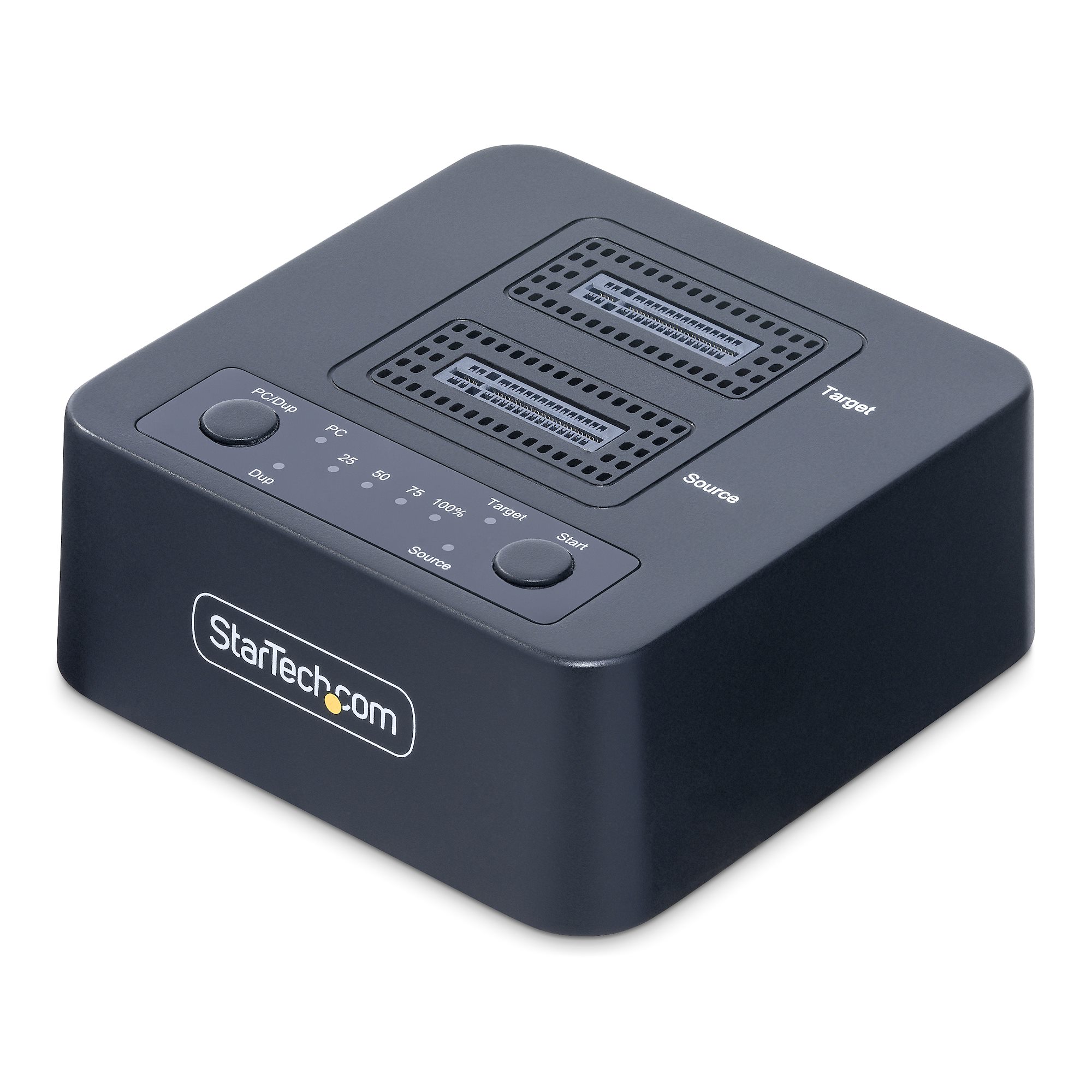
can i move a ssd to another computer — the short technical answer and overview
Short answer: can i move a ssd to another computer? Yes, often you can, but the outcome depends on the SSD format, the OS installation, and the new machine’s firmware.
What matters most is whether the SSD contains an OS configured for the original hardware. Moving a data-only SSD is almost always trouble-free. Moving a boot SSD requires checks for UEFI vs Legacy, storage drivers, chipset compatibility, and Windows activation. I will show you practical steps, the pitfalls I’ve seen, and how to avoid them.
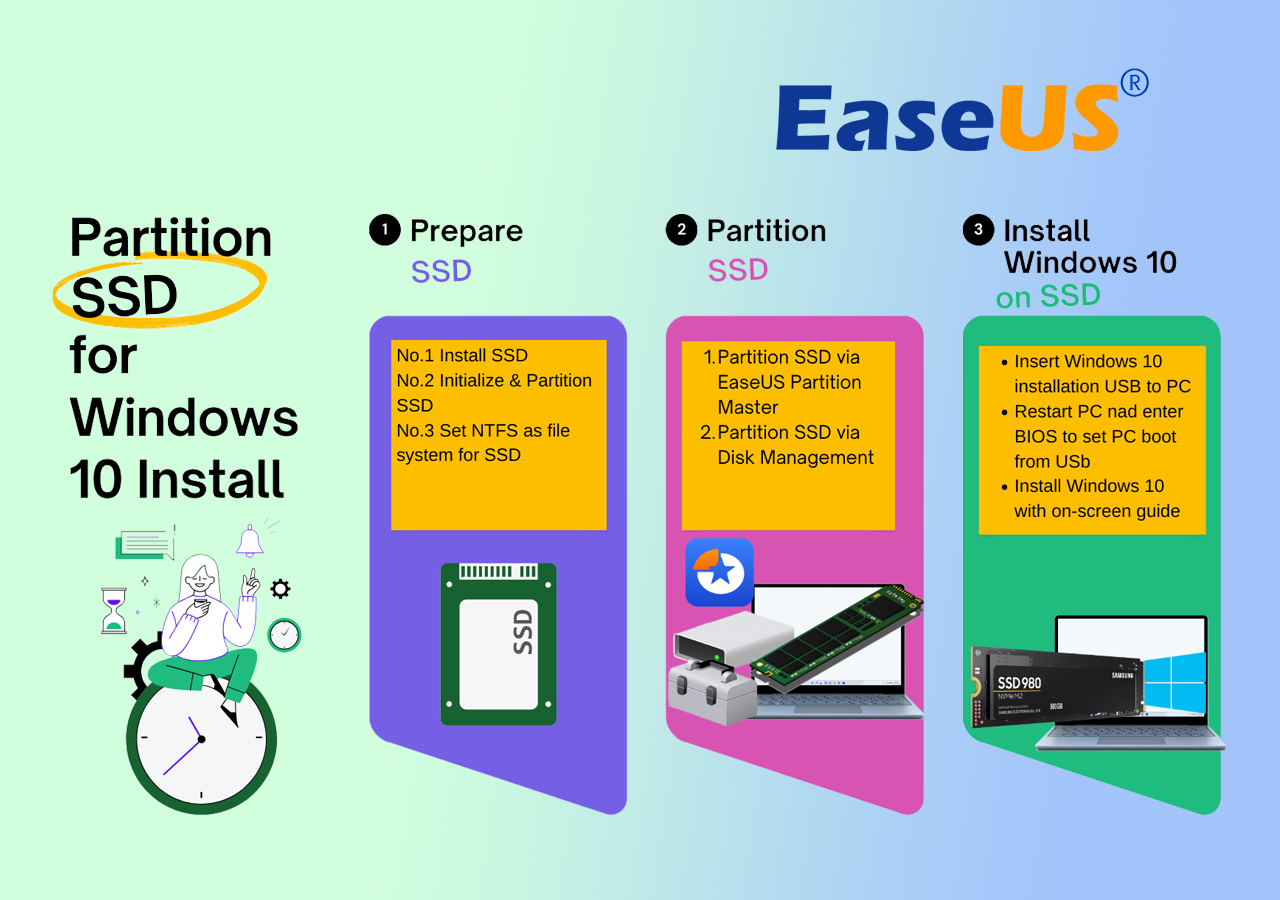
Preparing before you move the SSD
Follow these checks before you touch the hardware. They save time and prevent data loss.
- Confirm physical compatibility. Check if the target PC supports the SSD form factor and interface. can i move a ssd to another computer if the new PC lacks the same slot? Not without an adapter.
- Back up your data. Always create a full backup or image before moving the SSD. A backup protects you if the drive fails to boot.
- Check OS licensing and activation. If the SSD has Windows, moving to different hardware can trigger reactivation issues.
- Note firmware and drivers. Update SSD firmware and clean up old drivers on the source machine to reduce conflicts after boot.
Personal tip: I always make a compressed image of the SSD to an external drive before moving hardware. That saved me twice when a cloned drive failed to boot on a new laptop.

Step-by-step: how to move a SSD to another computer
Use this clear checklist to move a boot or data SSD.
- Back up the SSD
- Create a system image or copy critical files to an external drive.
- Prepare the OS (if moving a boot SSD)
- Uninstall vendor-specific software and drivers.
- Set Windows to boot in a generic driver mode if possible.
- Power down both systems and disconnect power
- Ground yourself to avoid static damage.
- Remove the SSD from the source system
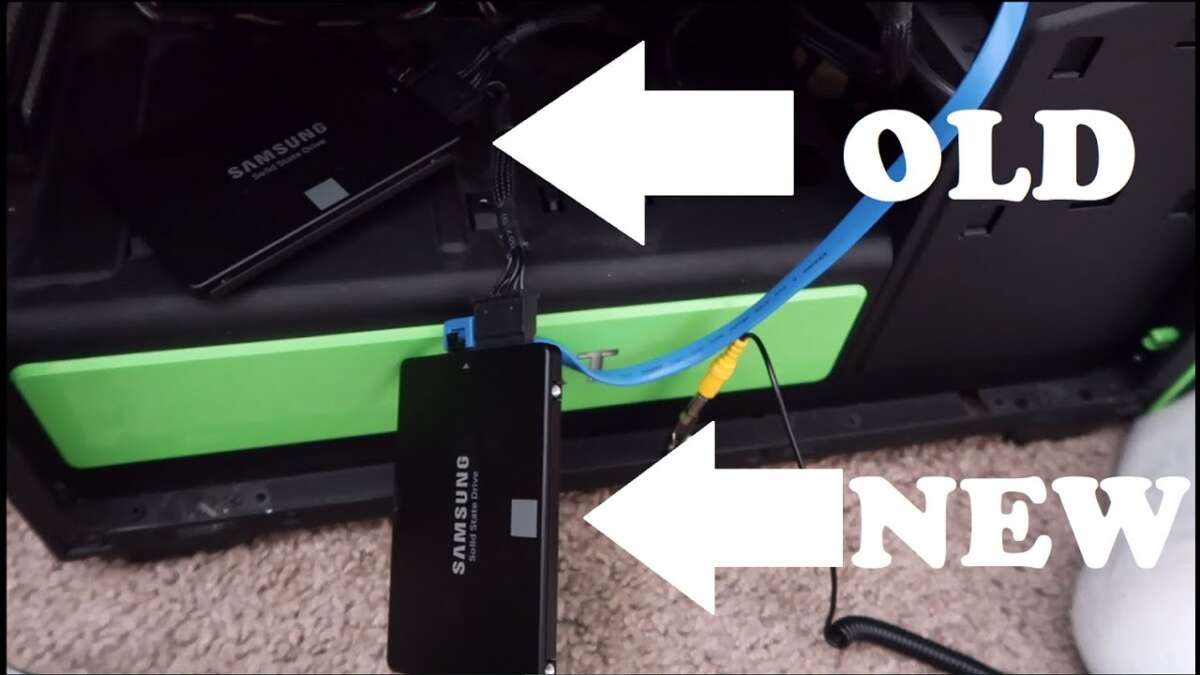
- For M.2 drives, remove one screw and slide it out. For 2.5" SATA drives, disconnect SATA and power cables and remove the mounting screws.
- Install into the target system
- For M.2, align the connector and screw the drive in. For SATA, connect the cable and mount the drive.
- First boot
- Enter BIOS/UEFI to check that the drive is detected.
- Set boot priority to the SSD if you intend to boot from it.
- Resolve driver and activation issues
- Boot into Safe Mode if needed. Install chipset and storage drivers for the new motherboard. Re-activate Windows if prompted.
Real-world note: I once moved an NVMe drive between two desktops. The first boot required switching UEFI from RAID to AHCI to avoid blue screens. Knowing how to change storage mode saved the day.

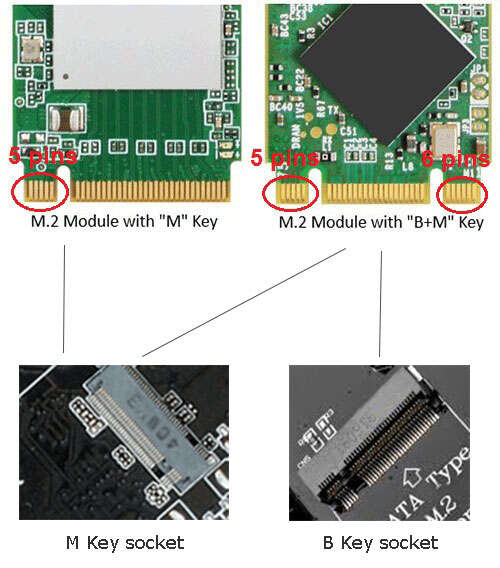
Physical compatibility: SSD types and adapters
Understanding SSD types prevents surprises when you ask, can i move a ssd to another computer?
- 2.5-inch SATA SSD
- Fits most desktops and many laptops that support SATA. Use a 2.5-to-3.5 bracket for full-size desktop bays.
- M.2 SATA SSD
- Physically similar to NVMe M.2 but uses SATA protocol. Ensure the target slot supports M.2 SATA.
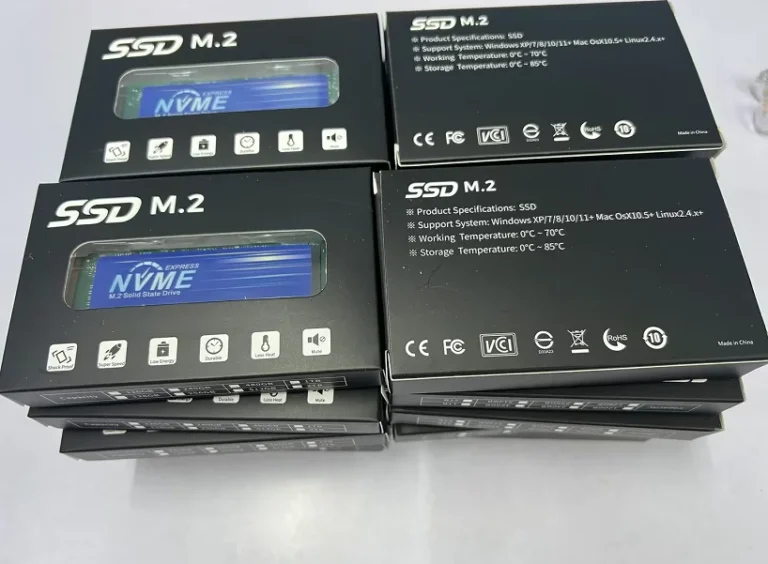
- M.2 NVMe (PCIe)
- Requires an M.2 slot that supports PCIe NVMe lanes. Some older M.2 slots only support SATA.
- PCIe add-in card
- Use for NVMe drives in systems lacking M.2 slots.
- External enclosure
- Allows moving an SSD as an external USB drive. This is ideal for data transfer but not for achieving native boot speeds.
If you're unsure, compare the drive’s label to the target system’s documentation. I once tried to install an NVMe drive into a laptop that only supported SATA M.2 and the drive was not detected.

Boot and OS compatibility: cloning vs clean install
When you ask, can i move a ssd to another computer and expect it to boot? The key is whether the OS can adapt to new hardware.
- Data-only SSD
- Move freely. The target computer will read files without issues.
- Boot SSD with same family hardware
- Often boots with minimal changes. Same chipset and similar storage controller reduce problems.
- Boot SSD with very different hardware
- May fail to boot due to driver mismatch, storage mode differences, or secure boot/UEFI issues.
- Cloning vs clean install
- Clone when you need to keep apps, settings, and personalization. Risk of driver conflicts.
- Clean install gives best stability and performance on the new machine. It avoids legacy drivers and bloat.
From experience, a clean install increases uptime and reduces troubleshooting time. I recommend cloning only for short-term migration, then doing a clean install when possible.
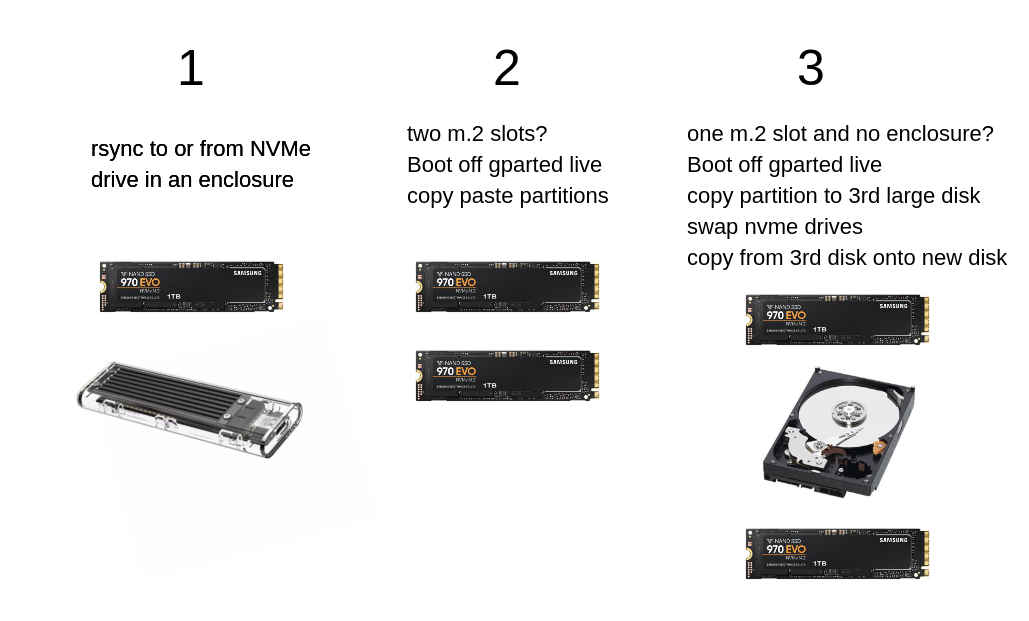
Troubleshooting common problems after moving an SSD
When can i move a ssd to another computer and encounter problems, here are the fixes I use most often.
- Drive not detected
- Re-seat the drive. Check BIOS/UEFI detection. Update the motherboard BIOS if needed.
- OS fails to boot or blue screens
- Boot into Safe Mode. Install or roll back storage drivers. Switch between RAID and AHCI modes with care.
- Activation and licensing errors
- Use the OS activation troubleshooter or contact the vendor for a transfer if you have a retail license.
- Slow performance
- Check NVMe driver, enable AHCI/PCIe settings, and ensure firmware is current.
- Missing bootloader
- Use recovery media to repair the bootloader or run startup repair.
Tip from practice: keep a USB recovery drive and drivers for the new motherboard on hand. That reduces downtime significantly.

When you should avoid moving an SSD
There are times when asking can i move a ssd to another computer leads to a clear "no" or "not recommended."
- Major hardware mismatch
- Very different CPU architectures or chipset generations can cause instability.
- OEM-locked OS
- OEM Windows keys may not transfer. Expect reactivation issues or license tying to original hardware.
- Encrypted drives without keys
- If BitLocker or full-disk encryption is active and you lack keys, you may lose access.
- Performance-critical systems
- For peak performance, a fresh install often yields better results than migrating an old system image.
If these apply, consider clean install, data migration, or cloning to a new blank SSD and reinstalling the OS.
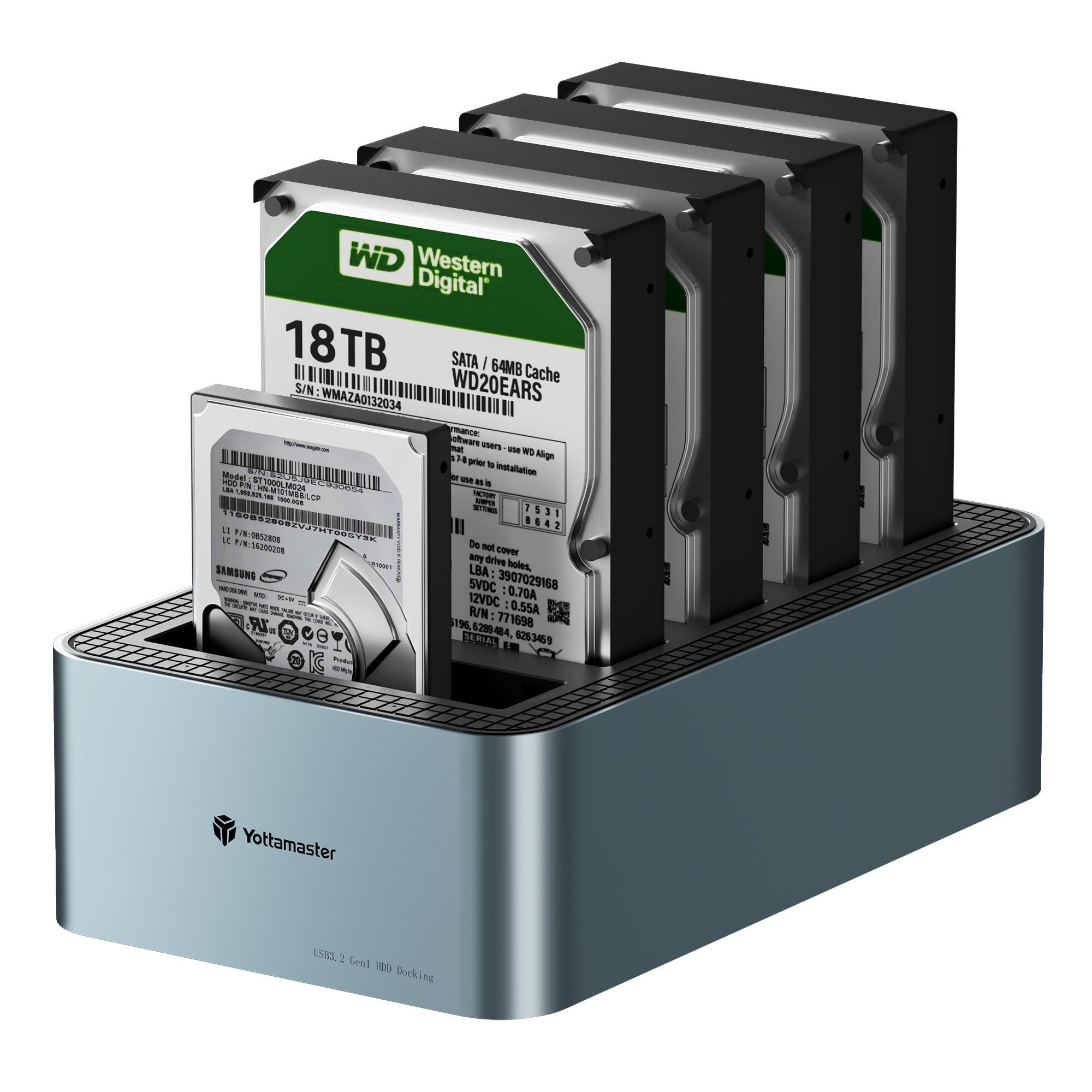
Best practices and checklist before and after the move
Follow this checklist to make can i move a ssd to another computer a smooth process.
- Before moving
- Back up data and create a system image.
- Disable BitLocker or ensure you have recovery keys.
- Collect target system drivers and firmware updates.
- Clean up old drivers and remove hardware-specific utilities.
- During the move
- Ground yourself and power down both systems.
- Handle M.2 drives carefully to avoid bending.
- Verify the SSD is properly seated and secured.
- After the move
- Check BIOS/UEFI settings for boot mode and storage configuration.
- Install chipset and storage drivers immediately.
- Run health checks and update SSD firmware if recommended.
- Re-activate the OS and confirm all apps function.
I once forgot to disable BitLocker and locked myself out after moving a drive. That mistake taught me to always export recovery keys first.
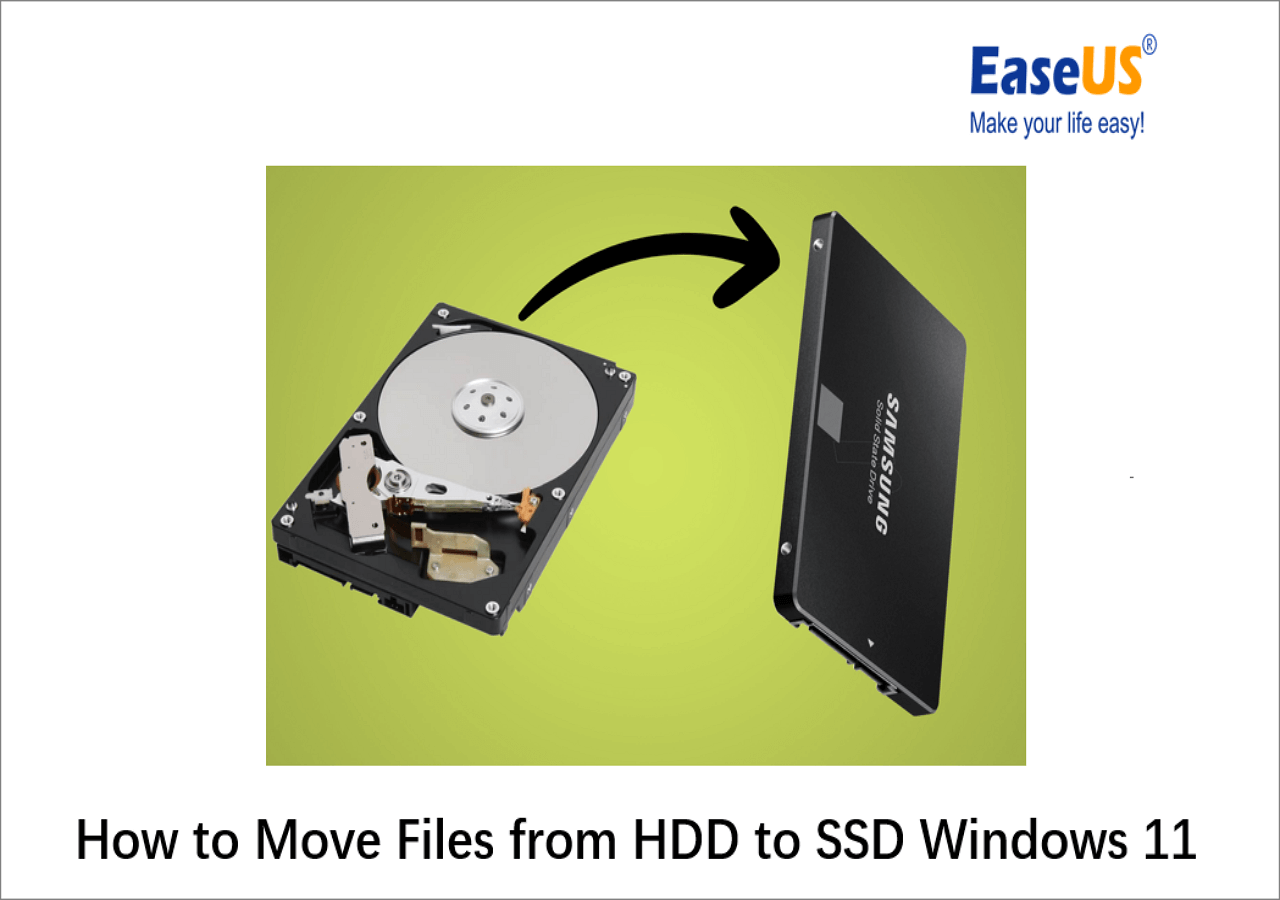
Security and data integrity considerations
Security matters when you move drives between systems. Treat the SSD like sensitive hardware.
- Encryption
- Ensure you can decrypt before moving. Transfer recovery keys securely.
- Wiping before disposal
- If you later sell the old machine, securely erase the SSD.
- Data integrity checks
- Run SMART tests and verify file integrity post-move.
- Firmware authenticity
- Only update SSD firmware from trusted vendor sources to avoid compromised firmware.
I recommend verifying backups with file checksums. That small step has prevented silent data corruption for me.
FAQs about can i move a ssd to another computer
Will a cloned SSD always boot in a new computer?
A cloned SSD will not always boot. It depends on hardware differences, storage mode, and drivers. A clean install is more reliable for major hardware changes.
Can I move an NVMe SSD to an older motherboard?
You can physically move it if the motherboard has an M.2 slot that supports NVMe. If the board lacks NVMe support, use a PCIe adapter or keep it as external storage.
Will Windows license transfer when I move the SSD?
Retail Windows licenses usually transfer, but OEM licenses often do not. You may need to reactivate or contact Microsoft for license transfer assistance.
Do I need to change BIOS settings after moving a boot SSD?
Often yes. Check UEFI vs Legacy, secure boot, and storage mode (AHCI vs RAID). Adjusting these settings can resolve many boot issues.
Is it better to clone or do a clean install when moving SSDs?
For stability on new hardware, a clean install is better. Cloning is faster if you need the exact setup and drivers but may cause conflicts.
Conclusion
Moving an SSD between PCs is a common task that is often simple for data drives and more complex for boot drives. Assess physical compatibility, back up your data, prepare the OS, and expect to update drivers and activation when moving a boot SSD. Use the step-by-step checklist and troubleshooting tips here to reduce surprises and downtime.
Take action: back up your SSD, gather the target PC’s drivers, and try a test move on non-critical hardware first. If this guide helped, leave a comment with your setup or subscribe for more practical hardware how-tos.

Everett Ashford is a tech reviewer at mytechgrid.com specializing in SSDs, cameras, TVs, earbuds, headphones, and other consumer electronics. He provides honest, data-driven reviews based on hands-on testing and real-world performance analysis. Everett simplifies complex tech details to help readers make smart, confident buying decisions.