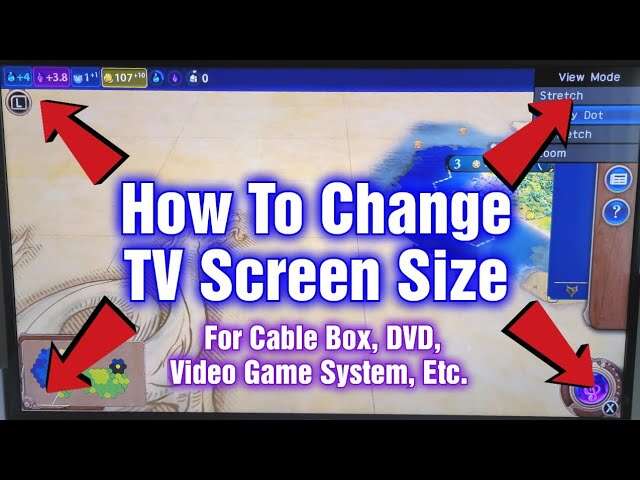
Use your TV remote's Picture/Aspect/Zoom menu or your source device's display settings to resize.
I have fixed and tuned dozens of TVs and helped many people learn how to change screen size on TV. This guide shows clear steps for TVs, cable boxes, streaming devices, PCs, and game consoles. Read on for simple, tested steps, common fixes, and tips I use in real repairs and setups.
Why screen size and aspect ratio matter for your viewing experience
A wrong screen size can crop faces or add black bars. It can also stretch images and make text hard to read. Learning how to change screen size on TV helps you get the best picture for movies, games, and live TV. Proper size keeps the image sharp and the framing correct. This saves eye strain and makes shows look like they were meant to be seen.
General approach: how to change screen size on TV step-by-step
Start with the simplest fixes. Check the TV picture menu, then the source device. Many problems are solved in three steps:
- Check the TV’s Picture or Display settings.
- Check the source device’s output or aspect settings.
- Match resolution and aspect ratio on both devices.
If you follow that order, you will solve most common issues fast. Keep your remote at hand and take notes if you try multiple options.

Using your TV settings to change screen size
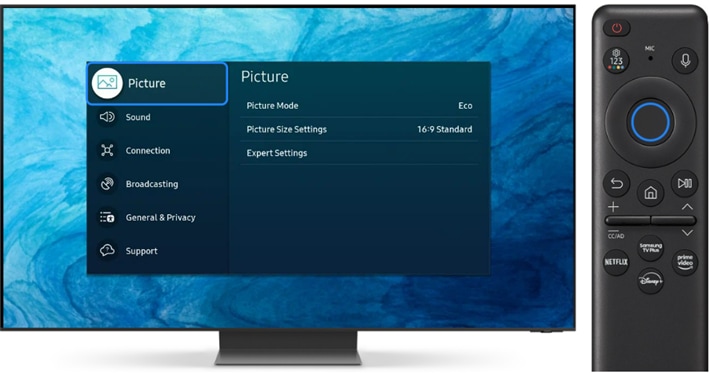
Most TVs let you change size in their menus. Common menu names include Picture Size, Aspect Ratio, Zoom, and Screen Fit.
Steps to follow:
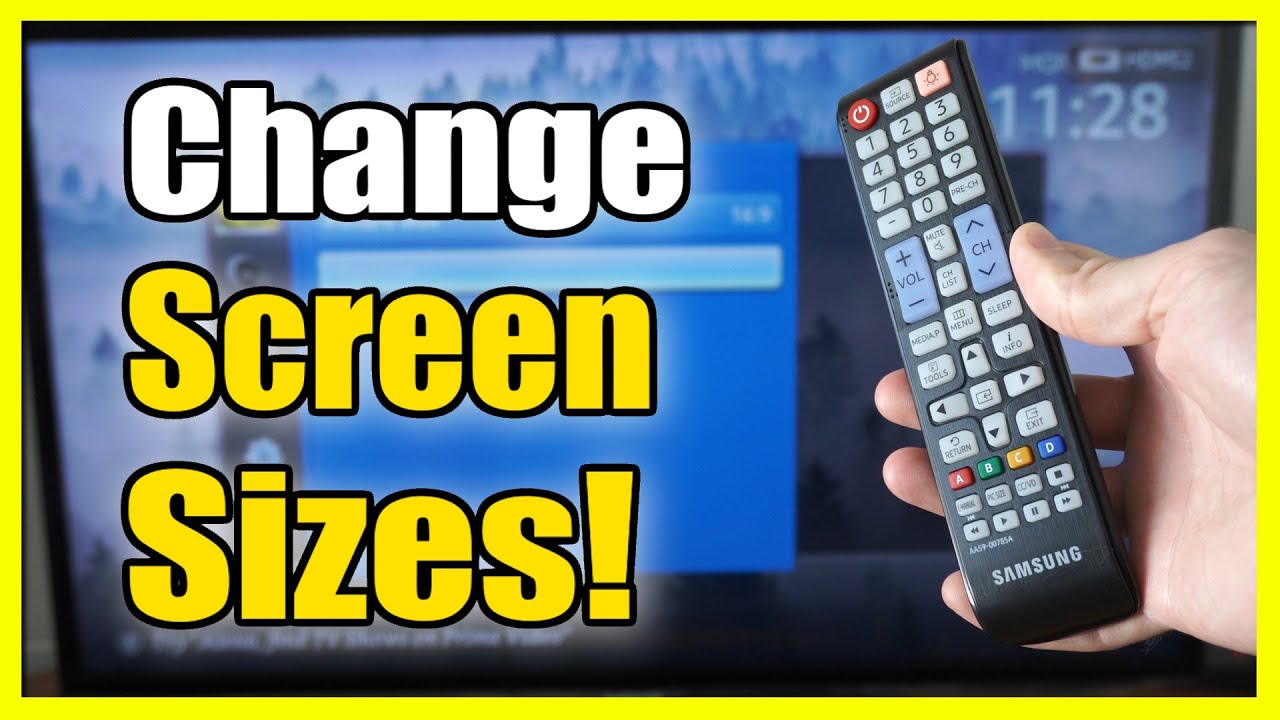
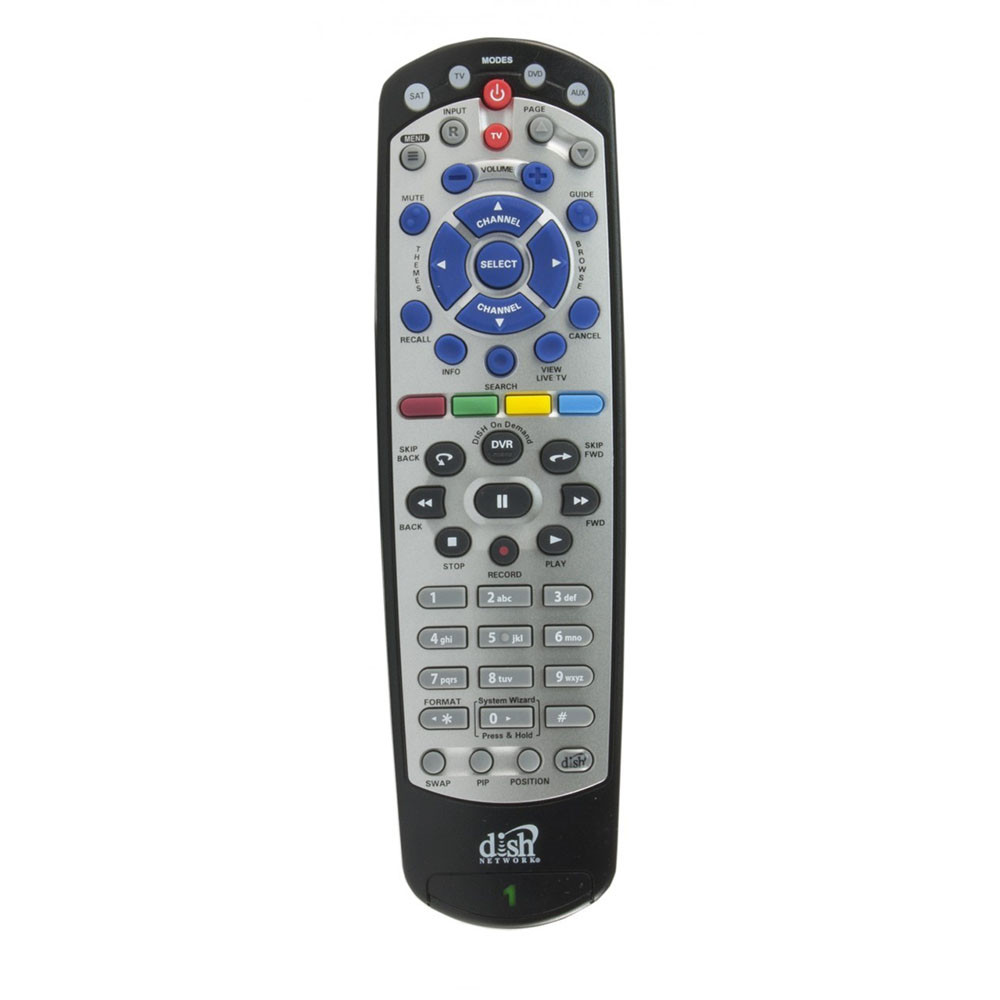
- Press the Menu or Settings button on your TV remote.
- Find Picture or Display options.
- Look for choices like 16:9, 4:3, Auto, Fit to Screen, Just Scan, or Zoom.
- Select Auto or Fit to Screen for most modern content.
- If the picture is cropped, choose Just Scan or Screen Fit to show all pixels.
- If the image is stretched, switch to 16:9 or Normal.
Tips from my experience:
- Older channels or DVDs may need 4:3. Switching to 4:3 will stop faces from looking stretched.
- On Samsung, try Picture Size > Fit to Screen. On LG, try Picture Mode > Aspect Ratio.
- If unsure, use Auto and then a few manual options to compare.

Using streaming devices and cable boxes
Streaming boxes and cable receivers often control the output size. If the TV menu looks correct, check the source.
How to adjust:
- Open the streaming device’s Settings or Display menu.
- Look for Resolution, Screen Size, Aspect Ratio, or Overscan.
- Set the device to match your TV resolution (for example, 1080p or 4K).
- Turn off any internal zoom or overscan features if available.
- Restart the device after changes to apply them cleanly.
Common devices:
- Roku: Settings > Display type or Advanced display settings.
- Fire TV: Display & Sounds > Display.
- Cable box: Picture Format or Aspect Ratio in the box’s menu.
Changing screen size on TV when using a PC or laptop
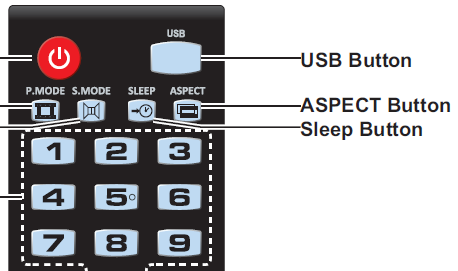
PCs can send the wrong size or overscan if settings don’t match the TV.
Windows steps:
- Right-click the desktop and open Display settings.
- Set the resolution to the TV’s native resolution (example: 1920×1080 or 3840×2160).
- Open the GPU control panel (NVIDIA, AMD, or Intel).
- Choose “Scaling” or “Adjust desktop size and position.” Turn off overscan or set scaling to 0%.
Mac steps:
- Open System Preferences > Displays.
- Hold Option to see Scaled resolutions and pick the TV’s native one.
- In some TVs, enable “pixel perfect” or disable overscan.
If the image still has black bars, use the TV’s Screen Fit or Just Scan option. This fixes mismatched pixel mapping.

Game consoles and screen size settings
Game systems often add stretching or crop to fit displays. Fixing this is quick.
PlayStation:
- Settings > Sound and Screen > Display Area Settings. Adjust until edges match.
Xbox:
- Settings > Display & sound > Video output. Choose resolution and calibrate zoom.
Nintendo Switch:
- System Settings > TV Output. Make sure TV Resolution matches and try Docked mode settings.
For games, also check in-game display settings for safe area or HUD scale. These ensure menus and text don’t run off-screen.
Troubleshooting common screen size problems
Problem: Black bars on sides or top and bottom.
- Cause: Mismatched aspect ratio or content with different shape.
- Fix: Use TV or source device Aspect Ratio > Fill or Stretch, or accept bars for correct framing.
Problem: Image is stretched horizontally or vertically.
- Cause: Wrong aspect setting on TV or source.
- Fix: Switch to 16:9 or Normal on the TV and set source to the correct resolution.
Problem: Edges cut off (overscan).
- Cause: Overscan setting enabled on TV or GPU scaling.
- Fix: Turn off Overscan, choose Just Scan/Screen Fit, or set GPU scaling to 0%.
Problem: Blurry picture after changing size.
- Cause: Non-native resolution or scaling applied.
- Fix: Return to native resolution and use “1:1 pixel mapping” or “Just Scan” on the TV.
If you try fixes and see no change, reboot both TV and source device. Replacing a bad HDMI cable can also solve odd display behavior.

Practical tips, mistakes to avoid, and personal experience
From years of helping friends and clients, I learned a few quick rules:
- Always match the source resolution to the TV’s native resolution first. This avoids blurry scaling.
- Change one setting at a time. This helps you find the exact fix.
- Save default settings or take a photo of the original menu before you change things.
- Don’t confuse aspect ratio with screen size. Aspect ratio is shape; size is scaling.
- Use high-quality HDMI cables for 4K or HDR. Bad cables can force odd fallback resolutions.
One time I fixed a client’s stretched soccer match by disabling GPU overscan and switching the cable box to 1080p. The fix took five minutes. Small changes often make the biggest difference.

Frequently Asked Questions of how to change screen size on tv
How do I find the Picture Size option on my TV?
Most TVs hide it under Menu > Picture or Settings > Display. Look for terms like Aspect Ratio, Zoom, or Screen Fit.
Why does my TV show black bars on movies?
Black bars occur when the content’s aspect ratio doesn’t match the TV. You can fill the screen but risk cropping parts of the image.
What does Just Scan or Screen Fit do?
Just Scan and Screen Fit show all the pixels without overscan. Use them for the best pixel-accurate image from HDMI sources.
My image is blurry after resizing. What should I do?
Set your source device to the TV’s native resolution and use 1:1 pixel mapping or Just Scan. Avoid non-native scaling settings.
Can changing screen size fix motion issues or lag?
Changing size rarely fixes input lag or motion issues. For gaming, use Game Mode and match resolutions to keep lag low.
Conclusion
You can control how content appears by learning how to change screen size on TV. Start with the TV picture menu, then check the source device, and match resolutions for the best result. Small, methodical steps prevent mistakes and often restore a perfect picture quickly. Try the steps above, compare results, and share what worked for you. If this guide helped, subscribe for more practical tips or leave a comment with your TV model and issue.

Everett Ashford is a tech reviewer at mytechgrid.com specializing in SSDs, cameras, TVs, earbuds, headphones, and other consumer electronics. He provides honest, data-driven reviews based on hands-on testing and real-world performance analysis. Everett simplifies complex tech details to help readers make smart, confident buying decisions.