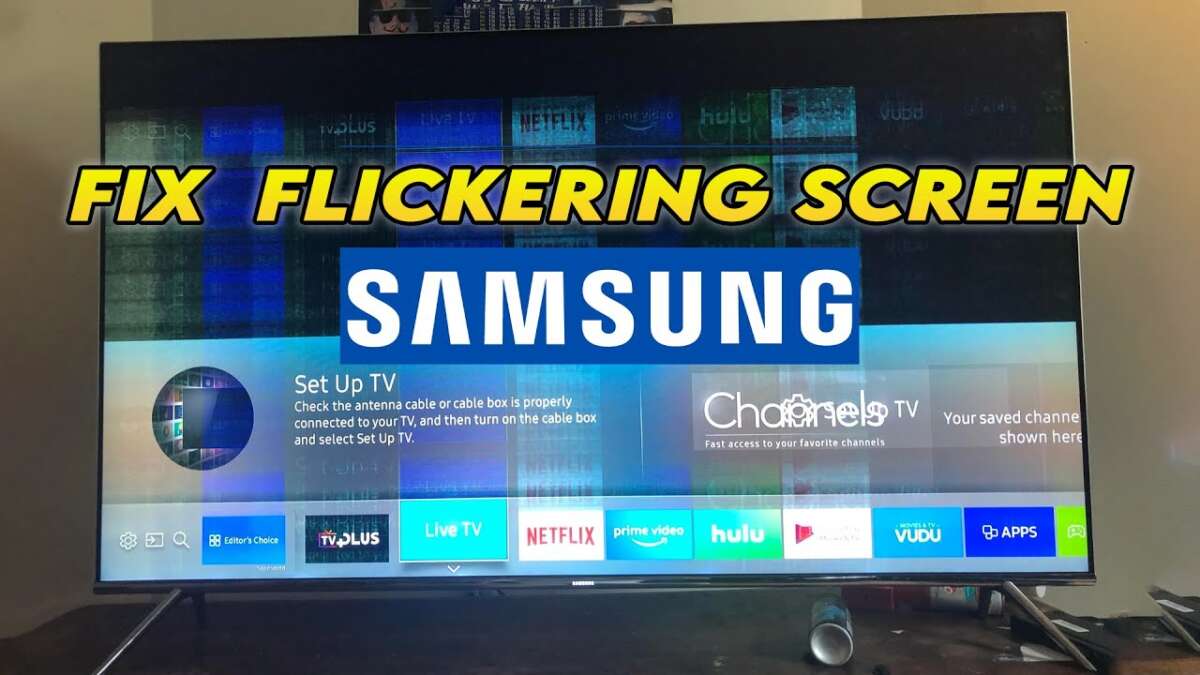
Replace loose cables, power-cycle the set, update firmware, adjust picture settings, or seek professional repair.
I’ve spent years fixing TVs and training tech teams, so I know how to fix flickering TV screen issues fast and with confidence. This guide walks you through causes, clear tests, step-by-step home fixes, and when to call a pro. Read on to learn practical fixes, safety tips, and real-world lessons so you can stop that flicker for good.
Common causes of a flickering TV screen
Flicker can come from many places. Sometimes it is just a bad cable or a tiny software bug. Other times the backlight or power board has a fault. Understanding the likely causes helps you know how to fix flickering TV screen without guessing.
Typical causes include:
- Loose or damaged HDMI, coax, or power cables.
- Dirty or oxidized connectors that break the signal.
- Software bugs or outdated firmware on the TV or source device.
- Power supply problems, failing capacitors, or inverter/backlight issues.
- Mismatched refresh rates between the TV and source device.
- Energy-saving modes or motion smoothing settings.
- External interference from dimmer switches or fluorescent lights.
Knowing these makes diagnosing easier and faster. Work from the simplest fixes to the most invasive to save time and money.

Quick checks to diagnose the problem
Start with fast, low-risk checks to narrow the cause. These steps help you decide whether you can fix the flicker yourself or need a technician.
Steps to follow:
- Power-cycle the TV. Unplug for 60 seconds, then plug back in.
- Check all cables. Reseat HDMI, power, and antenna connections.
- Try a different HDMI port or input source to isolate the device.
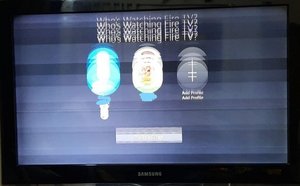
- Open the TV menu. If menus flicker, the TV is likely the issue, not the input device.
- Test with another device, like a laptop or streaming stick.
- Turn off energy-saving modes and motion smoothing in picture settings.
These checks take 5–10 minutes and solve many problems. They also show you if the issue is in the TV, a device, or the room environment.
Step-by-step repairs you can try at home
Once you know where the flicker comes from, try these fixes in order. They go from safest and easiest to more advanced.
- Power-cycle and soft reset
- Unplug the TV and wait 60 seconds. Press and hold the TV power button for 10 seconds while unplugged to drain residual power.
- Plug back in and power on. This clears minor firmware glitches and often stops flicker.
- Inspect and replace cables
- Check HDMI and power cables for bends, frays, or loose ends.
- Swap the HDMI cable for a known-good one. High-speed cables matter for 4K/HDR.
- Replace the power cable if it feels loose or warm.
- Check ports and connectors
- Look for bent pins or dust. Clean gently with compressed air.
- Move the HDMI connection to another port. Faulty ports sometimes cause intermittent flicker.
- Adjust TV picture and power settings
- Turn off power-saving, eco, and dynamic contrast modes.
- Disable motion smoothing, interpolation, and noise-reduction features.
- Set refresh rate and resolution to match the source device (example: 60 Hz vs 120 Hz).
- If HDR content flickers, turn HDR off to test.
- Update firmware and source device software
- Check the TV’s system menu for an update and install it.
- Update your streaming stick, Blu-ray player, or game console firmware.
- After updates, reboot both devices.
- Try a factory reset (as a last resort)
- Backup any settings you want to keep.
- Do a factory reset from the TV menu. This clears persistent configuration faults that may cause flicker.
- Power quality fixes
- Plug the TV into a different outlet on a different circuit to check for bad wiring.
- Use a surge protector or line conditioner to stabilize voltage.
- Specific advice for LED/LCD vs OLED vs older sets
- LED/LCD: Flicker often comes from the backlight or inverter. Tightening cables and updates help first.
- OLED: Flicker can be caused by software, HDMI handshakes, or panel issues. Avoid high brightness always-on content.
- Plasma/CRT: Fading capacitors and high-voltage issues are common. Call a pro for these sets.
Safety tips:
- Unplug before touching cables or ports.
- Do not open the TV chassis unless you are trained. High voltage persists in TV circuits even when off.
Try these steps in order to see which resolves your issue. If one step fixes the flicker, stop there and test long-term stability.

When the TV flickers only with certain devices or apps
If your TV flickers only with a streaming stick, game console, or one app, the problem is usually with the source or HDMI handshake. That tells you how to fix flickering TV screen in a targeted way.
What to try:
- Change the HDMI cable to a certified high-speed one.
- Switch the source to a different HDMI port.
- Set the source device to output a standard resolution and refresh rate (for example, 1080p at 60 Hz).
- Disable auto HDR or allow SDR in the app to test HDR-related flicker.
- Update the app and the source device firmware.
Often the HDMI handshake between devices causes intermittent frame drops and flicker. Fix the handshake, and the flicker typically disappears.
Hardware faults and when to call a professional
Sometimes the flicker points to failing parts. Know when to stop and call a technician to avoid damage or voiding warranties.
Signs you need professional help:
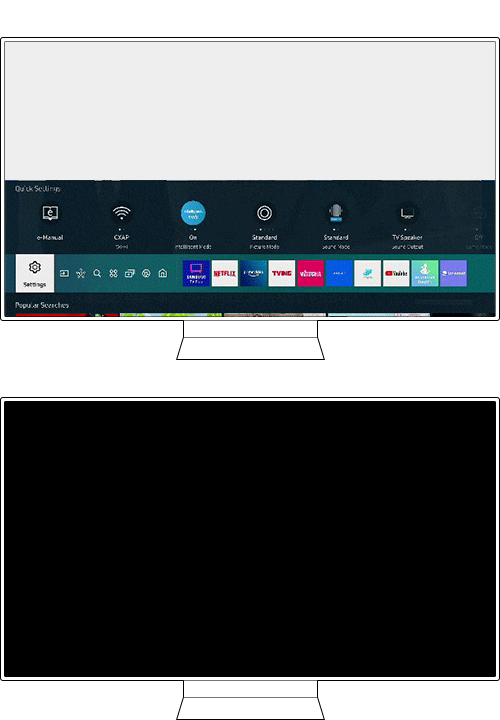
- The screen flickers even in TV menus.
- The screen shows constant lines, dark bars, or partial flicker across the panel.
- You smell burning or see swelling capacitors on the power board.
- The TV is under warranty—contact support before opening the set.
Common component faults:
- Backlight inverter or LED strips failing on LCDs.
- T-con board or panel connectors loosening.
- Power board capacitors degrading and causing unstable voltage.
- Faulty mainboard or firmware corruption beyond user repair.
Cost estimates:
- Simple parts and labor: $100–$250 for smaller repairs.
- Major board or panel replacement: $300–$900, often close to the value of cheap TVs.
- OEM screen replacement typically costs most and may not be economical for older sets.
If you are unsure, document the symptoms and contact the manufacturer or an authorized service center. If under warranty, do not open the TV yourself.
Preventive measures to avoid future flicker
Preventive care reduces the chance you’ll need to troubleshoot how to fix flickering TV screen again. Simple habits make a big difference.
Best practices:
- Use a quality surge protector to guard against power spikes.
- Keep the TV in a cool, ventilated area to avoid heat stress on electronics.
- Use good HDMI and power cables and replace them every few years.
- Check for firmware updates monthly or enable automatic updates.
- Avoid cheap splitters and extenders that reduce signal quality.
- Schedule a gentle cleaning of ports and vents twice a year.
Prevention is cheaper than repair. These steps protect your picture and extend the life of the TV.

Personal experiences and lessons learned
I once fixed a living-room TV that flickered only when the game console was on. A new HDMI cable solved it in five minutes. I also learned to always try a soft reset before any invasive step.
Lessons I share:
- Start with the simplest checks. Most fixes are quick and low-cost.
- Keep a spare high-quality HDMI cable at home. It’s a small investment.
- If you try a factory reset, note your picture settings first. It saves time to restore profiles.
- When a repair costs more than half the TV value, consider replacement.
These are practical tips from real jobs and tests. They save time and avoid unnecessary spending when you need to fix flickering TV screen.

Frequently Asked Questions of how to fix flickering tv screen
Why does my TV flicker only at night?
Night flicker often stems from lighting in the room, dimmer switches, or power line noise. Try plugging the TV into a different circuit or turning off dimmers to isolate the issue.
Can bad HDMI cables cause screen flicker?
Yes. A damaged or low-quality HDMI cable can cause intermittent signal loss and flicker. Replace the cable with a high-speed, certified HDMI cable to test.
Will a firmware update fix the flicker?
Firmware updates can fix software bugs that cause flicker, especially with HDR, refresh rate changes, or app compatibility. Always try an update before complex repairs.
Is it safe to open my TV and fix the backlight?
No, it is risky. TVs contain high-voltage components that stay charged. Leave internal repairs to trained technicians to avoid injury and further damage.
How long will a DIY fix last?
A DIY fix like replacing a cable or updating firmware is often permanent. Hardware fixes without replacing failing parts may only be temporary. Monitor the TV after repair to be sure.
When should I replace the TV instead of repairing?
If repair costs exceed half the replacement price, or the TV is older and lacks modern features, replacement is often the smarter choice. Compare repair quotes and new-TV prices.
Conclusion
You can solve most cases of how to fix flickering TV screen by starting with power cycles, checking cables, and updating firmware. Work methodically from simple checks to advanced fixes, and call a technician when you see hardware signs or when the set is under warranty. Try the steps above, keep a good HDMI cable handy, and use a surge protector to prevent future problems. If this guide helped, leave a comment about your issue or subscribe for more practical TV troubleshooting tips.

Everett Ashford is a tech reviewer at mytechgrid.com specializing in SSDs, cameras, TVs, earbuds, headphones, and other consumer electronics. He provides honest, data-driven reviews based on hands-on testing and real-world performance analysis. Everett simplifies complex tech details to help readers make smart, confident buying decisions.