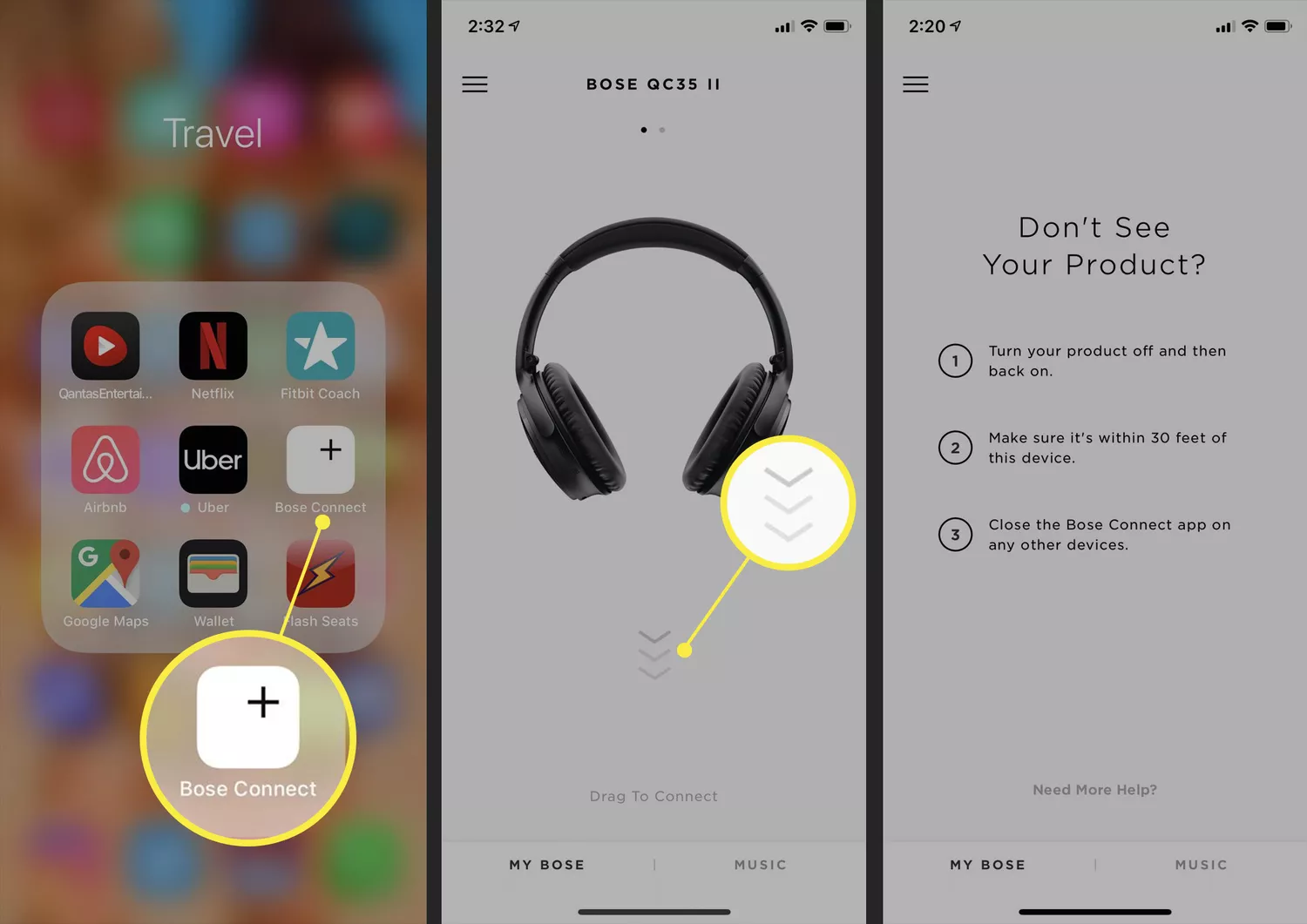
Most Bose headphones pair via Bluetooth: put them in pairing mode and connect on your device.
I’ve spent years setting up audio gear for friends, clients, and my own home. I know how to connect Bose headphones step by step, how to avoid the usual pairing pitfalls, and which settings matter most. Read on for clear, practical instructions, real tips from hands-on testing, and simple fixes that get your Bose headphones working fast.

Understanding your Bose headphones and connection modes
Bose makes many models. Each model may use Bluetooth, NFC, or a wired connection. Knowing your model helps you follow the right steps. Check the label on the earcup or the original box for the model name if you are unsure.
Most Bose headphones support Bluetooth. Some older or special models include a 3.5mm jack. Noise-canceling models add extra controls for power and pairing. Before you try to connect, make sure the headphones are charged and not already linked to another device.
How to connect bose headphones starts with identifying the power and Bluetooth buttons. Look for a power switch, a Bluetooth button, or a combined multifunction button. If your headphones have an app, installing it can simplify setup and firmware updates.

Pairing with a smartphone (iOS and Android)
These steps show how to connect Bose headphones to a phone. The steps are short and clear. Follow them slowly and watch the LED indicators.
iOS (iPhone and iPad)
- Turn on your Bose headphones and enable pairing mode by pressing the Bluetooth or power button until the LED flashes blue.
- Open Settings on your iPhone and tap Bluetooth.
- Wait for your Bose model to appear under Other Devices.
- Tap the device name to pair and connect.
If prompted, accept pairing requests or allow permissions. If you use the Bose app, it may request access to location or notifications to manage features.
How to connect bose headphones to iOS is usually seamless when the phone is up to date. If the headphones do not appear, toggle Bluetooth off and on, then try again.
Android
- Power on your Bose headphones and activate pairing mode by holding the Bluetooth button until the indicator flashes.
- Open Settings on your Android phone and go to Connections or Bluetooth.
- Scan for devices and tap your Bose model when it appears.
- Confirm pairing and any prompts that appear.
Android phones can differ, so if scanning fails, forget other paired devices to free the headphones. Using the Bose Connect app helps with fast pairing on many Android models.
How to connect bose headphones on Android often works on the first try. If not, restart your phone and headphones and retry.

Pairing with a computer or laptop (Windows and macOS)
Desktop and laptop pairing is similar to phones. Use Bluetooth settings and make sure audio output switches to the Bose headphones after pairing.
Windows
- Turn on headphones and set them to pairing mode.
- Open Start > Settings > Devices > Bluetooth & other devices.
- Click Add Bluetooth or other device and choose Bluetooth.
- Select your Bose headphones from the list and connect.
After pairing, select your Bose headphones as the audio output in the taskbar sound icon or sound settings. If you need microphone support, choose the Hands-Free profile in sound devices.
How to connect bose headphones in Windows can be affected by drivers. If sound is choppy, update Bluetooth drivers or remove and re-add the device.
macOS
- Put your Bose headphones in pairing mode.
- Click the Apple menu and open System Preferences > Bluetooth.
- Find your Bose headphones and click Connect.
Once connected, choose the headphones in Sound preferences for output and input. For best audio quality, select the A2DP output profile where available.
How to connect bose headphones on macOS is usually quick. If you see low-quality audio, switch profiles or reconnect to restore full stereo sound.
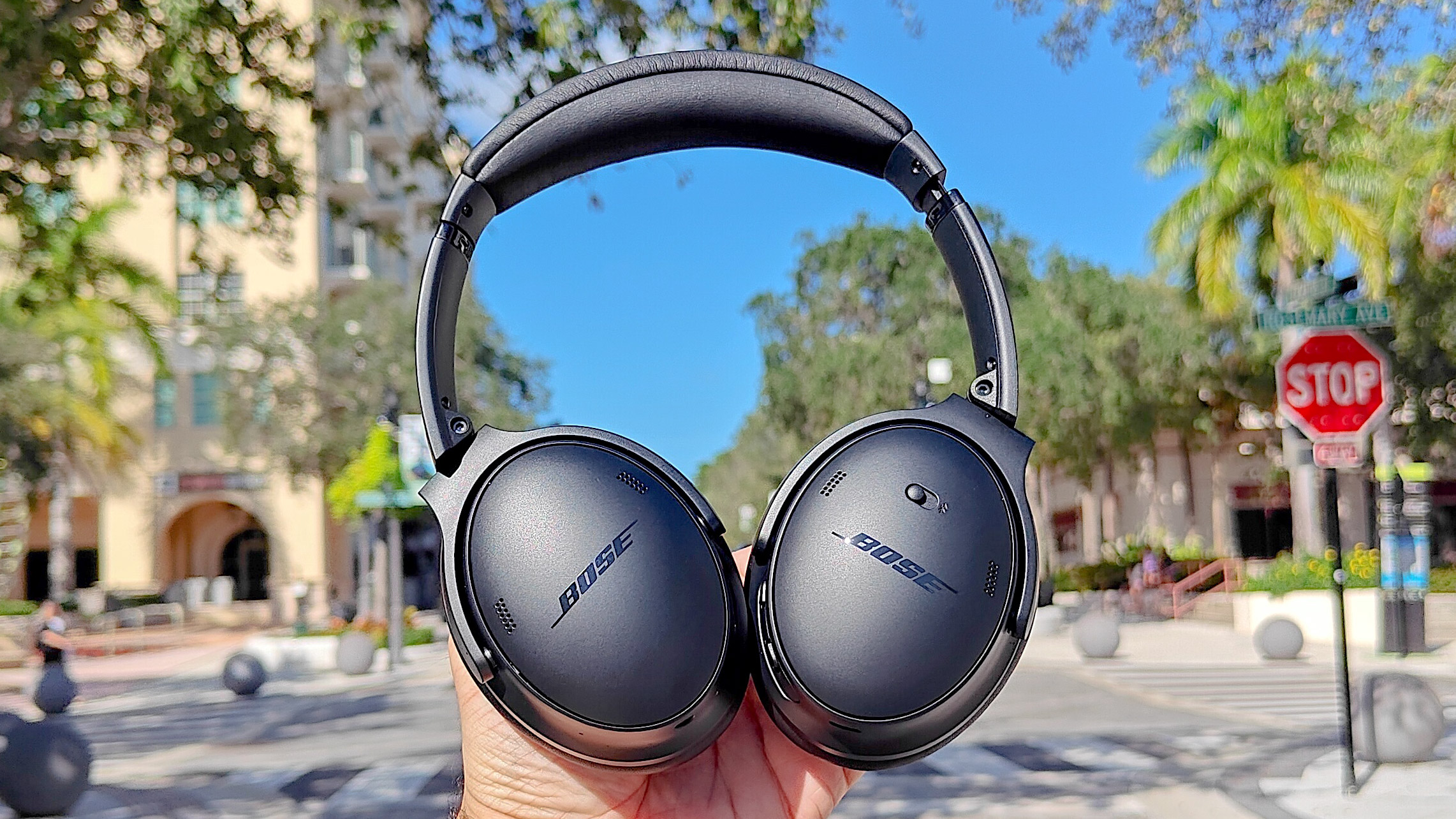
Wired connection and using the Aux cable
Some Bose headphones allow a wired connection. This is useful when Bluetooth is unavailable or to save battery.
To connect with a cable:
- Plug one end of a 3.5mm cable into the headphone jack.
- Plug the other end into your device’s headphone or line-out jack.
- Select the wired audio source if your device needs manual switching.
Wired connections avoid latency and pairing issues. They are handy on airplanes or older devices without Bluetooth. Remember: using a cable may disable active noise canceling on some models unless they support it over cable.
How to connect bose headphones with a wire is the simplest fallback. Keep a short, quality cable in your bag for travel.
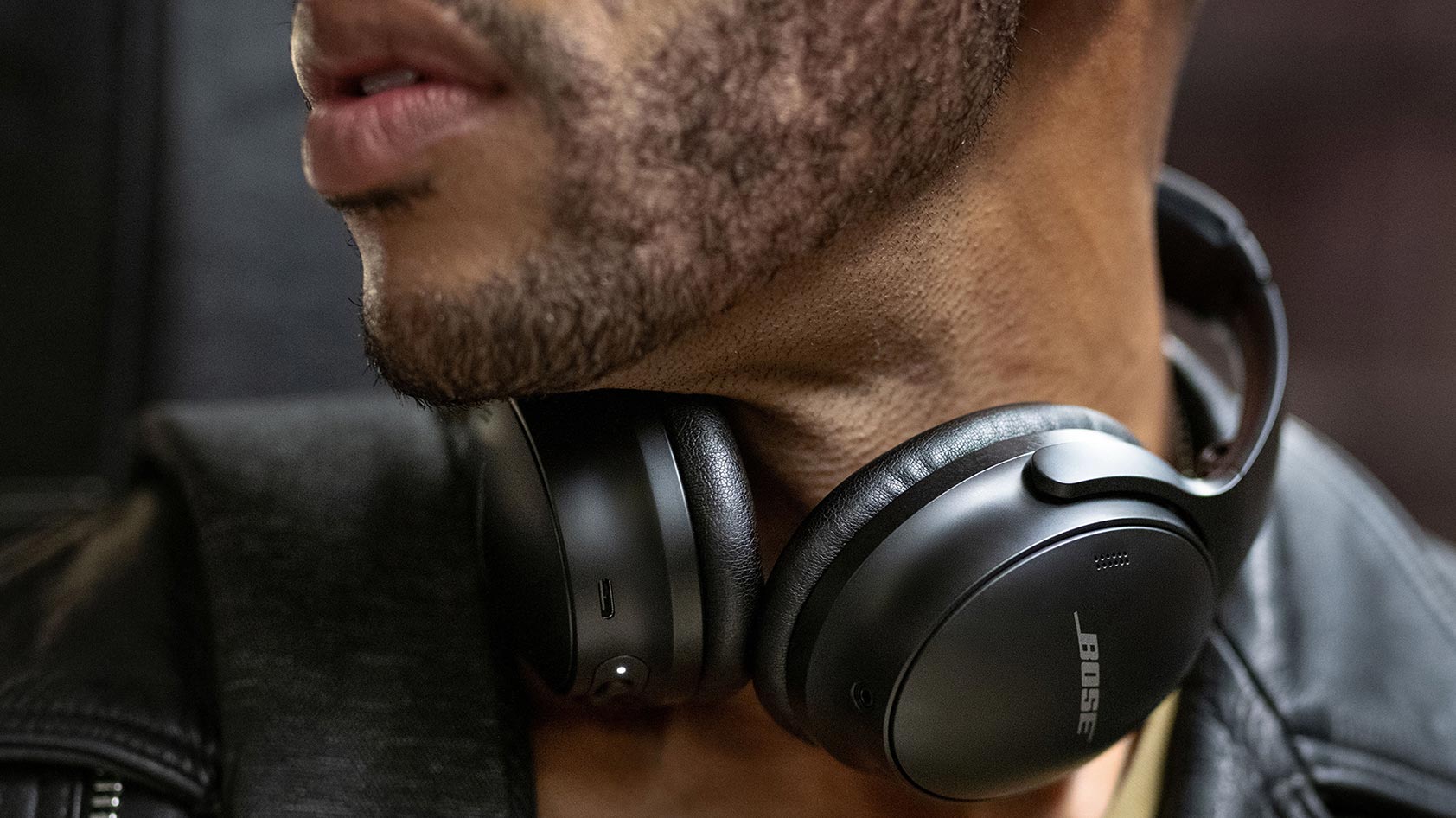
Troubleshooting common issues
If pairing fails, do these checks first. I’ve used these fixes many times and they solve most problems.
- Headphones won’t enter pairing mode
- Ensure battery is charged. Hold the Bluetooth button for the full time specified in the manual.
- Device does not list headphones
- Turn Bluetooth off and on. Restart both devices and retry pairing.
- Connected but no sound
- Check device audio output settings. Try a different app or restart the media.
- Poor sound or dropped audio
- Move closer to the source. Remove potential interference like microwaves or other Bluetooth devices.
- Headphones automatically reconnect to the wrong device
- Remove or forget the headphones from other devices’ Bluetooth lists.
My experience: resetting the headphones resolves strange bugs. Most Bose models have a reset sequence in the manual. Try that before assuming hardware failure.
How to connect bose headphones often comes down to power, pairing mode, and ensuring the host device is discoverable. These checks save time.

Tips to improve connection stability and battery life
Small habits lead to better results. I’ve tested these tips across multiple Bose models.
- Keep firmware updated
- Use the Bose app or desktop updater to install firmware updates.
- Limit paired devices
- Unpair devices you do not use often to reduce reconnection conflicts.
- Manage power wisely
- Turn off headphones when not in use. Lower volume for longer battery life.
- Use wired mode for critical listening
- When latency matters, plug in a cable for stable sound and zero lag.
- Store headphones properly
- Heat and moisture shorten battery life. Keep them in a case in cool, dry places.
If you travel, carry a small Bluetooth adapter. It helps when airplane systems only have USB ports. These small steps improve how to connect bose headphones and how long they stay connected.
Frequently Asked Questions of how to connect bose headphones
How do I put my Bose headphones into pairing mode?
Press and hold the Bluetooth button or power button until the LED flashes blue. The exact hold time varies by model, usually 2 to 5 seconds.
Why won’t my phone find my Bose headphones?
Often the headphones are not in pairing mode, or they are connected to another device. Turn off other devices, restart both units, and try pairing again.
How do I reset my Bose headphones?
Reset steps differ by model. Commonly, power off, wait 30 seconds, then hold power and Bluetooth buttons or follow the manual’s reset sequence.
Can I use Bose headphones with two devices at once?
Many Bose models support multipoint pairing for two devices. You can connect to both but only one will play audio at a time unless the model supports simultaneous audio.
Why is audio low quality after pairing to my laptop?
The laptop may be using the hands-free profile, which lowers audio quality. Change the output to the stereo A2DP profile in sound settings for better quality.
Conclusion
You now have a clear, practical roadmap for how to connect bose headphones to phones, computers, and with a cable. Start by identifying your model, use pairing mode correctly, and apply the simple fixes here when things go wrong. Try the troubleshooting steps and tips I shared to save time and frustration.
Take action: charge your headphones, update firmware, and pair them with your primary device now. If this guide helped, leave a comment, subscribe for more audio tips, or share your own pairing story.

Everett Ashford is a tech reviewer at mytechgrid.com specializing in SSDs, cameras, TVs, earbuds, headphones, and other consumer electronics. He provides honest, data-driven reviews based on hands-on testing and real-world performance analysis. Everett simplifies complex tech details to help readers make smart, confident buying decisions.