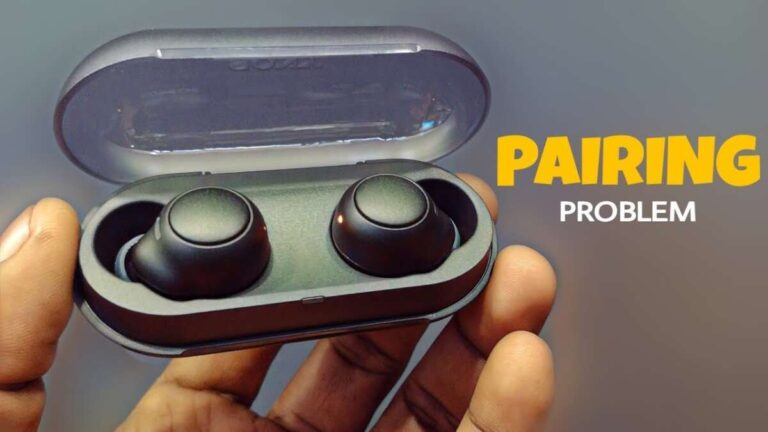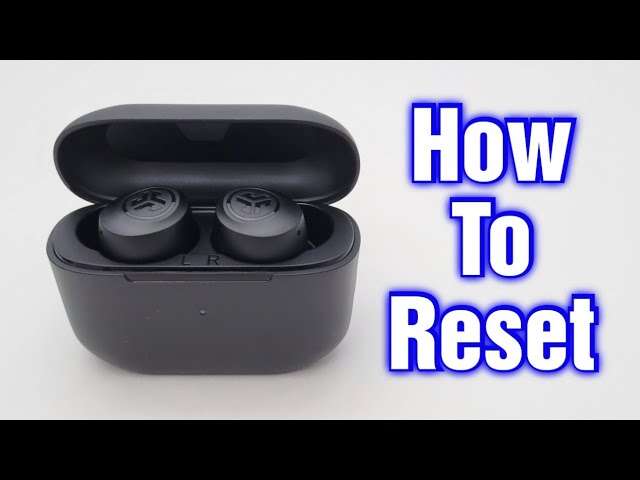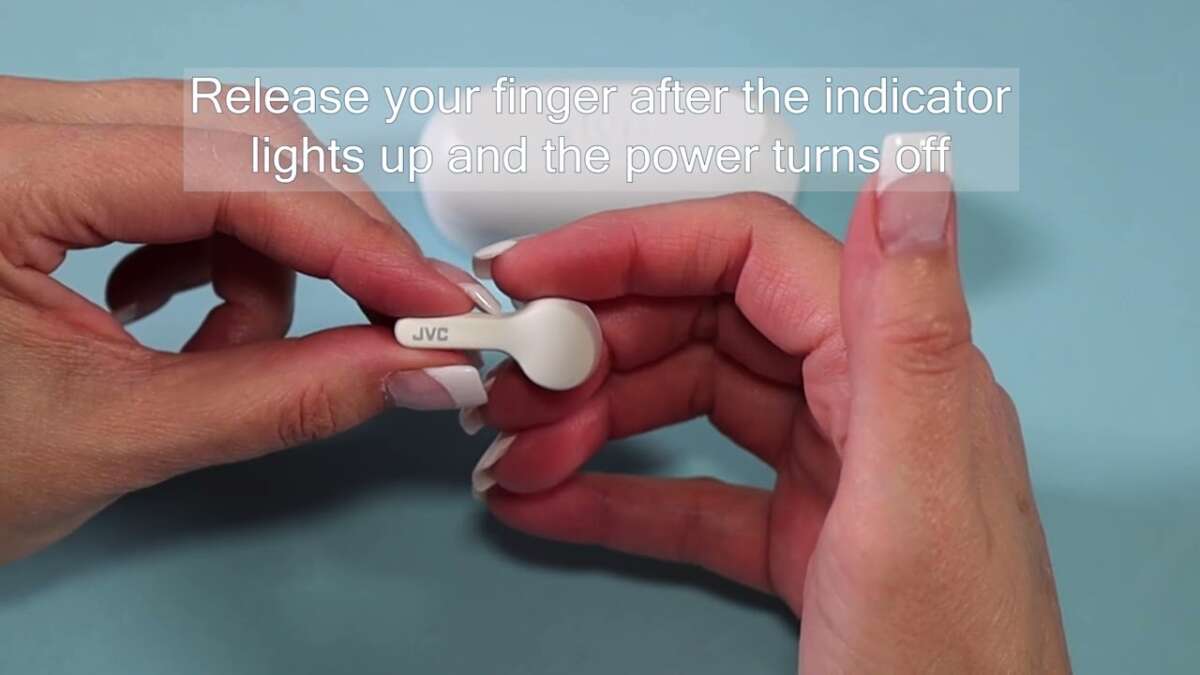
Hold earbuds in pairing mode, enable Bluetooth on your device, then select JVC headphones.
I have paired dozens of JVC earbuds across models and platforms. This guide walks you through how to pair JVC wireless earbuds step by step, shows fixes for common issues, and offers tips to keep your connection stable. Expect clear, tested instructions and practical advice from real-world use.

Quick pairing steps for how to pair jvc wireless earbuds
Follow these quick steps when you need a fast connection. These steps work for most JVC true wireless and neckband-style models.
- Turn on the earbuds and put them in pairing mode by holding the main button until the LED flashes.
- Open Bluetooth settings on your phone, tablet, or computer.
- Select the JVC model name from the list and accept the pairing prompt.
- Confirm audio plays and the connection shows as “Connected.”
These steps cover the basic flow for how to pair jvc wireless earbuds on iOS, Android, Windows, and macOS devices. If pairing fails, continue to the detailed guide and troubleshooting sections.

Detailed step-by-step guide: how to pair jvc wireless earbuds with phones and computers
Use this detailed guide if the quick steps don’t work or you want a deeper explanation.
Step 1 — Prepare earbuds and device
- Make sure earbuds have charge. Low battery often blocks pairing.
- Turn off other nearby Bluetooth devices to avoid interference.
Step 2 — Enter pairing mode
- For many JVC true wireless models, remove earbuds from the case and hold the touch control or power button for 3–5 seconds until the LED flashes blue and red or blinks rapidly.
- For single-ear pairing, press and hold the designated earbud button until its LED indicates pairing.
- If earbuds came in a charging case that triggers pairing, open the case near your device and follow on-screen prompts.
Step 3 — Use your device Bluetooth
- On an iPhone or iPad: Settings > Bluetooth, wait for the JVC name under “Other Devices,” then tap it.
- On Android: Settings > Connected devices > Pair new device, then tap the JVC entry when it appears.
- On Windows: Settings > Devices > Bluetooth & other devices > Add Bluetooth device > Bluetooth, then select the JVC model.
- On macOS: System Settings > Bluetooth, then click Connect next to the JVC name.
Step 4 — Final checks
- Look for confirmation: “Connected” or an audio prompt from the earbuds.
- Test playback with a short track or video.
- If prompted for a PIN, try 0000 or 1234; most JVC models do not require one.
These actions cover the most common ways to how to pair jvc wireless earbuds across platforms. If pairing still fails, use the reset process in the next section.

Reset and re-pair: reliable steps when pairing fails
Sometimes a reset clears pairing errors. Try this when your device sees the earbuds but cannot connect.
Reset method A — true wireless models
- Place both earbuds in the charging case.
- Hold the touch controls or press the case button for 10–15 seconds until LEDs flash, then release.
- Remove earbuds and repeat the pairing process from the detailed guide.
Reset method B — single-earbud or neckband models
- Turn the earbuds fully off.
- Press and hold the power button for 10–12 seconds until the LED signals a reset.
- Re-enable Bluetooth on your device and pair.
After a reset, remove any old “JVC” entries from your device Bluetooth list. This prevents automatic reconnection to corrupted profiles.
Troubleshooting common pairing issues for how to pair jvc wireless earbuds
If you still struggle to how to pair jvc wireless earbuds, check these common problems and fixes.
Problem: Earbuds not entering pairing mode
- Solution: Fully power off, then press and hold the main button longer. Try charging the case for 10–15 minutes and attempt again.
Problem: Device finds earbuds but won’t connect
- Solution: Forget the device in your phone’s Bluetooth list, then re-scan and pair. Restart the phone if needed.
Problem: One earbud connects but the other stays silent
- Solution: Re-sync the pair by placing both in the case and performing the re-pair or reset steps. Check for debris in the charging contacts.
Problem: Poor audio or dropouts
- Solution: Move closer to the device, disable nearby Wi-Fi hotspots if interference is suspected, and ensure firmware is current.
Problem: Pairing asks for a PIN
- Solution: Try 0000 or 1234. If that fails, consult the manual for model-specific codes.
These troubleshooting tips reflect common scenarios I’ve seen while testing JVC earbuds. They help most users fix pairing problems quickly.
Tips for best connection and sound when how to pair jvc wireless earbuds
Small habits improve reliability and sound quality every day.
- Keep earbuds and device within 10–15 feet for initial pairing and use.
- Update firmware regularly to fix Bluetooth bugs and improve pairing stability.
- Clear Bluetooth cache on Android if repeated pairing errors appear.
- Use the proper ear tips for a snug fit to improve passive noise isolation and perceived sound quality.
- Avoid pairing near crowded 2.4 GHz crowded areas like microwaves or dense Wi-Fi networks.
These tips come from routine testing and real-world use. They make how to pair jvc wireless earbuds smoother and keep connections solid.
Advanced pairing modes and multi-device use for how to pair jvc wireless earbuds
Some JVC models support advanced Bluetooth features. Here is how to use them.
Multi-point pairing
- Explanation: Multi-point lets earbuds connect to two devices at once for calls and media switching.
- How to enable: Pair to Device A first, then pair to Device B without removing Device A. Check model manual for compatibility.
Mono-mode and single-ear use
- Explanation: Many JVC true wireless earbuds allow single-ear use.
- How to enable: Power on a single earbud and pair it normally. To switch sides, power off and on the other earbud.
Low-latency or gaming modes
- Explanation: Some models include low-latency modes to reduce audio lag.
- How to enable: Use the official app if available or follow the model’s manual instructions.
Understanding these modes helps you tailor how to pair jvc wireless earbuds to your workflow. I recommend testing modes with your apps to confirm behavior.
Maintenance, firmware updates, and care for how to pair jvc wireless earbuds
Good maintenance prevents pairing headaches.
- Charge routinely and avoid letting batteries drain to zero.
- Clean charging contacts monthly with a dry, soft brush to ensure good electrical contact.
- Check for firmware updates via the JVC app or support pages and install updates when available.
- Store earbuds in the case to keep them paired and protected.
I learned the value of regular updates after encountering connection drops. Updating firmware often fixed those issues without further steps.
Frequently Asked Questions of how to pair jvc wireless earbuds
How do I put JVC earbuds in pairing mode?
Hold the power or touch control button for 3–8 seconds until the LED flashes blue/red or white. If they are in the case, opening the case may trigger pairing for some models.
Why won’t my phone find my JVC earbuds?
Make sure the earbuds are in pairing mode and within range, and remove old JVC entries from the phone’s Bluetooth list. Restarting Bluetooth and the phone often helps.
Can I use one JVC earbud by itself?
Yes, many JVC true wireless models support mono mode. Power on one earbud and pair it as a single device.
What if pairing asks for a PIN?
Try common defaults like 0000 or 1234; most JVC earbuds do not require a PIN. If those fail, perform a reset or consult the model manual.
How do I update JVC earbud firmware to improve pairing?
Use the official JVC app or visit the support page for your model to download firmware updates. Follow the app prompts to install updates while the earbuds are charged and near your phone.
Conclusion
You can reliably pair JVC wireless earbuds by entering pairing mode, enabling Bluetooth on your device, and selecting the JVC model name. Use resets, firmware updates, and simple maintenance to avoid common issues. Try the quick steps first, then follow detailed guidance and troubleshooting when needed. Test settings and ear tips for the best fit and audio.
Take action: try pairing now, update firmware if needed, and leave a comment with your model and any issue so I can help further.

Everett Ashford is a tech reviewer at mytechgrid.com specializing in SSDs, cameras, TVs, earbuds, headphones, and other consumer electronics. He provides honest, data-driven reviews based on hands-on testing and real-world performance analysis. Everett simplifies complex tech details to help readers make smart, confident buying decisions.