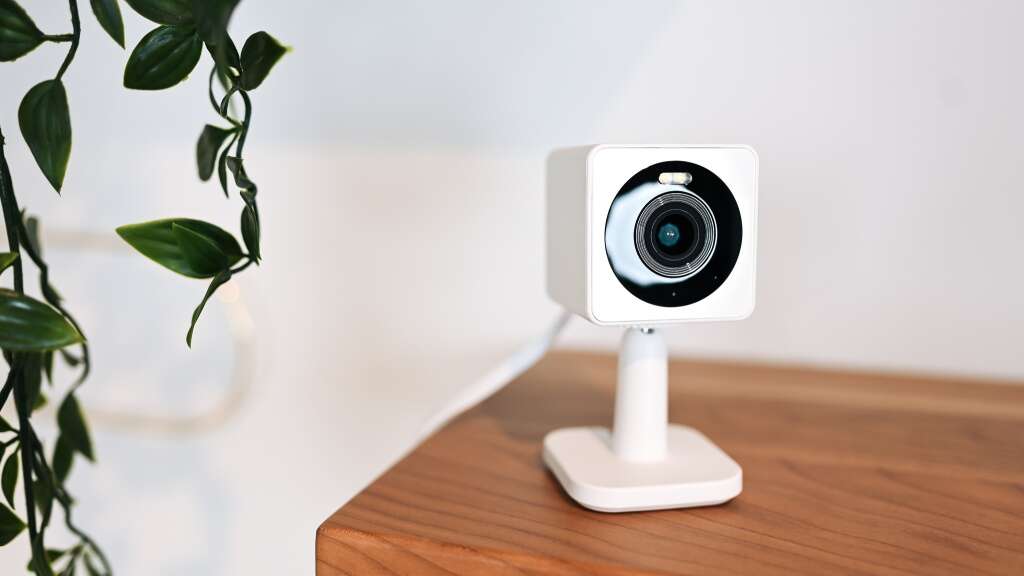
Connect your Wyze camera to new Wi-Fi using the Wyze app, camera reset, and 2.4GHz network.
I’ve set up and fixed dozens of Wyze cameras, so I know what works and what trips people up. This guide walks you through how to connect Wyze camera to new wifi step by step, covers common failures, and shares pro tips I learned from hands-on installs. Read on to get your camera back online fast and secure.

Before you start: checklist and prep
Make sure you have the essentials ready before you try to connect your Wyze camera to new wifi. Have the Wyze app installed on your phone and sign in. Confirm your phone is on the same Wi‑Fi band you plan to use with the camera. Wyze cameras use 2.4 GHz Wi‑Fi only, so a 5 GHz-only SSID will not work. Write down your new Wi‑Fi name and password, and keep the camera near the router while you set it up.

Step-by-step: how to connect Wyze camera to new WiFi
Follow these clear steps to connect your Wyze camera to new wifi. I keep these same steps for every Wyze setup because they are simple and reliable.
- Open the Wyze app and tap the plus (+) to add a device.
- Choose the correct camera model and follow the on-screen prompts.
- Put the camera into setup mode by powering it on and watching for the yellow or blue light, or hold the setup button if needed.
- When prompted, select your new Wi‑Fi network in the app. Make sure you pick your 2.4 GHz SSID, not a 5 GHz one.
- Enter the Wi‑Fi password carefully and tap Confirm. The app will send settings to the camera and attempt to connect.
- Wait for the camera to say “Connected” or show a live view. Move the camera to its final location once the connection is stable.
If the app asks to scan a QR code, show the QR to the camera lens as instructed. If the camera needs a firmware update after connection, allow it to complete before adjusting settings. These steps are the heart of how to connect Wyze camera to new wifi and they work in the vast majority of cases.
Troubleshooting: when the Wyze camera won’t connect to new WiFi
If your Wyze camera won’t connect to new wifi, try these fixes in order. I’ve used them during remote installs and they usually solve the issue.
- Confirm your router broadcasts a 2.4 GHz network and that the camera is trying to join that SSID.
- Temporarily disable guest networks or captive portals that block devices from joining.
- Reboot your router and power cycle the Wyze camera by unplugging it for 10 seconds.
- Move the camera close to the router to rule out range or interference issues.
- Factory reset the camera by holding the setup button for 10–15 seconds, then repeat the connection steps.
If the Wyze app shows “Could not connect,” it often means the password was wrong or the router is blocking new devices. Check MAC filtering, WPA2 settings, and ensure your router uses a common encryption like WPA2-PSK. These checks cover the main reasons why you might fail when trying to connect a Wyze camera to new wifi.

Advanced settings and pro tips
Use these advanced tips once the camera is online to improve stability and security with your Wyze camera and new wifi setup.
- Use a dedicated 2.4 GHz SSID for smart devices so they don’t accidentally try to use 5 GHz.
- Reserve a static IP for the camera in your router to reduce reconnect problems.
- Update the camera firmware after setup to fix known bugs and improve performance.
- Lower wireless channel interference by setting router channels manually if you see poor signal.
- Enable strong, unique passwords and consider a separate IoT VLAN for added security.
I’ve seen setups fail when people mix 5 GHz and 2.4 GHz names. Keeping a clear SSID for 2.4 GHz makes connecting Wyze camera to new wifi simpler and more reliable.

Common mistakes to avoid
Avoid these easy errors when you connect your Wyze camera to new wifi.
- Trying to connect to a 5 GHz network. Wyze cameras only support 2.4 GHz.
- Typing the Wi‑Fi password incorrectly or copying hidden characters from notes.
- Placing the camera too far from the router during setup.
- Skipping firmware updates that fix connection bugs.
- Leaving router settings like MAC filtering or AP isolation enabled.
I once spent an hour troubleshooting a camera only to find the router’s guest mode blocked it. Check these items first to save time.

Frequently Asked Questions of how to connect wyze camera to new wifi
How do I switch my Wyze camera to a new Wi‑Fi network without losing settings?
Open the Wyze app, go to the camera settings, choose “Wi‑Fi Network” or “Remove Device,” and follow prompts to add the camera to the new Wi‑Fi. Removing and re-adding keeps cloud settings but you may need to reconfigure local options.
Can Wyze cameras use 5 GHz Wi‑Fi?
No, Wyze cameras only support 2.4 GHz Wi‑Fi. Ensure your new Wi‑Fi SSID broadcasts a 2.4 GHz network when you connect the camera.
What if the Wyze app can’t find my camera during setup?
Move the camera closer to the router, reboot both devices, and ensure your phone is on the same 2.4 GHz network. If needed, factory reset the camera and retry the setup.
Do I need to reset my Wyze camera to change Wi‑Fi?
In many cases you can update the Wi‑Fi through the Wyze app. If that fails, perform a factory reset and then reconnect the camera to your new Wi‑Fi.
Will my Wyze camera keep recordings after changing Wi‑Fi?
Local recordings on a microSD card remain intact after you change Wi‑Fi. Cloud events are linked to your Wyze account and will continue once the camera reconnects to the new Wi‑Fi.
Conclusion
Getting your Wyze camera connected to new Wi‑Fi is usually quick when you follow a clear process: prepare, choose the 2.4 GHz network, enter the password correctly, and troubleshoot simple issues like distance or router filters. Use static IPs, separate SSIDs for IoT devices, and keep firmware up to date to avoid repeat problems. Try the steps now and test the live view to confirm success, then leave a comment if you hit a snag or want advanced help.

Everett Ashford is a tech reviewer at mytechgrid.com specializing in SSDs, cameras, TVs, earbuds, headphones, and other consumer electronics. He provides honest, data-driven reviews based on hands-on testing and real-world performance analysis. Everett simplifies complex tech details to help readers make smart, confident buying decisions.