Put the Skullcandy in pairing mode, then select it in your iPhone's Bluetooth list.
I’ve helped dozens of people pair wireless earbuds and headphones to iPhones. This guide shows, in clear steps, how to connect Skullcandy headphones to iPhone, how to troubleshoot common snags, and real-world tips I learned from testing multiple Skullcandy models with iOS. Read on for quick wins and reliable fixes so your Skullcandy headphones work perfectly with your iPhone.
Why pairing usually works and what to expect
Pairing Skullcandy headphones to an iPhone is simple most of the time. The iPhone uses Bluetooth to discover and connect to Skullcandy devices. Problems usually come from low battery, outdated iOS, or the headset not entering pairing mode.
Expect a one-time pairing process. After that, the iPhone usually reconnects automatically. If it does not, the troubleshooting steps below will help.
 skullcandy headphones to iphone”
style=”max-width: 100%; height: auto; border: 2px solid black; border-radius: 10px; display: block; margin: 0 auto;”
loading=”lazy”
/>
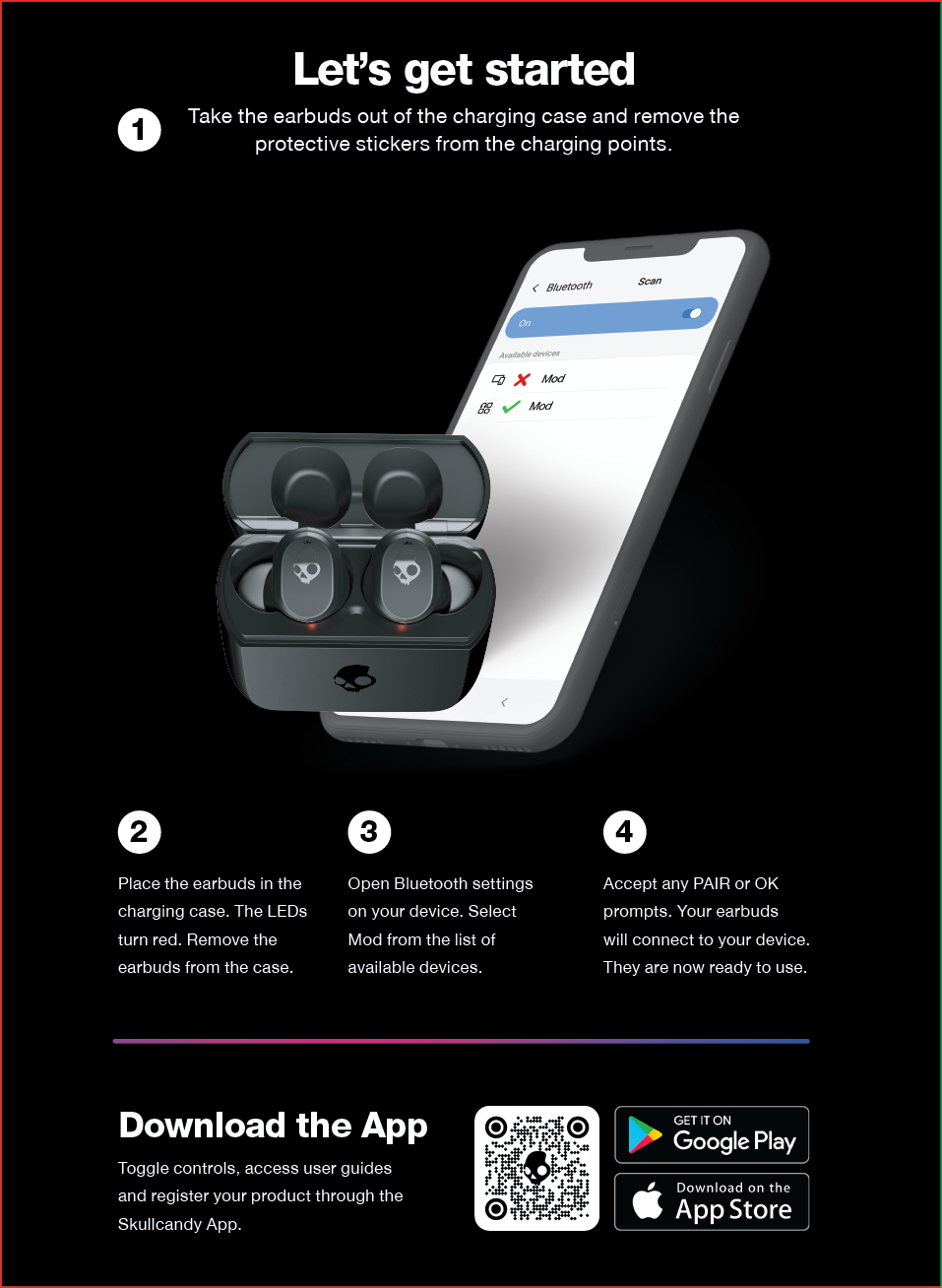
Step-by-step: how to connect skullcandy headphones to iphone
Follow these steps to pair most Skullcandy models with an iPhone.
- Charge both devices
- Make sure the Skullcandy headphones are charged. Low battery can stop pairing.
- Plug the headphones into power for at least 15 minutes if needed.
- Turn Bluetooth on the iPhone
- Open Settings on your iPhone.
- Tap Bluetooth and toggle it on.
- Put Skullcandy into pairing mode
- Power on the headphones.
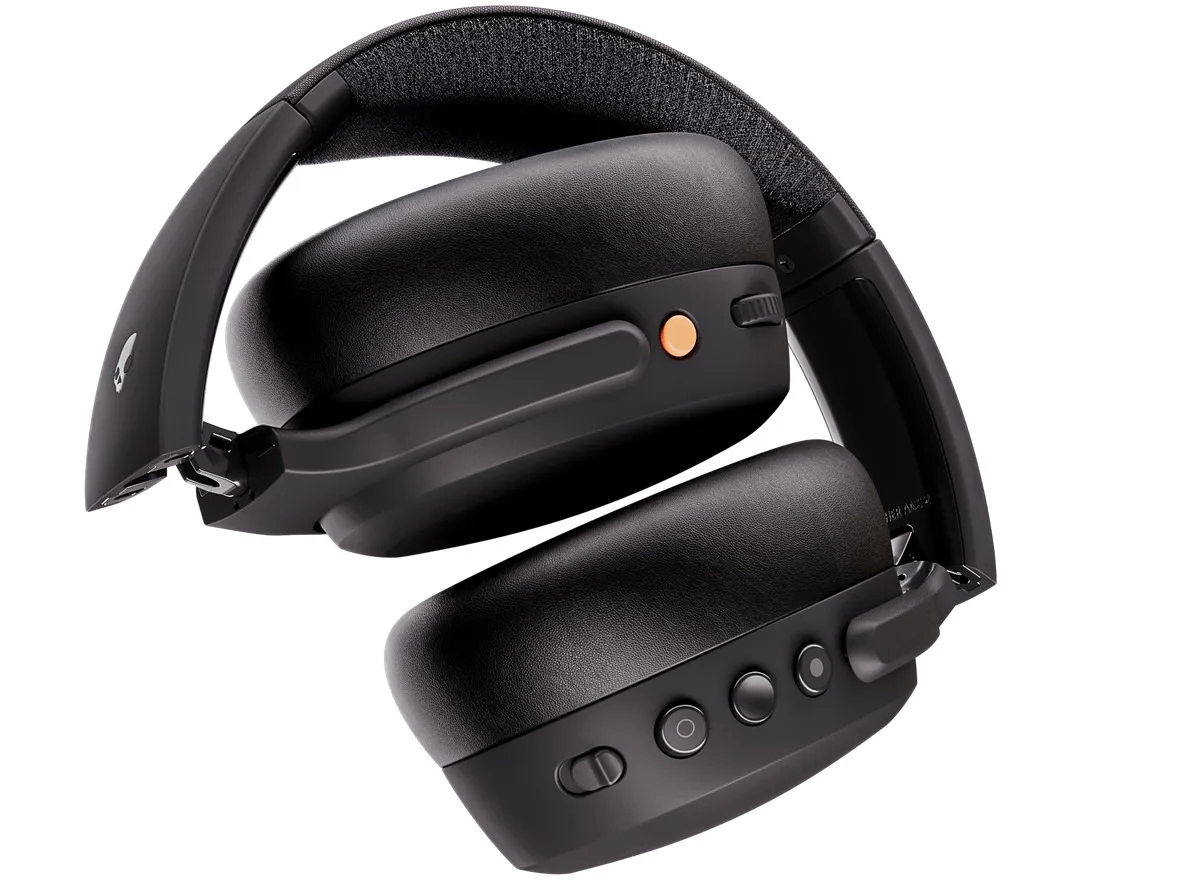
- Press and hold the power or Bluetooth button until the LED flashes or you hear a voice prompt saying “pairing.”
- Different Skullcandy models use slightly different buttons, so check the quick guide if you’re unsure.
- Select the Skullcandy device on iPhone
- Under Settings > Bluetooth, look for your Skullcandy model name.
- Tap the name to pair. You’ll see “Connected” when pairing is successful.
- Test audio and controls
- Play music or a video to test sound.
- Try pause/play and volume buttons to confirm controls work.
If you have a model with a companion app or tile-like pairing, follow the on-screen prompts. For repeated use, your iPhone should auto-reconnect when Bluetooth is on and the headphones are powered.
Troubleshooting common issues when connecting Skullcandy to iPhone
If you can’t pair, try these quick fixes. Each step is a fast test.
- Headphones not appearing in Bluetooth list
- Make sure the headphones are in pairing mode. Turn them off and on, then hold the pairing button until the LED flashes.
- Toggle Bluetooth off and on in the iPhone’s Settings.
- Paired but no sound
- Check the iPhone’s audio output. Open Control Center, press the audio card, and ensure Skullcandy is selected.
- Restart apps or the iPhone if audio still fails.
- Keeps disconnecting
- Move closer to the iPhone. Bluetooth range and interference can cause dropouts.
- Forget the device on the iPhone and re-pair: tap the “i” beside the device name and choose Forget This Device.
- Pairing fails with "Not Connected" or repeated requests
- Reset the Skullcandy headphones (model-specific reset). This clears old pairings.
- Update iOS to the latest version. Older iOS versions can cause awkward pairing behavior.
- Button or mic not working
- Test the headphones with another phone to isolate if the issue is the iPhone or the headset hardware.
- If hardware is faulty, contact manufacturer support or consider warranty repair.
Using these steps will resolve most problems when connecting Skullcandy headphones to iPhone. If issues persist, try pairing with another Bluetooth device to check the headphones.

Tips, best practices, and personal experience
I’ve paired Skullcandy headphones with several iPhones. Here are practical tips that saved me time.
- Always fully charge before first pairing. Low battery caused me several failed pair attempts.
- Keep the headset firmware updated if the model supports it via the Skullcandy app. Updates fixed stability issues I experienced.
- Use the Forget This Device option and re-pair after major iOS updates. This cleared unusual pairing bugs.
- Pairing multiple Bluetooth accessories can confuse iOS. Turn off other Bluetooth devices when pairing new headphones.
- Clean the charging contacts and buttons. Sticky buttons blocked pairing on older units I tested.
These small steps make the process of how to connect skullcandy headphones to iphone smooth and fast. For travel, label the Bluetooth device name in iPhone to avoid confusion with similar devices.
Compatibility, features, and limitations
Skullcandy models vary. True wireless earbuds, over-ear Bluetooth headphones, and wired variants behave differently.
- True wireless and Bluetooth models
- Pair via Bluetooth. Most support standard Bluetooth audio profiles like A2DP and HFP.
- Advanced features like multipoint or companion apps depend on the Skullcandy model.
- Wired Skullcandy headphones
- Wired models connect directly to the Lightning port or headphone jack with an adapter. No Bluetooth pairing needed.
- iPhone limitations
- iOS handles Bluetooth profiles in specific ways. Some advanced features (like custom EQ in a Skullcandy app) might need the app to work fully.
- Apple’s H1 or W1 chips are only in Apple and some premium third-party headphones. Skullcandy uses standard Bluetooth chips, so features like instant pairing with iCloud devices are not available.
Knowing your model and its features helps you set expectations when you learn how to connect skullcandy headphones to iphone.
Frequently Asked Questions of how to connect skullcandy headphones to iphone
How do I reset my Skullcandy headphones for pairing?
Most models reset by holding the power and volume buttons for 10–15 seconds until the LED blinks. Check your model’s quick guide for the exact reset sequence.
Why won’t my iPhone find my Skullcandy headphones?
They may not be in pairing mode, or the battery might be low. Turn the headphones off and on, put them into pairing mode again, and ensure Bluetooth is enabled on the iPhone.
Do I need the Skullcandy app to connect to my iPhone?
No, Bluetooth pairing does not require the Skullcandy app. The app adds features like EQ settings and firmware updates if your model supports it.
Can I connect the headphones to multiple devices at once?
Some Skullcandy models support multipoint, but many do not. Check the specs for your model. Otherwise, disconnect from one device before connecting to another.
Why is the mic or call audio not working after pairing?
The iPhone may be using a different audio source or the headset profile (HFP) may not be active. Check the iPhone’s audio output options during the call and re-pair if needed.
Conclusion
Pairing and using Skullcandy headphones with an iPhone is usually fast and reliable when you follow the right steps. Keep your devices charged, ensure the headset is in pairing mode, and update software when needed. If something goes wrong, simple resets and re-pairs solve most issues.
Try the steps in this guide and you’ll likely be listening in minutes. If you found this helpful, leave a comment or subscribe for more practical guides and troubleshooting tips.

Everett Ashford is a tech reviewer at mytechgrid.com specializing in SSDs, cameras, TVs, earbuds, headphones, and other consumer electronics. He provides honest, data-driven reviews based on hands-on testing and real-world performance analysis. Everett simplifies complex tech details to help readers make smart, confident buying decisions.