Use the SSD's built-in secure erase or NVMe format, then verify and optionally destroy encryption keys.
I have worked with drives for years and helped many people wipe and sell SSDs safely. This guide on how to securely erase SSD before selling it shows clear, tested steps. I explain why SSDs need special care, the best methods for SATA and NVMe drives, tools that work, and how to confirm the wipe. Read on and you will leave no personal data behind when you sell your SSD.
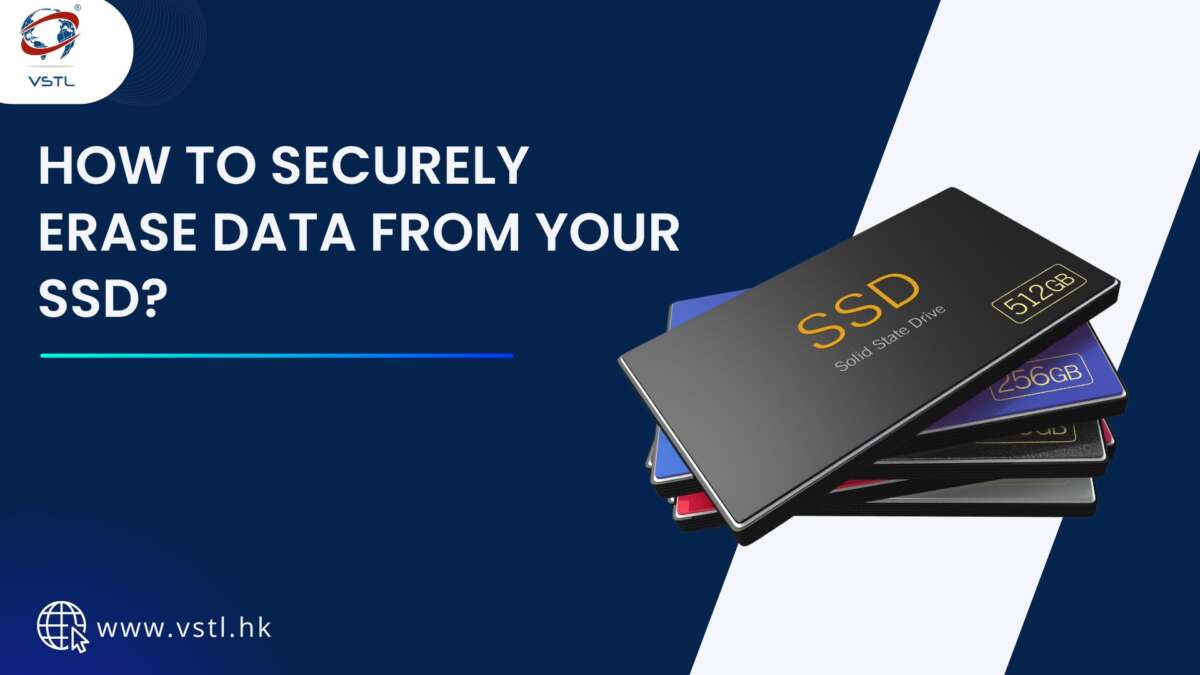
Why you must securely erase your SSD before selling it
Selling a drive without wiping it can expose emails, photos, passwords, and work files. SSDs use flash memory and wear leveling, so simple file delete or a quick format often leaves recoverable data. Knowing how to securely erase SSD before selling it keeps you safe and meets privacy rules for many businesses. Use proven commands or vendor tools to clear data.
How SSDs differ from hard drives and why standard wipes fail
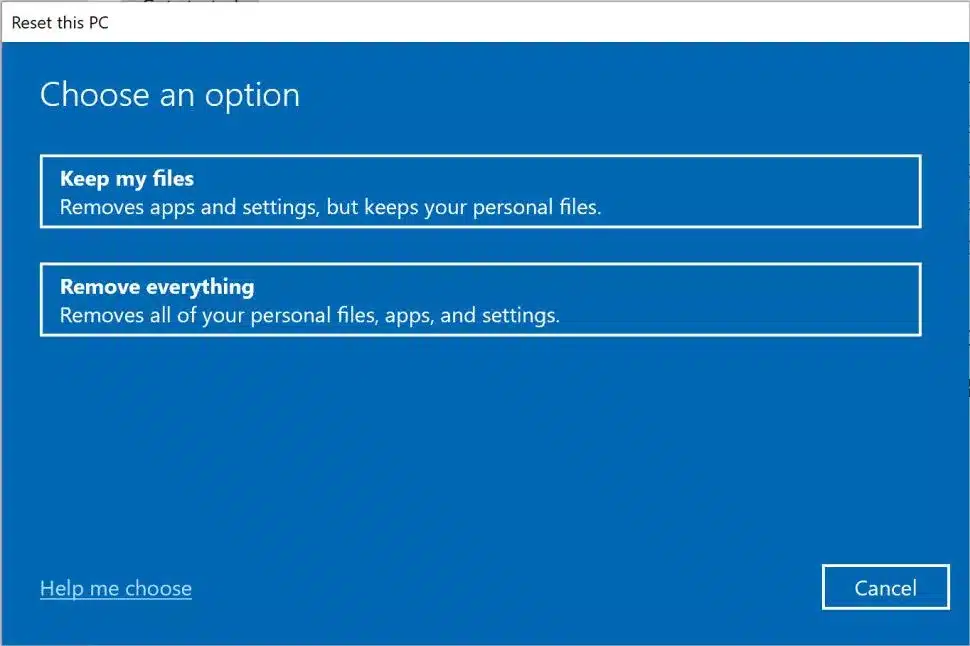
SSD firmware spreads data across many blocks. That is called wear leveling. Overwriting each block like with HDD tools is not guaranteed to touch all blocks. TRIM and garbage collection also change how data is removed. For that reason, how to securely erase SSD before selling it needs SSD-specific methods.
Prepare before you erase: backup, decrypt, and note settings
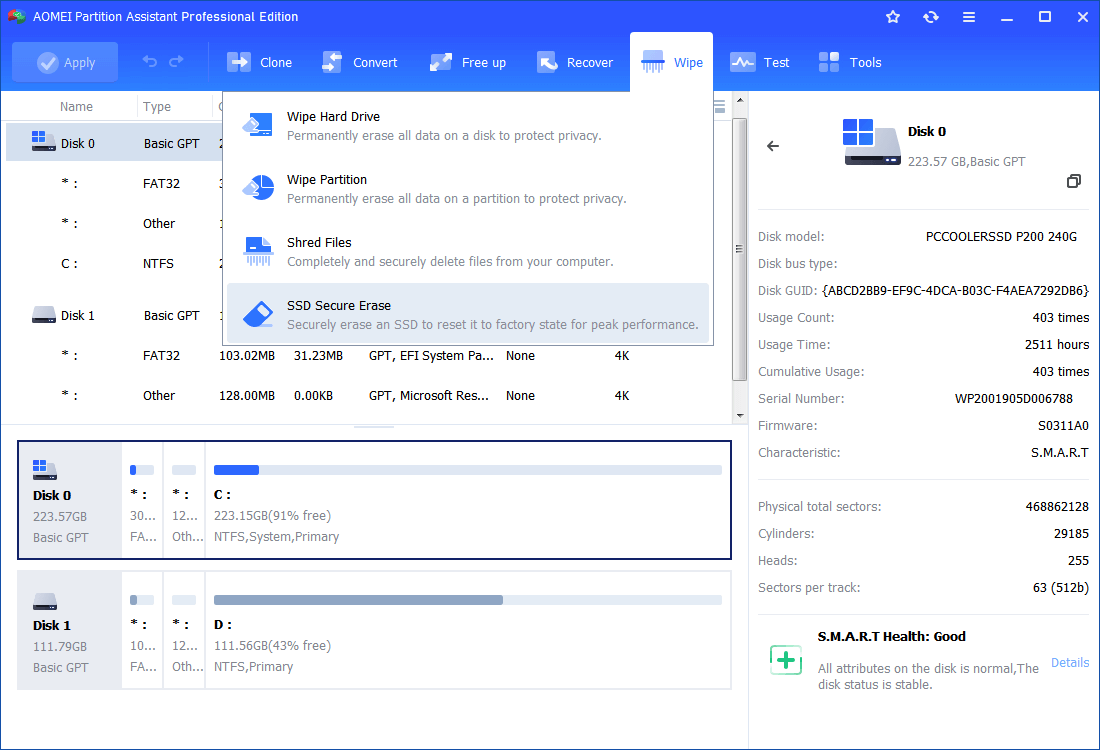
Back up any files you want to keep. Turn off full-disk encryption or note the key. Remove the SSD from RAID arrays or from laptop encryption services. Update the drive firmware if the vendor recommends it. A clean backup and a clear plan make the erase smooth and safe.
Methods to securely erase SSD before selling it
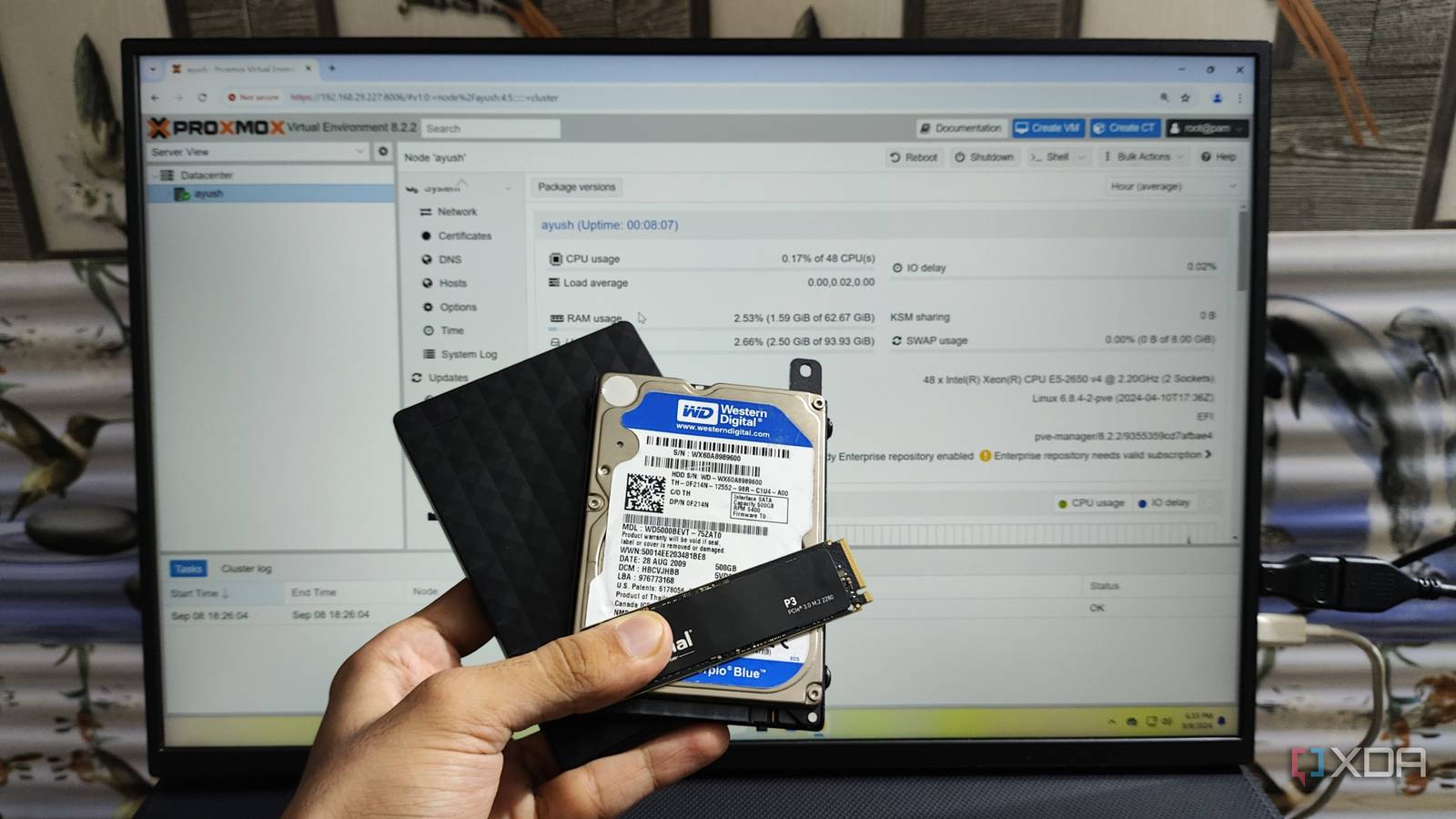
Use one of these reliable approaches. Pick the one that matches your drive type and risk level.
-
ATA Secure Erase for SATA drives
- Use the drive's secure erase command via hdparm or a vendor tool.
- Confirm the drive is not "frozen" in BIOS. If frozen, suspend and resume or hot-plug the drive.
- This runs a firmware-level erase that targets all NAND blocks.
-
NVMe format or sanitize for NVMe drives
- Use nvme-cli to run "nvme format" or "nvme sanitize".
- Choose a secure sanitize option if supported by the SSD.
- This tells the controller to purge flash regions safely.
-
Vendor utilities
- Samsung Magician, Intel SSD Toolbox, Crucial Storage Executive, and others offer secure erase features.
- These tools are often the safest choice for consumer SSDs.
-
Crypto-erase by destroying encryption keys
- If the SSD uses hardware encryption, a crypto-erase deletes the key in firmware.
- This is fast and effective if the drive truly uses strong encryption.
-
Physical destruction as last resort
- If the data is extremely sensitive, shred or physically destroy the NAND chips.
- This is irreversible and used by governments and high-risk firms.
Each method addresses how to securely erase SSD before selling it in a way that accounts for wear leveling and controller behavior. Choose based on your drive type and threat level.
Step-by-step: common scenarios
Follow the short steps that match your system.
-
Windows desktop with a SATA SSD
- Back up files and create a recovery USB.
- Download the vendor secure erase tool or boot a live USB with hdparm.
- Run the ATA Secure Erase command and wait until it completes.
- Reinstall OS or leave uninitialized for shipping.
-
Mac with internal SSD
- Back up to Time Machine or cloud.
- If using APFS, use Disk Utility to erase and reformat.
- For Apple T2 or Apple Silicon, use macOS reinstall and erase via Recovery.
- Verify that no personal accounts remain linked.
-
Linux or power user
- Use nvme-cli for NVMe drives: "nvme format" or "nvme sanitize".
- Use hdparm for SATA: set a user password, then issue secure-erase.
- Confirm with smartctl and attempt a mount to check data removal.
-
If you used full-disk encryption
- Overwrite or delete the key file or change the key to random.
- Reformating is optional; key deletion makes data unreadable.
- This is a fast, low-wear method when encryption was in place.
These steps cover the main ways people ask how to securely erase SSD before selling it. Follow the exact tool docs for syntax and warnings.
Verify the erase worked
Do these checks after erasing.
- Try to mount the drive. It should show no user files.
- Run a file-recovery tool. It should not find intact personal files.
- Check SMART and firmware logs for sanitize or secure-erase status.
- If the method reports success, try a low-level read for sensitive file headers.
Verification proves the erase worked and protects you if a buyer claims otherwise. Confirming is part of how to securely erase SSD before selling it.

Common pitfalls and troubleshooting
Here are frequent problems and fixes.
-
Drive is "frozen"
- Many BIOS keep SATA drives frozen to prevent changes.
- Use suspend-resume or hot-plug to unfreeze before secure erase.
-
Tool reports failure
- Update firmware and retry.
- Use vendor support tools if open-source tools fail.
-
You used a regular format
- Formatting does not equal secure erase on SSDs.
- Follow SSD-safe methods listed earlier.
-
Relying on multi-pass overwrites
- Multiple overwrites don’t guarantee full erasure on SSDs.
- Use firmware-level secure erase or crypto-erase instead.
Address these when you learn how to securely erase SSD before selling it to avoid wasted time and risk.
Personal experience and pro tips
I once tried a secure erase on a laptop drive and hit a frozen state. I solved it by putting the machine into sleep and then resuming. I also tested vendor tools on three brands. The vendor tools were the easiest and most reliable in my tests. My tips:
- Always back up first. You cannot get data back after a secure erase.
- Use vendor tools when available. They know the drive internals.
- Keep a bootable USB with troubleshooting tools. It saves time.
- If in doubt, crypto-erase or physical destruction are foolproof.
These small steps reflect hard lessons I learned by doing many secure erases. They help you complete how to securely erase SSD before selling it with less stress.
Frequently Asked Questions of how to securely erase ssd before selling it
Can deleted files be recovered from an SSD after a normal format?
Yes. A normal format or delete often leaves blocks intact. SSD-specific erases or crypto-erase are needed to prevent recovery.
Is ATA Secure Erase safe for all SATA SSDs?
Most modern SATA SSDs support ATA Secure Erase. Check the vendor docs first and ensure the drive is unfrozen before running it.
Will multiple overwrites make an SSD clean?
No. Due to wear leveling, multiple overwrites do not guarantee all blocks are overwritten on an SSD.
Is crypto-erase the same as wiping the drive?
Crypto-erase deletes encryption keys. If the drive used strong encryption, that makes the data unreadable and is an effective wipe.
When should I physically destroy an SSD?
Physical destruction is for ultra-sensitive data or when you cannot verify a firmware-level erase. It is irreversible and safest for high-risk cases.
Conclusion
You can safely sell an SSD if you follow tested SSD-aware methods. Back up your data. Use ATA Secure Erase, NVMe sanitize, vendor tools, or crypto-erase depending on the drive. Verify the wipe and keep records. If your data is extremely sensitive, opt for physical destruction. Now act: choose the right method for your SSD, run the erase, and confirm it. If you found this helpful, leave a comment or subscribe for more guides on data privacy and device safety.

Everett Ashford is a tech reviewer at mytechgrid.com specializing in SSDs, cameras, TVs, earbuds, headphones, and other consumer electronics. He provides honest, data-driven reviews based on hands-on testing and real-world performance analysis. Everett simplifies complex tech details to help readers make smart, confident buying decisions.