Check cables, power, Finder preferences, and repair or reformat with Disk Utility as needed to fix it.
I’ve helped dozens of Mac users recover drives. This guide explains, step by step, how to fix external ssd not recognized on mac with clear checks, safe fixes, and recovery options. Read on to get your drive visible again, protect your data, and learn practical tips I use in real repairs.
Why an external SSD might not be recognized on Mac
External SSDs are small and fast. But Macs can fail to see them for many reasons. Hardware faults, bad cables, missing mounts, incompatible file systems, or macOS bugs can hide a drive. Knowing the cause makes how to fix external ssd not recognized on mac much faster.
Common root causes
- Faulty cable, port, or power: a loose cable or underpowered bus can stop detection.
- File system mismatch: Windows formats like NTFS may appear but won’t mount without drivers.
- Mount or partition errors: the SSD can be healthy but unmounted or have a corrupted partition map.
- Driver or macOS compatibility: old enclosures or software can clash with newer macOS versions.
- Hardware failure: controller, NAND chips, or enclosure problems prevent recognition.
Quick checks before deep troubleshooting
Do these checks first. They are fast and often fix the issue.
- Try a different USB-C or Thunderbolt port on your Mac.
- Swap the cable for a known-good data cable. Don’t use charge-only cables.
- Use a powered hub or the SSD’s external power if available.
- Check Finder > Preferences > General and Sidebar to ensure external disks show.
- Open System Information > USB or Thunderbolt to see if the Mac detects the device.
These quick checks cut the time to resolve how to fix external ssd not recognized on mac.
Step-by-step fixes you can do right now
Follow these ordered steps. Stop when the SSD appears.
-
Confirm Finder and Desktop visibility
- Open Finder > Preferences. Enable “External disks” under General and Sidebar.
- Look on your Desktop for the drive icon. If it appears, you’re done.
-
Use System Information
- Apple menu > About This Mac > System Report.
- Look under USB or Thunderbolt. If the SSD shows here but not in Finder, the Mac sees it but won’t mount.
-
Try another Mac or PC
- Plug the SSD into another machine. If it works there, focus on macOS settings or drivers. If it fails there too, suspect the drive or enclosure.
-
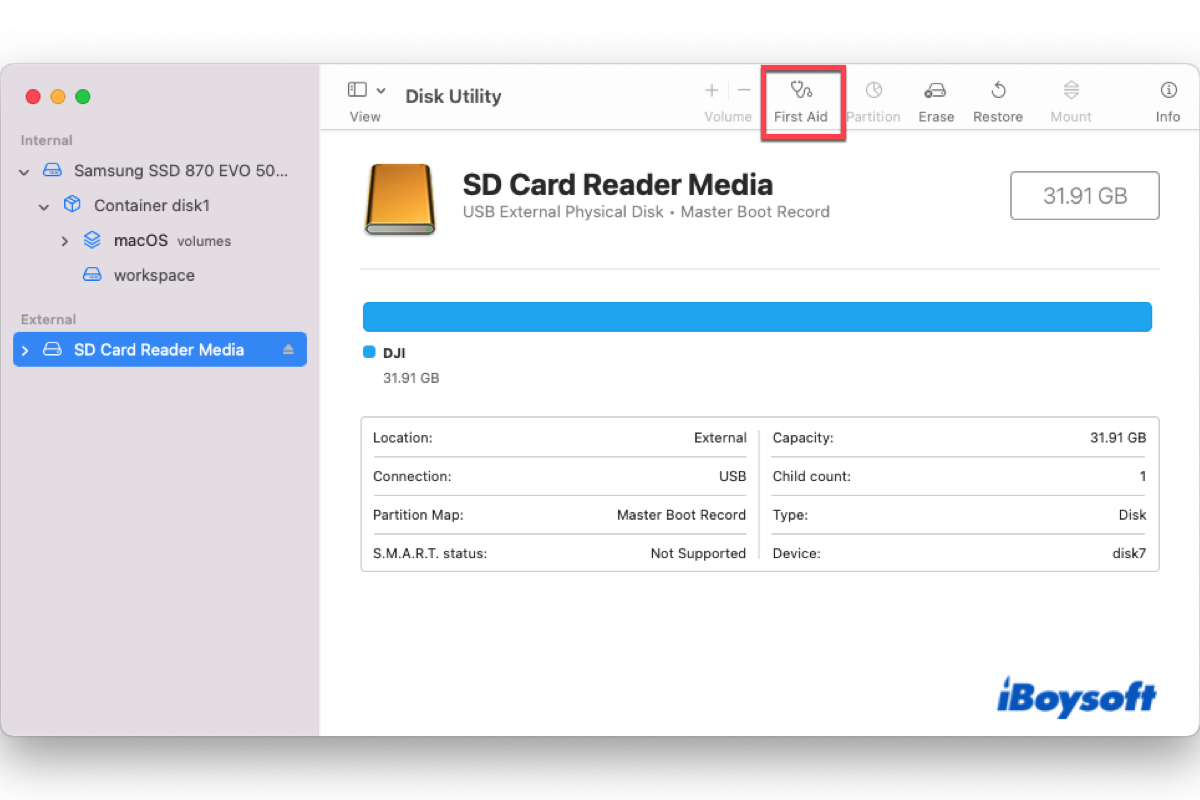
Run Disk Utility First Aid
- Open Disk Utility (Applications > Utilities).
- Select the external SSD (choose the device, not just a volume) and click First Aid. Let it run, then attempt to mount.
-
Mount or repair using Terminal
- Open Terminal and run diskutil list to find the drive identifier.
- Run diskutil mountDisk /dev/diskN (replace N with the disk number). If that fails, try diskutil repairVolume /dev/diskNs1.
- Use sudo fsck_exfat for exFAT volumes or appropriate fsck tools for other systems.
-
Reset NVRAM/PRAM and SMC
- Resetting NVRAM and SMC can fix USB recognition issues on older Macs. Follow Apple’s support instructions for your Mac model.
-
Update macOS and firmware
- Install the latest macOS updates. Some drives need new firmware or OS tweaks to be recognized.
-
Reformat as a last resort
- Back up any readable data first. If the SSD is visible but fails to mount or repairs fail, reformat with Disk Utility.
- Choose APFS for modern Macs, Mac OS Extended (Journaled) for older Macs, or exFAT for cross-platform use.
- Note: Reformatting erases all data.
These steps cover most cases of how to fix external ssd not recognized on mac. Be careful when using Terminal and when erasing drives.
Advanced recovery and data rescue
If basic steps fail, try these advanced options. They are for serious issues or lost data.
- Use a different enclosure or adapter. A bad SATA-to-USB bridge can hide a drive.
- Boot into Recovery Mode or Target Disk Mode and attempt to access the SSD from another Mac.
- Use data recovery software that supports macOS and SSDs. Run a read-only scan first to avoid further damage.
- Connect the SSD via Linux or Windows to see whether a different OS can read the volume.
- When data is critical, contact a professional data recovery service. They can work with failed controllers or NAND issues.
These steps show deeper ways to fix or recover when how to fix external ssd not recognized on mac is urgent.

Tips to prevent recognition issues in the future
Small habits reduce future problems. Follow these tips.
- Use high-quality cables and branded enclosures.
- Eject drives safely before unplugging. Don’t yank the cable.
- Keep backups. An SSD can fail suddenly.
- Keep macOS and firmware current.
- Format drives for their primary use: APFS for Mac-only work and exFAT for cross-platform drives.
- Label drives and keep a quick test cable available.
Practicing these steps lowers the chance you’ll need to research how to fix external ssd not recognized on mac again.
Personal experience and lessons learned
I once spent an afternoon on a client’s external SSD that wasn’t recognized. The Mac saw the device in System Report but nothing in Finder. A cheap cable was the culprit. Swapping to a proper USB-C data cable and a powered hub brought the drive back instantly. That taught me to try cables and ports first. Also, I’ve seen reformatting fix weird partition issues, but always back up first.
Lessons learned
- Start with simple fixes: ports, cables, preferences.
- Don’t reformat until you try repair tools and backups.
- Document any odd messages or behaviors; they help tech support.
Take these practical lessons into your troubleshooting to speed fixes for how to fix external ssd not recognized on mac.

When to call a professional
Call for help when data is priceless or the drive shows no power and no presence on any machine. If the SSD has clicking, burning smell, or severe controller damage, stop DIY recovery. A professional lab can often extract data, but costs can be high. Be ready to weigh the value of the data versus recovery expense.
Frequently Asked Questions of how to fix external ssd not recognized on mac
Why does my Mac show the SSD in System Information but not in Finder?
This means the Mac detects the hardware but the volume isn’t mounted. Run Disk Utility First Aid or use diskutil mountDisk in Terminal to attempt a mount.
Can a bad cable make an SSD invisible on macOS?
Yes. Many cables only provide power or are data-poor. Swap to a known good data cable and a different port to test quickly.
Will reformatting the SSD fix recognition issues?
Reformatting can fix partition or file system corruption, but it erases data. Try repair tools and backups before erasing the drive.
Is exFAT the best format for cross-platform use?
exFAT is a good choice for Mac and Windows compatibility. For Mac-only use, APFS is faster and supports snapshots and encryption.
How do I recover files if Disk Utility can’t repair the SSD?
Use read-only recovery software scans or try another OS to access the drive. If those fail and the data is critical, contact a professional recovery service.
Conclusion
You can fix most cases of how to fix external ssd not recognized on mac by following a clear, step-by-step process: check cables and ports, verify Finder and System Information, run Disk Utility and Terminal repairs, and reformat only as a last option. Back up regularly and use quality cables to avoid repeat problems. Try the easy checks first, then move to advanced options with care. If your data is critical or the drive shows hardware failure, seek a professional. If this guide helped, try the fixes now, leave a comment about your results, or subscribe for more Mac troubleshooting tips.

Everett Ashford is a tech reviewer at mytechgrid.com specializing in SSDs, cameras, TVs, earbuds, headphones, and other consumer electronics. He provides honest, data-driven reviews based on hands-on testing and real-world performance analysis. Everett simplifies complex tech details to help readers make smart, confident buying decisions.