Check packaging, serials, SMART data, and run quick speed and capacity tests before buying.
I’ve spent years testing storage hardware and helping buyers avoid scams. If you want to learn how to identify fake or counterfeit SSD before buying, this guide walks you step by step through what to look for, which tools to use, and real checks you can run in minutes. You’ll learn how to spot bad packaging, verify serial numbers, read SMART data, confirm true capacity and speed, and pick trustworthy sellers. Read on to buy with confidence and avoid wasted money on a fake SSD.

Why counterfeit SSDs are a real problem
Counterfeit SSDs can look real. They can fail fast or show wrong capacity. Some report high storage but lose data. Other fakes use slower flash chips or fake firmware that lies about speed. Buying a fake risks data loss, downtime, and wasted money.
Counterfeits often slip into online marketplaces. They sometimes use real brand labels and copied boxes. That makes them hard to spot without testing.
How counterfeit SSDs are made and what to expect
Counterfeiters use a few common tricks. Knowing them helps you test and detect fraud.
- Relabeled drives
Some sellers relabel low-quality drives with big-brand stickers. The sticker hides a cheaper product. - Fake firmware
Drives can run modified firmware that reports fake capacity or model names. - Repackaged returns
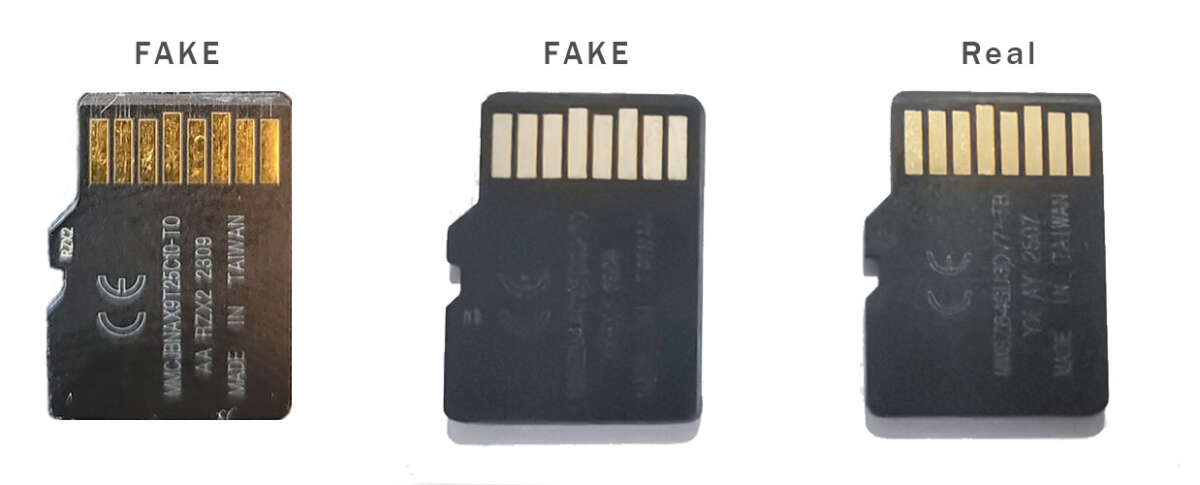
Used or failed drives get cleaned and resealed as new. They may pass a visual check but have worn NAND. - Cloned labels and boxes
Boxes, manuals, and labels are copied. They can include fake serial numbers that look valid.
These tricks explain why visual checks alone are not enough. You must verify technical data.

Visual checks: packaging, labels, and physical inspection
Start with a careful visual check before powering the drive.
- Examine the box and seals
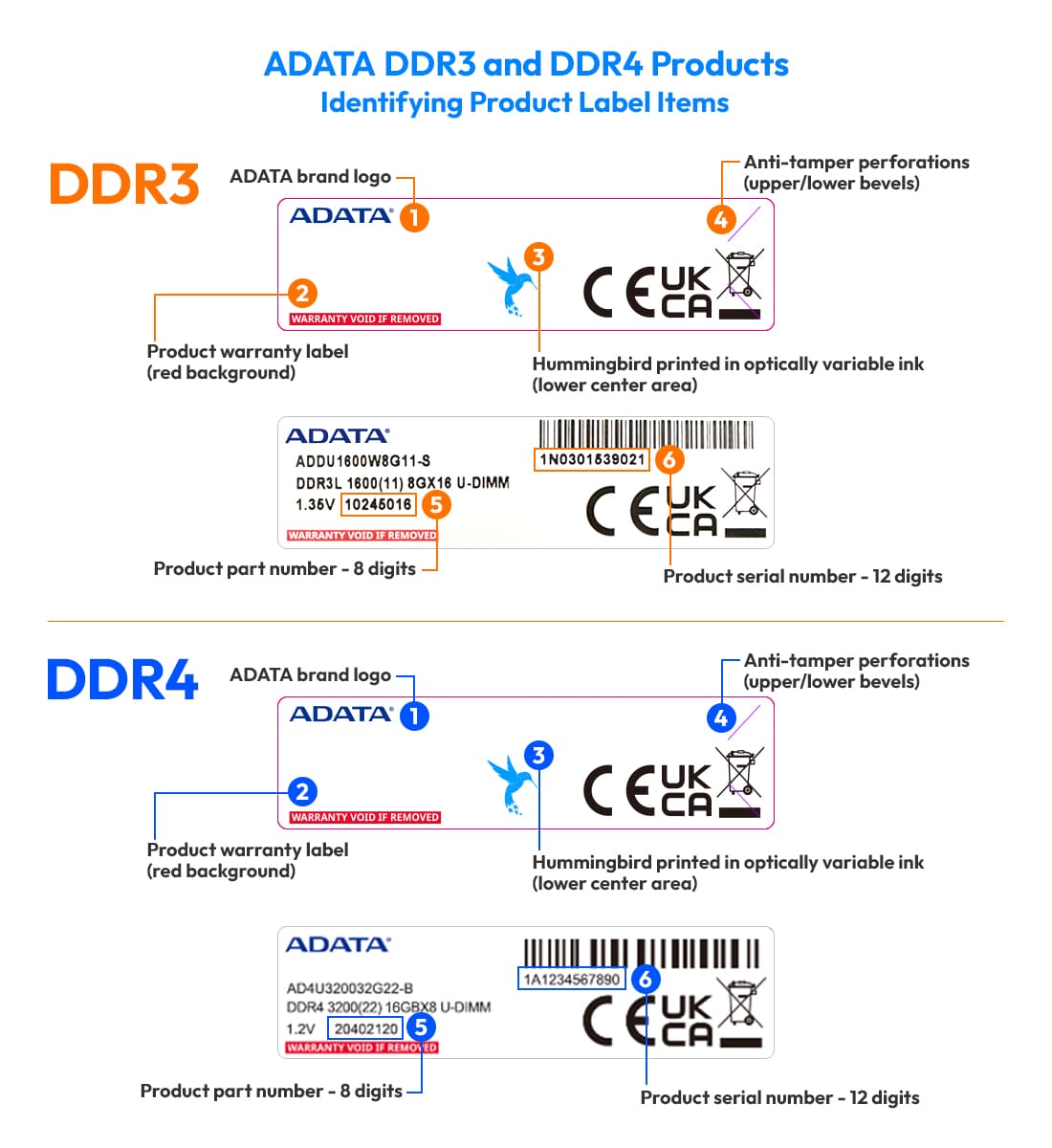
Look for tamper seals, correct logos, and print quality. Blurry printing, wrong fonts, or missing warranty stickers are red flags. - Inspect the label on the SSD
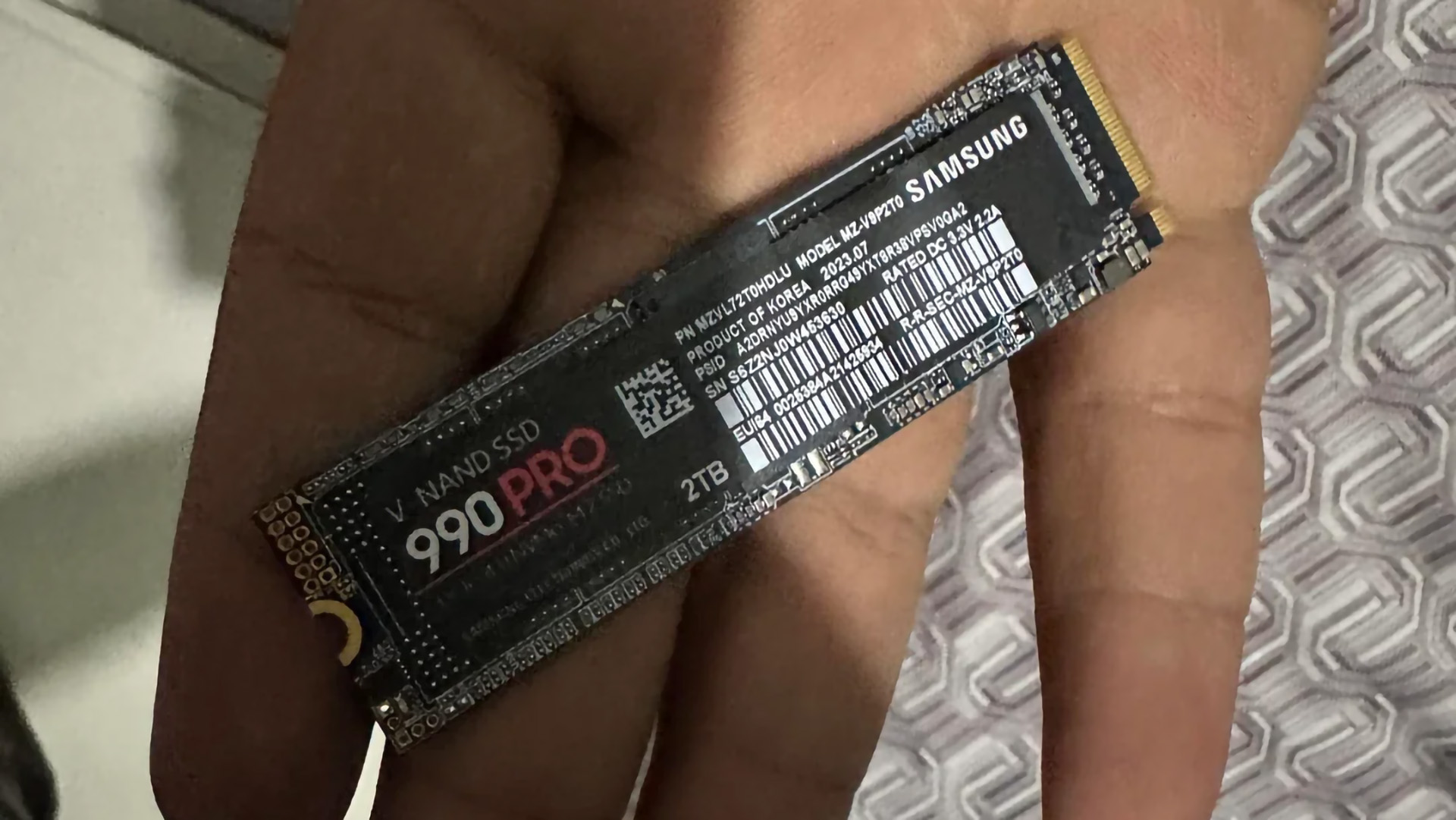
Check model, capacity, part number, and serial number. Compare the text to official product pages. Spelling mistakes or mismatched model numbers are suspicious. - Check weight and components (for M.2 and 2.5-inch)
Authentic SSDs often have a heft to them. A very light drive or oddly placed chips may indicate a fake. - Look at the PCB and NAND placement
If possible, compare the PCB layout to teardown photos from the manufacturer. Different chip counts or placements can reveal rework.
A visual pass is fast. But always follow up with software checks.

Verify seller, warranty, and purchase channel
Who you buy from matters as much as the drive itself.
- Buy from authorized resellers
Brands publish lists of authorized sellers. Buying there reduces risk. - Check seller ratings and history
Look for long histories, clear return policies, and many positive reviews. - Avoid overly cheap listings
A price far below market is a common scam sign. If it seems too good to be true, it likely is. - Check warranty status using the drive’s serial number
Most manufacturers let you check warranty online. An invalid serial or missing record is a warning.
If a seller refuses returns or gives vague answers, walk away.

Software checks you can run in minutes
These checks test what the drive reports. They catch fake capacity or misreported models.
Common tools to use
- CrystalDiskInfo
Shows SMART attributes and device model, firmware, and health. - CrystalDiskMark or AS SSD
Simple speed tests for sequential and random reads/writes. - smartctl (Linux) or nvme-cli (Linux)
Deeper SMART queries and NVMe-specific info. - Manufacturer utilities
Samsung Magician, Kingston SSD Manager, or WD Dashboard can verify model and firmware.
What to look for
- Matching model and serial
The model and serial in software must match the label and the manufacturer lookup. - Normal SMART values
Look for low power-on hours and low wear indicators on a new drive. - Firmware authenticity
Firmware should match the vendor’s listed versions for that model. - Performance near specs
Sequential read/write and 4K random numbers should be in a reasonable range for the drive class.
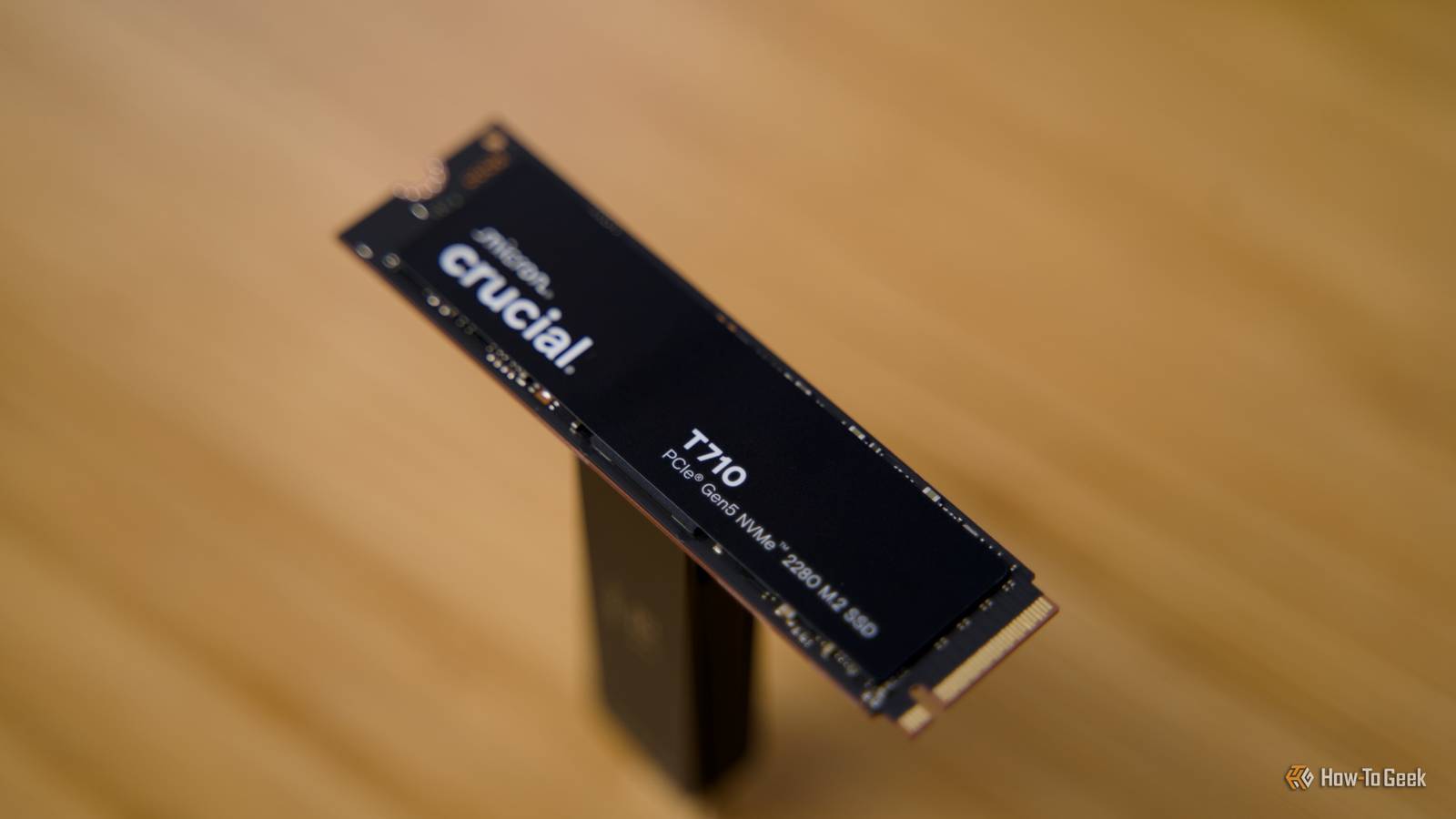
I once bought an M.2 SSD that looked perfect. CrystalDiskInfo showed a mismatched model string. A quick speed test showed half the advertised speed. I returned it right away.
Capacity and data integrity verification
Fake SSDs often lie about capacity. Here’s how to confirm real capacity and integrity.
- Write-to-read tests
Use a full-drive test tool to write and read data over the full reported capacity. For large SSDs this takes time but provides certainty. - Tools and methods
For Windows use a disk test tool that can fill the drive with test data. For Linux, use fio to write and read patterns. For quick checks use CrystalDiskMark on different file sizes. - Check file system reporting
If an SSD reports 1TB but shows much less available after formatting, that’s suspicious. - Look for repeating errors
Frequent write/read errors during testing indicate damaged or fake NAND.
Note that full capacity tests can take many hours. Run them before trusting the drive with important data.
Interpreting SMART data and wear indicators
SMART is one of your best tools for spotting fakes.
- Key SMART attributes
Look at Total LBAs Written, Power-On Hours, and Reallocated Sector Count. A brand-new drive should show very low write totals and hours. - Compare to expected lifespan
If a new drive shows thousands of hours or high host write totals, it may be used or refurbished. - Vendor-specific attributes
Manufacturers often include model-specific SMART fields. Use vendor utilities to read them accurately.
SMART data isn’t perfect. Some counterfeit firmware can fake SMART. Still, it’s a strong signal when combined with other checks.
Advanced checks: firmware, controllers, and NAND verification
If you want certainty, dig deeper.
- Verify controller ID and NAND type
nvme-cli or smartctl can show controller and NAND vendor IDs. Compare these to the manufacturer’s specs. - Check firmware signatures
Some vendors digitally sign firmware. Official tools can confirm that the drive runs authentic firmware. - Compare physical markings
NAND chips often have vendor markings. If the chips don’t match specs or lack markings, that’s suspect.
These checks need technical knowledge. If you’re not comfortable, ask an experienced friend or a reputable shop to help.
Limitations and false positives
No single test is perfect. Be aware of limitations.
- Some used drives are honest returns. They can pass many checks yet be second-hand.
- Firmware can be manipulated to fake SMART and model strings.
- Physical inspection might be impossible for sealed external drives.
- Low-cost manufacturers may use different-looking PCBs that are still genuine.
Use multiple checks. Combine seller checks, visual inspection, SMART and speed tests, and warranty lookup.
Practical buying checklist: step-by-step before you pay
Use this simple checklist when buying to avoid fakes.
- Verify seller is authorized or has strong reputation.
- Check listing price for big discounts.
- Inspect box photos and label details for typos and mismatches.
- Ask for serial and model; check warranty on manufacturer site.
- Test the drive with CrystalDiskInfo and a speed test on arrival.
- Run at least one capacity and read/write integrity test before storing important data.
- Keep receipts and test logs for returns.
Follow these steps and you’ll cut risk dramatically.
Personal experience and lessons learned
I once received a 2TB SSD sold as a known brand. The box matched and the serial looked valid. I ran CrystalDiskInfo and saw strange warranty info. Speed tests showed far lower throughput than spec. The seller issued a refund after I supplied test screenshots. From that experience I learned to always check serials and run quick tests before trusting a drive.
Key lessons
- Don’t rush unboxing. Take photos before powering the drive.
- Run a SMART check first. It’s fast and revealing.
- Keep test evidence. It makes returns smoother.
These small steps saved me time and money.
How to identify fake or counterfeit SSD before buying: quick summarizing tips
- Check seller reputation and authorized reseller lists.
- Inspect packaging and labels closely.
- Verify serial numbers and warranty online.
- Read SMART data and check firmware.
- Run speed and capacity tests before use.
- If in doubt, return or buy from a different seller.
Following these steps will help you avoid fake SSDs and keep your data safe.
Frequently Asked Questions of how to identify fake or counterfeit ssd before buying
How can I check an SSD’s serial number and warranty?
Most manufacturers offer online warranty checks using the serial number. Enter the serial exactly as printed to confirm model and warranty status.
Is a low price always a sign of a fake SSD?
Not always, but a price far below market is a common red flag. Compare prices across reputable retailers to spot anomalies.
Which software tools are best for detecting fake SSDs?
CrystalDiskInfo, CrystalDiskMark, smartctl, and manufacturer utilities are effective. They reveal model info, SMART data, and speed.
Can fake SSDs be detected by weight or looks?
Sometimes. Weight and PCB layout can hint at authenticity, but visual checks alone are not foolproof.
How long should I test a new SSD to be confident it’s real?
Run quick SMART and speed tests immediately. For full confidence, run a capacity and integrity test that writes and reads the entire drive; that can take several hours.
What if the manufacturer warranty checker shows no record?
That may indicate a fake, an altered serial, or a reseller-only SKU. Contact the manufacturer before using the drive for important data.
Will returning a counterfeit SSD be easy?
It depends on the seller. Authorized retailers usually have clear return policies. Marketplace sellers can be harder. Save test logs and photos to speed refunds.
Conclusion
You don’t need to be a technician to learn how to identify fake or counterfeit SSD before buying. Follow practical steps: vet the seller, inspect packaging, verify serials and warranty, read SMART data, and run speed and capacity tests. These checks take minutes for the initial screen and a few hours for full assurance. Take them seriously and you’ll reduce risk, protect your data, and save money. Try these steps on your next purchase, share your experience, and subscribe or comment if you want more hands-on testing guides.

Everett Ashford is a tech reviewer at mytechgrid.com specializing in SSDs, cameras, TVs, earbuds, headphones, and other consumer electronics. He provides honest, data-driven reviews based on hands-on testing and real-world performance analysis. Everett simplifies complex tech details to help readers make smart, confident buying decisions.