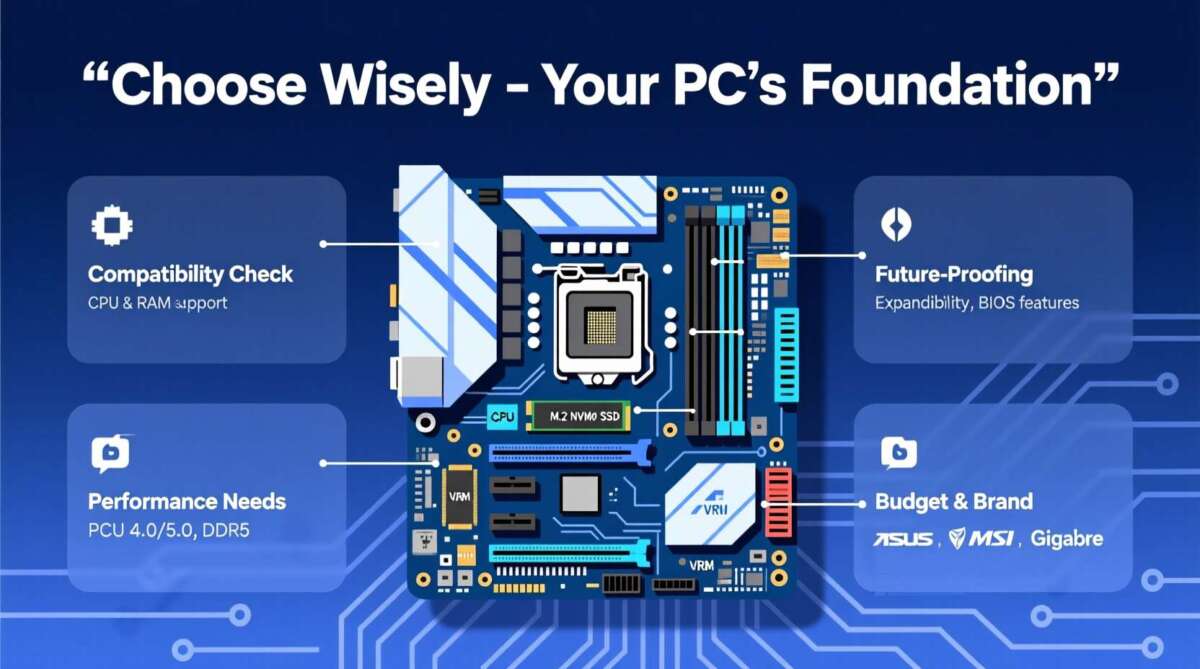
Check the motherboard's interface, BIOS/UEFI support, and physical connectors before buying an SSD.
I’ve spent years upgrading PCs and guiding people through hardware upgrades, and I’ll walk you through how to check SSD compatibility with older motherboard models step by step. This guide breaks down interfaces, BIOS and driver limits, physical fit, and real-world performance so you can confidently pick an SSD that works with your older board. Read on for clear checks, practical examples, and troubleshooting tips based on real upgrades I’ve done.

Quick compatibility checklist
Start here when you want to know how to check SSD compatibility with older motherboard models. Do these checks in order and you’ll avoid buying an incompatible drive.
- Identify the SSD type you want: SATA, M.2 SATA, or M.2 NVMe.
- Inspect your motherboard for matching connectors and slots.
- Confirm BIOS/UEFI boot and NVMe support.
- Check power and cable availability for 2.5-inch SATA drives.
- Consider adapters or PCIe cards if your board lacks native support.

Understand SSD types and interfaces
Knowing SSD types makes checking compatibility fast and accurate. The main types are 2.5-inch SATA, M.2 (SATA and NVMe), and add-in PCIe cards.
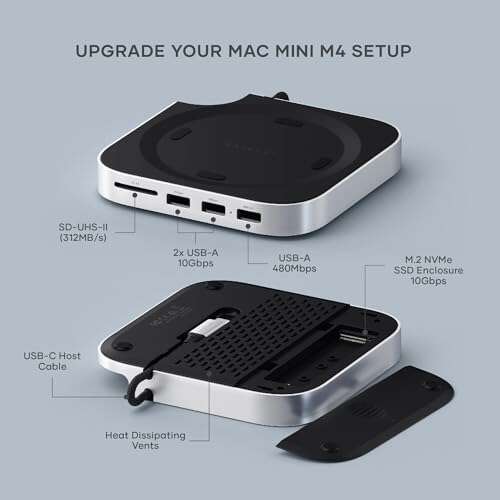
- 2.5-inch SATA drives use a standard SATA data and power connection. Older motherboards typically support these easily.
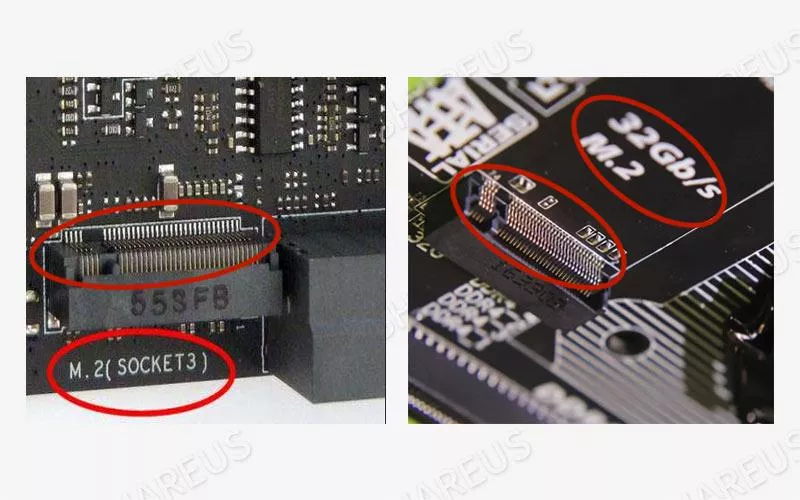
- M.2 SATA shares the M.2 slot but uses SATA protocol. Some older boards with M.2 accept only SATA or only NVMe—read the board manual.
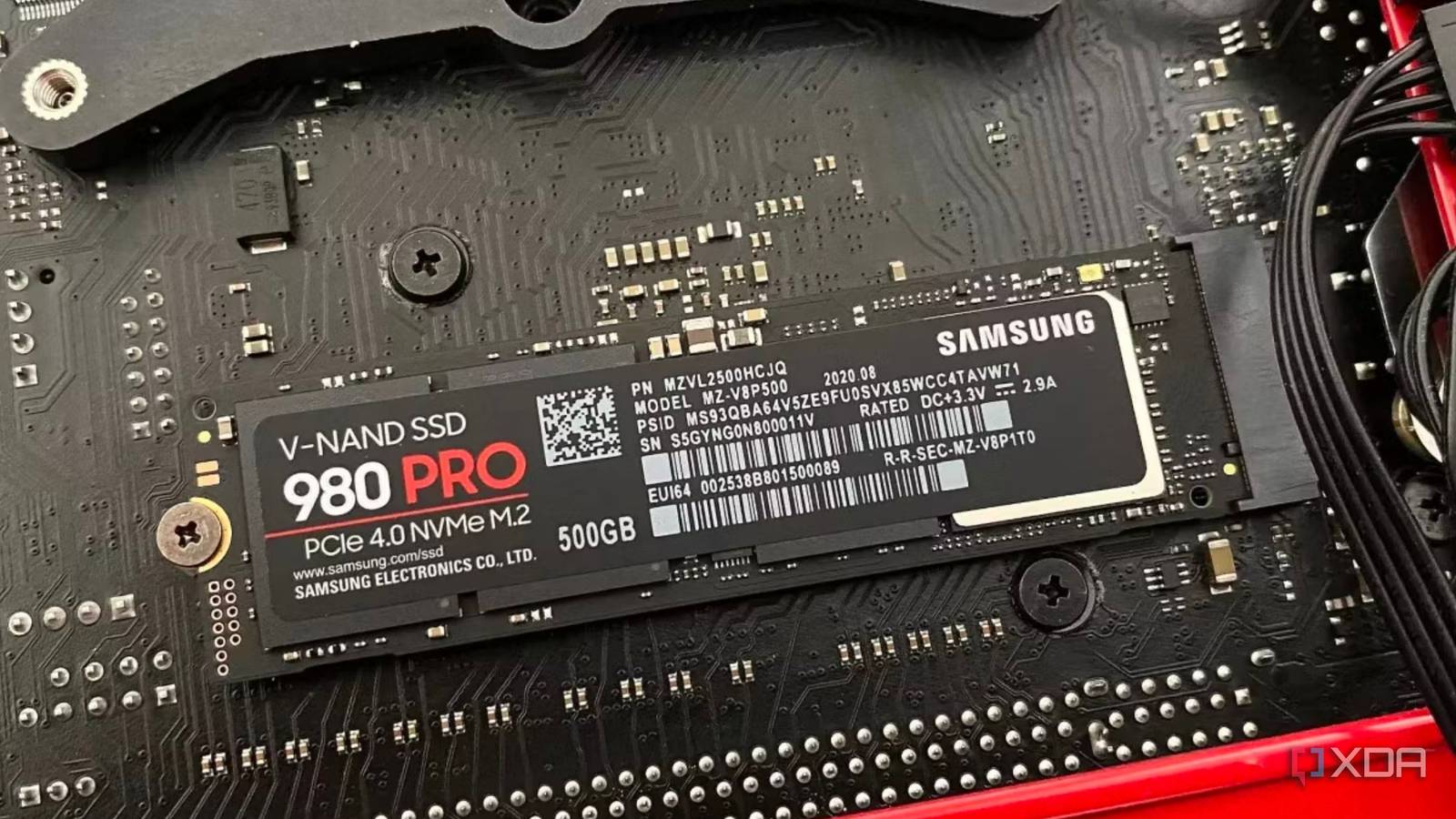
- M.2 NVMe uses PCIe lanes for much higher speeds. Older motherboards may have M.2 slots wired to fewer PCIe lanes or none at all.
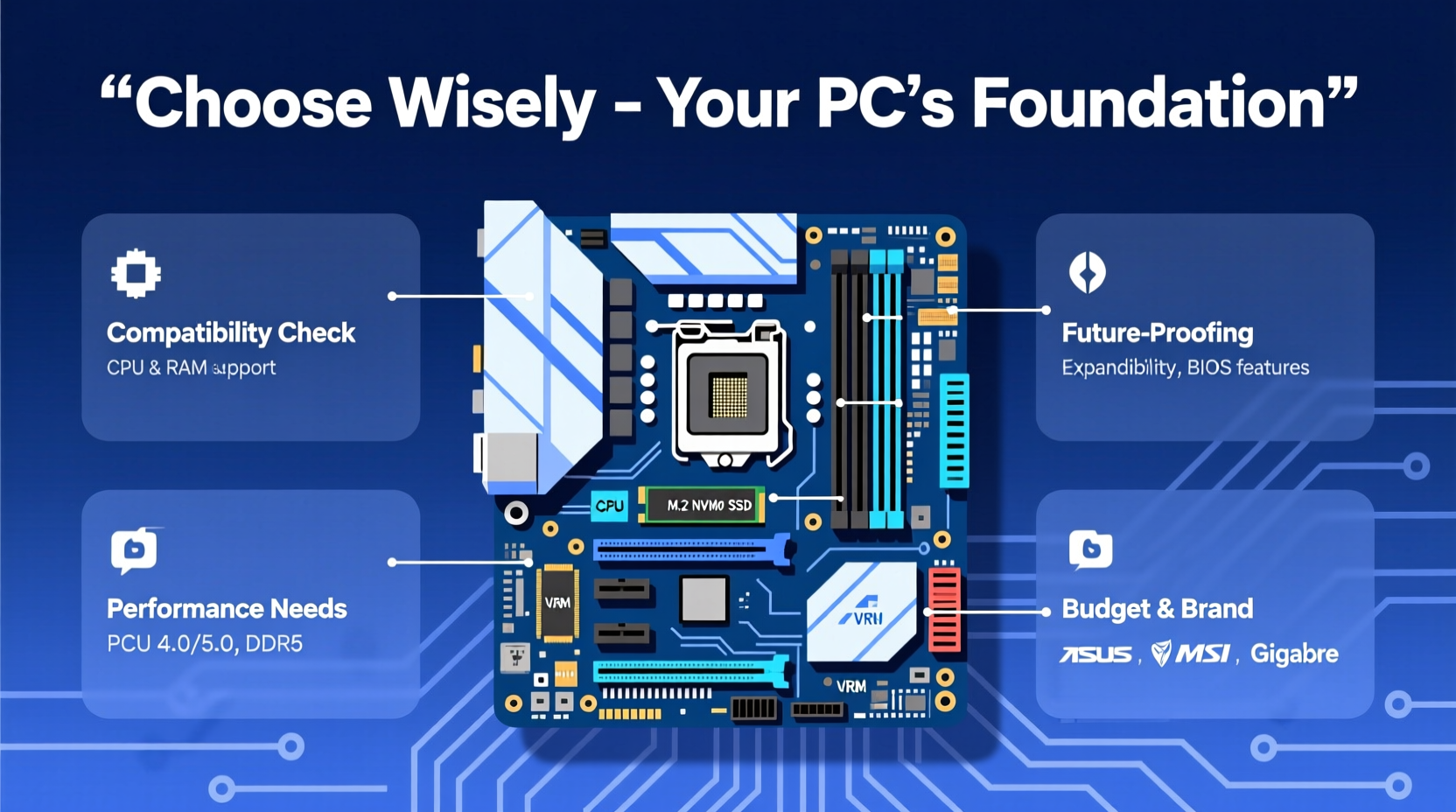
How to check SSD compatibility with older motherboard starts by matching the SSD interface to what the board provides. If the board lacks an M.2 slot, you can use a PCIe adapter for NVMe drives, but boot support and BIOS limits can block full use.
Physical and electrical compatibility checks
Fit and connectors matter as much as protocol. Follow these steps to verify physical compatibility.
- Check form factor: 2.5-inch vs M.2 2242/2260/2280 sizes.
- Examine M.2 keying: B key, M key, or B+M key determine supported interfaces.
- Count available SATA ports and power connectors for a 2.5-inch SSD.
- Verify slot wiring: some motherboards have M.2 slots linked to SATA ports or share bandwidth with PCIe slots.
If your motherboard is older, it might support only M.2 SATA or reserve a SATA port when an M.2 is in use. Refer to the manual to avoid blocking other drives.

BIOS/UEFI, firmware, and driver support
Firmware determines whether an older board can boot from an NVMe or even an M.2 drive. This is a key step when you check SSD compatibility with older motherboard models.
- Look for BIOS/UEFI release notes that mention NVMe or M.2 support.
- Check if the BIOS supports booting from NVMe. Some boards can use NVMe drives only as secondary (data) drives.
- Update BIOS to the latest stable firmware to add compatibility or fixes.
- Confirm OS driver support: modern Windows and Linux kernels include NVMe drivers; very old OS versions may need extra drivers.
I once upgraded a five-year-old system and learned that a BIOS update added NVMe boot support. Without that update, the NVMe card worked only as a secondary disk.
Performance limits and real-world expectations
Even if a drive is compatible, an older motherboard may bottleneck performance. Understand practical outcomes before buying.
- SATA II vs SATA III: older SATA II ports cap speed near 3 Gbps, limiting SATA SSDs to ~250–300 MB/s.
- PCIe lane count: older chipsets may provide only PCIe 2.0 x2 or x4 for M.2, reducing NVMe speeds.
- TRIM and garbage collection: ensure OS and BIOS support TRIM for long-term SSD health.
- Thermal throttling: some cases and boards offer limited M.2 cooling; plan airflow.
How to check SSD compatibility with older motherboard includes measuring expected throughput. An NVMe SSD will still be faster than a spinning disk even if limited by PCIe 2.0.
Step-by-step: how to check ssd compatibility with older motherboard
Follow these practical steps before you buy an SSD for an older board.
- Read the motherboard manual and identify supported drive types and M.2 keying.
- Inspect the board: note SATA ports, M.2 slots, and free PCIe slots.
- Check BIOS versions and change logs for NVMe or M.2 boot support.
- Decide whether you want the SSD as the OS boot drive or a data drive, since some boards allow NVMe only for data.
- If the board lacks native support, consider a PCIe adapter and verify BIOS can boot from PCIe-attached NVMe.
- Confirm OS compatibility and plan for driver or OS upgrades if needed.
Repeat this checklist and you’ll cover every practical angle of how to check ssd compatibility with older motherboard hardware.
Install, test, and troubleshoot
After buying a compatible SSD, follow these hands-on steps to ensure it works as expected.
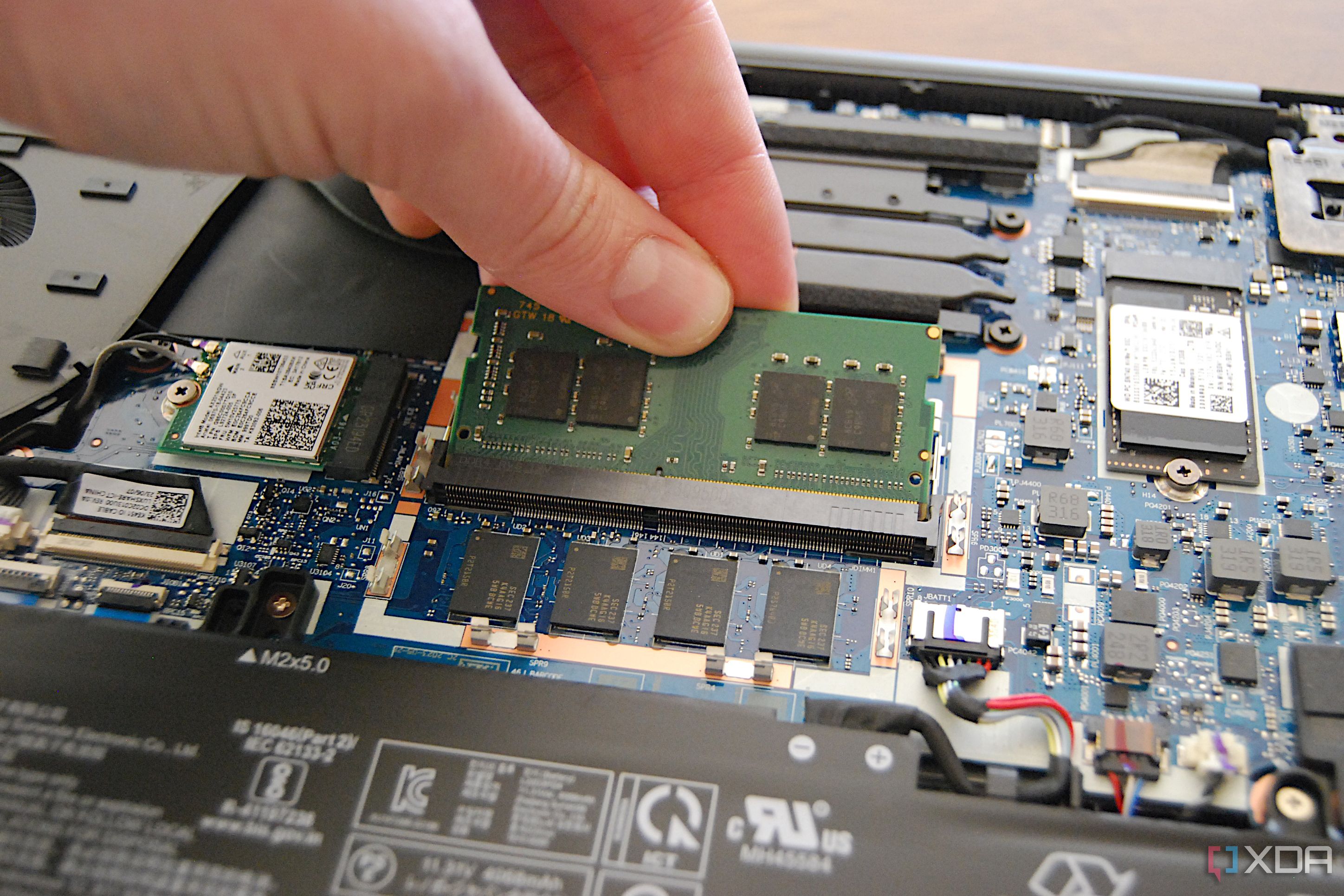
- Install physically: mount 2.5-inch drives, screw M.2 to the standoff, or insert NVMe into an adapter card.
- Enter BIOS/UEFI: verify the drive is detected and set boot order appropriately.
- For NVMe boot issues: enable UEFI boot mode, disable legacy CSM if required by the BIOS.
- Run a live USB or installer to confirm the OS sees the drive before installing.
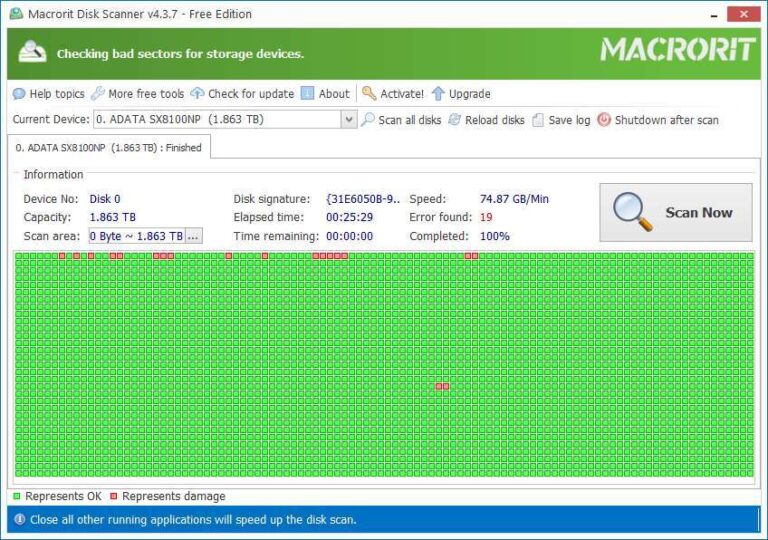
- Test with simple tools: check drive health, run a baseline benchmark, and confirm TRIM is active in the OS.
Common troubleshooting: if the drive isn’t detected, recheck connectors, reseat the SSD, update BIOS, and verify power. If boot fails, switch between UEFI and Legacy modes and check secure boot settings.

Personal experience, lessons learned, and practical tips
I’ve upgraded several older desktops and laptops. Here are honest lessons from those projects.
- Lesson 1: Manuals save time. I once ordered an M.2 NVMe only to find the board’s M.2 slot supported only SATA. Reading the manual first avoided a return.
- Lesson 2: BIOS updates can unlock features. Applying a manufacturer BIOS update enabled NVMe boot on an older board I use for testing.
- Lesson 3: Use an adapter when in doubt. A PCIe adapter made an NVMe drive usable for storage on a board that couldn’t boot from NVMe.
- Tip: Buy a drive from a retailer with a good return policy if you’re unsure about boot support.
- Tip: Backup before switching boot drives. Cloning tools are handy, but always keep a recovery USB.
These are practical tips that come from hands-on upgrades and troubleshooting. They show realistic paths when you check SSD compatibility with older motherboard systems.
Quick questions and short answers
Can I use an NVMe SSD on a motherboard without an M.2 slot?
Yes, with a PCIe adapter card, but booting may require BIOS support and you might face lane and speed limitations.
Will a SATA SSD fit any older desktop that has SATA ports?
Usually yes, as long as you have an available SATA data port and a power cable. Speed may be limited by SATA revision.
Is a BIOS update risky when enabling NVMe support?
BIOS updates carry some risk. Follow manufacturer instructions, use a stable power source, and only update if needed to add compatibility or fix bugs.
Frequently Asked Questions of how to check ssd compatibility with older motherboard
How do I tell if my motherboard supports NVMe?
Check the motherboard manual or BIOS release notes for NVMe or M.2 support; look for M.2 slots labeled for NVMe or PCIe.
Can I boot Windows from an NVMe drive on an older board?
Sometimes. You need BIOS/UEFI boot support for NVMe or a BIOS update; otherwise use NVMe as a secondary drive or install Windows in UEFI mode if supported.
Will a SATA SSD work faster than my old HDD?
Yes. Even on older SATA II ports, SSDs have far better random access and lower latency than HDDs, improving boot and app load times.
Do I need special drivers to use an NVMe SSD on Windows?
Modern Windows versions include NVMe drivers. Older Windows versions may require additional drivers during installation.
What if my M.2 slot shares bandwidth with SATA ports?
Some boards disable certain SATA ports when an M.2 drive is used. Check the manual to understand which ports get disabled and plan drive placement accordingly.
Conclusion
You can confidently upgrade to an SSD even with an older motherboard by following a clear checklist: identify the SSD type, inspect the board’s physical and firmware support, update BIOS if necessary, and prepare for realistic performance limits. Take time to read your motherboard manual and use an adapter if needed—small steps prevent frustration. Try one upgrade now, test results, and share your experience or questions below to help others make the same smooth transition.

Everett Ashford is a tech reviewer at mytechgrid.com specializing in SSDs, cameras, TVs, earbuds, headphones, and other consumer electronics. He provides honest, data-driven reviews based on hands-on testing and real-world performance analysis. Everett simplifies complex tech details to help readers make smart, confident buying decisions.