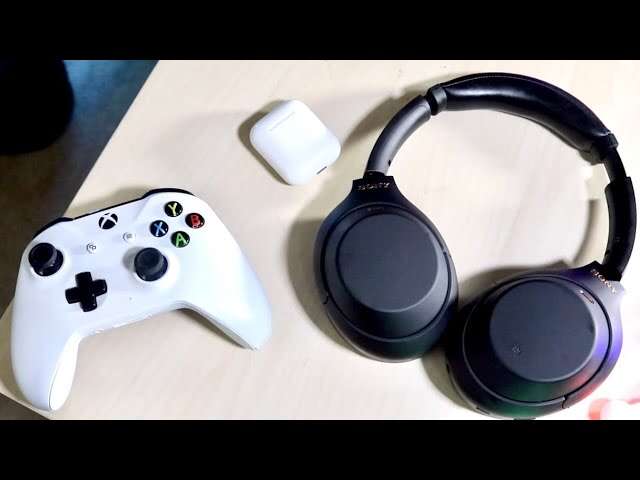
Plug your earbuds into your Xbox controller’s 3.5mm jack, or use a compatible USB/adapter for wireless earbuds.
I’ve spent years testing consoles, headsets, and adapters, so I know the quirks of connecting earbuds to Xbox. This guide explains how to connect earbuds to xbox step by step, covers wired and wireless workarounds, and gives practical tips to get chat, game sound, and low latency working smoothly. Read on for clear, tested methods and troubleshooting tips so you can plug in and play without fuss.
Why Xbox audio works differently and what that means for earbuds
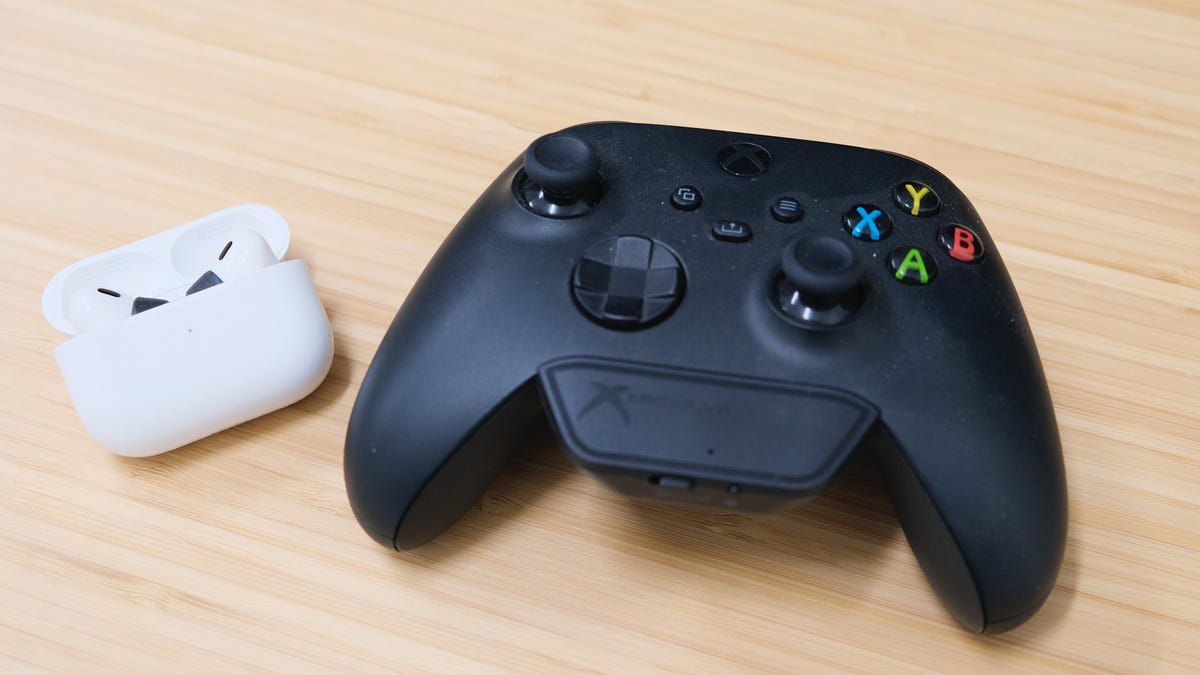
Xbox consoles use a mix of audio tech. Many controllers have a 3.5mm jack. The console itself does not support standard Bluetooth audio. Microsoft supports Xbox Wireless and certain USB audio devices. That makes how to connect earbuds to xbox a bit different than on phones or PCs.
Knowing these limits helps you pick the easiest path. If you want simple game audio, a wired connection to the controller is best. If you want wireless earbuds, expect to add a dongle or use your phone and the Xbox app for chat. I’ll explain the trade-offs and show real options I’ve used.

Step-by-step: how to connect earbuds to xbox (Wired via controller)
Most players use wired earbuds with the controller jack. This is the fastest, lowest-latency option.
- Check your controller for a 3.5mm jack. Most modern Xbox One and Series controllers have it.
- Plug your earbuds into the controller’s jack. Use earbuds with an inline mic if you need voice chat.
- Press the Xbox button to open the guide. Go to Profile & system > Settings > Devices & connections > Accessories to confirm controller connection if needed.
- Adjust audio: open Settings > General > Volume & audio output. Set Headset audio to Stereo uncompressed for best compatibility.
- If chat is quiet, press the small volume wheel on compatible controllers. If yours lacks a wheel, adjust volume in the game or system settings.
From my testing, wired earbuds give crisp audio and almost no delay. If the mic isn’t working, check the connector type and the inline mic wiring—some earbuds need a CTIA (common) standard to match Xbox controllers.
How to connect earbuds to xbox (Bluetooth and wireless workarounds)
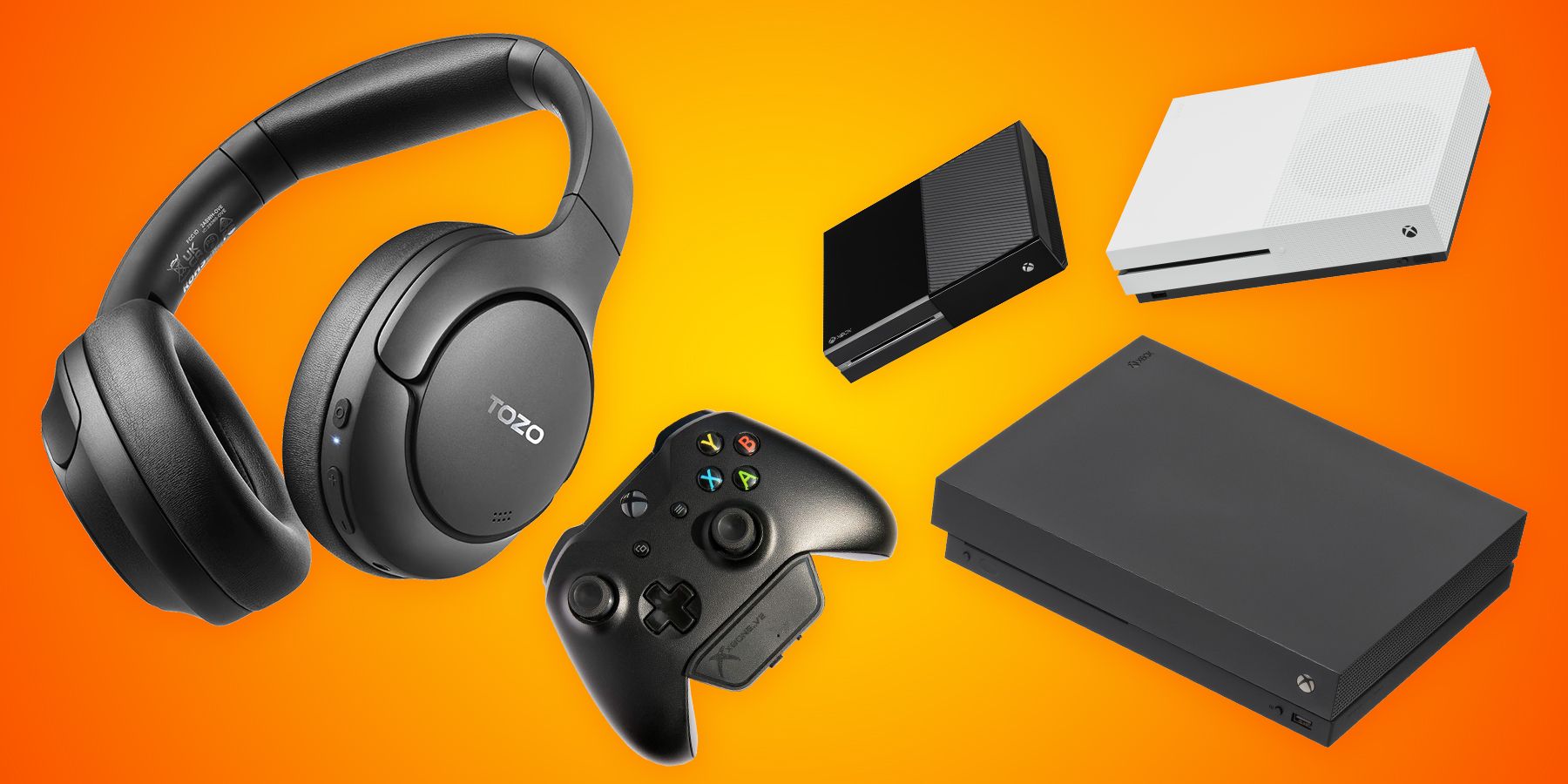
Xbox does not pair with standard Bluetooth earbuds directly. That’s confusing for many users. Here are practical workarounds.
- Use a Bluetooth transmitter plugged into the controller’s 3.5mm jack. Choose a low-latency (aptX Low Latency) transmitter for less lag. Pair your earbuds to the transmitter rather than the console.
- Use a USB Bluetooth transmitter on the console only if the dongle is recognized as an audio device. Many cheap dongles won’t work.
- Use a dedicated wireless dongle that came with certain earbuds. Some gaming earbuds ship with a USB dongle that works with Xbox consoles. Plug it into a USB port and pair if the console recognizes it.
- Use an Xbox Wireless headset adapter if you have one. Some adapters support third-party headsets, but compatibility varies.
I tried a low-latency Bluetooth transmitter and saw small audio delay in action-heavy games. For competitive play, wired is still best. For casual play, a good transmitter can be fine.
Using USB dongles, USB headsets, and adapters to connect earbuds to xbox
If your earbuds include a USB dongle, the console might accept it. Here’s how to try that and other adapter methods.
- Plug the USB dongle into a USB-A port on the Xbox. Wait for the console to detect the device.
- If the console recognizes the dongle as an audio device, set speaker output to Headset format: Stereo uncompressed or Windows Sonic as needed.
- For earbuds with USB-C dongles, use a USB-C to USB-A adapter if needed. Recognition depends on the dongle firmware.
- If your controller doesn’t have a 3.5mm jack, use a Microsoft Chat Headset adapter that attaches to older controllers.
From my experience, branded USB audio dongles that are made for gaming are more likely to work than generic Bluetooth sticks. If the console won’t accept a dongle, a controller-side 3.5mm transmitter is your fallback.

Tips for voice chat, volume, and low latency when using earbuds with Xbox
Small tweaks can improve how to connect earbuds to xbox and the experience after you connect.
- Set headset audio to Stereo uncompressed to lower processing and reduce lag.
- Use the Xbox app on your phone to join party chat while game audio plays on the console if you have Bluetooth earbuds only.
- If mic volume is low, check the inline mic and make sure the connector is fully seated. Some earbuds need the TRRS wiring standard CTIA.
- For latency-sensitive games, prefer wired connection or aptX Low Latency transmitters.
- Keep controller firmware updated through the Accessories app to avoid issues.
I once struggled with muffled chat until I switched earbuds to CTIA-compatible ones. That small change fixed mic pickup instantly.

Troubleshooting common problems when you try to connect earbuds to xbox
If you hit a problem, try these quick fixes.
- No sound after plugging in: make sure controller is paired and not muted. Check Volume & audio output and set Headset audio to Stereo uncompressed.
- Mic not detected: test earbuds on a phone. If mic works on a phone but not Xbox, the connector wiring might be incompatible.
- Bluetooth earbuds won’t pair: Xbox doesn’t support Bluetooth audio. Use a transmitter, dongle, or the Xbox app for chat.
- USB dongle unrecognized: try different USB ports or a powered USB hub. Not all dongles are compatible.
- Low volume: increase chat mixer or headset volume in settings. Some earbuds have low sensitivity; use an inline amp if necessary.
I once solved a silent mic by swapping the plug orientation and seating the jack fully. Tiny real-world fixes like that often work.

Common user scenarios and recommended setups for how to connect earbuds to xbox
Match your needs to the best method.
- Best for low latency and competitive play: Wired earbuds into controller.
- Best for wireless convenience and chat: Xbox Wireless headset or earbuds with console-compatible USB dongle.
- Best for Bluetooth-only earbuds: Use Bluetooth transmitter on the controller or use your phone with Xbox app for chat.
- Best for older controllers without jack: Use controller adapter or Xbox Chat Headset accessory.
I recommend trying the simple wired method first. It’s quick to set up and proves whether your earbuds and mic are compatible. If that works, you can explore wireless options knowing the base audio is fine.
PAA-style questions (People also ask)
-
How do I connect wired earbuds to my Xbox?
Plug them into the controller’s 3.5mm jack, then adjust Settings > General > Volume & audio output. Ensure headset audio is set correctly. -
Can I use Bluetooth earbuds with Xbox?
Not directly. Xbox consoles don’t support standard Bluetooth audio. Use a Bluetooth transmitter, USB dongle, or the Xbox app for chat. -
Why isn’t my mic working when I plug in earbuds?
The mic may use a different wiring standard or be muted in settings. Test earbuds on a phone and check the controller volume and chat mixer.
Frequently Asked Questions of how to connect earbuds to xbox
Will all earbuds work with Xbox controllers?
Most wired earbuds with a standard 3.5mm TRRS connector will work for audio. Some older controllers or nonstandard wiring may cause mic or chat issues.
How do I get game sound and party chat through earbuds?
Go to Settings > General > Volume & audio output. Adjust Headset volume, Party chat output, and set Headset audio to Stereo uncompressed to route both game and chat to your earbuds.
Can I use a Bluetooth transmitter on the Xbox controller?
Yes. A Bluetooth transmitter plugged into the controller’s 3.5mm jack can pair with wireless earbuds. Use a low-latency transmitter to reduce audio delay.
What if my earbuds’ mic is too quiet?
Check inline mic position, test on a phone, and ensure the controller and console chat volumes are up. If still quiet, try earbuds that use the CTIA standard or use an external mic.
Do USB-C earbuds work with Xbox Series X/S?
USB-C earbuds usually need a compatible USB-A dongle that the console recognizes. Many USB-C earbuds won’t work natively without their own dongle.
Conclusion
You can connect earbuds to Xbox in several ways: plug them into the controller for the simplest, lowest-latency option; use a compatible USB dongle or Xbox Wireless solution for native wireless support; or add a Bluetooth transmitter or use the Xbox app for Bluetooth-only earbuds. Test wired first to confirm compatibility, tweak audio settings for chat and volume, and pick a low-latency solution for competitive play. Try one method, note what works, and upgrade only if you need extra wireless convenience. If this guide helped, leave a comment with your setup or subscribe for more practical tips and step-by-step fixes.

Everett Ashford is a tech reviewer at mytechgrid.com specializing in SSDs, cameras, TVs, earbuds, headphones, and other consumer electronics. He provides honest, data-driven reviews based on hands-on testing and real-world performance analysis. Everett simplifies complex tech details to help readers make smart, confident buying decisions.