Use iPhone Audio Sharing (AirPods/Beats) or a Bluetooth transmitter to play to two headphones.
I’ve helped dozens of friends and clients set up dual audio on iPhones. This guide explains exactly how to connect two Bluetooth headphones to iPhone, what works, what doesn’t, and practical fixes when things go wrong. You’ll get step-by-step instructions for native Audio Sharing, third-party transmitters, compatibility checks, troubleshooting tips, and real-world advice from my hands-on tests.

Why you might want to connect two Bluetooth headphones to iPhone
Sharing audio is handy. You can watch a movie with someone on a plane, share a private playlist, or let a child listen without disturbing others. Knowing how to connect two Bluetooth headphones to iPhone saves time and prevents awkward fumbling when you’re out.
Most modern iPhones support an audio-sharing feature. But there are limits depending on the headphone brand and iOS version. I’ll explain the practical pros and cons and give examples so you can pick the right method.
Requirements and limitations you should know
Before you try to connect two Bluetooth headphones to iPhone, check this list. It helps avoid wasted steps.
- iPhone model and iOS version
- iPhone must run iOS 13 or newer for basic Bluetooth features. Audio Sharing works on iPhones that support the feature (iPhone 8 or later on iOS 13.1+ for some models).
- Headphone compatibility
- Apple AirPods and many Beats models support Audio Sharing directly. Most other Bluetooth headphones do not.
- Bluetooth bandwidth and latency
- Two simultaneous streams can increase latency. Low-latency codecs may not be available to both devices.
- Battery and range
- Two headphones means two batteries to manage and slightly shorter range for stable connection.
Knowing these limits matters when you want to connect two Bluetooth headphones to iPhone. If your headphones aren’t Apple-certified, you’ll likely need a hardware workaround.
Methods to connect two Bluetooth headphones to iPhone
Below are the reliable methods to connect two Bluetooth headphones to iPhone. Choose one based on your device types and goals.
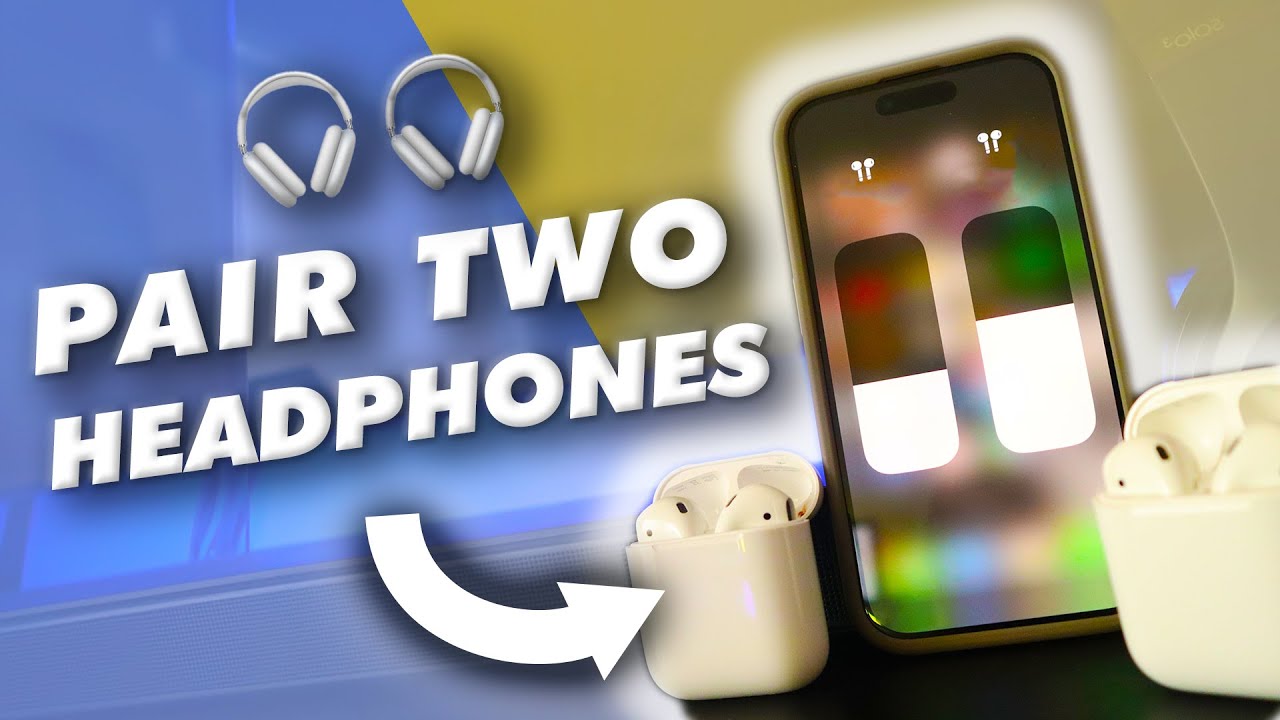
Method 1: Use iPhone Audio Sharing (AirPods, compatible Beats)
Audio Sharing is the simplest way when both sets are compatible.
- Put both headphones near the iPhone and open the case or turn them on.
- Connect the first pair to the iPhone via Settings > Bluetooth or by the quick-pair popup.
- Open Control Center and tap the audio card in the upper-right corner.
- Tap Share Audio (or the headphone icon) and follow the on-screen prompts to add the second pair.
Audio Sharing lets two people hear the same audio with independent volume. It works best for watching videos and listening to music when both sets support the feature.
Method 2: Use a Bluetooth splitter/transmitter (works with any headphones)
A Bluetooth transmitter that supports dual outputs is the most universal option.
- Buy a dual-output Bluetooth transmitter with aptX Low Latency or similar if you care about sync.
- Plug the transmitter into your iPhone’s Lightning-to-headphone adapter or the headphone jack on a separate audio source.
- Put both headphones in pairing mode.
- Pair each headphone to the transmitter following the device instructions.
A transmitter acts as a middleman that streams to two headphones at once. This method is great when you want to connect two Bluetooth headphones to iPhone but the headphones are not Apple-only devices.
Method 3: Use a multi-device app or wired splitter
Apps alone rarely let one iPhone stream to two Bluetooth headphones. A wired splitter is an option for wired headphones or for using one wired set and one Bluetooth set via transmitter.
- Wired audio splitter
- Use a Y-adapter for two wired headphones. This avoids Bluetooth issues.
- App-based solutions
- Some apps can sync playback between two phones, each connected to its own headphones. This works for synced listening but requires two devices.
If you must connect two Bluetooth headphones to iPhone and the native features fail, a hardware transmitter is usually the most reliable fallback.

Troubleshooting and practical tips
If pairing fails or audio is out of sync, try these tips.
- Restart devices
- Turn off Bluetooth on the iPhone and both headphones, then turn them on again.
- Re-pair devices
- Forget the devices in Settings > Bluetooth and pair them fresh.
- Check battery and range
- Low battery or distance can break dual connections.
- Use low-latency codecs
- If you see lag between video and audio, choose devices and transmitters that support aptX Low Latency.
- Watch for iOS updates
- Apple sometimes refines Audio Sharing in updates. Keep iOS current.
People also ask:
Can I use Audio Sharing with different headphone brands?
Audio Sharing mainly supports Apple and some Beats models. For other brands, use a dual-output transmitter.
Will two headphones drain my iPhone faster?
Streaming to multiple devices can increase power usage, especially if a transmitter uses the iPhone’s Lightning adapter. Keep portable chargers handy.
Personal experience and best practices
I tested audio sharing on an iPhone with AirPods Pro paired to a second pair of Beats. Setup took under a minute. Volume control for each person worked well. When I tried a non-Apple brand with the same iPhone, the native sharing option did not appear. A compact Bluetooth transmitter solved that quickly, though I noticed a tiny sync lag on video unless I used a low-latency model.
Lessons I learned:
- Confirm compatibility before buying new headphones.
- Low-latency transmitters cost more but improve video sync.
- Carry a small adapter or transmitter when traveling with a friend.
These real-world tips will save you time when you try to connect two Bluetooth headphones to iPhone.

Frequently Asked Questions of how to connect two bluetooth headphones to iphone
How do I know if my iPhone supports Audio Sharing?
Open Control Center and start audio playback. If you see a Share Audio option when a compatible pair is connected, your iPhone supports Audio Sharing.
Can I connect two non-Apple Bluetooth headphones directly to an iPhone?
Not usually. iPhones typically allow one third-party Bluetooth headset at a time. Use a dual-output Bluetooth transmitter to connect two non-Apple headphones.
Will audio be perfectly synced for both listeners?
Sync depends on device codecs. Apple Audio Sharing keeps sync tight for supported devices. For other headphones, choose low-latency transmitters to reduce lag.
Is it possible to manage volume independently for each headphone?
Yes. With Apple Audio Sharing, each person can control their own volume. Some transmitters also allow separate volume control on the headphone itself.
Do I need any special app to share audio between two headphones on iPhone?
No app is needed for Audio Sharing. For non-compatible headphones, a hardware transmitter is the simplest solution.
Conclusion
You can connect two Bluetooth headphones to iPhone in a few reliable ways. Use iPhone Audio Sharing for AirPods and compatible Beats. Use a dual-output Bluetooth transmitter when dealing with other brands. Check compatibility, update iOS, and pick low-latency gear for video. Try the steps here, pick the method that fits your gear, and you’ll be sharing audio smoothly in minutes. If this guide helped, try it now and leave a comment about your setup or subscribe for more practical tech tips.

Everett Ashford is a tech reviewer at mytechgrid.com specializing in SSDs, cameras, TVs, earbuds, headphones, and other consumer electronics. He provides honest, data-driven reviews based on hands-on testing and real-world performance analysis. Everett simplifies complex tech details to help readers make smart, confident buying decisions.