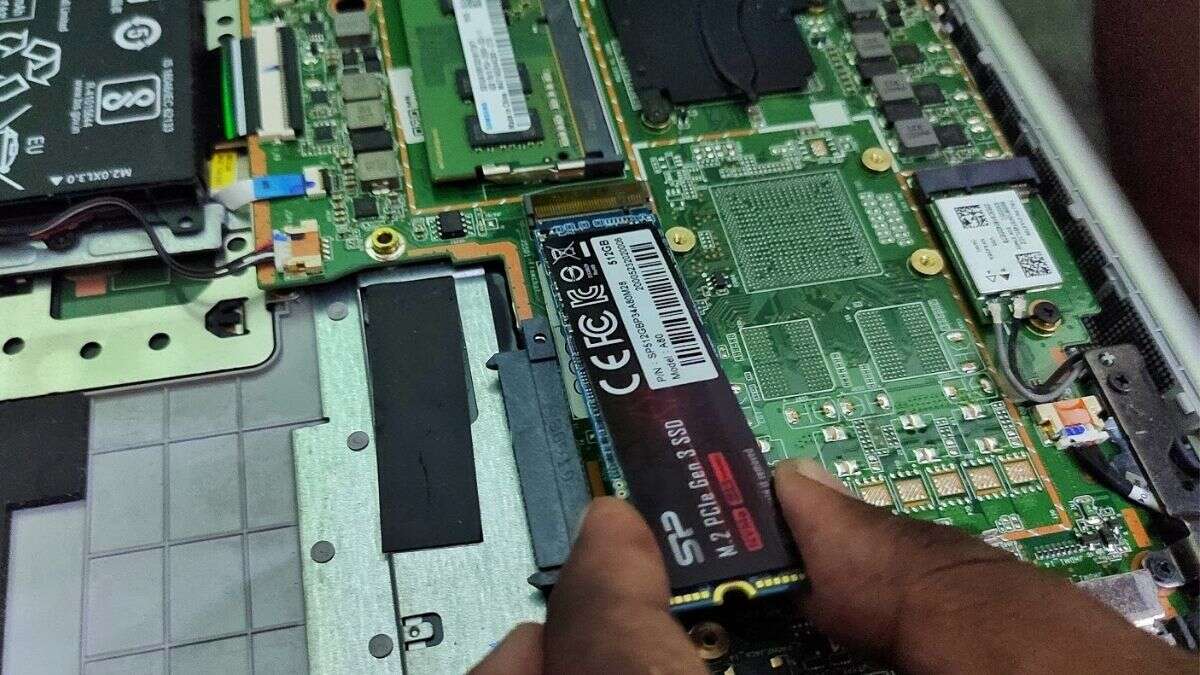
Yes—most laptops can take an SSD, but compatibility and form factor matter.
You’re not alone if you’re asking can i put a ssd in my laptop. I’ve upgraded hundreds of machines, from budget Windows notebooks to premium ultrabooks and older Macs. In this guide, I’ll show you how to check compatibility, choose the right drive, and install it right. If you want faster boots, snappy apps, and a quieter laptop, read on.
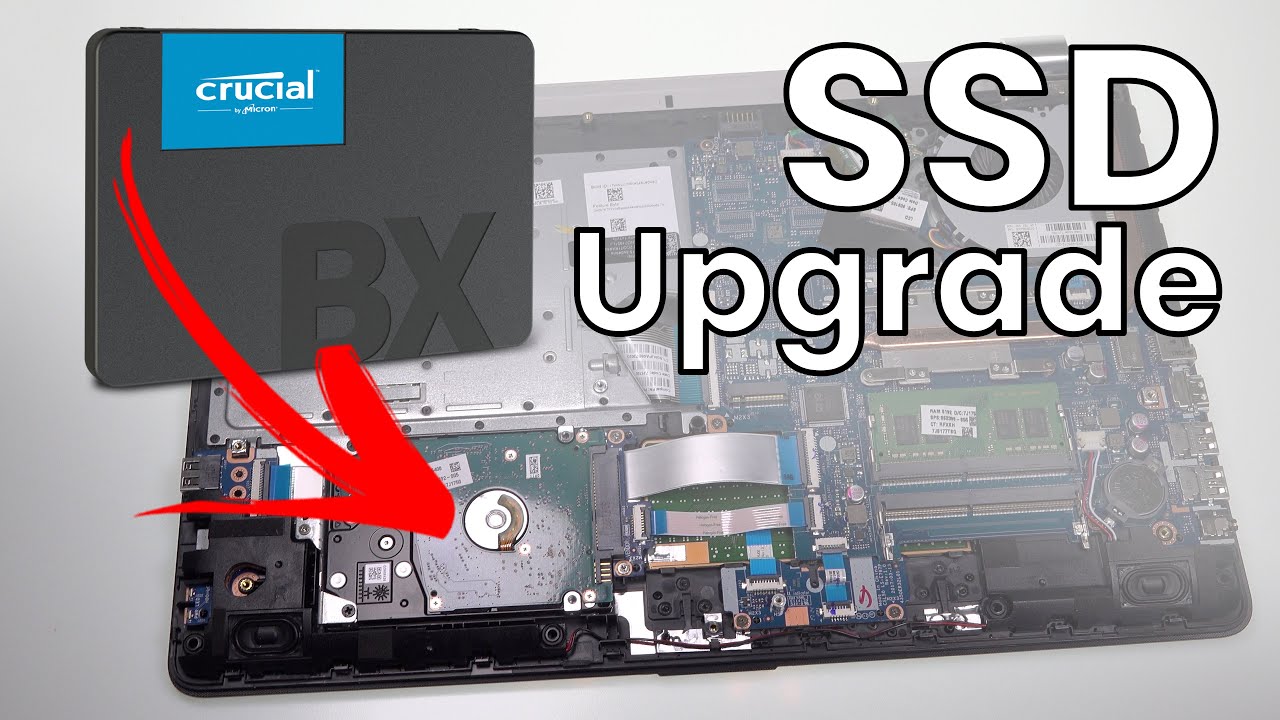
What You Need To Know Before You Upgrade
Upgrading to an SSD is one of the best moves you can make. But first, check a few key points. This helps avoid returns, stress, and lost data.
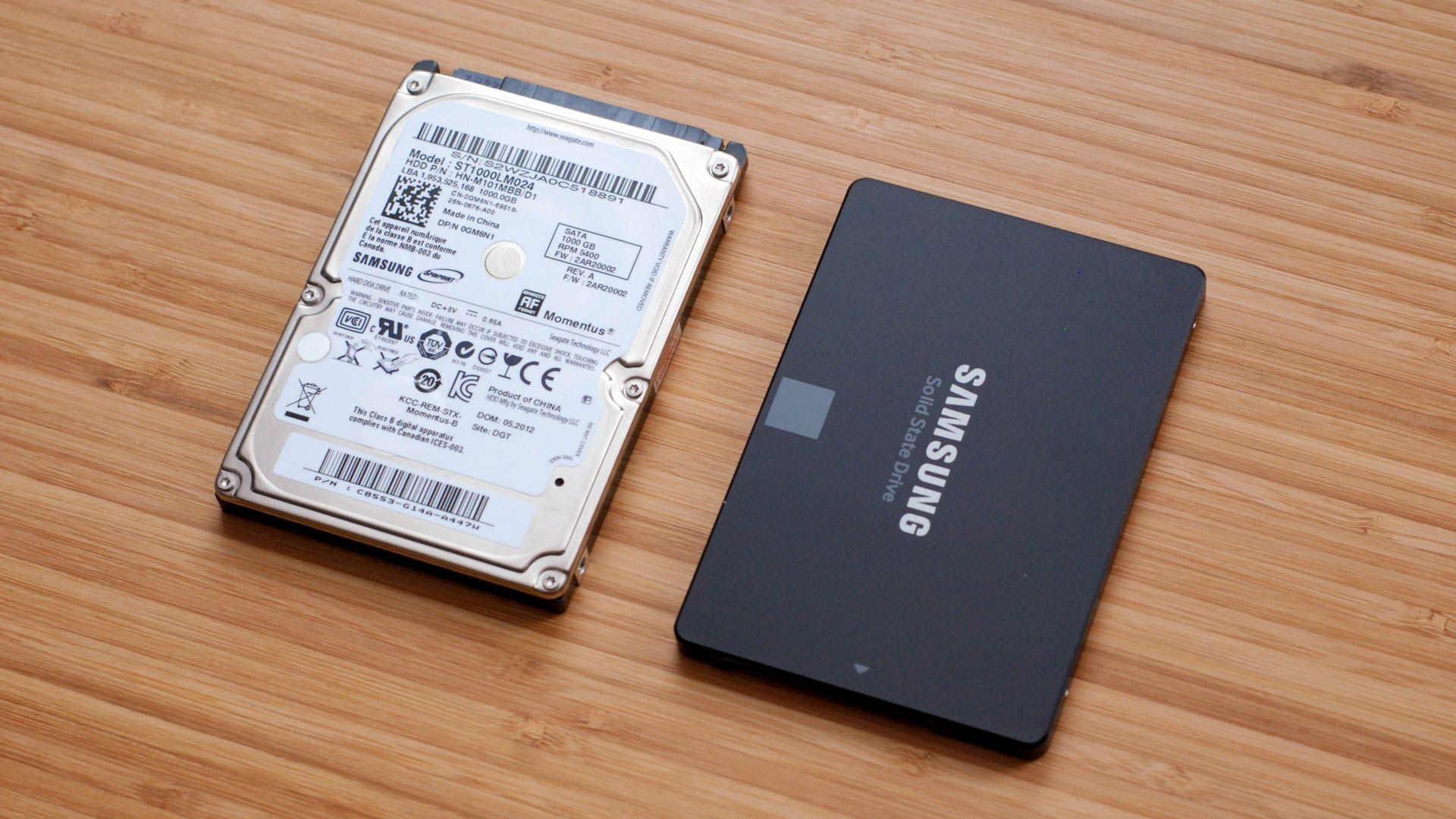
- Most laptops support a 2.5-inch SATA SSD or an M.2 SSD. Some have both.
- Some thin models use soldered storage. Those cannot be upgraded.
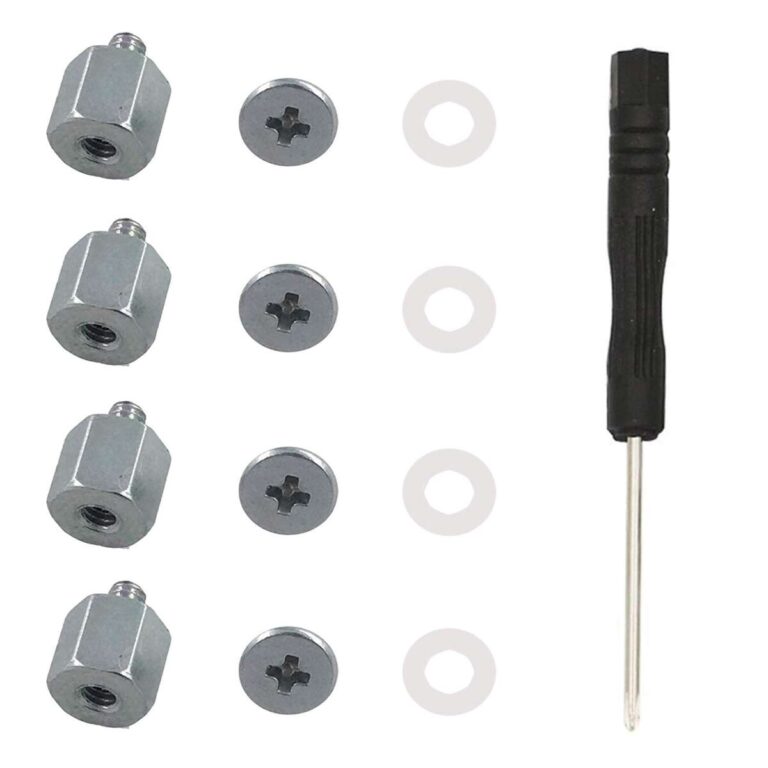
- You may need a bracket or spacer. Thickness matters in some bays.
- M.2 has many shapes and keys. Pick the size and type your laptop supports.
I hear can i put a ssd in my laptop a lot. The short answer is yes in many cases. The long answer is in the steps below.
How To Check If Your Laptop Supports An SSD
You can confirm support in less than 10 minutes. Here is the simple process I use in the shop.
- Check the service manual. Search your model on the maker’s support page.
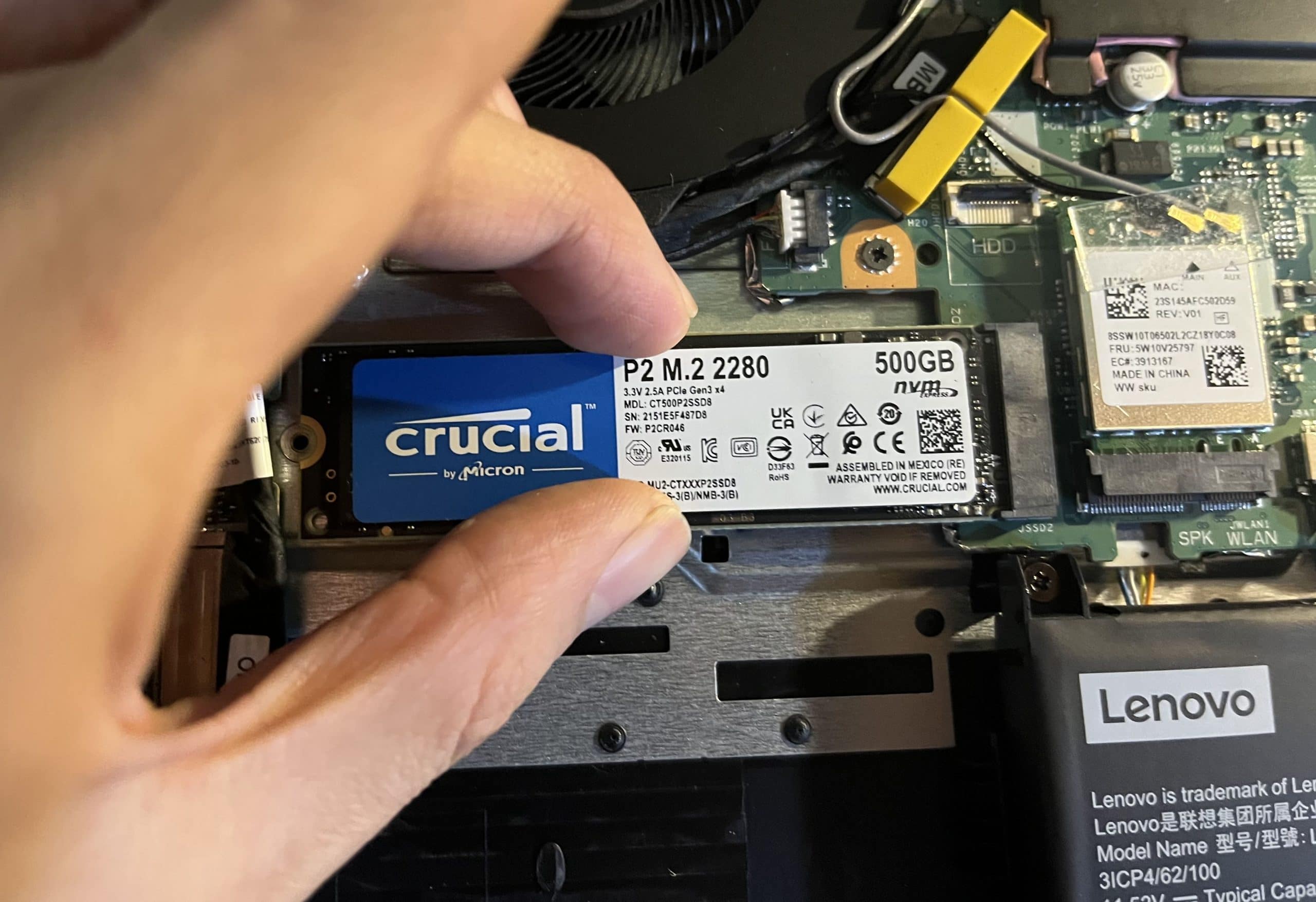
- Look for a 2.5-inch drive bay or an M.2 slot under the bottom cover.
- If you see an M.2 slot, note the size. Common sizes are 2280, 2242, and 2230.
- Check if the M.2 slot supports SATA, NVMe, or both. Look for PCIe mention.
- If your drive is soldered, you will not see a slot or bay.
Still wonder can i put a ssd in my laptop? If you can find a bay or M.2 slot, you likely can.

Types of SSDs and Which One Fits
Picking the right SSD is key. The type must match the slot.
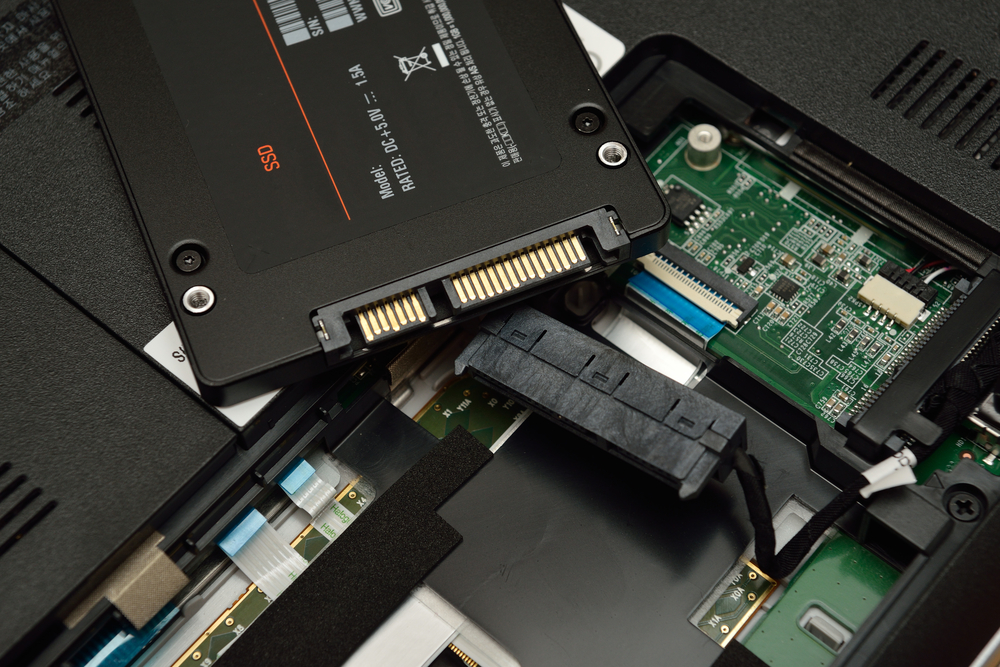
- 2.5-inch SATA SSD. The safest bet for older laptops. It uses a SATA cable or a sled. Common thickness is 7 mm.
- M.2 SATA SSD. M.2 shape but uses SATA signals. It is slower than NVMe but still fast.
- M.2 NVMe SSD. The fastest for most modern laptops. Uses PCIe lanes. Look for NVMe in the specs.
- mSATA SSD. Found in some older ultrabooks. Small card with SATA signals. Less common now.
Match the M.2 key. NVMe drives are often M-key. Some slots are B-key or B+M. If you ask can i put a ssd in my laptop, knowing the exact type is your best next step.

Tools, Prep, and Data Backup
Prep makes the job quick and safe. Here is my basic kit.
- Small Phillips screwdriver and a plastic pry tool.
- USB-to-SATA or USB-to-NVMe adapter for cloning.
- A fresh USB stick with Windows or macOS installer.
- An anti-static wrist strap if you have one.
Back up your files first. Use cloud or an external drive. If you plan to clone your old drive, clear junk and update your system first. I get asked can i put a ssd in my laptop and keep my files. Yes, if you clone or restore a backup.

Step-by-Step: Install an SSD in a Laptop
Follow these steps. They work for most models. Some steps vary by brand.
- Power off the laptop and unplug it. Hold the power button for ten seconds.
- If the battery is removable, take it out. If not, be extra careful.
- Remove the bottom cover screws. Keep them grouped by area.
- Ground yourself. Touch metal to discharge static.
- For a 2.5-inch SSD, slide it into the bay and connect SATA. For M.2, insert at a 30-degree angle, then press down and screw it in.
- If cloning, connect the SSD externally first, clone, then install it inside.
- Reassemble the cover and screws.
- Boot to BIOS. Confirm the SSD is detected.
- Install Windows or macOS, or boot your cloned system.
If you are still thinking can i put a ssd in my laptop by myself, this is very doable with care and time.

Set Up and Optimize Your New SSD
A few tweaks help you get the most from your SSD.
- Update BIOS or UEFI to the latest version.
- Set the storage mode to AHCI if on Windows.
- Use GPT and UEFI for Windows 10 or 11.
- Check that TRIM is on. Windows and macOS enable this by default.
- Update SSD firmware with the maker’s tool.
I often hear can i put a ssd in my laptop and get full speed. Yes, if the slot supports NVMe and you use the right settings.
Performance, Battery, and Heat: What To Expect
An SSD makes old laptops feel new. The gains are clear.
- Boot times drop from a minute to seconds.
- Apps open fast. File tasks feel instant.
- Battery life can improve. SSDs sip power at idle.
- Heat and noise drop, since there are no moving parts.
A fair note. If your CPU and RAM are weak, some tasks will still lag. But the system will feel much smoother. People ask can i put a ssd in my laptop to play games. Load times will drop, but FPS depends on your CPU and GPU.
Cost, Capacity, and Value: Picking the Right Drive
You want the sweet spot. Here is how I advise clients.
- For most users, 1 TB is a great balance today.
- For tight budgets, 500 GB is fine for work and school.
- Choose TLC NAND for steady speed. QLC is cheaper but slower with big writes.
- Drives with DRAM cache feel snappier. Look for that in specs.
If the question is can i put a ssd in my laptop and keep it budget friendly, start with a 500 GB SATA SSD. It is low cost and a huge step up.
Common Problems and How To Fix Them
Do not panic. Most issues are easy to fix.
- SSD not detected. Reseat the drive. Update BIOS. For M.2, check SATA vs NVMe support.
- Cloning fails. Turn off BitLocker or FileVault first. Try a sector-by-sector clone.
- Blue screen on boot. Boot repair, then update storage drivers.
- Slow speeds. Check you used the right slot. Some M.2 slots run at SATA speeds.
- Overheating NVMe. Add a thin thermal pad if the laptop allows.
If the thought can i put a ssd in my laptop is still in your mind, this list should calm the worry.
Real-World Notes From My Bench
A few quick stories to guide your choice.
- A 2015 Dell with a hard drive went from 90-second boots to 12 seconds with a 2.5-inch SSD. The user thought it was a new PC.
- A 2019 ultrabook had an M.2 2242 SATA drive. We moved to M.2 2242 NVMe, and app loads were twice as fast.
- A 2017 gaming laptop had two M.2 slots. We added a second SSD for games and kept the OS on the first.
These are real cases I see every week. When people ask can i put a ssd in my laptop, I share wins like these so they can plan with confidence.
Frequently Asked Questions of can i put a ssd in my laptop
Do all laptops support SSD upgrades?
No. Many do, but some have soldered storage. Always check your service manual and look for a 2.5-inch bay or M.2 slot.
Is NVMe always better than SATA?
NVMe is faster, but only if your slot supports it. On older laptops, a SATA SSD still gives a huge boost.
Can I clone my old drive to the new SSD?
Yes. Use a USB adapter and cloning software. After cloning, swap the drives and set the SSD as the boot device.
Will an SSD improve battery life?
Often yes. SSDs use less power at idle and have no moving parts. Gains vary by laptop and workload.
How much SSD storage do I need?
Most users do well with 1 TB. Light users can start at 500 GB. Creators and gamers should aim for 2 TB or more.
Can I use an external SSD instead?
Yes. It is great for extra space or quick speed boosts. But an internal SSD gives the best system speed.
Do I need to reinstall Windows after upgrading?
Not always. You can clone and boot. A clean install can give a fresh start if you prefer.
Conclusion
Yes, you can put an SSD in most laptops, and the payoff is huge. The keys are to verify the slot, pick the right type, and follow a simple install plan. Test your setup, turn on TRIM, and enjoy a fast, quiet machine.
If you found this helpful, share it with a friend, or drop your model and question below. Ready to start? Pick your drive, back up your files, and make the upgrade today.

Jamie Lee is a seasoned tech analyst and writer at MyTechGrid.com, known for making the rapidly evolving world of technology accessible to all. Jamie’s work focuses on emerging technologies, product deep-dives, and industry trends—translating complex concepts into engaging, easy-to-understand content. When not researching the latest breakthroughs, Jamie enjoys exploring new tools, testing gadgets, and helping readers navigate the digital world with confidence.