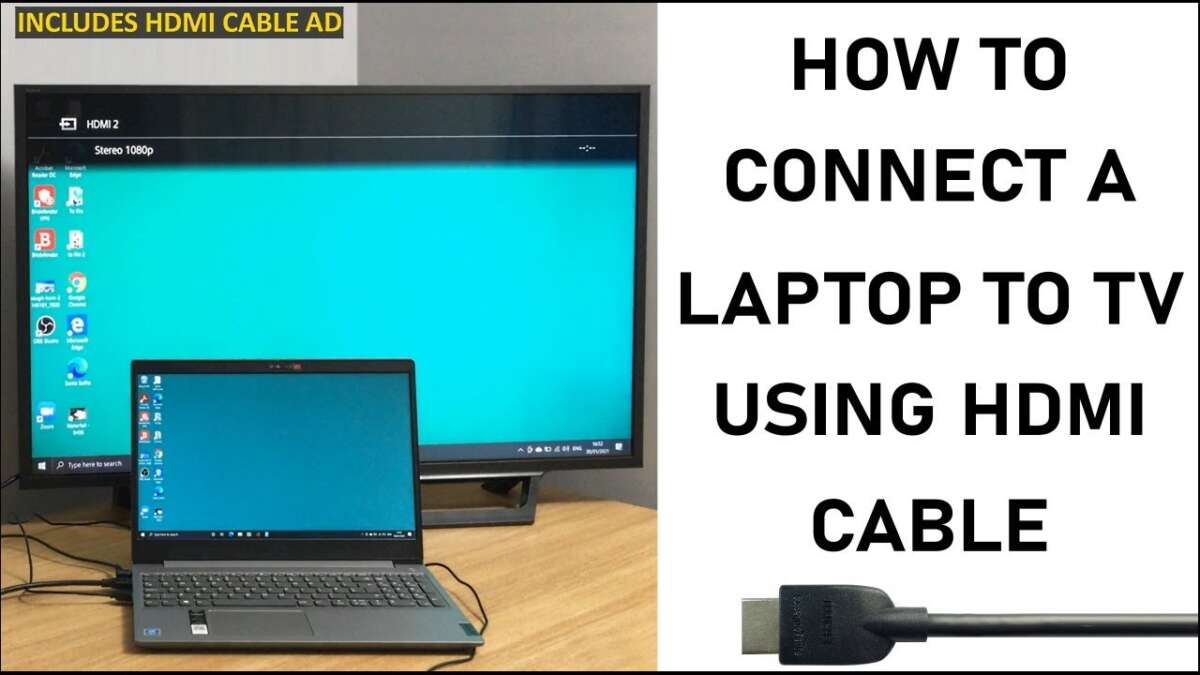
Connect your laptop to TV with an HDMI cable: plug the cable into both devices and pick the HDMI input.
I’ve spent years helping friends and clients get their screens working. I’ll show you exactly how do you connect laptop to tv with hdmi, step by step, with clear tips, common fixes, and the settings that matter most. Read on and you’ll be watching or presenting from your laptop on the big screen in minutes.
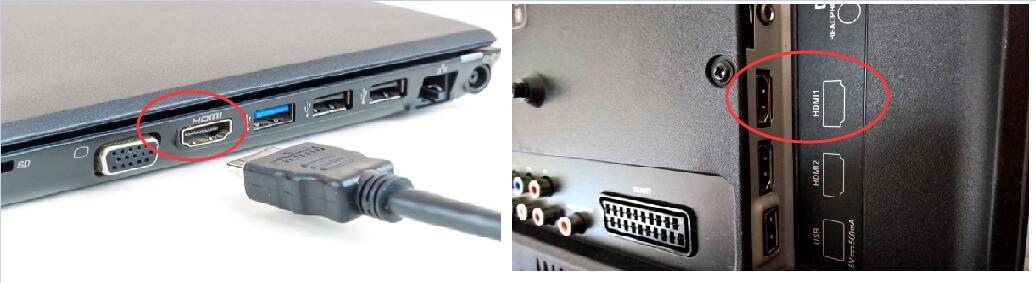
What you need to connect laptop to TV with HDMI
Before you begin, here’s what you need to know about how do you connect laptop to tv with hdmi. The setup is simple. You only need a few things and a little patience.
- HDMI cable
- A standard HDMI cable works for most setups. Choose the right length for your room.
- A laptop with an HDMI port or adapter
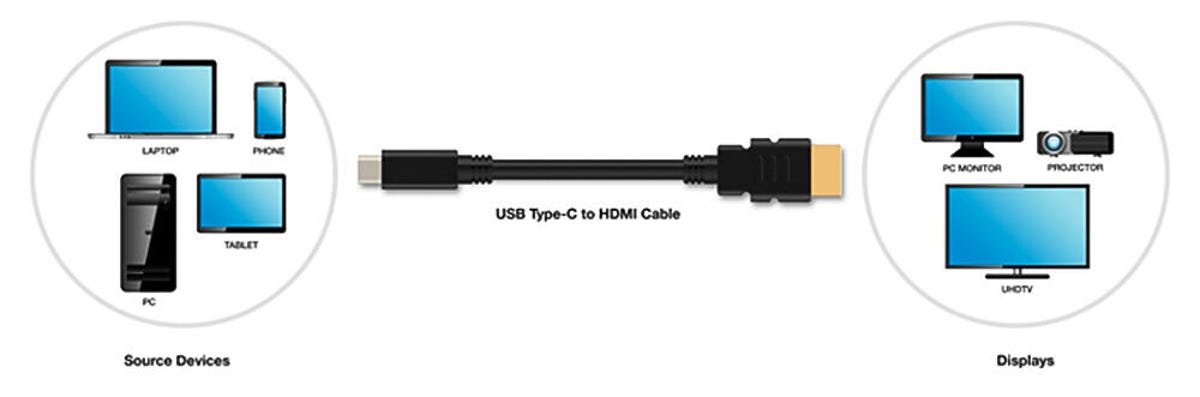
- If your laptop has HDMI out, you’re set. If it has USB-C, Mini DisplayPort, or Thunderbolt, you need an adapter.
- A TV with an HDMI input
- Most modern TVs have multiple HDMI ports. Note which HDMI input you use.
- TV remote or TV input selector
- You will select the correct HDMI input on the TV.
- Optional: adapters and active converters
- For USB-C or Mini DisplayPort on the laptop, get a quality adapter. Active adapters help if you need to convert signals.
I recommend a well-built HDMI cable and a certified adapter. Cheap adapters can cause signal drops or no audio.
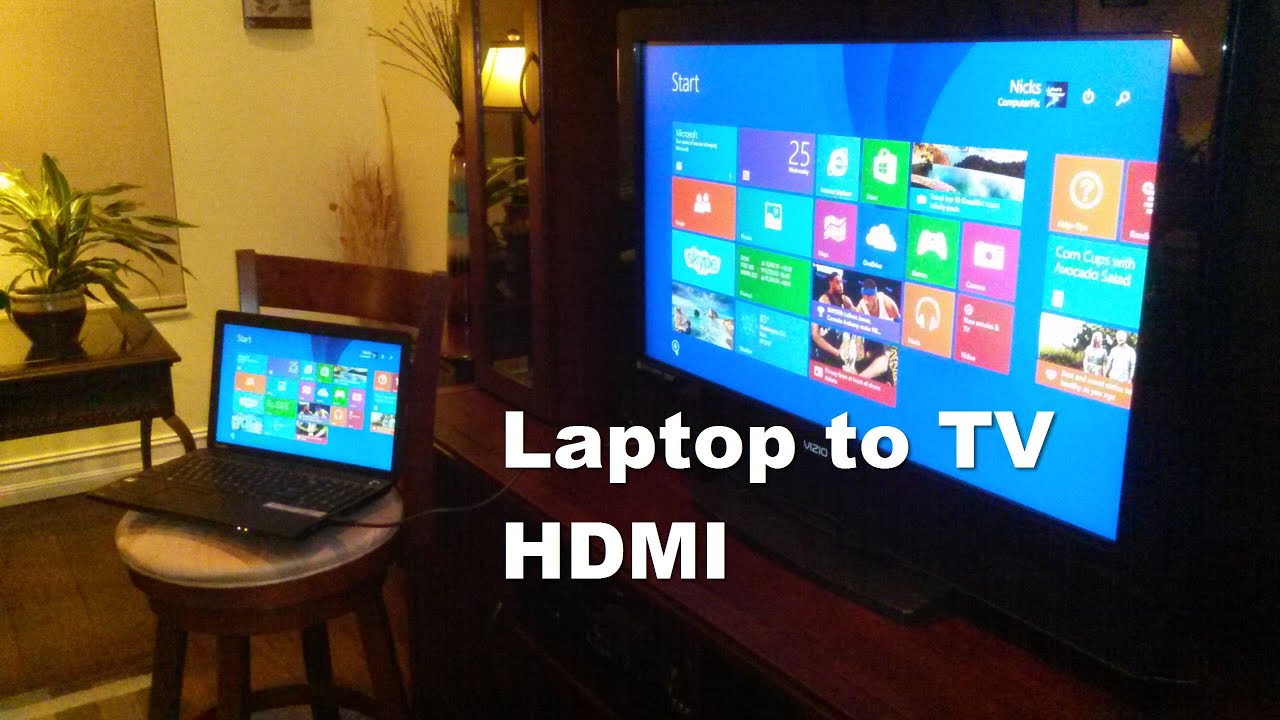
Step-by-step: how do you connect laptop to tv with hdmi (Windows)
Follow these steps to connect a Windows laptop. The process is simple and fast.
- Turn off the TV and laptop
- This is optional but can help the devices detect each other.
- Plug the HDMI cable into the laptop
- Use the HDMI output port or an adapter if needed.
- Plug the HDMI cable into the TV
- Note the HDMI input number (HDMI1, HDMI2).
- Turn on the TV and switch to the HDMI input
- Use the TV remote to pick the correct HDMI input.
- Turn on the laptop
- Windows should auto-detect the TV as a display.
- Set display mode on Windows
- Press Windows + P and choose Duplicate, Extend, or Second screen only.
- Adjust resolution if needed
- Right-click the desktop, select Display settings, and pick the resolution that matches your TV.
- Set audio output
- Click the sound icon, pick the HDMI output so audio plays through the TV.
If Windows does not detect the TV, unplug and replug the cable. Try a different HDMI port on the TV or a different cable. These simple checks often solve the problem.
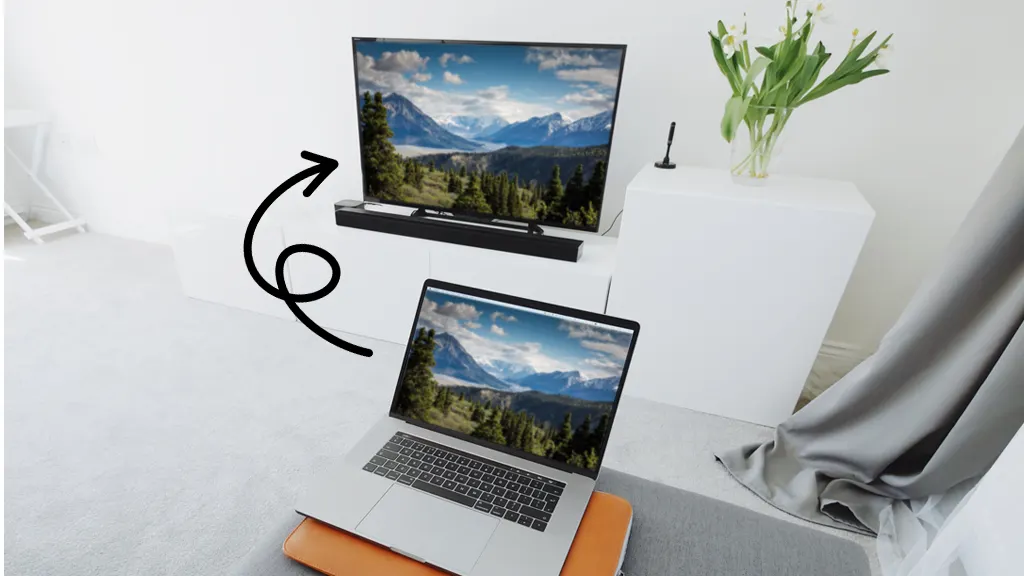
Step-by-step: how do you connect laptop to tv with hdmi (Mac)
Mac steps are slightly different but still easy.
- Check your ports and get an adapter if needed
- Recent Macs use USB-C/Thunderbolt. Use a USB-C to HDMI adapter or a dock.
- Connect the HDMI cable to the TV first
- Then connect the other end to the adapter and to your Mac.
- Turn on the TV and pick the HDMI input
- Use the TV remote to select the right HDMI input.
- Open System Settings or System Preferences
- Go to Displays to manage arrangement and resolution.
- Choose mirror or extend
- Use the Arrangement tab to mirror the display or extend the desktop.
- Set the audio output
- In Sound settings, select the TV (HDMI) for sound if needed.
If the Mac shows a blank screen, check the adapter. Active adapters with their own power often fix flaky connections.

Troubleshooting common issues when you connect laptop to tv with hdmi
Problems happen. Here are quick fixes I use most often when how do you connect laptop to tv with hdmi doesn’t work on the first try.
- No image on TV
- Check TV input and HDMI cable. Try another HDMI port or cable.
- No sound on TV
- Set the HDMI device as the audio output on your laptop. Restart the laptop if needed.
- Wrong resolution or overscan
- Adjust resolution on the laptop. Use TV’s picture size or scaling settings.
- Intermittent signal or flicker
- Replace the cable. Long cheap cables can lose signal. Use shorter or high-quality cables.
- Adapter not recognized
- Use an active adapter. Update laptop drivers or macOS. Restart after plugging in the adapter.
From my experience, unplugging both devices for 30 seconds and plugging them back in clears many handshake issues. If problems persist, try the same cable and adapter on another TV or laptop to isolate the faulty part.
Advanced tips and settings when you connect laptop to tv with hdmi
Once the basic connection works, small settings make a big difference. These tips boost performance and picture quality.
- Choose the right resolution and refresh rate
- Match the TV native resolution (usually 1920×1080 or 3840×2160). Use 60Hz for smooth video.
- Use HDMI 2.0 or higher for 4K at 60Hz
- Older HDMI 1.4 caps 4K at 30Hz. Check cable and ports if you want full 4K performance.
- Fix audio delay
- If audio lags, enable audio delay adjustment on your TV or use the laptop audio settings.
- Manage color and HDR
- HDR can be tricky. Turn HDR on/off on the laptop and TV to compare results.
- Use high-quality adapters
- Passive adapters are fine for simple HDMI. For signal conversion or long runs, use active converters or powered adapters.
- Extend battery life while connected
- If streaming from streaming apps, plug the laptop into power to avoid throttling or sleep issues.
I once tried a 25-foot cheap cable and the signal failed. Upgrading to a certified 18Gbps cable fixed the issue. Small investments save time and frustration.

Frequently Asked Questions of how do you connect laptop to tv with hdmi
How do I mirror my laptop screen to the TV using HDMI?
Plug the HDMI cable into both devices, select the TV’s HDMI input, then choose Duplicate (Windows) or Mirror Displays (Mac). Your laptop screen will appear on the TV instantly.
Why is there no sound after I connect with HDMI?
Check your laptop’s audio output and set the HDMI device as the default output. If that fails, try a different HDMI port or update audio drivers.
Do I need a special HDMI cable for 4K?
Yes. For 4K at 60Hz, use an HDMI 2.0 or higher cable that supports 18 Gbps or more. Older cables may limit resolution and refresh rate.
Can I connect a laptop with USB-C to an HDMI TV?
Yes. Use a USB-C to HDMI adapter or a docking station that supports DisplayPort Alternate Mode. Active adapters work best for stability.
Why does my TV show a lower resolution than my laptop?
Open display settings and set the resolution to match the TV’s native resolution. Also check the TV’s picture mode and any scaling or overscan settings.
My laptop shows the TV but the image is cut off. What do I do?
Adjust the TV’s picture size or aspect ratio to "Fit" or "Just Scan." On the laptop, lower the resolution slightly until it fits.
Can I use HDMI to charge my laptop?
No. Standard HDMI does not deliver enough power to charge a laptop. Use the laptop’s power adapter or a USB-C power source that supports charging.
Conclusion
You can get a clean, reliable connection when you know the right steps. Plug a good HDMI cable into the laptop and TV, pick the correct input, and set display and audio options. If something goes wrong, try swapping cables, ports, or adapters before diving into settings.
Try the steps above today. Test a short, quality cable first and adjust simple settings like resolution and output. If you liked this guide, leave a comment with your setup or subscribe for more easy tech help.

Jamie Lee is a seasoned tech analyst and writer at MyTechGrid.com, known for making the rapidly evolving world of technology accessible to all. Jamie’s work focuses on emerging technologies, product deep-dives, and industry trends—translating complex concepts into engaging, easy-to-understand content. When not researching the latest breakthroughs, Jamie enjoys exploring new tools, testing gadgets, and helping readers navigate the digital world with confidence.