Adjust your Samsung TV resolution quickly from Settings > Picture Size or via your source device.
I’ve spent years helping friends and clients tune TVs, and I know how confusing display menus can feel. This guide walks you step-by-step through how to adjust screen resolution on samsung tv with clear, tested instructions, tips for connected devices, and real-world fixes I’ve used. Read on to get a clean, sharp picture without guessing.

Understanding TV resolution and why it matters
Resolution tells your TV how many pixels it shows. Higher resolution means more detail and a sharper image. Samsung TVs typically support HD, Full HD, and 4K depending on the model. Knowing how to adjust screen resolution on samsung tv helps match the TV to your source device for the best image.

How to adjust screen resolution on Samsung TV (step-by-step)
Follow these simple steps on a Samsung Smart TV running Tizen OS. If your TV uses a different OS, the menu names may differ but the flow is similar.
- Turn on the TV and the source device.
- Press the Home or Menu button on your Samsung remote.
- Select Settings, then go to Picture.
- Choose Picture Size Settings or Picture Size (menu names vary).
- Pick the correct aspect or resolution mode: 16:9, Fit to Screen, Screen Fit, or Custom.
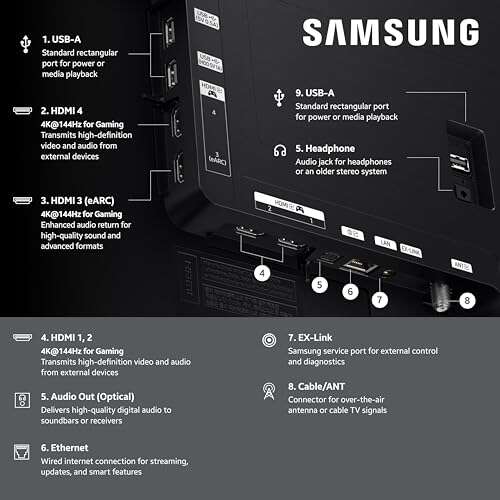
- For 4K content, go to General > External Device Manager > Input Signal Plus (or UHD Color) and enable it for the HDMI port in use.
If the TV doesn’t show a specific numeric resolution option, use the Picture Size or Screen Fit option to let the TV match the input. Adjusting these controls is how to adjust screen resolution on samsung tv so content displays without cropping or blur.

Adjusting resolution for PCs, game consoles, and streaming boxes
Different devices set resolution from their end. Match the TV and device for best results.
For Windows PC
- Right-click the desktop and choose Display settings.
- Under Display resolution, pick the TV’s native resolution (for 4K TV choose 3840 x 2160).
- If text or icons look too small, change scale settings.
For macOS
- Open System Settings > Displays.
- Choose Default for display or Scaled and pick the native resolution.
For Xbox or PlayStation
- Go to Settings > Display & sound (Xbox) or Screen and Video (PlayStation).
- Select Resolution and pick 4K/1080p/720p as supported.
- Enable HDR or 4K if the TV supports it and the HDMI port is configured.
For Roku, Fire TV, and Blu-ray players
- Open the device display settings.
- Choose Auto-detect or select the TV’s native resolution manually.
When you change device settings, return to the Samsung TV menu and confirm the picture size or Screen Fit. This process is central to how to adjust screen resolution on samsung tv when content comes from external gear.

Common problems and fixes when resolution doesn’t match
Here are the issues I see most often and the fixes I use.
Problem: Image is cropped or zoomed
Fix: Set Picture Size to Screen Fit or 16:9. Turn off Overscan in the TV or source device.
Problem: No 4K option on the TV
Fix: Use an HDMI 2.0+ cable, plug into the correct HDMI port, and enable UHD Color/Input Signal Plus for that port.
Problem: Blurry or soft image
Fix: Ensure the source outputs the native resolution. Turn off unnecessary picture processing. Use the Sharpness control carefully.
Problem: Black bars top/bottom or left/right
Fix: Check source aspect ratio settings and the TV’s Picture Size. Use Fit to Screen for PC content.
Problem: Intermittent signal or no picture
Fix: Re-seat the HDMI cable, try another HDMI input, and test a different cable. Update the TV firmware.
These quick actions cover most reasons you need to know how to adjust screen resolution on samsung tv and restore a clean image.

Tips to get the best picture after adjusting resolution
Small tweaks make a big difference. Try these proven tips I use in setups.
- Use the TV’s native resolution on the source for the sharpest image.
- Enable HDMI UHD Color or Input Signal Plus for 4K HDR devices.
- Turn on Game Mode when gaming to reduce input lag.
- Use the Screen Fit or Just Scan option for PC content to avoid overscan.
- Update the TV firmware to access improved calibration and fixes.
- Use quality HDMI cables rated for the resolution and refresh rate you need.
These steps help you lock in quality after you learn how to adjust screen resolution on samsung tv.

Frequently Asked Questions of how to adjust screen resolution on samsung tv
How do I enable 4K on my Samsung TV?
Enable UHD Color or Input Signal Plus for the HDMI port under Settings > General > External Device Manager, then set the source device to 4K. Make sure you use a high-speed HDMI cable and the correct port.
Why does my PC look zoomed or cut off on my Samsung TV?
This is usually overscan. Set the TV’s Picture Size to Screen Fit or Just Scan, and set your PC resolution to the TV’s native resolution.
My console won’t show 4K even though the TV is 4K. What should I check?
Check the HDMI cable, the HDMI port (must support 4K HDR), and that UHD Color/Input Signal Plus is enabled on the TV. Also set the console’s output to 4K in its display settings.
Can I change resolution from the Samsung remote?
You change picture size and modes from the Samsung remote. Numeric resolution is set on the source device, not directly from the remote.
What if the TV shows the wrong resolution after switching inputs?
Turn both devices off and back on, try a different HDMI cable or port, and enable Input Signal Plus for the used port. If the issue continues, update firmware on the TV and the source device.
Will changing resolution affect apps on the TV?
Built-in apps usually adapt to the TV’s native resolution automatically. If an app looks off, update the app and the TV firmware.
Conclusion
You now have clear steps and practical fixes for how to adjust screen resolution on samsung tv, whether the source is a PC, game console, or streaming device. Start by matching the source device to the TV’s native resolution, enable UHD Color for 4K, and use Screen Fit to avoid overscan. Try one change at a time and test with familiar content so you can see the effect. If this guide helped, leave a comment with your TV model or subscribe for more how-to tips and troubleshooting advice.

Everett Ashford is a tech reviewer at mytechgrid.com specializing in SSDs, cameras, TVs, earbuds, headphones, and other consumer electronics. He provides honest, data-driven reviews based on hands-on testing and real-world performance analysis. Everett simplifies complex tech details to help readers make smart, confident buying decisions.