Open Settings, find Snapchat, enable Camera permission, then restart the app.
If your camera will not open in Snapchat, you are not alone. I help people fix this often. In this guide, I will show you how to allow access to camera on Snapchat on both iPhone and Android, step by step. You will also learn how to solve common errors, avoid pitfalls, and keep your privacy safe while using the app.
Why Snapchat needs camera permission and how it works
Snapchat is built around the camera. Without access, you cannot take Snaps, use Lenses, or scan.
Your phone controls camera access at the system level. Snapchat must ask for it. If you missed the prompt, or tapped Don’t Allow, you can still turn it on in Settings. Paths differ by device, but the fix is quick once you know where to look. This is the core of how to allow access to camera on Snapchat.
:max_bytes(150000):strip_icc()/B5-AllowCameraonSnapchat-annotated-82428d3371a940c5b3cb6c4ca49afd20.jpg)
How to allow access to camera on Snapchat on iPhone (iOS)
Follow these steps on iPhone or iPad:
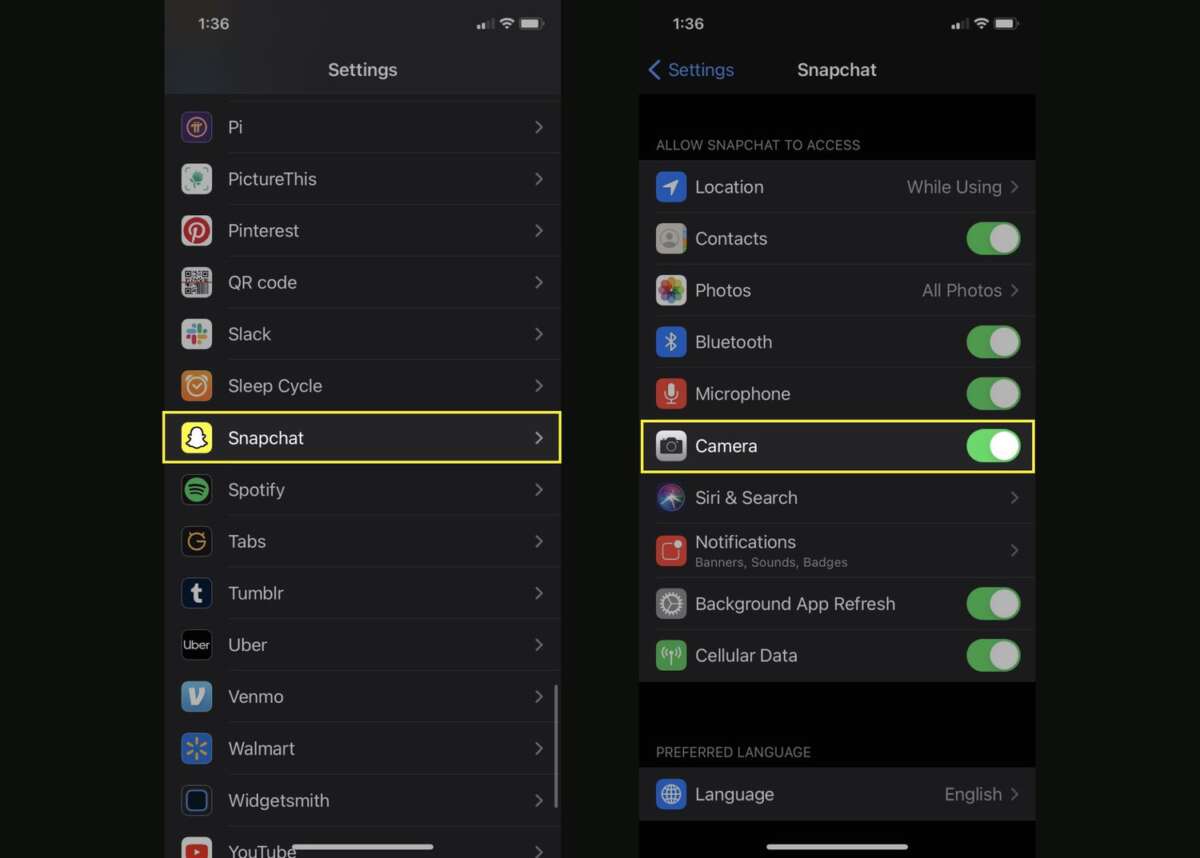
- Turn on camera permission in iOS Settings
- Open Settings.
- Scroll to Snapchat.
- Toggle Camera on.
- Force-quit Snapchat and reopen it.
- Or enable it from the Privacy menu
- Open Settings.
- Tap Privacy & Security.
- Tap Camera.
- Toggle Snapchat on.
- Turn off Screen Time blocks if the toggle is missing
- Open Settings.
- Tap Screen Time.
- Tap Content & Privacy Restrictions.
- Tap Allowed Apps.
- Turn Camera on.
- Return to Snapchat and try again.
- Update iOS and Snapchat
- Open App Store and update Snapchat.
- Go to Settings > General > Software Update and install iOS updates.
- Restart your iPhone.
These steps are the fastest way for how to allow access to camera on Snapchat on iOS. If the Camera toggle is grayed out, Screen Time is often the cause. I see that a lot when parents use limits.
How to allow access to camera on Snapchat on Android
Android paths vary by brand, but this flow works on most phones:
- Turn on camera permission in App Info
- Long-press the Snapchat app icon.
- Tap App info or the small (i) icon.
- Tap Permissions.
- Tap Camera.
- Select Allow only while using the app.
- Use the Settings app if you prefer
- Open Settings.
- Tap Apps or Apps & notifications.
- Find Snapchat.
- Tap Permissions > Camera.
- Select Allow while using the app.
- Fix OEM-specific permission managers
- On Xiaomi/MIUI, open Security > Permissions and allow Camera for Snapchat.
- On Huawei, open Phone Manager > App permissions.
- On Samsung, the main path above works, but also check Permission manager.
- Update Android and Snapchat
- Open Play Store and update Snapchat.
- Open Settings > System > System update to update Android.
- Restart your phone.
This process is the core of how to allow access to camera on Snapchat on Android. If the permission keeps resetting, battery or device admin rules may be blocking it.
:max_bytes(150000):strip_icc()/C5-AllowCameraonSnapchat-annotated-e5b9605157ec47b48a0b8d048fdaf298.jpg)
Turn on camera from inside Snapchat
You can also fix it inside the app:
- Open Snapchat.
- Tap your profile icon.
- Tap the gear icon to open Settings.
- Tap Permissions.
- Tap Camera, then tap Open Settings.
- Enable Camera permission, then return to Snapchat.
If you see a banner that says Snapchat does not have access to your camera, tap the Settings link. It jumps to the right screen. This in-app path is an easy way for how to allow access to camera on Snapchat without hunting through menus.
Troubleshooting when camera still does not work
If you turned the permission on and it still fails, try these fixes. I use these when I troubleshoot phones for friends and clients:
-
Clear Snapchat cache
Open Snapchat > profile icon > Settings > Clear Cache. This removes old data and often fixes camera errors. -
Restart the device
A reboot refreshes system services. It is simple and works more than you expect. -
Check other restrictions
On iOS, check Screen Time limits for Snapchat. On Android, disable Work Profile restrictions if you use a company device. -
Test the Camera app
Open the built-in Camera app. If that fails, there is a hardware or system issue. Update your OS or contact support. -
Remove and reinstall Snapchat
Back up Memories first if needed. Then delete and reinstall from the App Store or Play Store. Sign back in and test. -
Watch for battery and background limits
On Android, disable aggressive battery savers for Snapchat. Open Settings > Battery > Battery optimization and set Snapchat to Not optimized. -
Storage permission on Android
If saving Snaps fails, also allow Photos or Files and media. Open App info > Permissions and enable it.
Using these steps, you can solve most cases of how to allow access to camera on Snapchat when the normal toggle is not enough.

Privacy and safety tips when granting camera access
Giving camera access is a trade-off. Here is how to stay safe:
-
Use Allow while using the app
This limits camera use to when Snapchat is open. -
Review permissions often
Check Snapchat permissions every few months. Remove what you do not need. -
Control who can contact you
Open Snapchat Settings > Privacy Controls. Adjust Contact Me and View My Story. -
Keep your OS updated
Security patches protect camera APIs and your data. -
Know the limits
If you use a work phone, admin rules may block the camera. You may need to use a personal device.
These habits let you enjoy Snapchat while keeping control. They pair well with how to allow access to camera on Snapchat without giving more data than you need.
Common mistakes to avoid
These errors waste time and cause repeat issues:
-
Tapping Don’t Allow on the first prompt
If you do, open Settings and grant it later. -
Forgetting Screen Time or parental controls
On iOS, Camera can be hidden by Screen Time. Check it first. -
Confusing in-app settings with system permissions
Snapchat settings help, but the real switch lives in iOS or Android Settings. -
Ignoring updates
Outdated Snapchat or OS builds can break camera APIs. -
Skipping a device restart
A quick reboot clears stuck camera services.
Avoid these and your steps for how to allow access to camera on Snapchat will stick the first time.
src="https://preview.redd.it/snapchat-says-it-requires-permission-to-use-the-camera-but-v0-ky7t9droflaa1.jpg?width=640&crop=smart&auto=webp&s=7bf9583914c5a16c17e1ac5dd52e0bba2644ceaf"
alt="Frequently Asked Questions of how to allow access to camera on snapchat”
style=”max-width: 100%; height: auto; border: 2px solid black; border-radius: 10px; display: block; margin: 0 auto;”
loading=”lazy”
/>
Frequently Asked Questions of how to allow access to camera on snapchat
Why does Snapchat say it needs camera access every time?
This happens if the permission is set to Ask every time or is blocked by a policy. Set it to Allow while using the app and restart Snapchat.
How do I fix a grayed-out Camera toggle on iPhone?
It is usually Screen Time. Go to Settings > Screen Time > Content & Privacy Restrictions > Allowed Apps and turn Camera on.
What if the Snapchat camera is black or blurry after enabling access?
Clear the Snapchat cache, restart your phone, and update the app. Test the native Camera app to rule out hardware issues.
Can I use Snapchat without allowing camera access?
You can chat and view some content, but you cannot take Snaps or use Lenses. The core features need camera access.
Why does Android keep turning off my Snapchat camera permission?
Battery savers, Work Profiles, or OEM permission managers can reset it. Disable aggressive optimizers and re-allow Camera in App Info.
Conclusion
Granting camera access is simple once you know the right path. Turn it on in Settings, review Screen Time or device rules, update your apps, and restart. That is how to allow access to camera on Snapchat in a fast, clean way.
Take a minute now to check your settings and test a Snap. If this helped, share it with a friend, subscribe for more quick guides, or drop a question in the comments.

Jamie Lee is a seasoned tech analyst and writer at MyTechGrid.com, known for making the rapidly evolving world of technology accessible to all. Jamie’s work focuses on emerging technologies, product deep-dives, and industry trends—translating complex concepts into engaging, easy-to-understand content. When not researching the latest breakthroughs, Jamie enjoys exploring new tools, testing gadgets, and helping readers navigate the digital world with confidence.