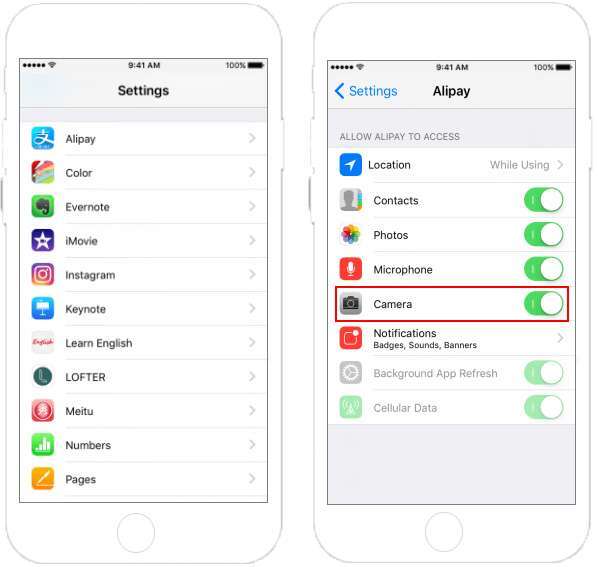
Open Settings, find Camera permissions, and toggle Allow for the app.
If your camera will not turn on in an app, you are not alone. I help teams set up video calls and live demos every week, and this is the top pain point. In this guide, I will show how to allow an app to access camera on iPhone, Android, Windows, Mac, and in web browsers. You will learn the exact steps, plus smart privacy tips and fixes that actually work.
Understand how camera permissions work
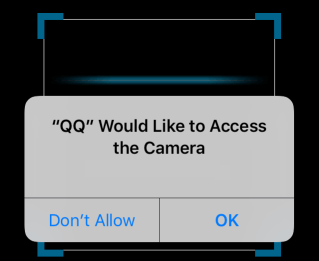
Modern systems protect your camera with a simple rule. Apps must ask before they can use it. You see a prompt the first time. Your answer is saved until you change it.
If you tapped Don’t Allow by mistake, the app cannot open the camera. That is why a call fails or a QR code will not scan. The fix is easy. Change the setting in your device’s privacy menu, then try again.
A quick tip from experience: test with the built-in Camera app first. If that fails, the issue is not the app. It is the device, a driver, or a cover over the lens.
How to allow an app to access camera on iPhone and iPad
There are two simple paths in iOS and iPadOS. Both work fast.
Use the app’s own settings:
- Open Settings.
- Scroll to the app name.
- Tap the app, then turn on Camera.
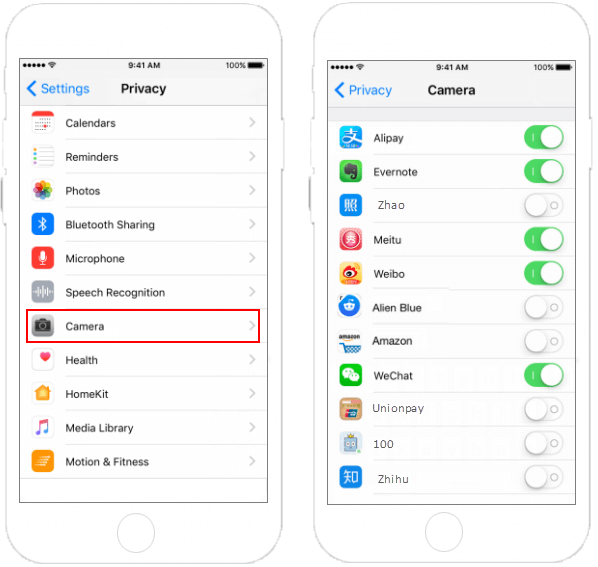
Use Privacy & Security:
- Open Settings.
- Tap Privacy & Security.
- Tap Camera.
- Turn on the toggle next to your app.
When a prompt appears in the app, choose Allow. If you want more control, select Allow While Using App. For Safari, open Settings, tap Safari, tap Camera, then pick Ask, Allow, or Deny.
As you learn how to allow an app to access camera on Apple devices, remember Screen Time can block it. Check Screen Time, Content & Privacy Restrictions, and make sure Camera is allowed.

How to allow an app to access camera on Android
You can do this in the Permission Manager or from the app page. Android names can vary by device, but the flow is the same.
Using Permission Manager:
- Open Settings.
- Tap Privacy or Security and privacy.
- Tap Permission manager.
- Tap Camera.
- Select your app and choose Allow while using the app or Ask every time.
From the app page:
- Open Settings.
- Tap Apps.
- Tap your app.
- Tap Permissions, then Camera.
- Pick Allow while using the app or Ask every time.
If your camera still will not open, check the quick tile for Camera access on Android 12 or later. It can block all apps at once. Toggle it on. This is a key step when learning how to allow an app to access camera on Android.
How to allow an app to access camera on Windows 10 and Windows 11
Windows has three layers: device access, Microsoft Store apps, and desktop apps. All three matter.
Turn on device access:
- Open Settings.
- Click Privacy & security.
- Click Camera.
- Turn on Camera access.
Allow apps:
- On the same page, turn on Let apps access your camera.
- Scroll and turn on the toggle next to your app.
Allow desktop apps:
- Still on the Camera page, turn on Let desktop apps access your camera.
- Make sure your app is listed under Recent activity.
If it fails, check Device Manager for the camera driver. Update it, or enable it if disabled. This path works well when you try how to allow an app to access camera for Zoom, Teams, or a browser on Windows.
How to allow an app to access camera on macOS
macOS asks once, then saves your choice. You can change it any time.
Give access:
- Open System Settings.
- Click Privacy & Security.
- Click Camera.
- Turn on the toggle next to your app.
If the toggle is gray, quit the app and reopen it. Some apps need a full restart to see the change. If Screen Time restrictions are on, allow the Camera there too. These steps cover how to allow an app to access camera on macOS Ventura, Sonoma, and newer.
How to allow an app to access camera in web browsers
Web browsers need two green lights. The site must be allowed in the browser, and the browser must be allowed by the OS.
Google Chrome:
- Click the three dots, then Settings.
- Click Privacy and security, then Site settings.
- Click Camera, pick your camera, and set behavior to Sites can ask.
- On the site, click the lock icon and set Camera to Allow.
Safari on macOS:
- Open Safari, click Settings, then Websites.
- Click Camera and set a rule for your site to Allow.
- Confirm in System Settings, Privacy & Security, Camera.
Microsoft Edge:
- Open Settings.
- Click Cookies and site permissions.
- Click Camera and allow your site.
Firefox:
- Open Settings.
- Click Privacy & Security.
- Under Permissions, click Settings next to Camera and allow your site.
On iPhone, tap the aA icon in the address bar, tap Website Settings, then allow Camera. This is a common place where people get stuck with how to allow an app to access camera when the “app” is actually a website.

Troubleshooting when the camera still does not work
I see the same handful of blockers again and again. Work through this short list. It solves most cases.
Quick checks:
- Test the default Camera app. If it fails, fix the device first.
- Restart the app and the device.
- Remove any case slider or privacy cover.
Permission resets:
- On iOS, turn the app’s Camera toggle off, then back on.
- On Android, set Camera to Don’t allow, open the app, then grant it again.
- On Windows, turn off and on all three camera toggles.
- On macOS, toggle the app off, quit the app, turn it back on, then reopen the app.
Other fixes:
- Close apps that might be using the camera.
- Update the app and the OS.
- On Android, clear the app cache.
- On Windows, update or reinstall the camera driver.
- On macOS, check for security software that might block access.
If you are still learning how to allow an app to access camera in a managed work device, ask IT. Device policies can block cameras by design.
Privacy, safety, and smart permission habits
Camera access is powerful. Treat it like a house key. Give it only to people you trust.
Use these habits:
- Prefer Allow while using the app instead of Always allow.
- Review permissions every month in Settings.
- Watch the camera indicator. iOS shows a green dot. Android shows an icon. Laptops may show a light.
- Deny camera access for apps you do not know.
- Use a physical shutter if your webcam has one.
These habits let you master how to allow an app to access camera without risking your privacy. You stay in control, and you can change your mind at any time.
Developer and IT admin tips
When teams ask me how to allow an app to access camera at scale, I share this playbook. It reduces support tickets and user fear.
For app developers:
- Ask at the moment of need, not at first launch.
- Explain why you need the camera in plain language.
- Handle denial with a fallback and a clear retry path.
- On the web, request getUserMedia only over HTTPS and show a small preview.
For IT admins:
- Document OS paths for camera permission on all platforms you support.
- Use MDM policies to allow or restrict the camera on managed devices.
- Pre-test video apps after OS updates and note any setting changes.
These steps build trust. Users learn how to allow an app to access camera with confidence, and they know why it matters.
Frequently Asked Questions of how to allow an app to access camera
Why is my camera blocked after I hit Don’t Allow?
Your device saved that choice. Go to Settings and turn Camera back on for that app. Then restart the app so it can see the change.
How do I change camera access for a website?
Use the browser’s site settings and set Camera to Allow for that site. Also confirm the browser has camera permission in your OS settings.
What is the safest permission option?
Allow while using the app is safest for most cases. It gives access only when the app is on screen.
Why does my camera work in one app but not another?
Each app has its own permission. The working app has access, and the other does not. Turn on Camera for the app that fails.
Do I need to reinstall an app to fix camera access?
Usually no. Changing the permission in Settings is enough. If it still fails, update the app or reinstall as a last step.
Conclusion
You now know how to allow an app to access camera on every major platform. You saw the exact paths, the common blockers, and quick fixes. You also learned the privacy habits that keep you safe.
Try one device today. Open Settings, find Camera, and grant access only where needed. If this helped, share it with a friend, subscribe for more simple tech guides, or leave a question, and I will help you troubleshoot the next step.

Jamie Lee is a seasoned tech analyst and writer at MyTechGrid.com, known for making the rapidly evolving world of technology accessible to all. Jamie’s work focuses on emerging technologies, product deep-dives, and industry trends—translating complex concepts into engaging, easy-to-understand content. When not researching the latest breakthroughs, Jamie enjoys exploring new tools, testing gadgets, and helping readers navigate the digital world with confidence.