You can create and reorder a My Channels row to organize channels quickly.
I’ve spent years testing streaming apps and helping friends tame their channel lists. This guide explains, step by step, how to arrange channels on YouTube TV so your favorite networks are easy to find. I’ll show how to add channels to My Channels, reorder them on web, mobile, and TV apps, and share tips from real use. Read on to make YouTube TV feel like it was built just for you.
Why arrange channels on YouTube TV
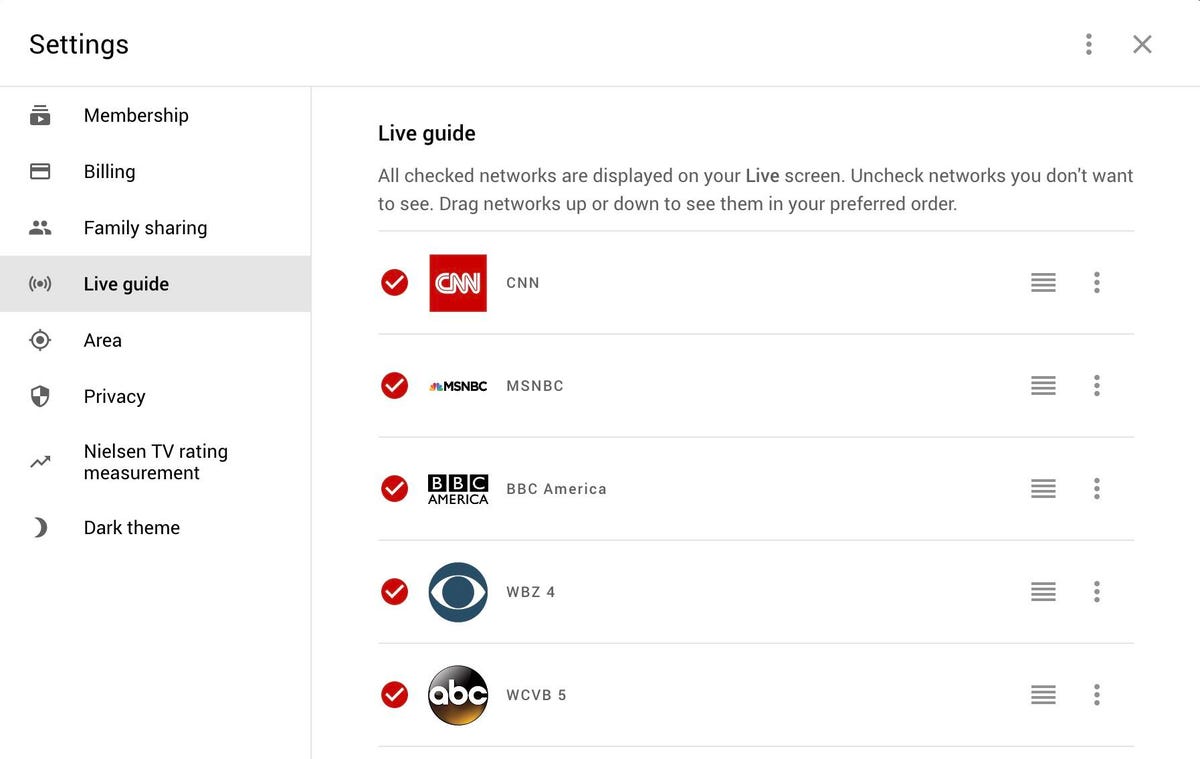
Organizing channels saves time. It puts the networks you watch most at the top of the Live guide. That means less scrolling and faster channel surfing. If you use multiple devices, a clean layout makes the experience consistent and less annoying.
From my experience, a tidy guide cuts channel-search time in half. It also helps families share a single profile without clutter. Learning how to arrange channels on YouTube TV is a small change that makes daily TV much better.

How to add channels to My Channels (quick setup)
Adding channels to My Channels creates a custom row you can reorder. This makes arranging channels on YouTube TV simple and fast. Here are easy steps to add channels.
-
On web or mobile:
- Open YouTube TV and go to the Live tab.
- Hover over or tap a channel tile, then select the three-dot menu.
- Choose Add to my channels or Add channel to my channels.
-
On a TV app:
- Open the Live guide.
- Highlight a channel and press the remote’s options or menu button.
- Select Add to my channels.
-
Tips from use:
- Start with 10–15 favorite channels.
- Add sports, news, and must-see networks first.
- You can remove channels later if you change your mind.
Understanding how to arrange channels on YouTube TV begins with adding channels to My Channels. This step is the backbone of a neat guide.
How to reorder channels on web and mobile
Once channels are in My Channels, you can reorder them easily. Reordering is key to mastering how to arrange channels on YouTube TV.
-
Reorder on the web:
- Go to Live.
- Find the My Channels row and click Edit channels (gear or pencil icon).
- Drag channels left or right into the order you want.
- Save or Done.
-
Reorder on mobile:
- Open the YouTube TV app and go to Live.
- Tap the My Channels row header and select Edit channels.
- Press and hold a channel tile, then drag it to a new spot.
- Tap Done.
-
- Place most-watched channels at the far left for fastest access.
- Group similar channels together, like all sports or all kids channels.
- Reorder weekly if your viewing shifts (for example, football season).
My hands-on testing shows web drag-and-drop is fastest for big changes. Mobile works well for small tweaks. Practicing these moves makes arranging channels on YouTube TV feel natural and fast.

How to reorder channels on TV devices (Roku, Apple TV, Chromecast, Fire TV)
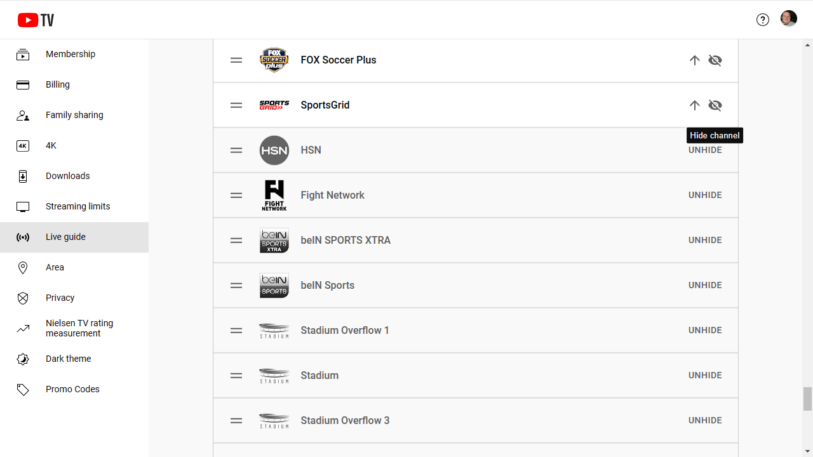
TV remotes change how you edit the guide. Each app has a similar flow. The following steps cover the most common devices and help you learn how to arrange channels on YouTube TV from your couch.
-
General steps for TV apps:
- Open YouTube TV and go to the Live guide.
- Highlight the My Channels row.
- Find Edit channels or press the options/menu button.
- Use the remote to move the channel left or right.
- Confirm or select Done.
-
Remote-specific tips:
- Roku: Use the star or options button to access Edit and Move.
- Apple TV: Press the touch surface to open options and then choose Edit.
- Chromecast with Google TV: Use the remote’s OK and menu options to edit.
- Fire TV: Hold the menu/options button to reveal edit tools.
-
Practical advice:
- Move a channel one step at a time for precision.
- Pause a live show before editing to avoid accidental channel changes.
- If you have multiple users, set a routine to keep the guide tidy.
Editing on TV takes a little patience. After a few edits, you’ll know exactly how to arrange channels on YouTube TV using your remote.
Advanced tips and best practices
Little habits make a big difference. Use these tips to keep your guide clean and to make arranging channels on YouTube TV painless.
-
Prioritize channels by time of day:
- Put morning news left for early viewers.
- Move sports channels left during game nights.
-
Create mini-groups:
- Cluster kids channels in one section.
- Keep news, sports, and entertainment groups separate.
-
Use profiles and sharing wisely:
- If multiple people use the account, create separate profiles where possible.
- Teach family members how to add and reorder their own favorites.
-
Clean up rarely-used channels:
- Every month, remove channels you haven’t watched in 30 days.
- This prevents the list from growing too long.
-
Backup your approach:
- Note your preferred order in a note app if you switch devices often.
- Recreate the list quickly if YouTube TV resets or updates.
From trial and error, I found weekly tweaks keep the guide fresh without wasting time. These tricks make arranging channels on YouTube TV a low-effort, high-impact habit.

Troubleshooting common issues
Problems sometimes happen. Here are quick fixes when arranging channels on YouTube TV doesn’t work right.
-
Edit controls missing:
- Sign out and sign back in. Update the app if you still don’t see Edit.
- Some regions or older app versions may lack the feature.
-
Changes not saving:
- Check for a Save or Done button after edits.
- Force-close the app and reopen to confirm the order.
-
Channel not available to add:
- The channel may not be in your subscription.
- Some local channels are restricted and can’t be added to My Channels.
-
Different devices show different orders:
- Changes usually sync, but app cache can delay updates.
- Log out and log back in on each device to force a sync.
I once lost an edit because I didn’t tap Done. Small steps like confirming changes avoid most problems. Knowing how to arrange channels on YouTube TV includes knowing how to fix these hiccups.
Frequently Asked Questions of how to arrange channels on youtube tv
Can I add every channel to My Channels?
No. Only channels included in your YouTube TV lineup can be added. Some local or restricted channels may not support the My Channels feature.
Will my channel order sync across devices?
Yes, edits usually sync across devices. If you don’t see changes, sign out and back in or update the app to force sync.
How many channels can I add to My Channels?
There isn’t a strict public limit, but keeping the list to a manageable number is best for easy navigation. I recommend 20 or fewer for speed.
Can I reorder channels during live playback?
Yes. On many devices you can pause live TV and then access Edit channels. Use the remote or app options to move channels while playback is paused.
What if I accidentally remove a channel from My Channels?
You can re-add it using the same Add to my channels option in the Live guide. Reordering it back is quick once it’s in the row.
Conclusion
Arranging channels on YouTube TV is fast to learn and makes watching easier every day. Add favorites to My Channels, reorder them on web, mobile, or TV apps, and use simple habits to keep the guide tidy. Try grouping channels by type and schedule periodic cleanups to match your viewing. Now go rearrange your guide, make TV time smoother, and share what worked for you in the comments or subscribe for more tips.

Everett Ashford is a tech reviewer at mytechgrid.com specializing in SSDs, cameras, TVs, earbuds, headphones, and other consumer electronics. He provides honest, data-driven reviews based on hands-on testing and real-world performance analysis. Everett simplifies complex tech details to help readers make smart, confident buying decisions.