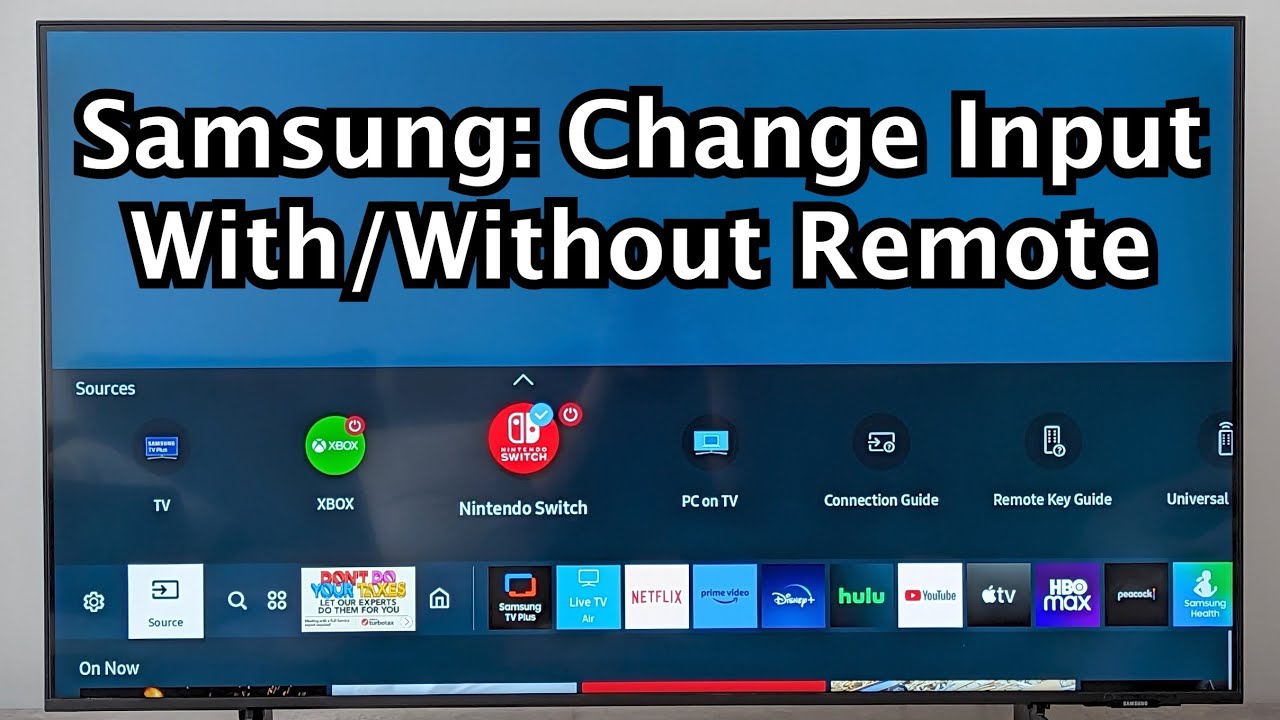
Press the Source or Home button on your Samsung remote to switch inputs quickly.
I’ve spent years fixing TVs and helping friends set up home theaters. In this guide I will show how to change the source on samsung tv in clear steps. You’ll learn remote methods, app controls, HDMI tips, and fixes for common problems. Read on to save time and avoid the usual setup headaches.
Why you might need to change the source on your Samsung TV
Changing the source on a Samsung TV lets you view different devices. You might switch from cable to a game console, Blu-ray player, or streaming stick. Knowing how to change the source on samsung tv keeps your setup fast and smooth. It also helps when troubleshooting audio or input recognition issues.
Many users miss the simple buttons or app controls. I’ve seen people waste time unplugging and replugging cables when the input button would fix it. Learning a few easy steps prevents that.
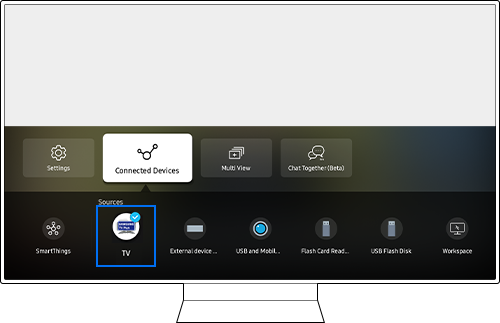
Quick methods to change the source on Samsung TV
Here are the straightforward ways I use most often. Each method works on modern Samsung TVs. Try the one that fits your setup.
-
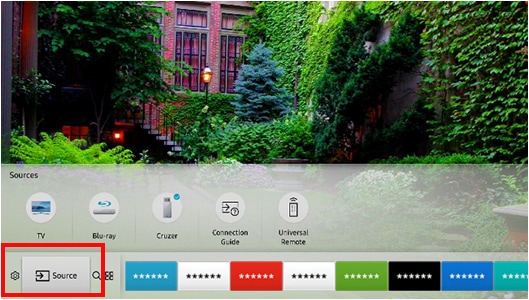
Use the remote’s Source or Input button
- Point the remote at the TV.
- Press Source or Input once.
- Use the arrow keys to pick an input and press Enter.
- This is the fastest method when the remote is handy.
- This is my go-to method when guests want a quick change.
-
Use the Home button and the on-screen menu
- Press Home on the remote.
- Go to Source or Set Up Device.
- Select the input from the list.
- This menu shows named devices and Smart Hub options.
-
Use the SmartThings app on your phone
- Install the SmartThings app and add your TV.
- Open the app and choose Remote or Controls.
- Tap Input and pick the source.
- This is useful when the remote is missing or the TV is on a high shelf.
-
Use a universal remote or soundbar remote
- Program the universal remote to the TV model.
- Use the Input or Source button on that remote.
- Many soundbars let you cycle TV inputs if wired via HDMI-CEC.
- I often use a universal remote in living rooms with multiple devices.
All these ways show how to change the source on samsung tv fast. Try each to see which fits your daily routine.

Step-by-step: changing sources with detailed notes
Here is a clear walkthrough for each common scenario. Follow the short steps and test the result.
-
Using the Samsung remote (standard)
- Turn on the TV and the device you want to use.
- Press Source or Input on the remote once.
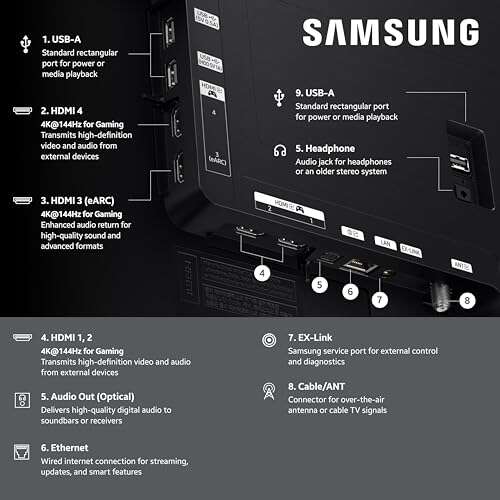
- Navigate to the correct HDMI or AV input.
- Press Enter to confirm. Wait a few seconds for the device to appear.
- If the device does not show, turn it off and on to trigger detection.
-
Renaming and selecting HDMI inputs
- Press Home and go to Source.
- Highlight the HDMI port and select Rename.
- Choose a label like “PS5” or “Xbox.”
- Renaming makes future switching faster and clearer.
-
Using SmartThings app step-by-step
- Open SmartThings and tap your TV.
- Use the Remote tab to open the on-screen controls.
- Tap Input and select the desired source.
- This can be faster than walking to the remote or couch.
-
Troubleshoot if input won't switch
- Check that the device is powered on.
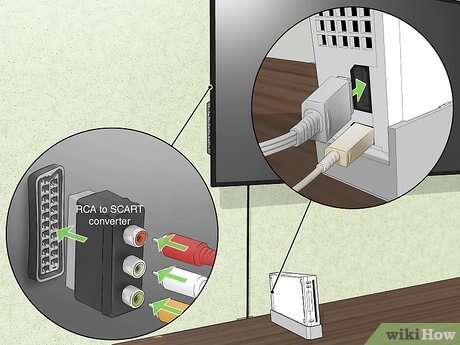
- Swap the HDMI cable or try a different port.
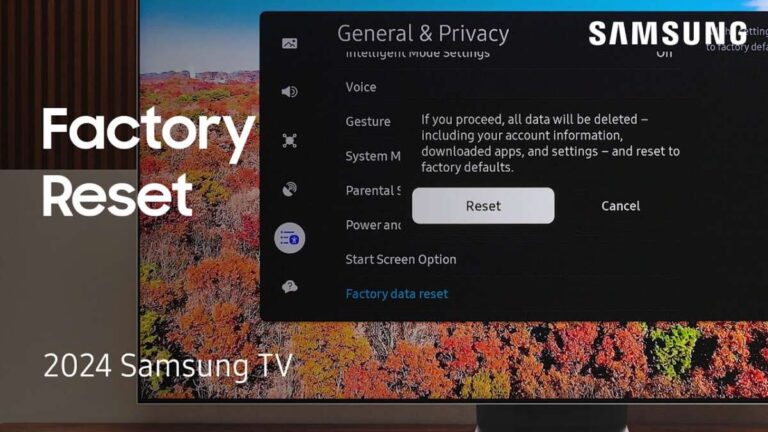
- Restart the TV from the settings menu.
- If needed, update the TV firmware to the latest version.
These steps show how to change the source on samsung tv in real situations. I learned to always power-cycle devices first. That simple trick saved hours during installs.

Tips to organize and manage inputs
A tidy input list saves time. These tips make switching feel seamless.
-
Rename inputs for clarity
- Name them for the device. This stops confusion.
- I label mine for gaming, streaming, and cable.
-
Use HDMI-CEC sparingly
- HDMI-CEC can auto-switch inputs when a device wakes.
- It is helpful but can trigger unwanted changes.
- Disable it if your inputs switch randomly.
-
Hide unused inputs
- Some Samsung models let you hide inputs in the Source menu.
- Hiding reduces clutter when you press Source.
- Keep only the active devices visible.
-
Keep spare cables and a universal remote handy
- A universal remote solves lost-remote problems.
- Extra HDMI cables reduce downtime when testing.
These practices make how to change the source on samsung tv simpler every day. They also help family members who aren’t tech-savvy.

Troubleshooting common source problems
Here are problems I face most often and how to fix them.
-
TV won’t detect your device
- Make sure the device is on.
- Swap the HDMI cable or use another port.
- Try a different device to isolate the issue.
-
Remote Input button not working
- Replace remote batteries first.
- Use the SmartThings app to test commands.
- Reset the remote by removing batteries for 30 seconds.
-
Source shows “No Signal”
- Confirm device resolution is supported by the TV.
- Restart both the TV and the device.
- Update firmware on both devices if available.
-
Inputs keep changing by themselves
- Turn off HDMI-CEC in TV settings.
- Check if a Bluetooth remote or soundbar is sending commands.
- Remove recently added devices to test.
Following these fixes will reduce frustration and show how to change the source on samsung tv reliably. I document each fix after a job so I don’t repeat mistakes.
Frequently Asked Questions of how to change the source on samsung tv
How do I change the source if my Samsung remote is lost?
Use the SmartThings app as a remote or a programmed universal remote. You can also use TV buttons if the model has them.
Can I rename HDMI inputs on my Samsung TV?
Yes. Go to Home > Source, select the HDMI input, and choose Rename. This makes future switching faster.
Why does my TV show no signal after I switch sources?
The device may be off or set to an unsupported resolution. Check power, cables, and try another HDMI port.
Will HDMI-CEC change the source automatically?
Yes, HDMI-CEC can auto-switch when a device powers on. Disable it if auto-switching causes issues.
How do I switch sources when using a soundbar or AV receiver?
Use the receiver’s input or the TV’s Source menu. If using HDMI pass-through, set the receiver to the correct input and the TV to the receiver’s HDMI port.
Conclusion
You now have clear, practical ways to change the source on samsung tv. Use the remote, SmartThings app, or a universal remote to switch quickly. Rename inputs and manage HDMI-CEC to avoid surprises. Try the simple fixes before calling support; most problems resolve with a power cycle or cable swap.
Put these tips into practice today and make switching sources painless. If this helped, leave a comment, subscribe, or share your own tips and questions.

Everett Ashford is a tech reviewer at mytechgrid.com specializing in SSDs, cameras, TVs, earbuds, headphones, and other consumer electronics. He provides honest, data-driven reviews based on hands-on testing and real-world performance analysis. Everett simplifies complex tech details to help readers make smart, confident buying decisions.