Press F5 or use Settings to switch between first and third person views.
If you want to learn how to change your camera in Minecraft the right way, you are in the best place. I’ve helped builders, survival pros, and content creators master smooth camera control across Java, Bedrock, console, and mobile. Stick with me, and you’ll switch views fast, take clean screenshots, and even use pro tricks that make your gameplay and videos shine.
Camera modes explained: first person, third person back, third person front
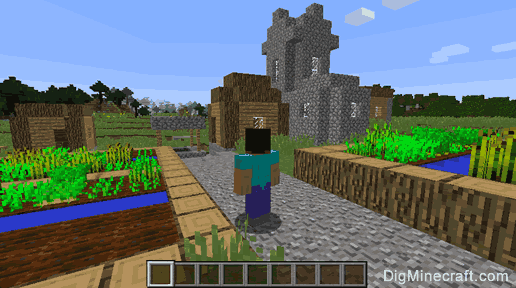
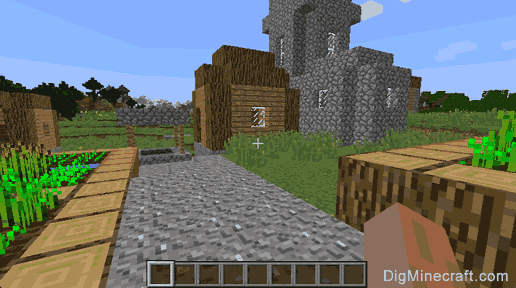
Minecraft offers three main views. First person is the default view from your eyes. Third person back shows your character from behind. Third person front flips the camera to face your character.
These modes work the same idea across Java and Bedrock. The way you switch changes by platform. Once you know the buttons, you can move between them in seconds.

How to change your camera in Minecraft on PC and Mac
This is the fastest way to change your camera in Minecraft on keyboard and mouse.
Java Edition
- Press F5 to cycle views.
- If F5 does nothing, hold Fn and press F5. Many laptops need Fn.
- To rebind, press Esc, go to Options, Controls, Key Binds, then search for Toggle Perspective. Pick a new key you like.
Bedrock on Windows
- Press F5 to switch views.
- If it does not work, open Settings, go to Keyboard and Mouse, and check the key for Perspective Toggle.
- You can also switch via Settings, Video, Camera Perspective.
Quick tips I use
- Bind Toggle Perspective to a thumb button on your mouse for instant swaps.
- Turn off the HUD for screenshots. On Java, press F1. On Bedrock, go to Settings, Video, then switch off Hide HUD.

How to change your camera in Minecraft on Xbox, PlayStation, and Nintendo Switch
On console, the control is simple once you know where it lives.
Default control
- Press the left stick in to toggle views. That is L3 on Xbox and PlayStation, and the left stick click on Switch.
From the menu
- Pause the game.
- Open Settings, then Video.
- Set Camera Perspective to First Person, Third Person Back, or Third Person Front.
Controller tips I teach new players
- If the left stick click is awkward, edit your controller layout and move the toggle to a D-pad button.
- For clean clips, lower look sensitivity a bit before filming. It makes pans smooth.

How to change your camera in Minecraft on iPhone, iPad, and Android
Touch controls are easy once you learn the path.
Steps
- Pause the game.
- Open Settings.
- Tap Video.
- Select Camera Perspective and pick First Person, Third Person Back, or Third Person Front.
Extra advice
- If you use a Bluetooth keyboard, F5 will also work on Bedrock mobile.
- For stable movement and camera, try Classic touch controls in Settings.
Flip to front-facing third person for selfies and thumbnails
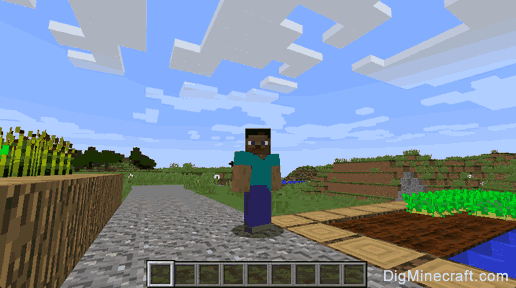
Front view is perfect for selfies, skins, and YouTube thumbnails.
Do this
- Switch to Third Person Front using your platform steps.
- Frame your shot with the mouse, stick, or touch drag.
- Hide the HUD for a clean image. On Java press F1. On Bedrock go to Settings, Video, Hide HUD.
More polish
- Raise Field of View a little for wider scenes.
- Try emotes on Bedrock for fun poses.
- Use daylight or place light sources to avoid grainy shots.

Advanced camera options without mods
You can do a lot with built-in tools before you add anything.
Spectator mode for Java and Bedrock
- Turn on cheats in your world, then use /gamemode spectator.
- Fly through blocks and scout builds. Use the scroll wheel to change speed.
- Use number keys to set quick speeds. You can still press F5 to change views while in Spectator.
Clean visuals
- Java: Press F1 to hide the HUD. Press again to show it.
- Bedrock: Settings, Video, Hide HUD and Hide Hand for clean frames.
When I build large bases, I tour them in Spectator to plan camera paths. It helps me spot angles I miss in survival.
Mods and add-ons for pro-level camera control
If you make content, these tools are worth your time.
Java Edition
- Replay Mod lets you record, fly a free camera, and create smooth keyframed shots.
- OptiFine adds a zoom and many visual tweaks that help with framing.
- Fabric or Forge are common mod loaders. Keep versions matched to your game.
Bedrock and Education notes
- Bedrock does not support the Java Replay Mod. Some creators record with an alt account flying in Spectator.
- The Education camera item can take photos but does not change your player perspective for gameplay shots.
Always back up worlds before you mod. Test in a copy to avoid surprises.
Common problems and quick fixes
Here are fast solutions I use when someone asks how to change your camera in Minecraft and it does not work.
F5 does nothing on a laptop
- Hold Fn and press F5. Or rebind Toggle Perspective to a different key.
The key is taken by another action
- Check Controls or Key Binds. Search for Perspective. Clear conflicts marked in red on Java.
The camera jerks or feels floaty
- Lower mouse or stick sensitivity. Keep it steady for filming and PvP.
- Turn off screen shake on Bedrock in Settings, Accessibility.
Console toggle stopped working
- Reset controller layout to default. Then remap the Perspective toggle to a button you press by accident less often.
Mobile view keeps switching back
- Confirm the setting in Video, then return to game. If it resets, close and reopen the world to save the state.
Best practices and personal tips for smoother camera control
These are habits that changed my own play and videos.
What I bind
- I bind Toggle Perspective to Mouse Button 4. It makes fast checks behind me a breeze.
- On controller, I map it to D-pad left. It avoids accidental clicks when sprinting.
Settings I trust
- Field of View around 90 to 100 for building and PvP awareness.
- Sensitivity medium-low for smooth pans. Small changes beat big jumps.
Everyday uses
- I switch to third person back when bridging or placing roofs. It cuts mistakes.
- I use front view plus HUD off for quick thumbnails.
- In Spectator, I scroll to slow speed for buttery fly-through shots.
These small changes add up. They help anyone asking how to change your camera in Minecraft for cleaner play and better content.
Frequently Asked Questions of how to change your camera in minecraft
What is the fastest way to change views on PC?
Press F5 to cycle through first and third person views. If it fails, hold Fn and press F5, or rebind Toggle Perspective in Controls.
How do I change the camera on Xbox, PlayStation, or Switch?
Click the left stick to toggle the perspective. You can also open Settings, Video, and choose the Camera Perspective you want.
Can I get a free camera without mods?
Yes. Use /gamemode spectator with cheats on to fly a free camera. It works on Java and on most current Bedrock versions.
How do I hide the HUD for screenshots?
On Java, press F1 to hide or show the HUD. On Bedrock, go to Settings, Video, and switch off Hide HUD and Hide Hand as needed.
Why does my camera feel too fast or slow?
Adjust mouse or stick sensitivity in Controls. In Spectator mode, use the scroll wheel or number keys to change camera speed.
How to change your camera in Minecraft if F5 is taken by Windows shortcuts?
Rebind Toggle Perspective to another key in Minecraft settings. Many players use R, V, or a mouse button.
Does Bedrock mobile have a quick camera toggle button?
Not on the main HUD by default. Open Settings, Video, and pick the camera view, or use a Bluetooth keyboard and press F5.
Conclusion
You now know how to change your camera in Minecraft on every platform, plus the smart tweaks that make it feel natural. Use the F5 or left stick click for fast swaps, lock in clean settings, and lean on Spectator mode and HUD controls for strong screenshots and videos. Small improvements here will raise the quality of your play and content.
Try one tip today, like rebinding Toggle Perspective to an easy button. Then practice quick swaps while you mine, build, or fight. Want more deep dives like this? Subscribe, share your favorite camera tip in the comments, and tell me what guide you want next.

Jamie Lee is a seasoned tech analyst and writer at MyTechGrid.com, known for making the rapidly evolving world of technology accessible to all. Jamie’s work focuses on emerging technologies, product deep-dives, and industry trends—translating complex concepts into engaging, easy-to-understand content. When not researching the latest breakthroughs, Jamie enjoys exploring new tools, testing gadgets, and helping readers navigate the digital world with confidence.