Check an IP camera by finding its IP, logging in, testing streams, and securing the device.
I have spent years installing and auditing IP cameras for homes and small businesses. In this guide I explain how to check IP camera devices step by step. You will learn how to find the camera on your network, access its web or app interface, test the video stream, and harden security. Read on to follow clear, practical steps that I use in real projects to verify and maintain reliable camera systems.

Why you should know how to check IP camera
Knowing how to check IP camera health saves time and prevents security issues. A working camera gives you video when it matters. A misconfigured camera can leak footage or stop recording. I will show simple checks to confirm a camera is online, streaming, and safe.
Preparation checklist before you check an IP camera
- Gather the camera model, default login, and admin credentials from the label.
- Connect a laptop or phone to the same network as the camera.
- Have basic tools ready: a web browser, a network scanner app, and VLC or another media player.
- Ensure you have permission to test the camera if it is on a shared network.

Step-by-step: How to check IP camera on your network
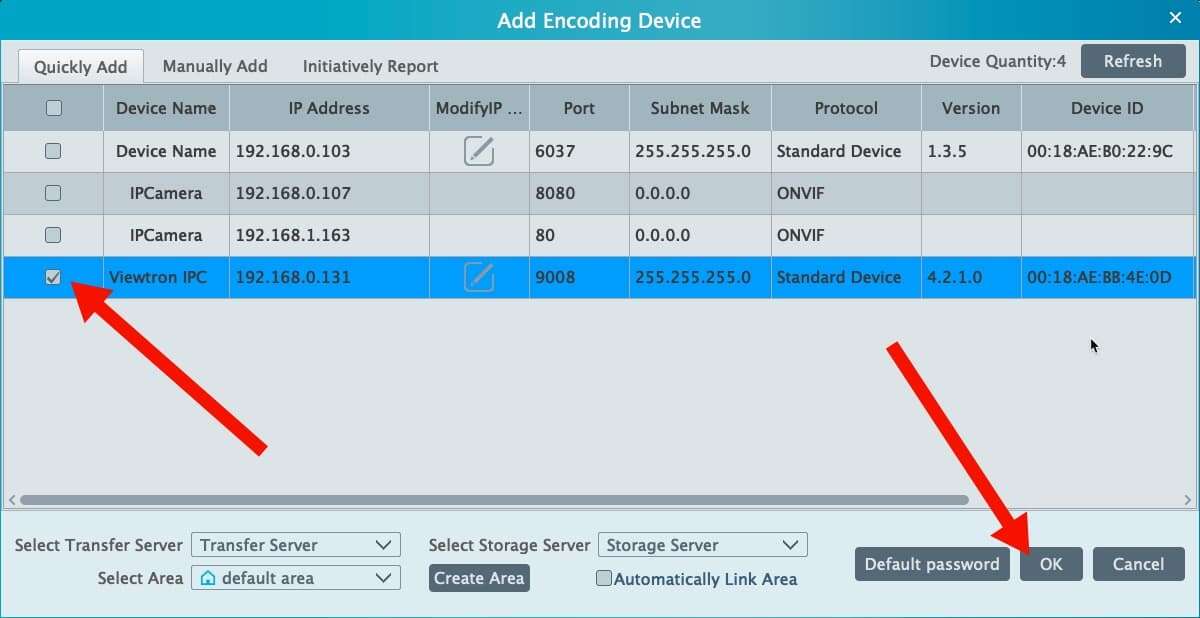
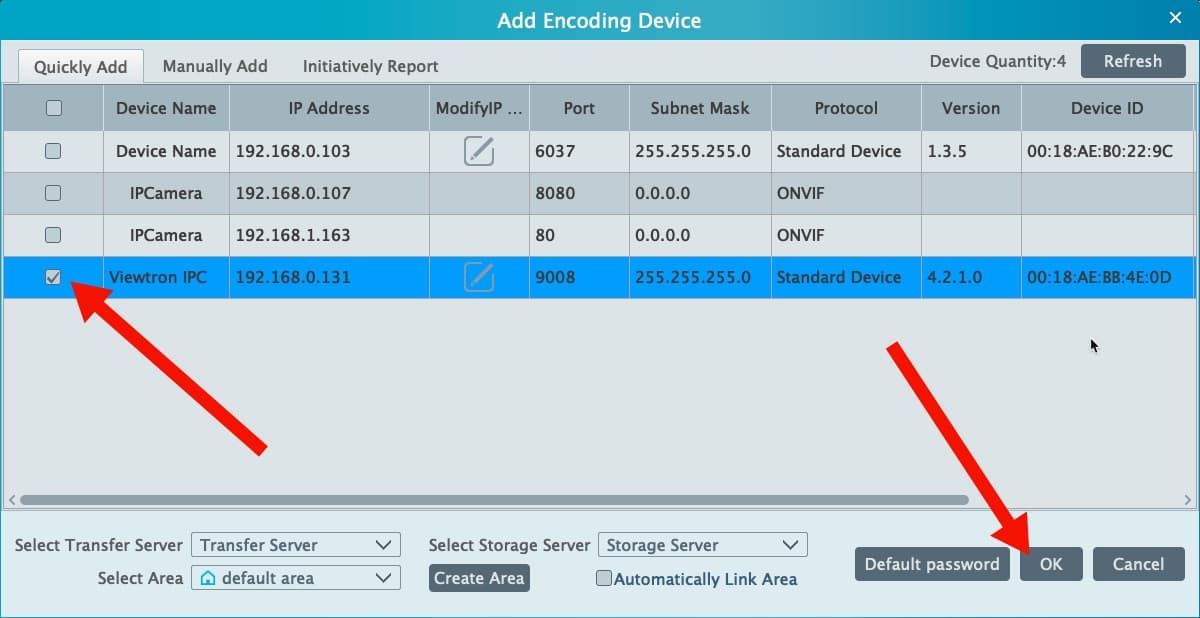
- Identify the camera's IP address
- Check the camera label or box for a default IP or host name.
- Log into your router's client list to spot new devices by MAC or manufacturer name.
- Use a mobile app like Fing or an IP scanner on your laptop to scan the subnet for unknown devices.
- Confirm the device is an IP camera
- Compare the MAC prefix to known camera vendors. The vendor name often appears in the router list.
- Attempt to open the IP in a browser. Cameras usually respond on ports 80, 443, or a custom port.
- If the web page looks like a camera UI or asks for credentials, it is likely the camera.
- Use ARP and ping for quick checks
- Ping the IP to ensure it answers. No ping may mean the camera blocks ICMP.
- Use arp -a on Windows, macOS, or Linux to list neighbors and verify the MAC address.
- Advanced discovery with nmap
- Run a simple nmap scan to see open ports and services: nmap -sS -p-
- Look for RTSP (port 554), HTTP (80), HTTPS (443), and ONVIF (usually 8080 or 8899).
- Use nmap service scripts to probe further if you have permission.
how to check ip camera is mainly about finding the device, verifying services, and confirming a stream. Repeat these checks after network changes or firmware updates.
Accessing the camera: web UI, mobile app, and ONVIF
-
Web UI access
- Enter the camera IP in a browser. Use http or https depending on the device.
- If you see a login prompt, proceed with correct credentials. If not, try the model’s default login.
- Note the UI options for stream quality, network settings, and recording paths.
-
Mobile app access
- Many brands use a proprietary app. Add the camera by IP, QR code, or cloud ID.
- Apps often simplify setup but may route video through vendor servers.
-
ONVIF and third-party tools
- ONVIF is a standard many cameras support. Use an ONVIF tool to discover device services.
- ONVIF gives access to live stream URLs and PTZ controls on compatible cameras.
how to check ip camera includes testing access methods so you can pick the best way to view and record video.
Testing the video stream and recording
-
Test RTSP stream with VLC
- Locate RTSP or HTTP stream URL in the camera UI or ONVIF settings.
- Open VLC and choose Media > Open Network Stream. Paste the URL and play.
- Confirm video, audio (if available), and smooth playback.
-
Validate recording and playback
- Trigger a recording from the camera or NVR and then play it back.
- Check timestamps, file integrity, and retention settings.
- Verify motion detection clips if enabled.
-
Check stream quality and latency
- Note resolution and frame rate in the camera settings.
- Watch for dropped frames, stuttering, or high latency on live view.
how to check ip camera streaming means ensuring both live view and recorded files are reliable.
Security checks: harden the camera after verification
- Change default credentials immediately.
- Update firmware to the latest version the vendor offers.
- Disable unused services such as Telnet, UPnP, or unsecured HTTP.
- Avoid public port forwarding for camera web UIs. Use a VPN or secure relay instead.
- Enable HTTPS, strong passwords, and account lockout where possible.
- Check for open ports with nmap and close any that are not needed.
I once audited a site where three cameras used default passwords. After a quick scan and password update, the risk dropped dramatically. Small steps prevent large breaches.
Troubleshooting common problems
-
Camera not visible on the network
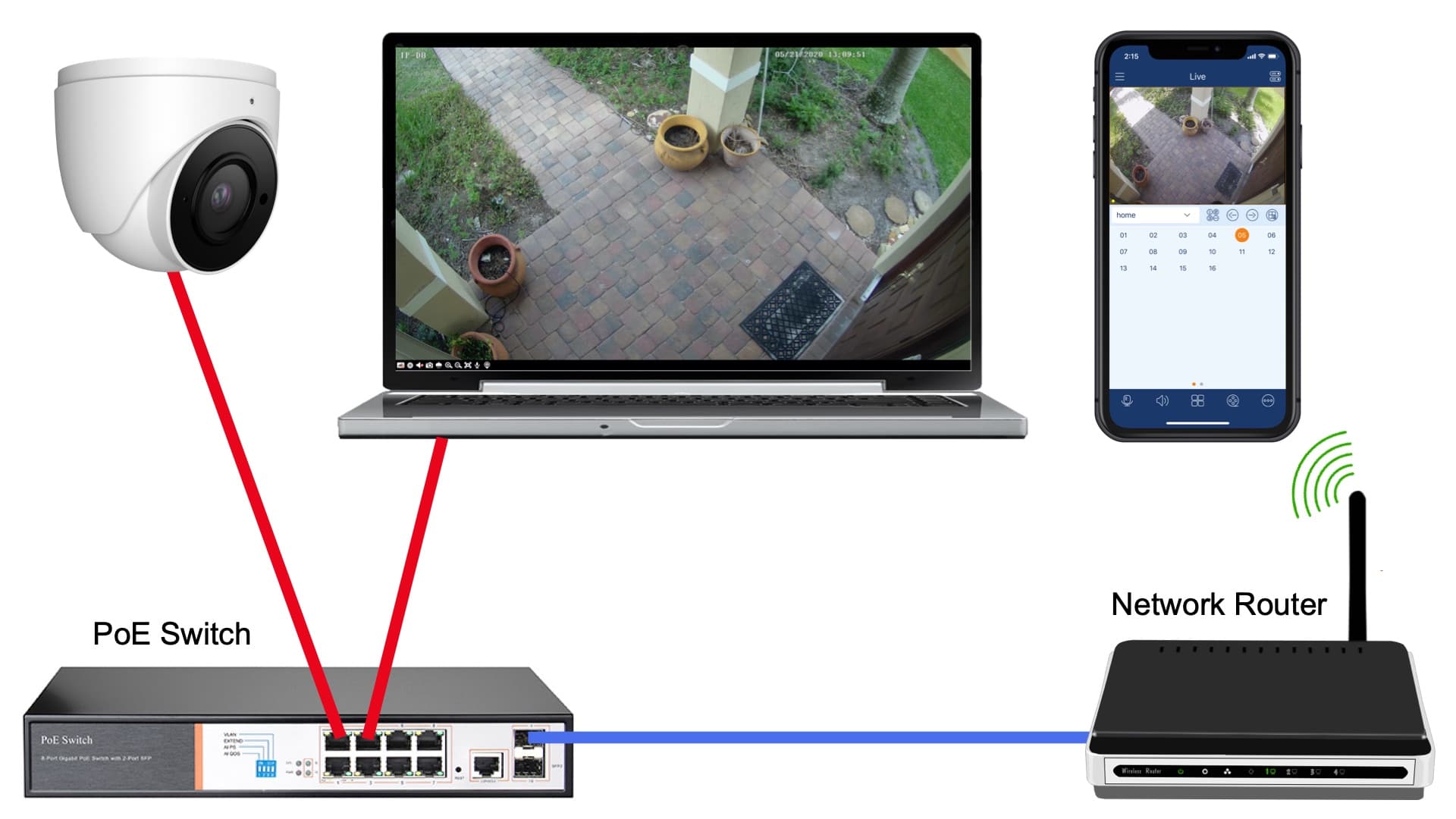
- Reboot the camera and switch. Confirm PoE injector or power adapter works.
- Move the camera temporarily to a known working network port.
-
Cannot log in
- Try the default credentials or reset the camera per the manual.
- If locked out after failed attempts, wait for the lockout period or perform a factory reset if allowed.
-
No video stream or corrupted feed
- Check network bandwidth and packet loss.
- Lower resolution or frame rate to reduce load. Test again with VLC.
-
Intermittent disconnects
- Inspect cables and PoE supply. Look for overheating or firmware bugs.
- Put camera on a different switch or VLAN to isolate interference.
how to check ip camera includes repeating simple tests until the issue is found and fixed.
Tools and resources I use to check IP camera
- Mobile apps: Fing, IP Scanner
- Desktop tools: Angry IP Scanner, Advanced IP Scanner
- Command-line: ping, arp, nmap
- Media player: VLC for RTSP testing
- ONVIF Device Manager for discovery and stream URLs
- Router admin panel and network switch management UI
Using these tools together speeds up checks. I keep a short checklist on my phone to follow the same steps every time.
Personal experience and practical tips
I once had a camera that showed a dark image yet reported as online. A quick check revealed its IR filter was stuck. After a gentle tap and a firmware update the image returned. From that job I learned to inspect the lens and power first. Do not skip basic physical checks like lens obstruction, power, or connector seating. Keep a spare PoE injector and an Ethernet cable in your kit. Always document IP addresses and passwords in a secure manager.
how to check ip camera becomes routine when you follow a consistent process. That habit prevents long troubleshooting sessions.
Frequently Asked Questions of how to check ip camera
How do I find my IP camera's address?
Scan your network with a tool like Fing or check the router’s connected devices list. You can also use ONVIF Device Manager to discover cameras on the subnet.
What if the camera does not respond to ping?
Some cameras block ICMP. Use nmap to scan ports or check the ARP table to confirm the MAC address appears on the network.
How can I view the camera stream on my PC?
Get the RTSP or HTTP stream URL from the camera or ONVIF. Open it in VLC via Media > Open Network Stream to view live video.
Is it safe to open camera ports to the internet?
Direct port forwarding is risky. Use a VPN, secure cloud service, or vendor-approved relay to access cameras remotely with better security.
How often should I update camera firmware?
Check firmware monthly and update when a security fix is available. Test updates on one camera first before rolling them out to many devices.
Conclusion
Regularly checking an IP camera keeps video reliable and systems secure. Follow the steps to find the IP, access the UI, test the stream, and apply security fixes. Start with simple network scans and progress to stream tests and firmware checks. Make a habit of documenting settings and using secure passwords. Now, take action: run a quick scan of your network, change any default passwords you find, and subscribe or comment if you want troubleshooting help or a checklist template.

Everett Ashford is a tech reviewer at mytechgrid.com specializing in SSDs, cameras, TVs, earbuds, headphones, and other consumer electronics. He provides honest, data-driven reviews based on hands-on testing and real-world performance analysis. Everett simplifies complex tech details to help readers make smart, confident buying decisions.