Choose an NVMe SSD with the right capacity, endurance, and warranty for reliable small business use.
I’ve built and upgraded dozens of small business PCs and servers, and I know the differences that matter when you choose an SSD for small business computer setup. This guide breaks down specs, form factors, cost trade-offs, real-world tips, and mistakes to avoid. Read on for an expert, practical roadmap that makes choosing an SSD simple and repeatable for your shop or office.
Why SSDs matter for small businesses
SSDs speed up boot times, app launches, file access, and backups. For small teams, that can mean measurable productivity gains every day. A faster drive reduces wait time and lowers frustration for employees doing routine tasks like email, spreadsheets, and point-of-sale operations.
SSDs also cut power use and heat compared with spinning drives. That matters for laptops, compact desktops, and always-on systems like POS terminals. When you choose SSD for small business computer setup, you invest in smoother workflow and lower long-term costs.

Key specs to compare when you choose SSD for small business computer setup
Understand these specs before buying. They tell you what the drive can handle and how long it will last.
- Interface and protocol: SATA, NVMe over PCIe. NVMe is much faster and worth it for newer systems.
- Capacity: How much data you need now and in two to three years.
- Read/write speeds: Measured in MB/s. Real-world gains vary, but higher is better for heavy workloads.
- IOPS: Important for database or multi-user file servers.
- Endurance (TBW or DWPD): Tells you how much data can be written before wear becomes a concern.
- Cache type and controller: Affect consistent performance under load.
- Warranty and support: Look for 3–5 year warranties and business support options.
When you assess how to choose SSD for small business computer setup, weigh endurance and warranty more heavily than peak speed for mission-critical machines. Performance marketing numbers don’t always reflect sustained loads your business may generate.

Capacity planning and storage types
Pick the right capacity by mapping real use. Start with disk use today and add a growth buffer.
- Estimate current usage: Check file server or sample PCs for used space.
- Add headroom: 30–50% free space helps SSDs maintain performance.
- Account for backups: If backups live locally, add that space or plan network backups.
- Use tiers: Combine a smaller NVMe boot drive with larger SATA SSDs or NAS for bulk storage.
Whether you’re learning how to choose SSD for small business computer setup or replacing a single drive, plan for growth. For most office PCs, 500 GB to 1 TB NVMe drives hit a sweet spot. For shared file servers, 2 TB+ enterprise-grade SSDs or hybrid setups make sense.
Form factors and compatibility
Form factor affects fit and speed. Check the motherboard or host device before buying.
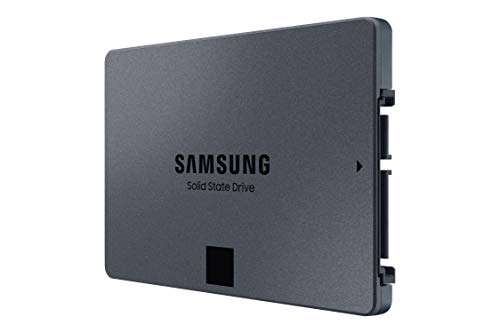
- 2.5-inch SATA: Widely compatible with older desktops and laptops.
- M.2 SATA: Same performance as 2.5-inch SATA but smaller.
- M.2 NVMe (PCIe): Small and fast; requires M.2 slot supporting NVMe.
- U.2 and add-in card: Used in servers or workstations for high endurance drives.
Always verify slot keying and interface support. I once ordered an M.2 drive for a client only to find the laptop supported SATA M.2 but not NVMe. Compatibility checks avoid wasted purchases when you choose SSD for small business computer setup.

Performance, endurance, and cost trade-offs
Match drive class to role. Not every business machine needs the fastest or most expensive SSD.
- Consumer NVMe: High speed, lower endurance, lower cost — great for desktops and workstations.
- Business/Client SSDs: Balanced mix of endurance and warranty, tuned for OS and daily apps.
- Data center/Enterprise SSDs: High endurance, power-loss protection, and long warranties — ideal for servers and heavy write workloads.
If you’re learning how to choose SSD for small business computer setup, use enterprise SSDs for servers that handle databases, email, or heavy logging. For front-desk machines, consumer NVMe offers better value.
Installing and configuring SSDs for reliability
Good installation and configuration improve lifespan and performance.
- Enable AHCI for SATA drives and NVMe drivers for NVMe devices.
- Update firmware before deployment.
- Keep 20–50% free space for wear leveling and consistent speed.
- Use TRIM and OS optimizations to maintain drive health.
- Schedule regular backups and monitor S.M.A.R.T. metrics.
In a past rollout, I imaged dozens of PCs and used a script to enable TRIM and check firmware. That simple step reduced support tickets and prolonged drive life after the upgrade. Practical setup actions matter when you choose SSD for small business computer setup.
Budgeting and choosing the right model
Create a short checklist before purchasing.
- Identify role: workstation, laptop, POS, server.
- Choose capacity and endurance based on role.
- Confirm form factor and interface compatibility.
- Compare warranty, TBW, and vendor support.
- Factor in total cost: drive, adapter (if needed), labor, and backups.
Buy a recognized brand and look for business-grade lines if you need support. Spend slightly more for longer warranties and higher TBW when downtime has real cost to your business. This approach helps you confidently choose SSD for small business computer setup.
-In-Use-Reviewer-Photo-(no-border)-SOURCE-Julian-Chokkattu.jpg)
Practical examples and deployment scenarios
Here are simple scenarios to guide decisions.
- Single-employee freelance PC: 500 GB NVMe consumer SSD. Good balance of speed and price.
- Front-office desktops: 500 GB to 1 TB NVMe or SATA client SSD. Focus on reliability and warranty.
- Small file server for 5–20 users: 2 TB+ business SSDs with RAID or a NAS with SSD caching. Use drives with higher TBW.
- POS terminals and kiosks: Compact M.2 SATA or NVMe drives with good warranty and power-loss protection.
- Backup and archival: Use larger SATA SSDs or cloud; keep local SSDs for active data only.
These real-world templates make it easier to choose SSD for small business computer setup without overbuying.

PAA-style questions (People Also Ask)
Q: Which SSD type is best for small business PCs?
A: NVMe SSDs provide the best speed for modern systems, while SATA SSDs are fine for older machines or cost-sensitive setups.
Q: How much SSD endurance do small servers need?
A: Aim for higher TBW or enterprise-rated drives for servers. For light workloads, a business-class SSD is usually sufficient.
Q: Should I use RAID with SSDs in a small office?
A: RAID improves redundancy but is not a substitute for backups; use RAID for uptime and separate backups for data protection.
Frequently Asked Questions of how to choose ssd for small business computer setup
What is the difference between SATA and NVMe SSDs?
SATA SSDs use the older SATA interface and are limited to about 550 MB/s. NVMe SSDs use PCIe lanes and offer much higher speed and lower latency, ideal for demanding tasks.
How do I pick the right SSD capacity for office PCs?
Check current disk usage and add 30–50% headroom. For most office users, 500 GB to 1 TB covers OS, apps, and documents comfortably.
How important is TBW and endurance for small business use?
Endurance matters for write-heavy systems like databases or file servers. For standard office use, consumer endurance is often enough, but business-grade TBW adds peace of mind.
Can I use consumer SSDs in business machines to save money?
Yes, for non-critical desktops and laptops. For servers, POS, or devices that need continuous uptime, choose business or enterprise-class drives.
How often should I replace SSDs in a small business setup?
Replace before warranty expiry or if health metrics drop. For many SSDs, a 3–5 year refresh cycle keeps performance and reliability high.
Conclusion
Choosing the right SSD for small business computer setup comes down to matching role, capacity, endurance, and compatibility. Prioritize NVMe where speed helps productivity, pick business-grade endurance for servers, and keep backups and firmware updates part of your process. Start by auditing your current storage, decide per-device roles, and buy drives with sensible warranties and TBW ratings.
Take one action now: list the top five machines in your business, note current disk use and roles, and use that list to pick SSD models that match each need. If you found this useful, try these steps in your environment, subscribe for updates, or leave a comment with your setup questions.

Everett Ashford is a tech reviewer at mytechgrid.com specializing in SSDs, cameras, TVs, earbuds, headphones, and other consumer electronics. He provides honest, data-driven reviews based on hands-on testing and real-world performance analysis. Everett simplifies complex tech details to help readers make smart, confident buying decisions.