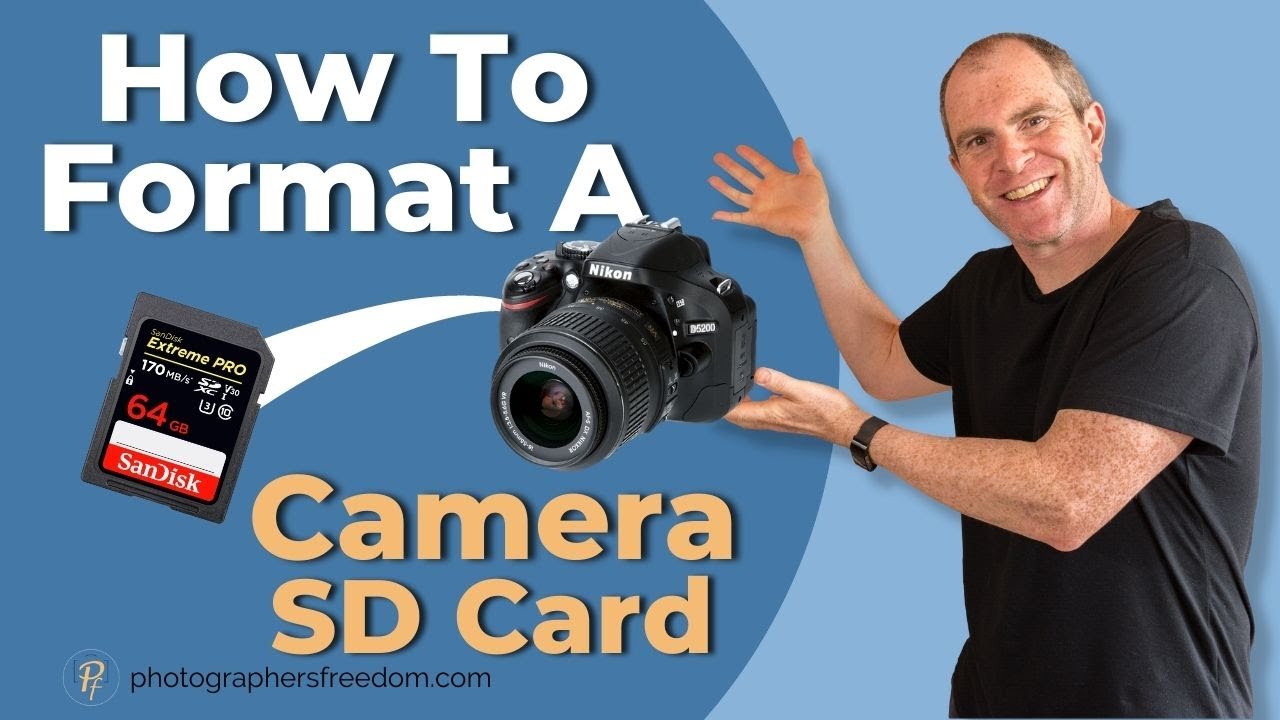
Format the card in your camera using the Format option, or erase files via camera or computer.
I have spent years working with cameras and memory cards, helping pros and hobbyists keep shoots smooth. This guide on how to clear sd card on camera covers safe steps, tips, and recovery options. Read on to learn the best method for your camera, how to avoid data loss, and real tips from hands-on experience.
Why and when to clear your SD card on camera
Clearing an SD card often means formatting it in the camera. This gives a clean file system. It also reduces the risk of file errors and slow write speeds.
You should clear the card when you want a fresh start. Clear it before a big shoot. Also clear it if the camera shows file errors or slow performance.

Format versus delete: which is right for how to clear sd card on camera
Format resets the file system and removes all file table records. Delete removes files but can leave hidden data. Formatting in camera is the safest way to clear sd card on camera for reliability.
If you want to reuse the card quickly, format in the camera. If you need to remove one folder, use delete. Remember that formatting is usually faster and cleaner.
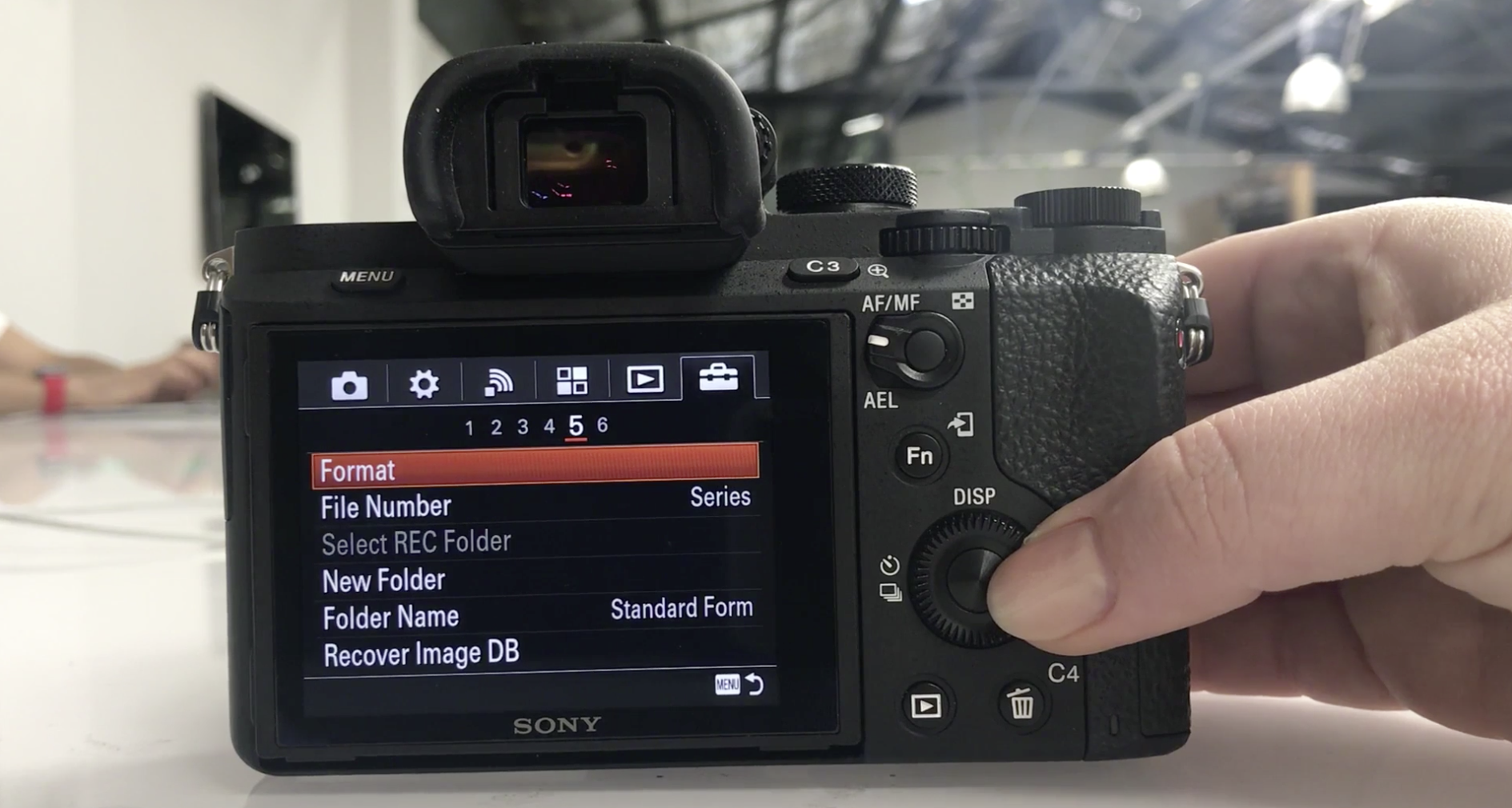
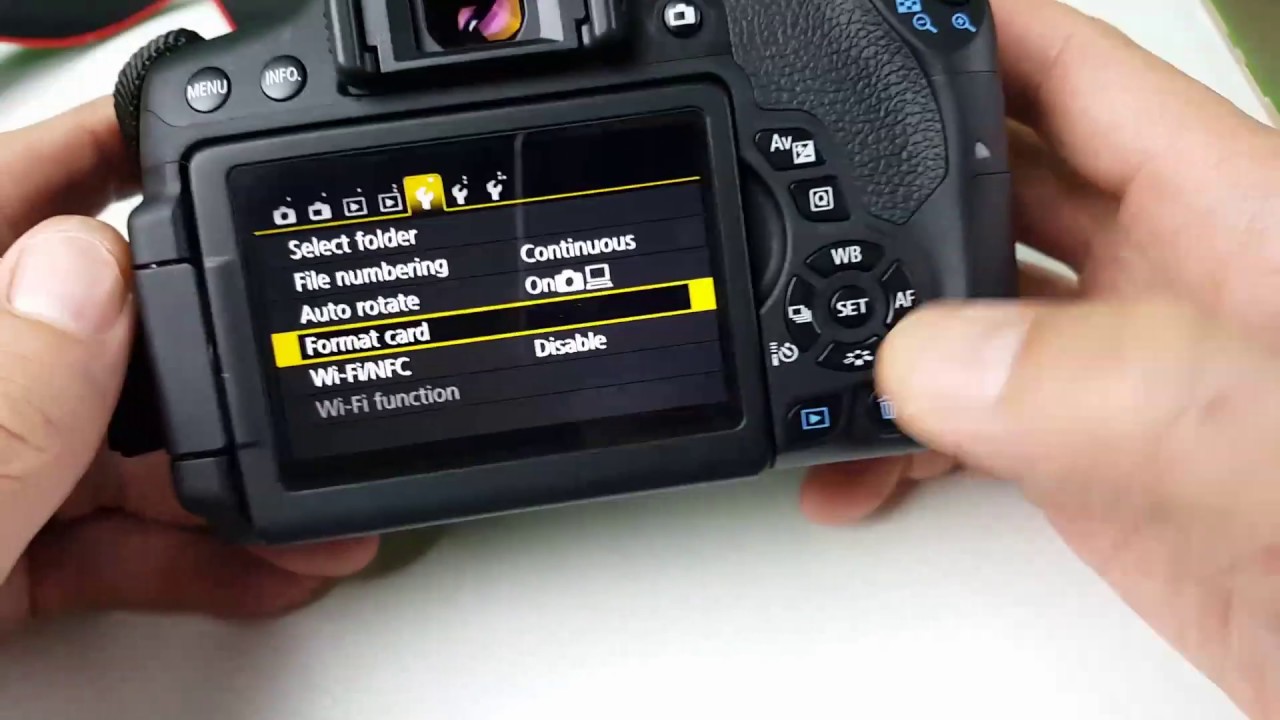
How to clear sd card on camera: step-by-step in-camera formatting
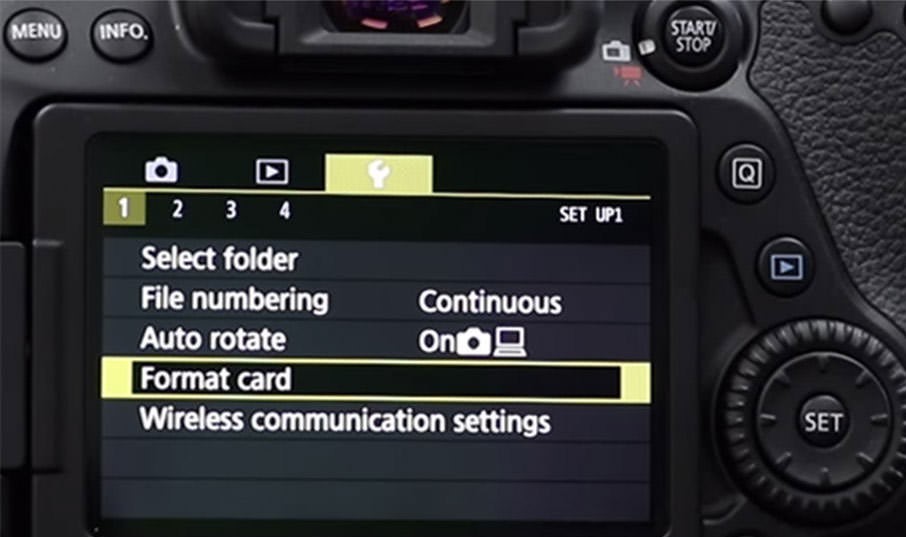
Turn off your camera before inserting the card. Power on the camera and open the menu. Find the Format or Format Memory Card option in the setup menu.
Select the correct card if your camera has two slots. Confirm the format and wait until the process finishes. Do not turn off the camera while formatting.

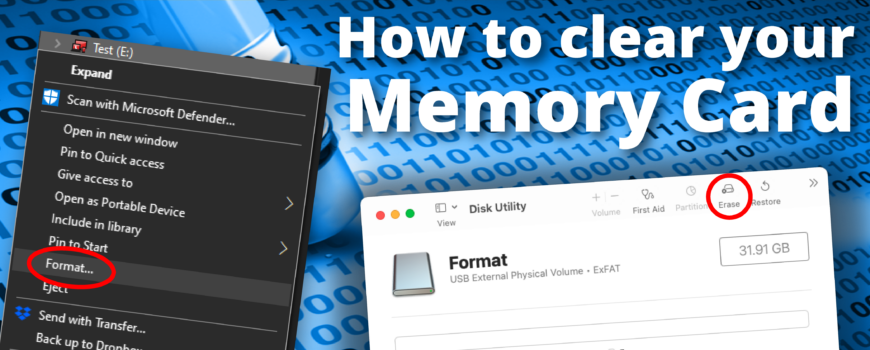
How to clear sd card on camera using a computer
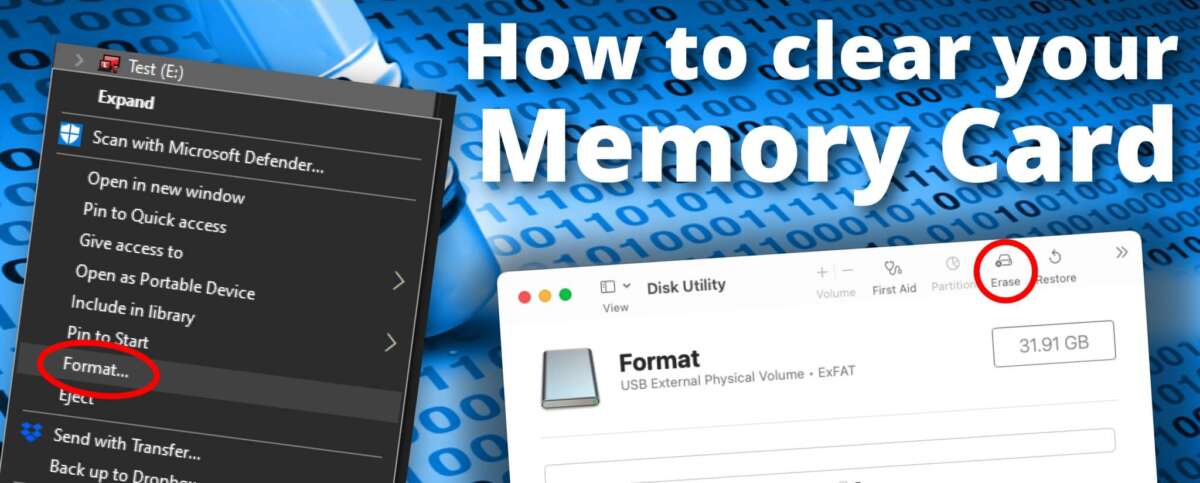
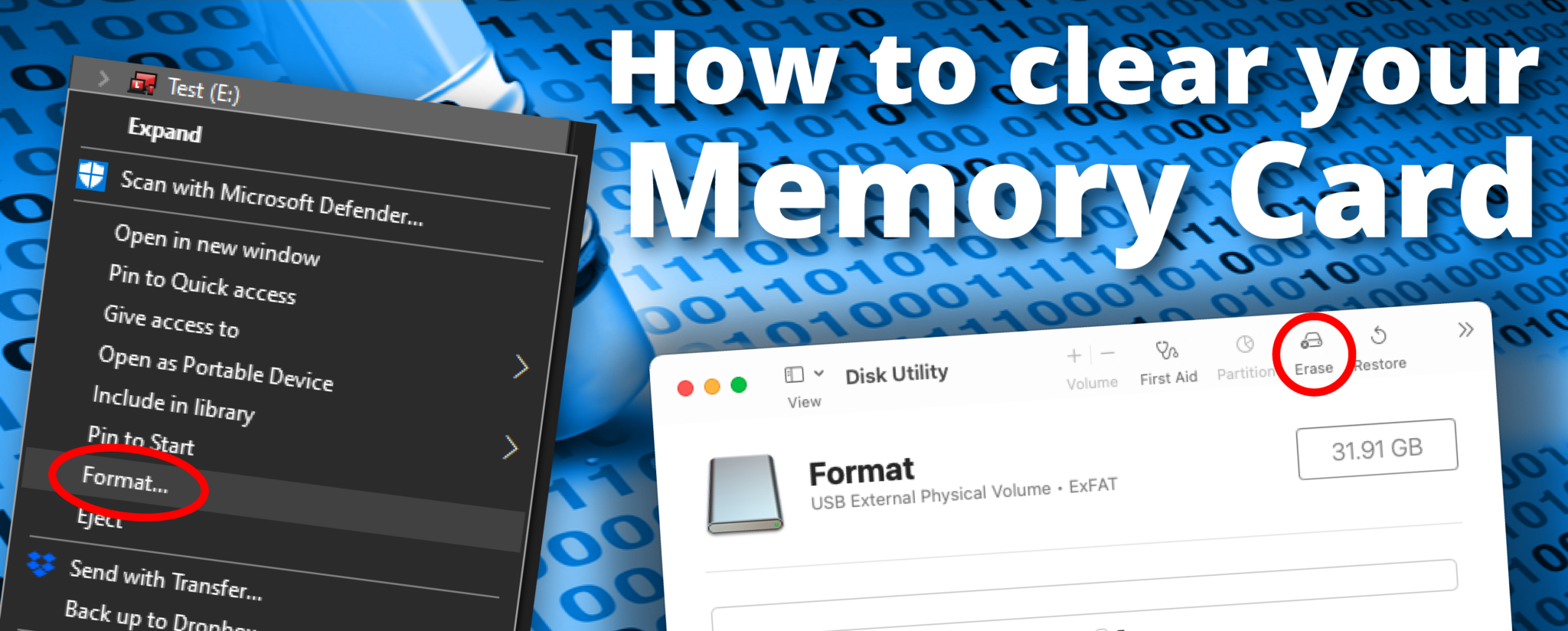
Remove the SD card or use a USB cable. On Windows, open File Explorer, right-click the card, and choose Format. Pick the file system the camera needs and start the format.
On a Mac, use Disk Utility, select the card, and choose Erase with the right format. After formatting on a computer, format once more in the camera to ensure full compatibility.
Precautions before you clear sd card on camera
Always back up important files first. Use a computer or cloud service to copy images and video. Check file integrity by opening a few files after copying.
Ensure the battery is charged before formatting in-camera. A power loss during format can corrupt the card. Label the card if you manage many cards to avoid accidental clears.
How I learned to clear sd card on camera safely (personal experience)
Early in my work I formatted a card mid-shoot and lost a few clips. That hurt a lot. Since then, I adopted a simple backup routine that saved me many times.
I now copy files off the card at the end of each session. I also format in the camera before each new shoot. These small steps help me avoid panic on busy days.
:max_bytes(150000):strip_icc()/GettyImages-136612668-5c640cc5c9e77c00010a4ff4.jpg)
Recovering deleted files after you clear sd card on camera
If you delete or format by mistake, stop using the card right away. Use recovery software that reads the card as a drive. Recovery is more likely if you act quickly and avoid writing new files.
Recovery is not guaranteed. Overwritten data is hard to restore. For critical footage, consider professional recovery services.
Troubleshooting common issues when you clear sd card on camera
Card not recognized after format? Try formatting on a computer then in camera. If that fails, test another card slot or a different card reader.
Camera shows read/write errors? Check the card speed and class. Older cards may not handle high-resolution video. Replace the card if errors persist.
Best practices to keep your SD cards healthy
Format in-camera regularly before new projects. Keep at least one backup card for shoots. Use cards from reputable brands that match your camera speed needs.
Store cards in a safe case and avoid extreme heat. Replace cards that are several years old or that show repeated errors. Label cards by date and project for easy tracking.
Frequently Asked Questions of how to clear sd card on camera
How long does it take to clear an SD card on a camera?
Formatting is usually fast. For most cards it takes a few seconds to a minute. Large high-capacity cards may take more time.
Will formatting an SD card delete everything permanently?
Formatting removes file records but does not immediately erase all data. Recovery is often possible until new data overwrites the old files.
Can I clear the SD card while the camera is off?
You must power the camera on to format from the camera menu. You can remove the card and clear it on a computer while the camera is off.
Is camera formatting different from computer formatting?
Yes. Camera formatting sets up the file system the camera expects. It is best to format in-camera after any computer format for full compatibility.
What should I do if my camera cannot format the card?
Try a different card or card reader on a computer. If the card fails on multiple devices, replace the card. Persistent errors may indicate a damaged card.
Conclusion
Clearing an SD card on camera is simple when you follow safe steps. Back up files first, format in-camera for the best result, and stop using a card if you need recovery. Take these steps to protect your work and keep shoots smooth.
Try the format steps on a spare card today. Share your experience below or subscribe for more camera tips.

Everett Ashford is a tech reviewer at mytechgrid.com specializing in SSDs, cameras, TVs, earbuds, headphones, and other consumer electronics. He provides honest, data-driven reviews based on hands-on testing and real-world performance analysis. Everett simplifies complex tech details to help readers make smart, confident buying decisions.