Plug the Apple TV into your TV with an HDMI cable, power it, then follow on-screen setup.
I’ve set up dozens of Apple TVs for friends, clients, and my own home. This guide shows exactly how to connect Apple TV to your TV, step by step. I’ll cover what you need, physical connections, network setup, AirPlay tips, troubleshooting, and smart settings. Read on to save time and avoid the common errors I’ve learned from real installs.

What you need before you start
- Apple TV unit (4K or HD)
- High-speed HDMI cable that fits both devices
- TV with an HDMI input (4K TV for Apple TV 4K)
- Power outlet or Ethernet cable if you prefer wired internet
- Apple ID and password for apps and iCloud
- iPhone, iPad, or Mac for quick setup (optional)
I always check the HDMI cable first. Cheap cables can cause video issues. If you have Apple TV 4K, use a cable that supports 4K and HDR. If you plan to use Ethernet, bring a long cable. Knowing this saves time when you connect Apple TV to your TV.

Step-by-step: How to connect Apple TV to your TV (physical setup)
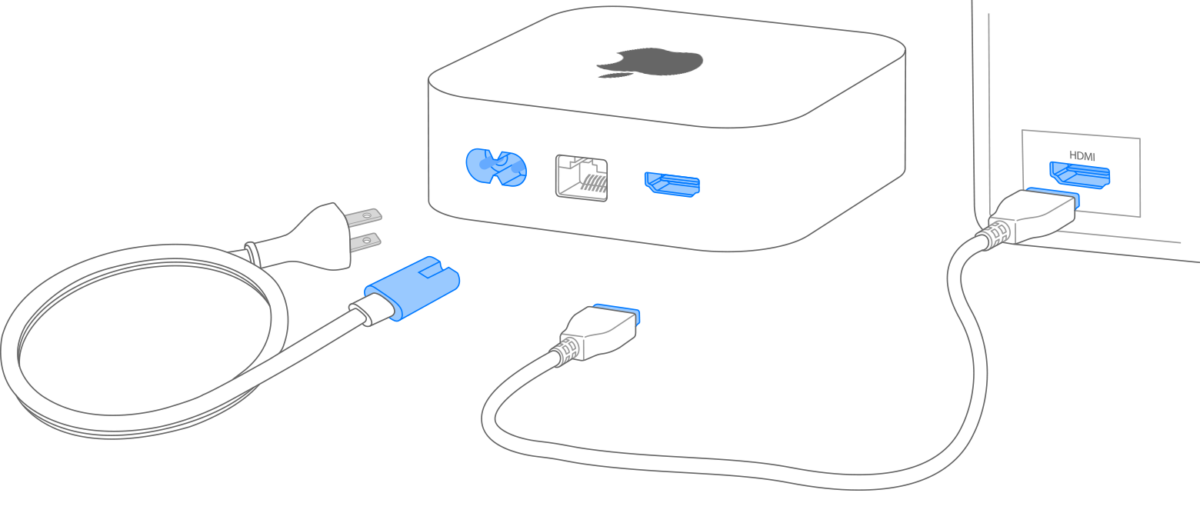
- Place Apple TV near the TV and an outlet.
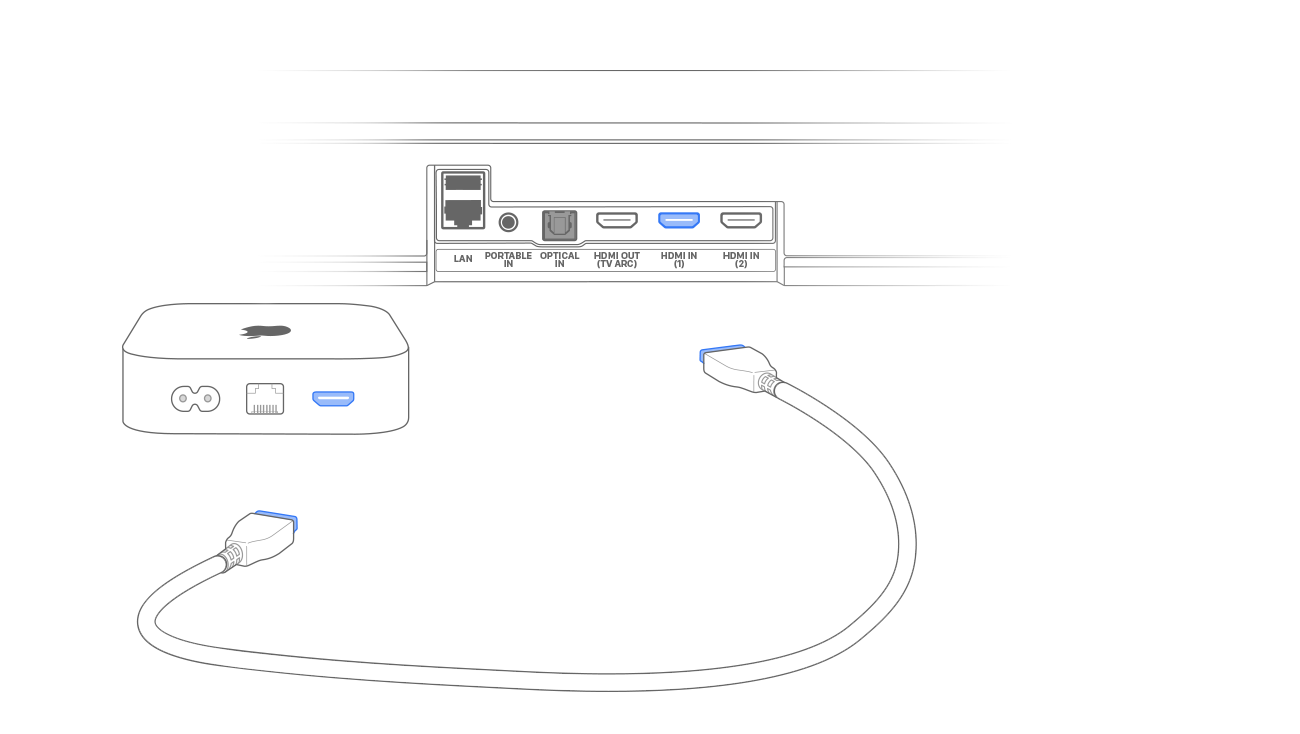
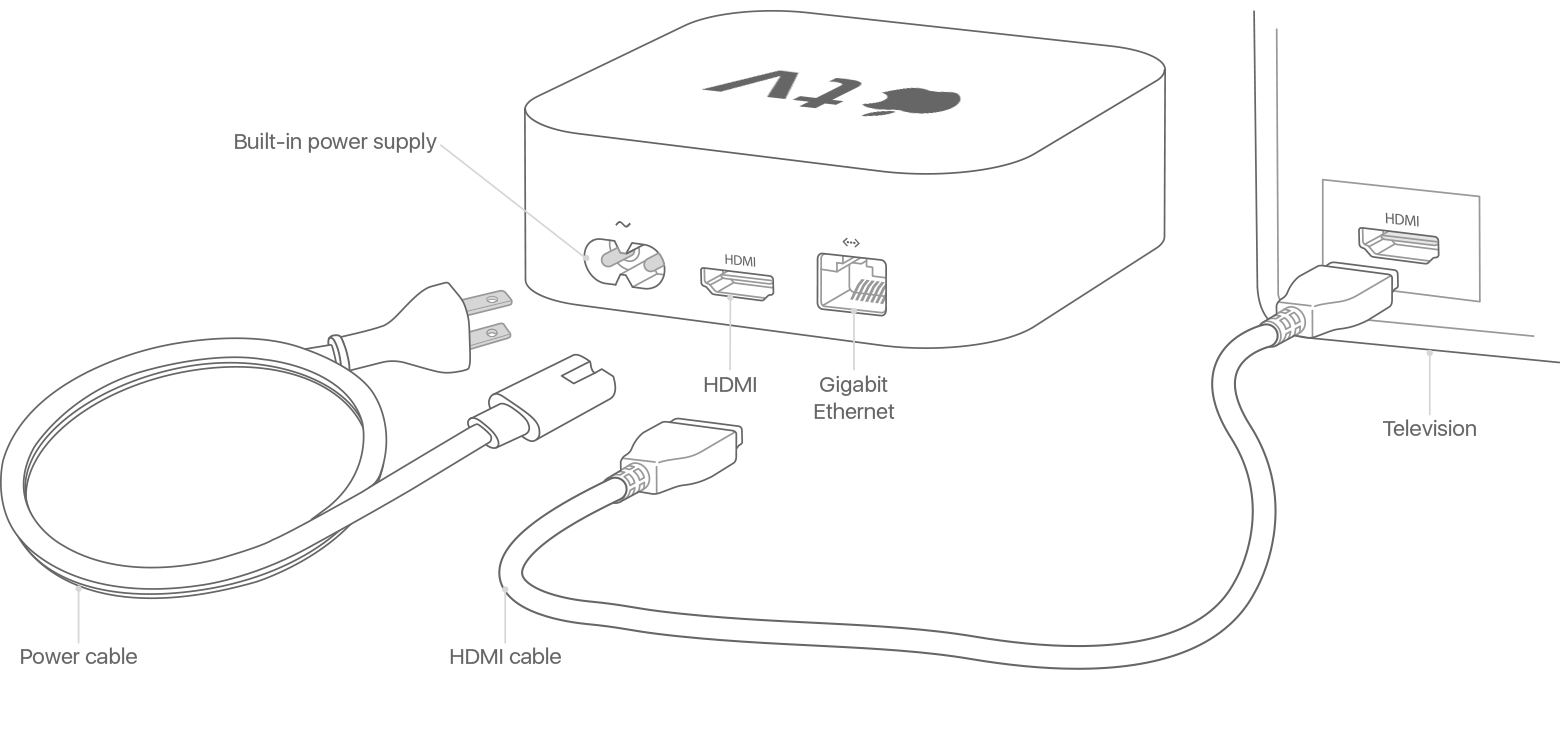
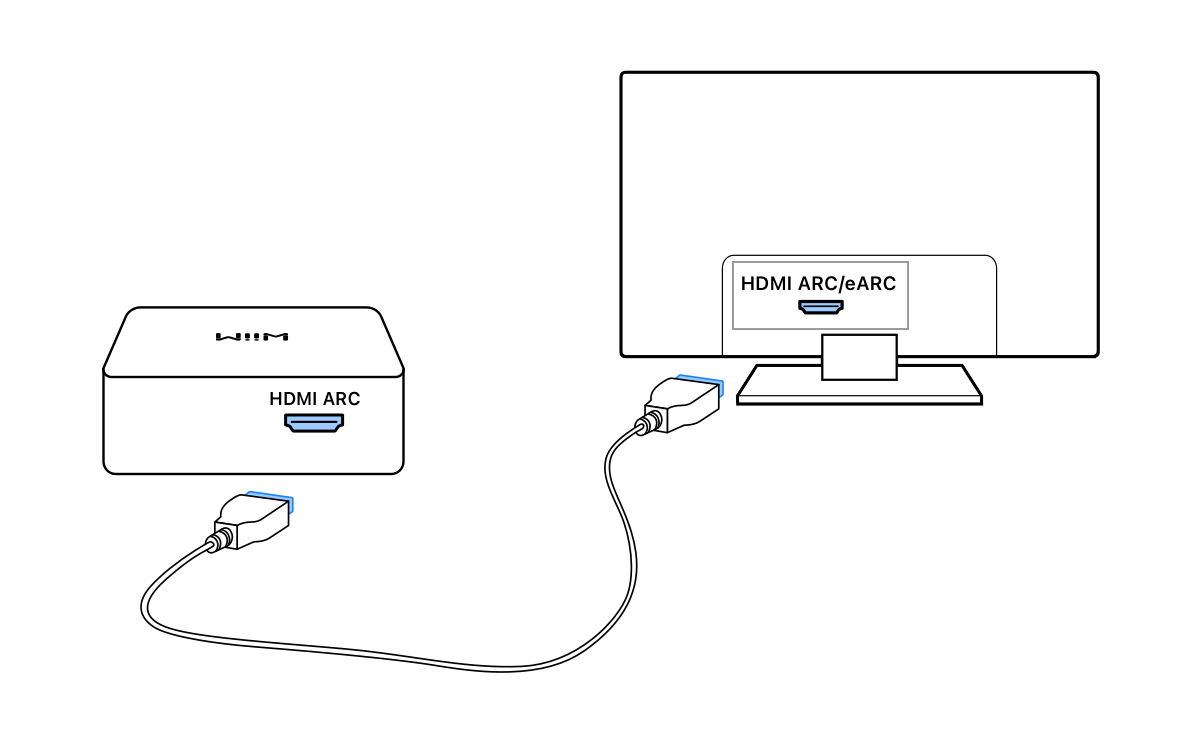
- Connect the HDMI cable to the Apple TV HDMI port.
- Plug the other end of the HDMI cable into an HDMI input on your TV.
- Connect the Apple TV power cable to the unit and the wall outlet.
- Turn on the TV and select the matching HDMI input.
- If using Ethernet, plug the cable into Apple TV before powering on.
This is the main physical work when you learn how to connect Apple TV to your TV. I recommend labeling the HDMI port on your TV if you use many devices. It helps later when switching inputs.
Step-by-step: How to connect Apple TV to your TV (software setup)
- Turn on Apple TV. The remote will wake the unit and show the setup screen.
- Pick your language and region using the Siri Remote.
- If you have an iPhone or iPad nearby, choose the quick setup option. It shares Wi-Fi and Apple ID info automatically.
- Or select your Wi-Fi network and enter the password using the remote.
- Sign in with your Apple ID. This unlocks apps, purchases, and iCloud features.
- Update tvOS if prompted. Keep the system current for best performance.
I use the quick setup from an iPhone every time. It saves minutes and avoids typing errors. After setup, I check Settings > Remotes and Devices to pair the remote and confirm HDMI-CEC is working.

AirPlay, HDMI-CEC, and advanced connections
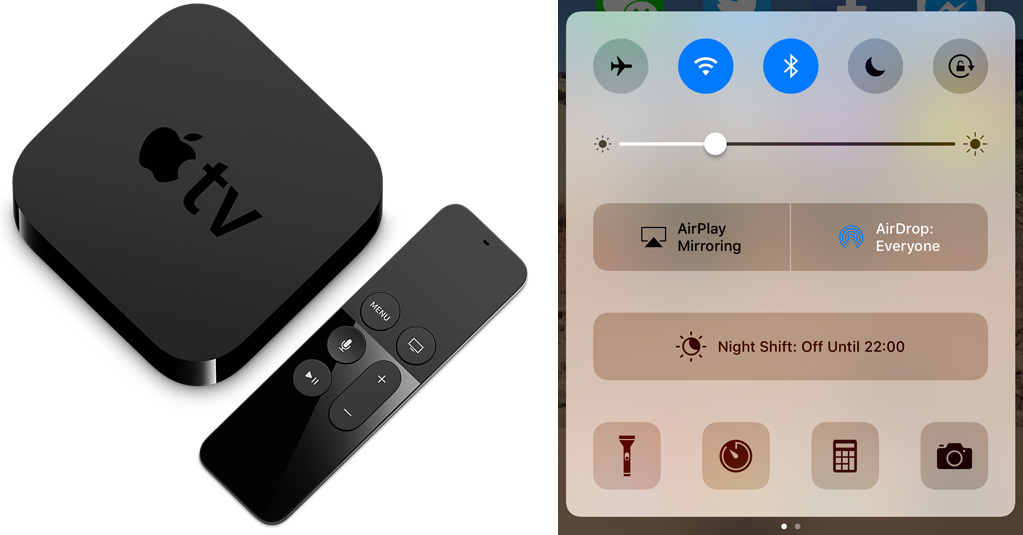
- AirPlay lets you stream or mirror from iPhone, iPad, or Mac to Apple TV. Tap the AirPlay icon on your device and pick Apple TV.
- HDMI-CEC enables your TV remote to control Apple TV for play/pause and navigation. Enable it in your TV’s settings and in Apple TV Settings > Remotes and Devices.
- For 4K HDR output, use a TV and HDMI cable that support HDR10 or Dolby Vision and HDMI 2.0 or later.
- If your TV lacks HDMI, use a compatible adapter, but note quality and latency may suffer.
I once set up Apple TV for a client on an older TV. We used an HDMI-to-component converter. The picture was OK, but not as sharp. Whenever possible, stick to HDMI to get the full experience.
Troubleshooting common problems when you connect Apple TV to your TV
- No picture or black screen: Verify the TV input is set to the HDMI port you used. Try a different HDMI port or cable.
- No sound: Check TV audio settings and Apple TV audio output in Settings > Video and Audio. Test with headphones or another TV.
- Remote not working: Replace the battery or charge the Siri Remote. Re-pair it via Settings > Remotes and Devices if needed.
- Wi-Fi won’t connect: Restart the router and Apple TV. Try connecting with Ethernet to isolate Wi‑Fi issues.
- Poor streaming quality: Check your internet speed. Lower video quality in app settings or restart your router.
When I troubleshoot, I start simple. Swap the HDMI cable first. That fixes many issues. If the remote is flaky, pairing it again often solves the problem.

Tips, tricks, and mistakes to avoid
- Use a short, high-quality HDMI cable for less signal loss.
- Keep the Apple TV in a ventilated spot. It can heat up inside cabinets.
- Turn on automatic updates in Settings > System > Software Updates.
- Avoid using HDMI splitters or cheap switchers that don’t support HDCP.
- Use Ethernet for stable 4K streaming when possible.
- Sign out of shared Apple IDs. Use your own Apple ID for purchases and iCloud.
- Label your HDMI ports to know which input your Apple TV uses.
I once left an Apple TV in a closed cabinet. It overheated and slowed down. Now I always leave some airflow. Minor things like that matter when you want a smooth experience after you connect Apple TV to your TV.
Personal experience and lessons learned
I’ve connected Apple TV to many TVs of different ages. My top lessons are simple. Use a good HDMI cable. Keep the firmware updated. Use the iPhone quick setup to avoid typing passwords. When clients report playback issues, it’s almost always network related. Switching to Ethernet fixed most slow streaming cases.
I also learned to check TV settings for HDR and color output. Some TVs default to odd color spaces that make the image look washed out. Changing the TV’s HDMI mode fixed it quickly.
:max_bytes(150000):strip_icc()/001_using-apple-music-on-apple-tv-4042565-17333476755c40afad1be7a51ae4af6d.jpg)
Recommended settings for best picture and sound
- Set Resolution to match your TV (4K for 4K TVs).
- Enable Match Content settings in Settings > Video and Audio to preserve frame rate and dynamic range.
- Use Dolby Atmos and surround sound if your receiver supports it.
- Turn on Reduce Loud Sounds if volume jumps between shows bother you.
Changing these settings improved my home theater picture and sound. Small tweaks can make movies look and sound much better.
Frequently Asked Questions of how to connect apple tv to your tv
How do I physically connect Apple TV to my TV?
Use an HDMI cable from the Apple TV HDMI port to an HDMI input on your TV, then plug in power and select that input on the TV.
Can I use Wi-Fi instead of an Ethernet cable?
Yes. Apple TV works on Wi-Fi. Use Ethernet for more stable high-bandwidth streams like 4K.
Why is there no sound when I connect Apple TV to my TV?
Check TV audio settings, Apple TV audio format, and HDMI connections. Try a different HDMI cable or port.
How do I mirror my iPhone to Apple TV?
Open Control Center on your iPhone, tap Screen Mirroring or AirPlay, and choose your Apple TV from the list.
Do I need an Apple ID to set up Apple TV?
Yes. An Apple ID is required to download apps, use iCloud, and buy or rent content on Apple TV.
What HDMI cable do I need for Apple TV 4K?
Use a high-speed HDMI cable that supports 4K, HDR, and HDCP 2.2. This ensures the best picture and audio.
Why won’t my TV remote control Apple TV?
Enable HDMI-CEC on your TV and check Settings > Remotes and Devices on Apple TV. Some TVs label CEC differently in menus.
Conclusion
Connecting Apple TV to your TV is simple when you follow the right steps. Start with the right cable and power, complete the quick on-screen setup, and use AirPlay and HDMI-CEC for a better experience. Test audio and video settings and keep software updated. Try the quick setup with your iPhone to save time and avoid errors.
Now it’s your turn: plug in the cable, follow the steps, and enjoy your new setup. If you found this useful, leave a comment or subscribe for more easy tech guides.

Everett Ashford is a tech reviewer at mytechgrid.com specializing in SSDs, cameras, TVs, earbuds, headphones, and other consumer electronics. He provides honest, data-driven reviews based on hands-on testing and real-world performance analysis. Everett simplifies complex tech details to help readers make smart, confident buying decisions.