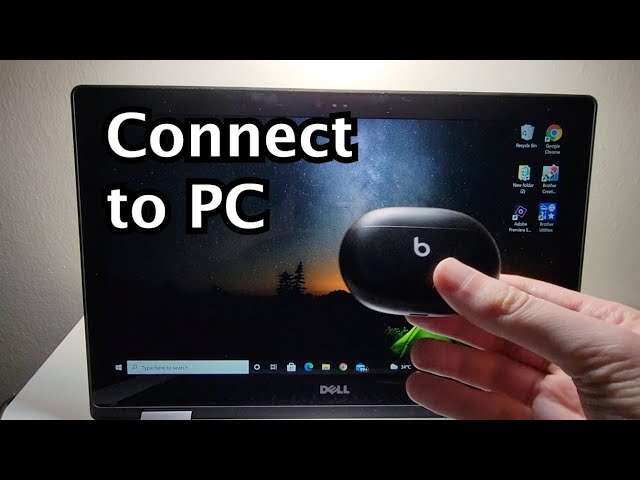
Turn on Beats, enable your laptop Bluetooth, put Beats in pairing mode, then select and connect.
I’ve helped dozens of users pair Beats earbuds with laptops across Windows and macOS. This guide explains how to connect Beats earbuds to laptop in clear, step-by-step terms. I’ll show model-specific tips, wired alternatives, troubleshooting steps I’ve used in real life, and ways to keep sound and battery working their best. Read on to pair confidently and fix common pairing hiccups fast.
Why connecting Beats earbuds to a laptop matters
Connecting Beats earbuds to laptop gives you wireless audio for calls, video, and music. It frees you from cords and often improves comfort and mobility. Knowing how to connect Beats earbuds to laptop also helps when you switch between phones and computers. This guide focuses on practical steps and real-world fixes so you can pair fast and stay connected.

Which Beats earbuds work with laptops
Most Beats earbuds support standard Bluetooth and will pair with Windows and macOS laptops. Common compatible models include:
- Beats Studio Buds
- Powerbeats Pro
- Beats Fit Pro
- Beats Flex
- Solo Pro (if using with earbud adapters or wireless models)
Some older Beats with a 3.5 mm option can use a wired connection if Bluetooth is not available. When learning how to connect Beats earbuds to laptop, check model-specific pairing steps because button locations and pairing modes vary.

How to connect Beats earbuds to laptop — Windows 10 and Windows 11
Follow these steps to pair Beats earbuds on most Windows laptops.
- Charge your Beats earbuds and case to at least 20 percent.
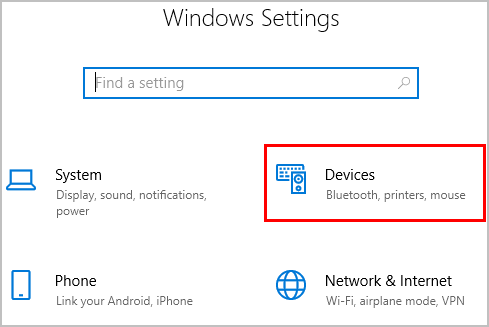
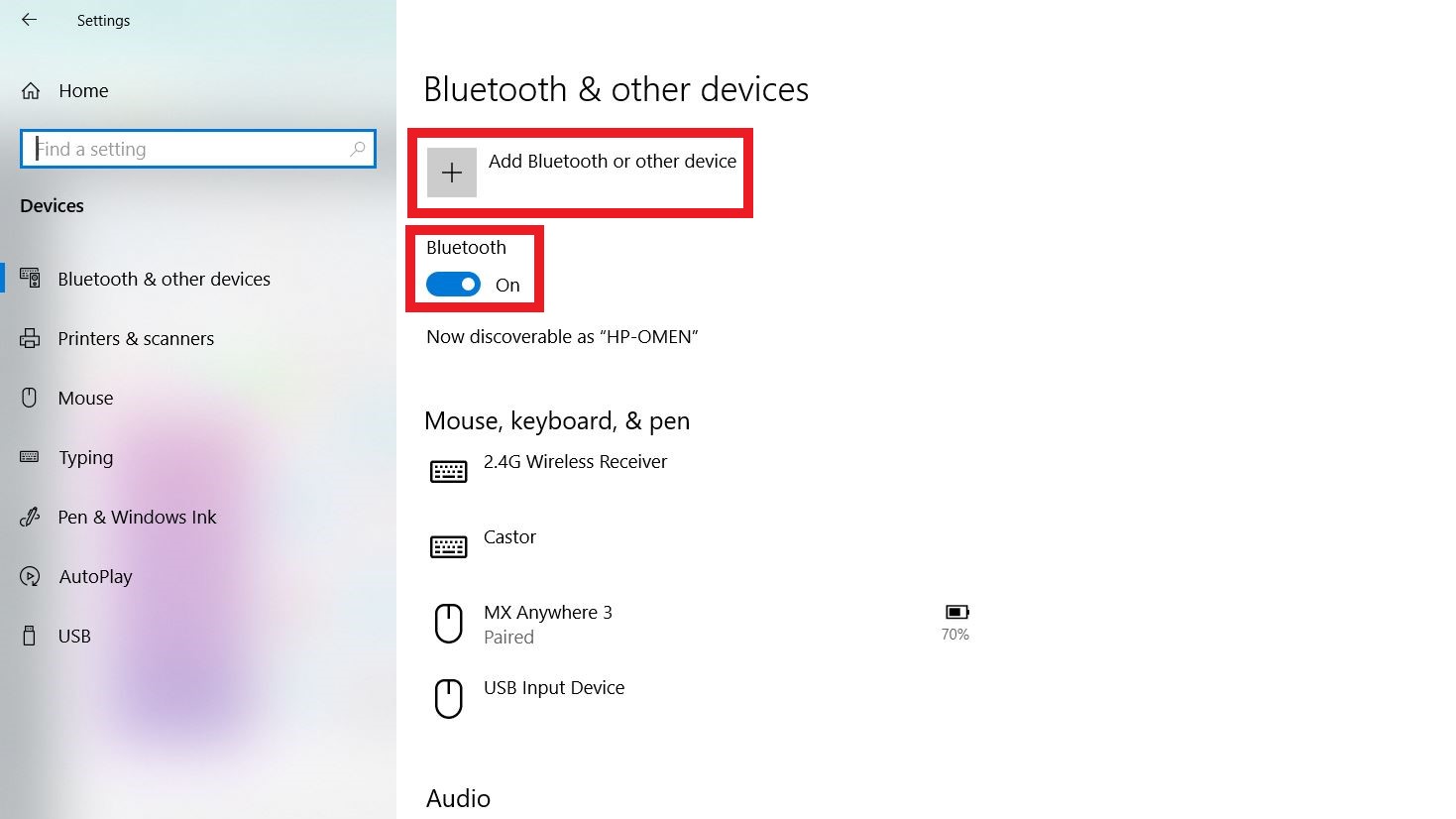
- Turn on Bluetooth on your laptop: Settings > Devices > Bluetooth & other devices > toggle Bluetooth On.
- Put your Beats in pairing mode:
- Studio Buds and Beats Fit Pro: open the case with earbuds inside or press and hold the system button until the LED flashes.
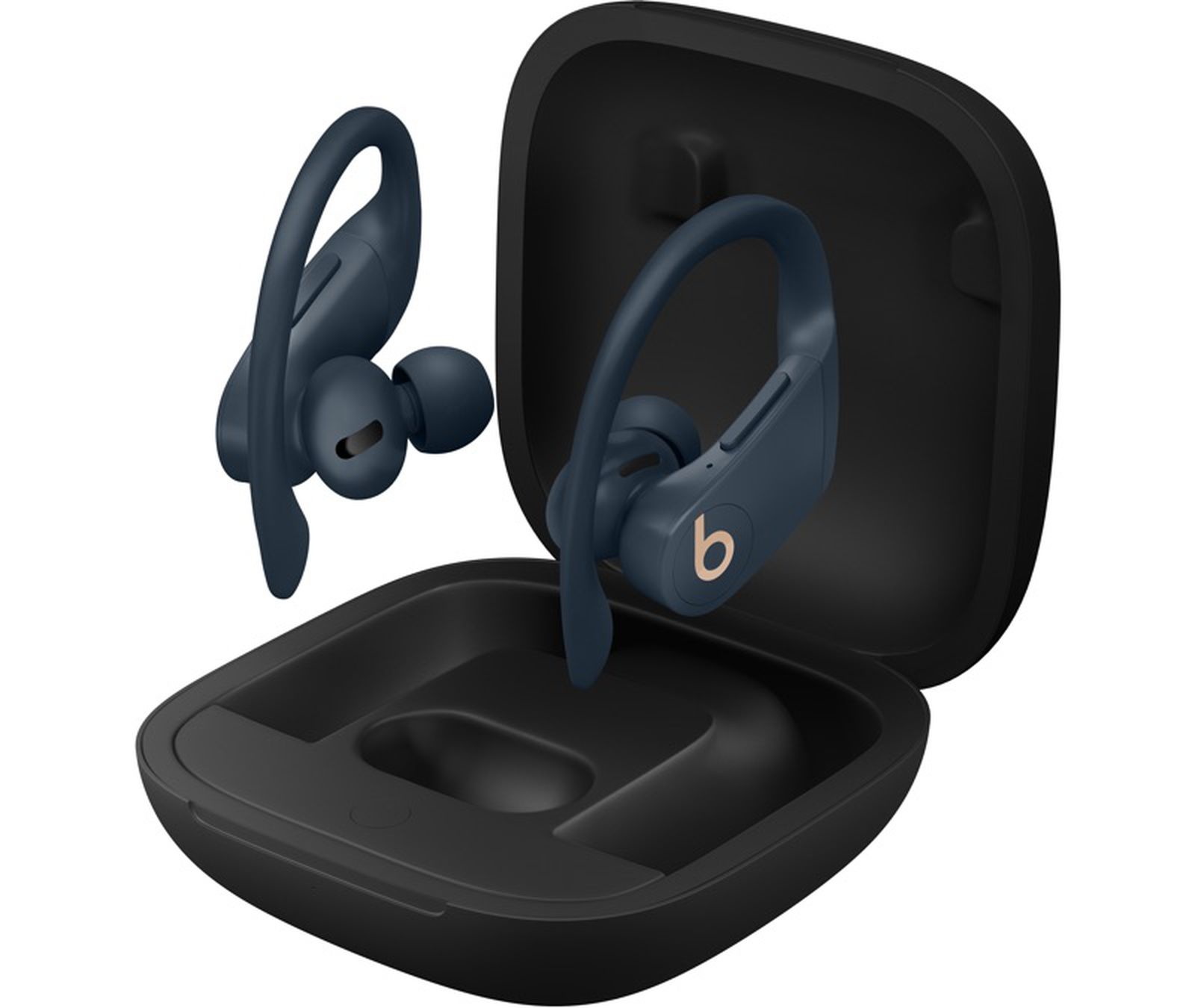
- Powerbeats Pro: press and hold the button on the case until the LED flashes.
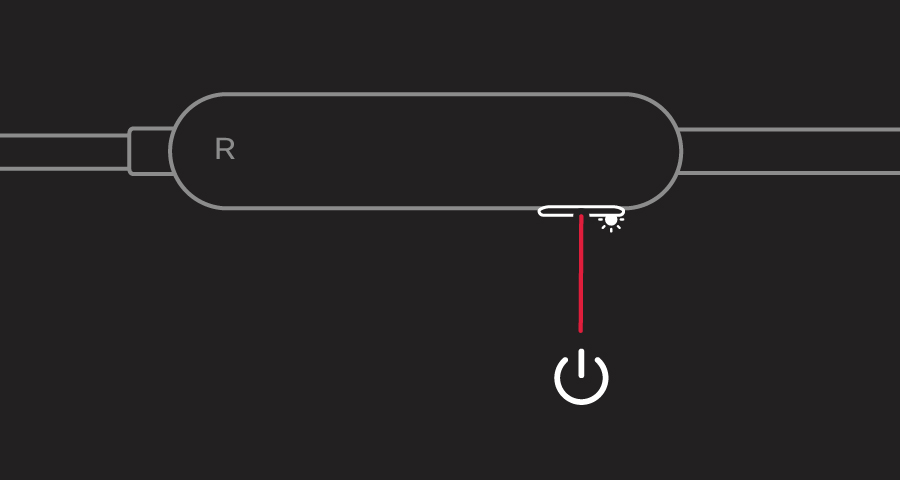
- Beats Flex: hold the power button until the LED flashes.
- On your laptop, select Add Bluetooth or other device > Bluetooth. Wait for your Beats to appear in the list.
- Click your Beats name and choose Connect. Windows will show a confirmation when pairing succeeds.
- Test audio in the Sound settings or a simple media player. If audio uses the wrong profile, go to Sound settings > Output and choose your Beats as the output device.
If you can’t pair, restart Bluetooth on the laptop, reset the Beats (see troubleshooting), and try again. I’ve often fixed stubborn pairs by removing the device from Windows and re-adding it.

How to connect Beats earbuds to laptop — macOS
Pairing on a Mac is simple and similar across macOS versions.
- Make sure your Beats earbuds have enough battery.
- Open System Settings or System Preferences > Bluetooth and ensure Bluetooth is On.
- Put your Beats in pairing mode as described in the Windows section.
- Wait for your Beats to appear in the Bluetooth devices list. Click Connect.
- Confirm in Sound settings that your Beats are set as the output device and the input if using the mic.
If the Mac fails to connect, turn Bluetooth off and on, restart the Mac, or remove and re-pair the Beats. When I switched from a phone to a Mac, toggling Bluetooth on the Mac fixed the connection more than once.
Wired connection options and when to use them
If Bluetooth isn’t an option, you can use a wired connection for some Beats models.
- Use 3.5 mm audio cable: Plug the cable into your Beats (if supported) and the laptop headphone jack or adapter.
- Use USB-C audio: Some Beats models and laptops support USB-C audio with a cable or adapter.
- Use a USB Bluetooth dongle: If your laptop Bluetooth is faulty, an external USB Bluetooth adapter can add stable support.
Wired connections remove latency and pairing issues. I use a cable for recording or low-latency work when video calls require precise audio timing.

Troubleshooting common pairing problems
Here are steps I use when pairing fails or audio is poor.
- Beats not discovered: Ensure earbuds are in pairing mode and LED is flashing. Hold the power/system button longer if needed.
- Laptop won’t connect: Turn Bluetooth off and on, restart the laptop, then try pairing again.
- Remove old pairings: Delete Beats from your laptop’s Bluetooth list and from other devices to avoid conflicts.
- Reset your Beats:
- Most Beats: hold the power and volume down buttons for 10 seconds or follow model-specific reset steps until LED flashes.
- After reset, try pairing again.
- Low quality audio: Ensure the laptop output profile uses AAC or the highest supported codec. Close other Bluetooth devices that may interfere.
- Intermittent dropouts: Move closer to the laptop and remove obstacles. Turn off other wireless devices on 2.4 GHz if needed.
When I troubleshoot, I always start with a reset and a fresh pairing. That resolves 70–80% of issues for me.
Tips to improve Bluetooth audio and battery life
Small changes improve sound and run time.
- Keep firmware current: Firmware updates can improve stability and battery.
- Limit distance: Stay within 20–30 feet with a clear line of sight for best Bluetooth performance.
- Close unused apps: Multimedia apps can compete for audio resources; close background apps during calls.
- Use one device at a time: Disconnect Beats from phones when pairing to a laptop to avoid automatic switching.
- Mute laptop notifications you don’t need: Notifications can interrupt audio focus on some systems.
I recommend charging case storage and avoiding extreme temperatures to keep the battery healthy. These habits saved my earbuds from rapid battery drain.

Updating Beats firmware and Bluetooth drivers
Keeping software up to date helps pairing and audio.
- Beats firmware: Use the Beats app on iPhone/Android or use updates via the laptop manufacturer’s support pages if available. Updates may install automatically when connected to an Apple device.
- Laptop Bluetooth drivers: For Windows, check Device Manager > Bluetooth > update driver, or download the latest driver from your laptop maker. For Mac, keep macOS updated to get Bluetooth fixes.
- Reboot after updates: Restart both devices after firmware or driver updates to ensure changes take effect.
Updating fixed occasional audio cutouts for me. Always back up settings if you rely on audio presets.
Frequently Asked Questions of how to connect beats earbuds to laptop
How do I put my Beats earbuds in pairing mode?
Hold the power or system button until the LED flashes. Different models use the case or a button, so consult the quick start guide for model-specific steps.
Why won’t my laptop find my Beats earbuds?
Common reasons are Bluetooth off on the laptop, earbuds not in pairing mode, or the earbuds already connected to another device. Turn Bluetooth on, put the Beats in pairing mode, and disconnect other devices.
Can I use Beats earbuds for laptop calls and microphone input?
Yes. Most Beats earbuds support the microphone for calls when connected via Bluetooth. Choose your Beats as both output and input in your laptop’s audio settings.
What if my Beats connect but audio sounds low quality?
Low quality often means the laptop is using the wrong Bluetooth profile. Update drivers, select the correct audio profile, or try another Bluetooth codec if supported.
How do I reset my Beats earbuds for pairing issues?
Reset steps vary by model. Generally, hold the power and a function button for about 10 seconds until the LED flashes. After reset, re-pair the earbuds with your laptop.
Can I connect my Beats earbuds to a laptop without Bluetooth?
Yes. Use a wired 3.5 mm cable if supported, a USB-C cable if the model allows, or a USB Bluetooth dongle to add wireless support to the laptop.
Conclusion
You can reliably learn how to connect Beats earbuds to laptop by following clear pairing steps for Windows and macOS, knowing wired alternatives, and using practical troubleshooting. Start with charging your Beats, enable pairing mode, and pair from the laptop Bluetooth menu. If problems appear, reset the earbuds, update drivers, and try again. Take action now: pair your Beats, test audio in a call, and leave a comment about any pairing problems you overcome.

Everett Ashford is a tech reviewer at mytechgrid.com specializing in SSDs, cameras, TVs, earbuds, headphones, and other consumer electronics. He provides honest, data-driven reviews based on hands-on testing and real-world performance analysis. Everett simplifies complex tech details to help readers make smart, confident buying decisions.