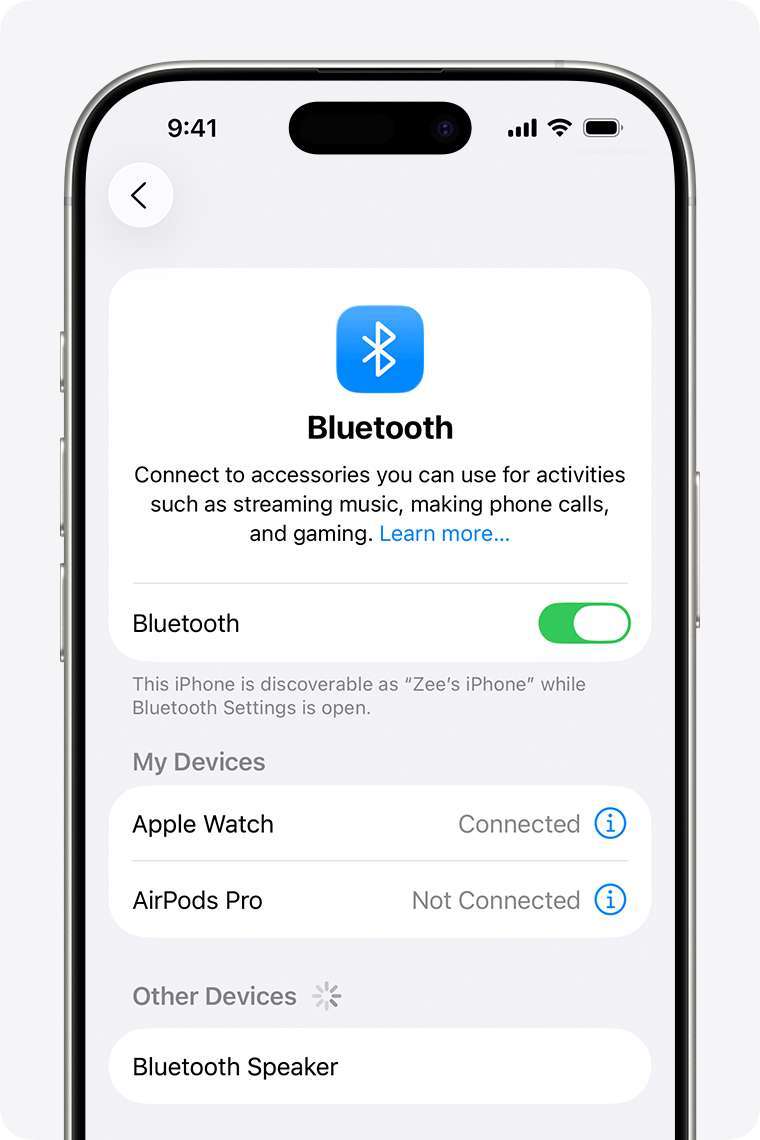
Turn on Bluetooth on your Android, enable Beats pairing mode, and select the Beats device.
I’ve helped dozens of friends and clients connect Beats headphones to Android phones, and I’ll walk you through every step. This guide covers simple pairing, troubleshooting, codec tips, and real-life tricks so you can quickly connect Beats headphones to Android and get the best sound and stability possible.

Why pair your Beats headphones with Android
Pairing Beats to Android gives you wireless freedom and great audio for calls, music, and videos. Modern Beats models work well with Android devices. But Android and Beats sometimes behave differently than Apple devices. Knowing the exact pairing steps and settings reduces headaches and improves sound quality.
I’ve tested several Beats models with different Android brands. Small habits—like restarting Bluetooth or resetting Beats—fix most problems. This guide explains that clearly and simply, so you save time and avoid trial and error.

Before you start: quick checklist
Make sure you have everything ready before you try to connect Beats headphones to Android.
- Confirm your Beats have enough charge. Low battery can block pairing.
- Turn on Bluetooth on your Android device.
- Keep the Beats and Android within 3 feet during pairing.
- Remove or forget other Bluetooth devices that might auto-connect.
- Update Android to the latest OS version available for your phone.
- Close apps that use audio to prevent conflicts during initial pairing.
These steps remove common blockers. If something still fails, proceed with the step-by-step pairing and troubleshooting sections below.
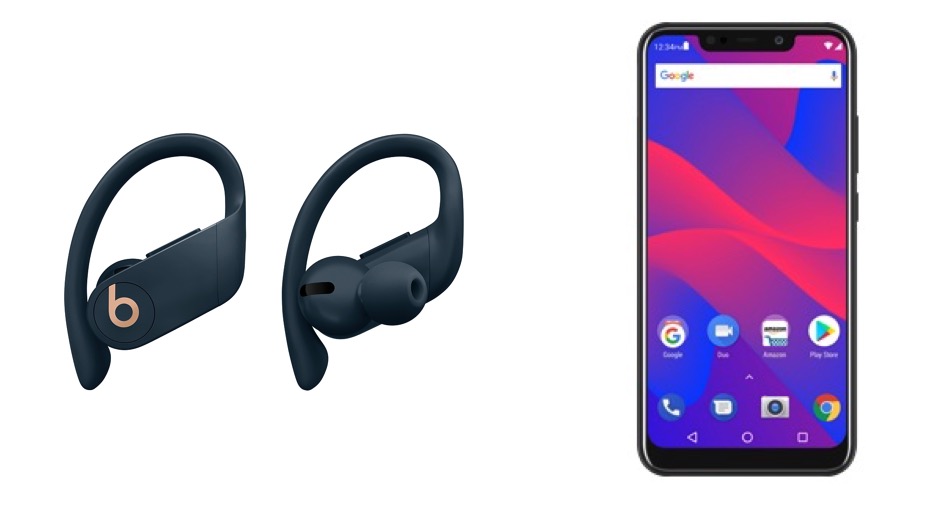
Step-by-step: How to connect Beats headphones to Android
Follow these clear steps to pair almost any Beats model with an Android phone.
- Charge the Beats to at least 30 percent. This avoids power issues.
- Open Settings on your Android. Tap Bluetooth and turn it on.
- Put your Beats into pairing mode.
- For most on-ear and over-ear Beats: press and hold the power button until the LED flashes.
- For Beats with a pairing button: press and hold the pairing button until the LED blinks.
- On Android, scan for nearby devices in Bluetooth settings.
- Look for a name like Beats Solo3, Beats Studio3, or the specific Beats model. Tap it.
- Wait for the “Connected” confirmation. Play audio to test the connection.
- If prompted for a PIN, use 0000 or 1234. Most Beats don’t ask for a PIN.
If your Beats support Bluetooth multipoint, you can connect to more than one device. Repeat the pairing steps on the second device if needed. If pairing fails, try turning Bluetooth off and on, rebooting your phone, or resetting the Beats.

Troubleshooting common connection issues
Pairing problems are usually easy to fix. Try the short checks below in order.
- Audio won’t play or drops frequently.
- Move closer to the phone and remove obstructions.
- Turn off or move away from Wi-Fi routers and other Bluetooth devices.
- Beats don’t appear in the device list.
- Put the Beats back into pairing mode. Restart Bluetooth on the phone.
- Forget previously paired devices on your Android and remove them from Beats memory if possible.
- Android says “paired” but audio routes to phone speaker.
- In Bluetooth settings tap the Beats name and ensure Media Audio is enabled.
- Reconnect the device after toggling the audio option.
- Constant reconnection or unstable link.
- Reset network settings on your Android or reset the Beats to clear old pairings.
- Update firmware for the Beats using a compatible app or support tool if available.
PAA-style question: Do Beats require an app to pair with Android?
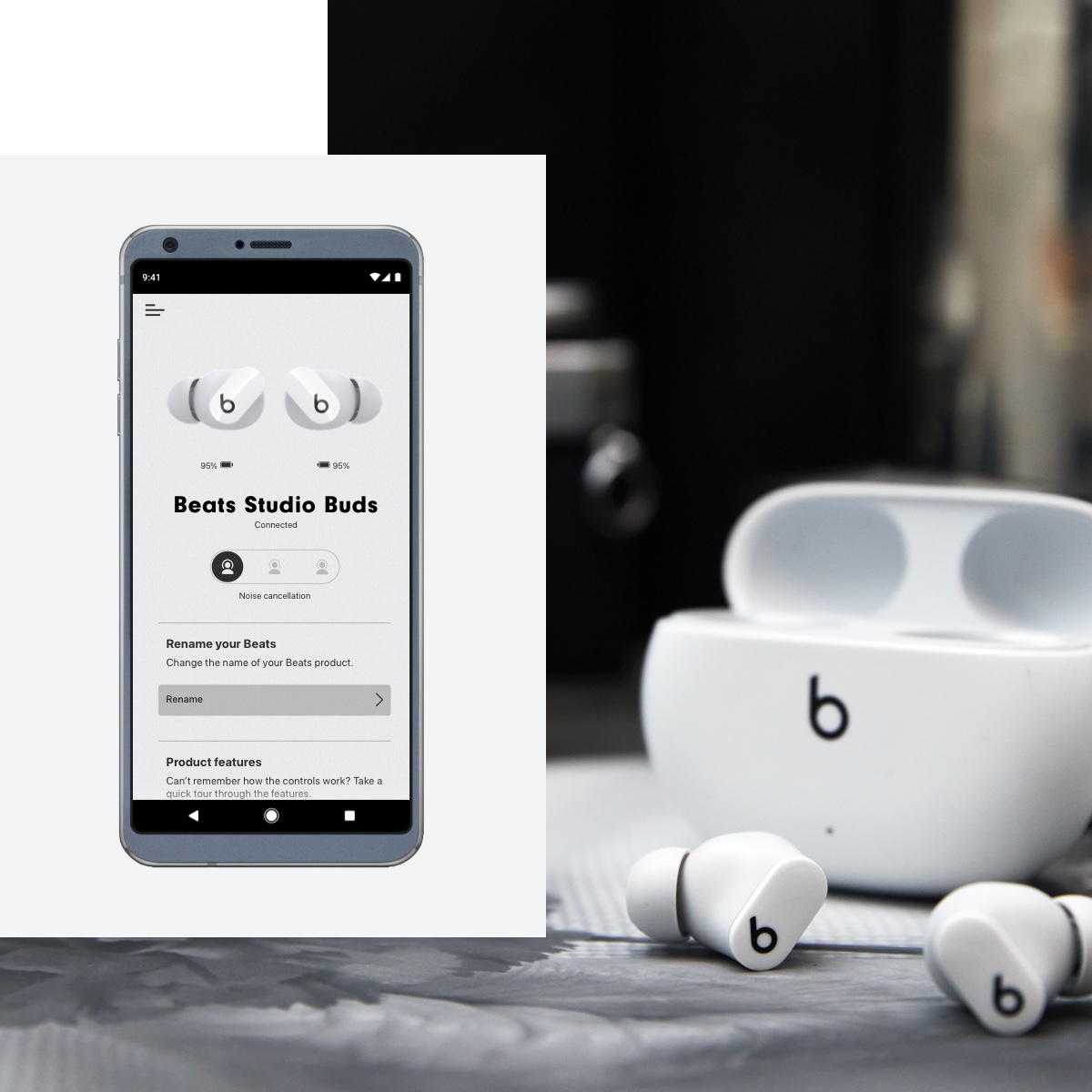
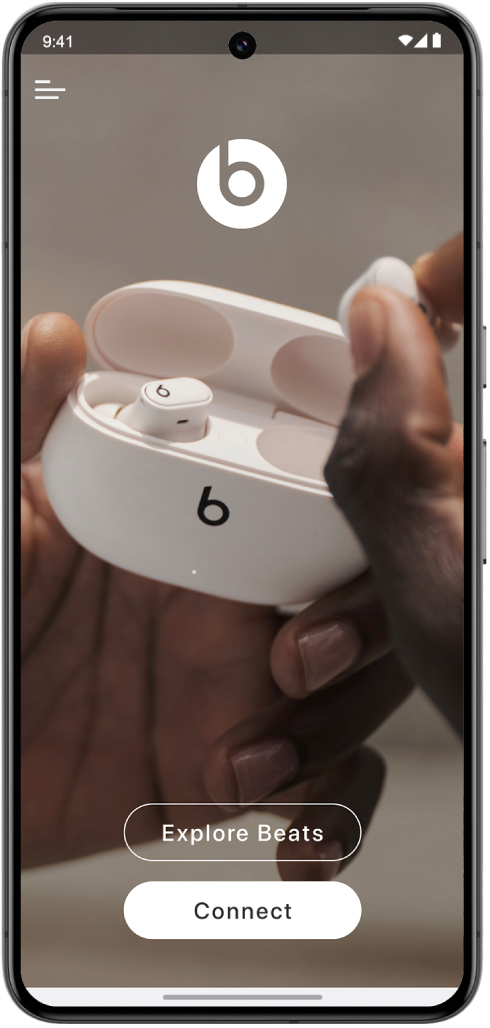
Beats do not need an app to pair with Android. The basic Bluetooth pairing uses Android’s settings, though an app can provide firmware updates and extra features.
PAA-style question: Why is music lagging when I watch video?
Audio lag is often a codec or app issue. Try switching the Bluetooth audio codec in developer options or use apps that support low-latency streaming.
Advanced tips and settings for better performance
These tips help you squeeze more value from your Beats when connected to Android.
- Change Bluetooth audio codec for lower latency or better quality.
- Enable Developer Options on Android, then change Bluetooth audio codec to aptX, AAC, or SBC depending on support.
- Use equalizer and sound profiles in Android or third-party apps to tune the Beats sound.
- Update your phone and Beats firmware to fix bugs and improve compatibility.
- Turn off battery-saving modes on Android during initial pairing. Power saving can block Bluetooth scans.
- For frequent switching between devices, use multipoint support or simple steps to quickly disconnect and reconnect.
I learned the codec trick the hard way. On one phone, switching from SBC to aptX cut the audio delay in half. Not all Beats or phones support aptX, so check compatibility before you expect dramatic improvements.

Battery, care, and pairing best practices
Treat your Beats and Android well for long-term smooth connections.
- Charge smartly. Do not let Beats remain at zero for long periods.
- Keep firmware updated. Manufacturers release fixes that improve pairing.
- Store Beats in a cool, dry place. Extreme heat or cold shortens battery life.
- When you plan to pair with multiple devices, clear old pairings from the Beats periodically.
- Use a wired connection when editing video or when exact audio sync is needed.
From my experience, regularly clearing old Bluetooth pairings reduced weird auto-connect behavior. It’s an easy maintenance step that saves time and frustration.
Frequently Asked Questions of how to connect beats headphones to android
Will all Beats models work with Android?
Most modern Beats models use standard Bluetooth and will work with Android devices. Some features like Siri or automatic device switching may only work with Apple products.
How do I put my Beats in pairing mode?
Press and hold the power or pairing button until the light flashes to indicate pairing mode. Exact steps vary by model, so check the manual if the light pattern differs.
Why won’t my Android find my Beats?
Move closer, ensure Beats are in pairing mode, and turn Bluetooth off and on. Also forget other paired devices and restart your phone if needed.
What if audio is delayed during videos?
Try changing your Android’s Bluetooth audio codec in Developer Options or use a low-latency streaming app to reduce lag. Wired connection eliminates lag entirely.
How can I reset my Beats for a fresh pairing?
Reset procedures vary by model but usually involve holding the power and volume buttons for several seconds. Resetting clears all pairings and often fixes persistent issues.
Can I update Beats firmware on Android?
Some Beats models receive updates through companion apps or manufacturer tools. Check the Beats support options for Android-capable update methods.
Conclusion
Connecting Beats headphones to Android is a simple process when you follow clear steps and basic checks. Charge the Beats, enable pairing mode, select the device from Android’s Bluetooth menu, and adjust codecs or settings for the best experience. If problems arise, try restarting devices, resetting pairings, or updating firmware.
Take action now: try the step-by-step guide with your device, and leave a comment describing any issue you hit. If this helped, subscribe or bookmark the guide for quick reference next time you pair a set of Beats.

Everett Ashford is a tech reviewer at mytechgrid.com specializing in SSDs, cameras, TVs, earbuds, headphones, and other consumer electronics. He provides honest, data-driven reviews based on hands-on testing and real-world performance analysis. Everett simplifies complex tech details to help readers make smart, confident buying decisions.