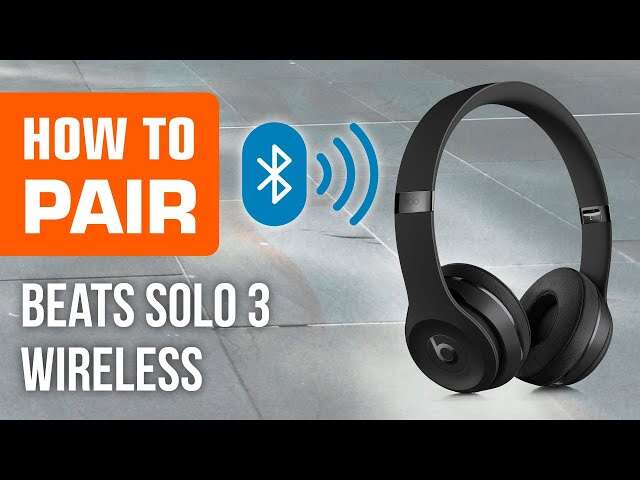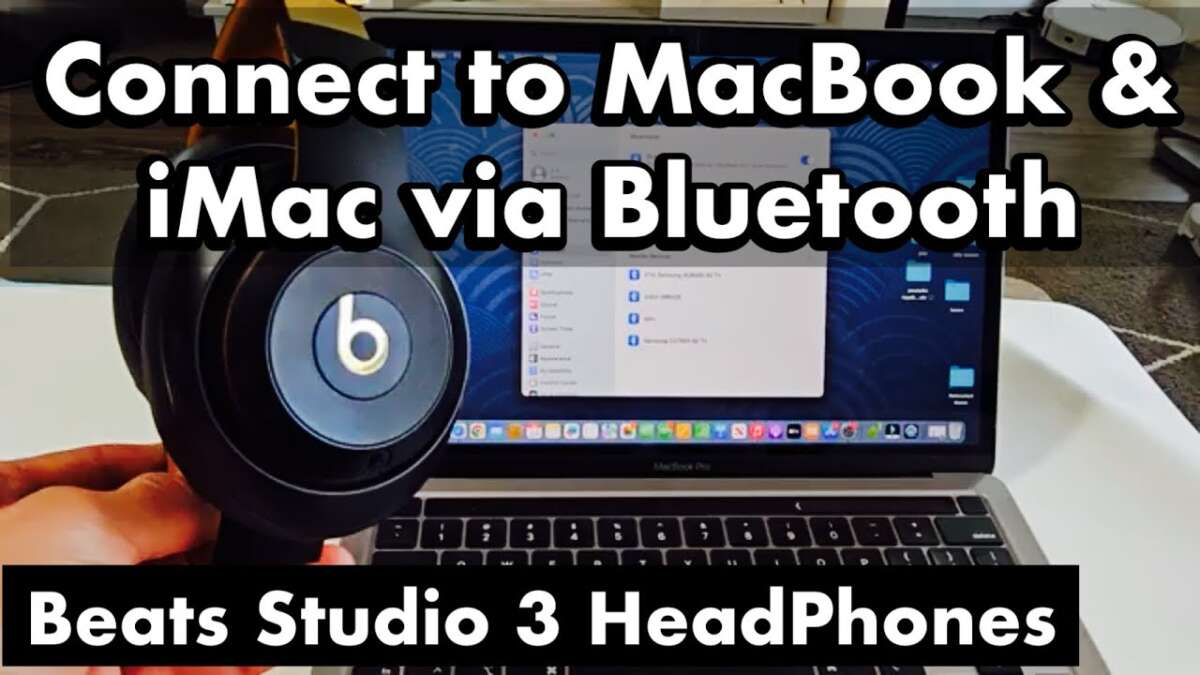
Pair Beats headphones to your PC or Mac via Bluetooth or a cable in minutes—step-by-step and trouble-free.
I help tech users connect Beats headphones to computers every day. This guide explains how to connect Beats headphones to computer, whether you have a Windows PC, a Mac, or a desktop without Bluetooth. I’ll share clear steps, quick fixes, settings to check, and real-world tips from testing different Beats models. Read on to get your Beats paired, sounding great, and working with apps like Zoom, Spotify, and games.
How to connect Beats headphones to computer: quick overview
Beats headphones connect to a computer two main ways: Bluetooth wireless and wired. Bluetooth gives freedom from cords. Wired gives simpler, low-latency audio for gaming and pro work. Below you will find step-by-step instructions for each method, plus troubleshooting and settings to check.
Connect Beats via Bluetooth on Windows 10 and 11
Follow these steps to pair Beats on Windows. These steps work for most Beats models, including Solo, Studio, and Powerbeats.
- Charge and power on
- Make sure your Beats are charged.
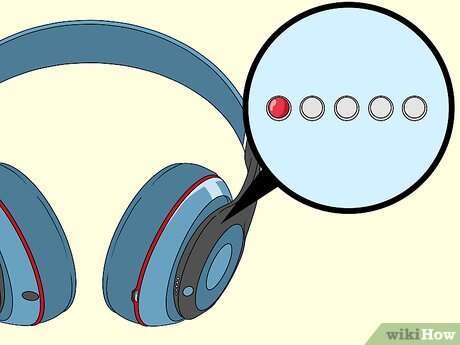
- Press and hold the power button until the light flashes. This puts them in pairing mode.
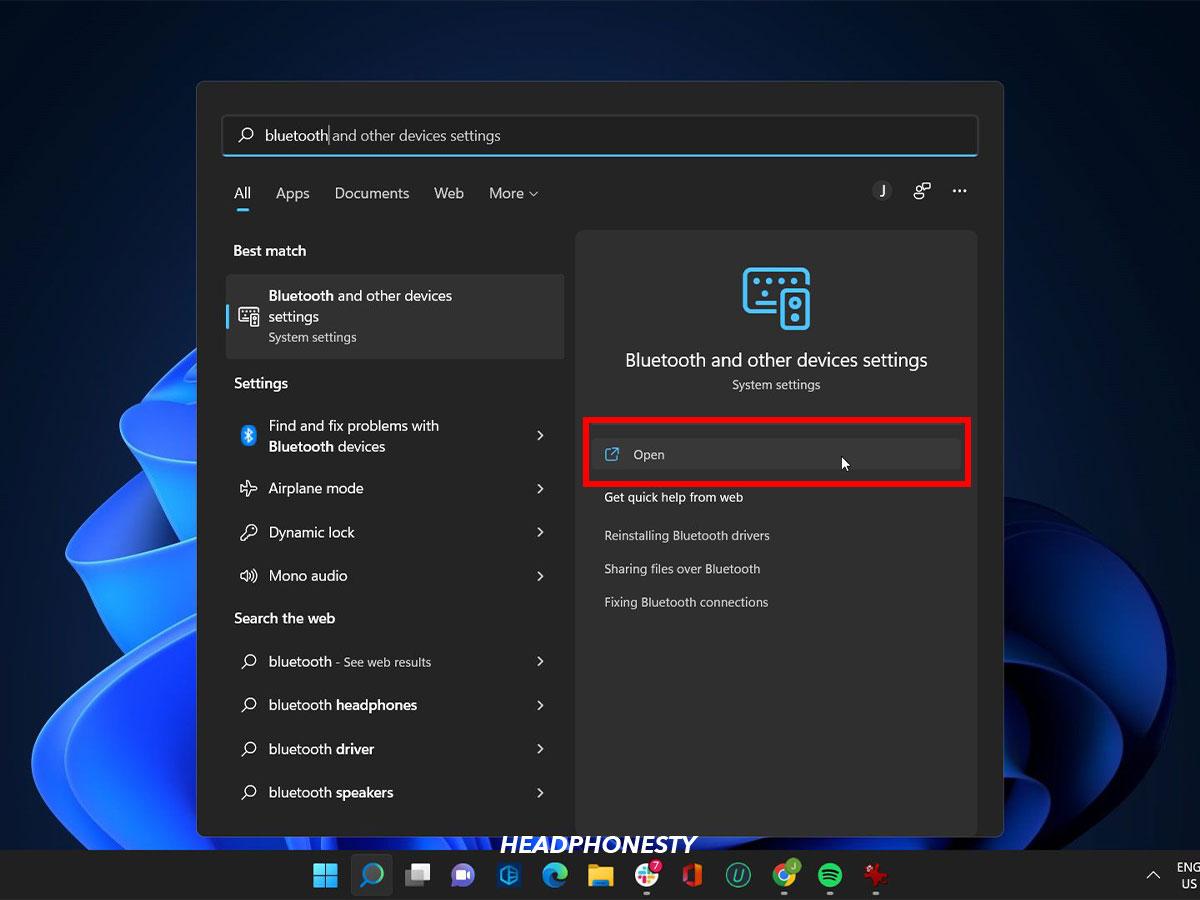
- Click Start, then type Bluetooth.
- Select Bluetooth & other devices.
- Add your Beats
- Turn on Bluetooth if off.
- Click Add Bluetooth or other device, then choose Bluetooth.
- Select your Beats from the list (it may show the model name).
- Confirm pairing if prompted.
- Set Beats as default audio device
- Click the speaker icon in the taskbar.
- Choose your Beats for output and, if available, input.
- Test audio
- Play a song or video.
- Adjust volume on both the PC and the Beats.
Tips
- Keep the Beats near the computer during pairing.
- Turn off other Bluetooth devices to avoid interference.
- If pairing fails, turn Bluetooth off and on and retry.
Connect Beats via Bluetooth on macOS
These steps work on macOS Big Sur, Monterey, Ventura, and later.
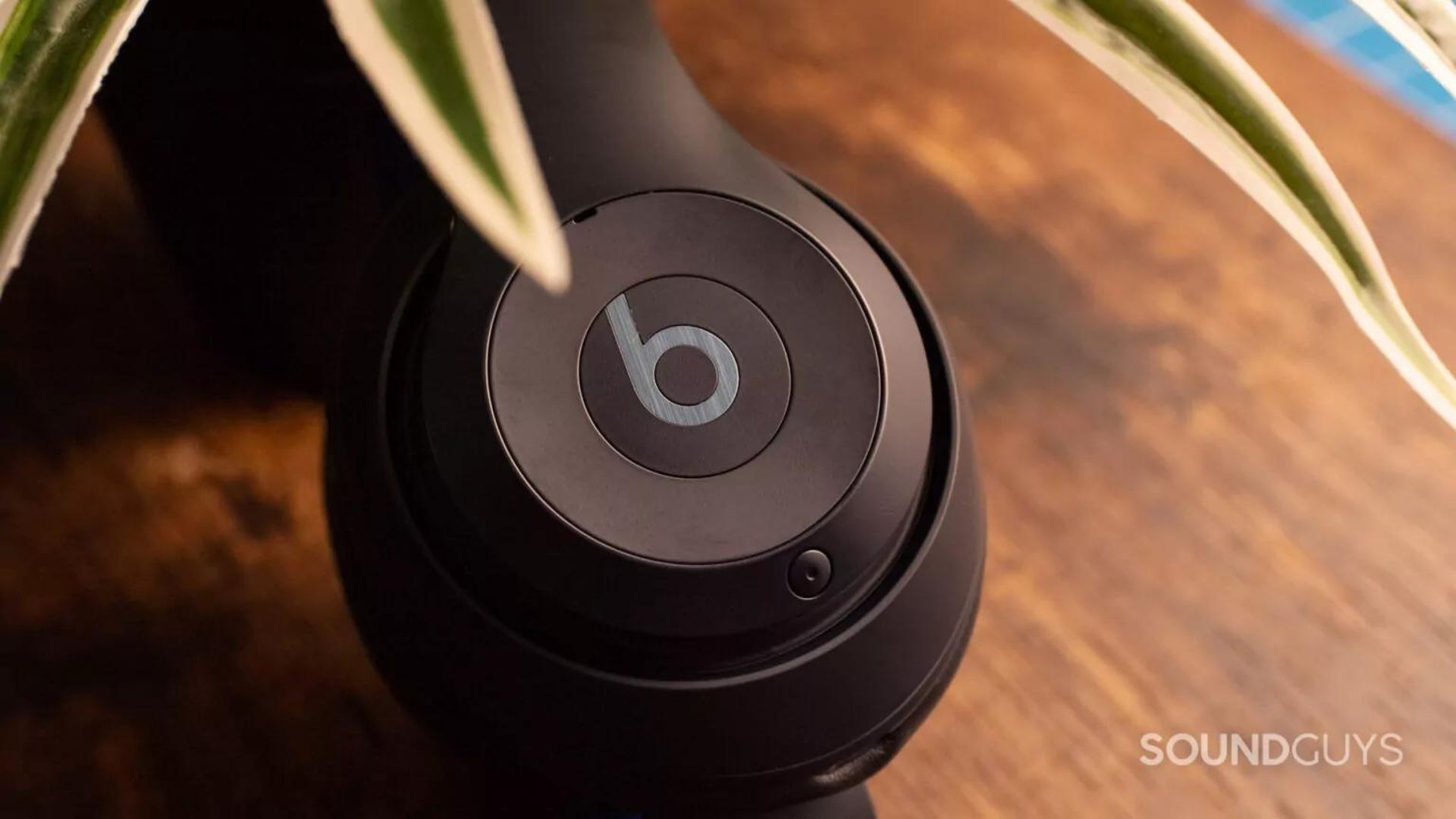
- Put Beats in pairing mode
- Press and hold the power button until the LED flashes.
- Open Bluetooth preferences
- Click the Apple menu, choose System Settings or System Preferences.
- Select Bluetooth.
- Pair your Beats
- Find your Beats in the device list.
- Click Connect.
- Confirm if macOS requests a passcode.
- Set as audio device
- Click the sound icon in the menu bar or go to Sound preferences.
- Choose your Beats for output and input.
- Check app sound settings
- Some apps use their own audio output setting. Select Beats inside app preferences if needed.
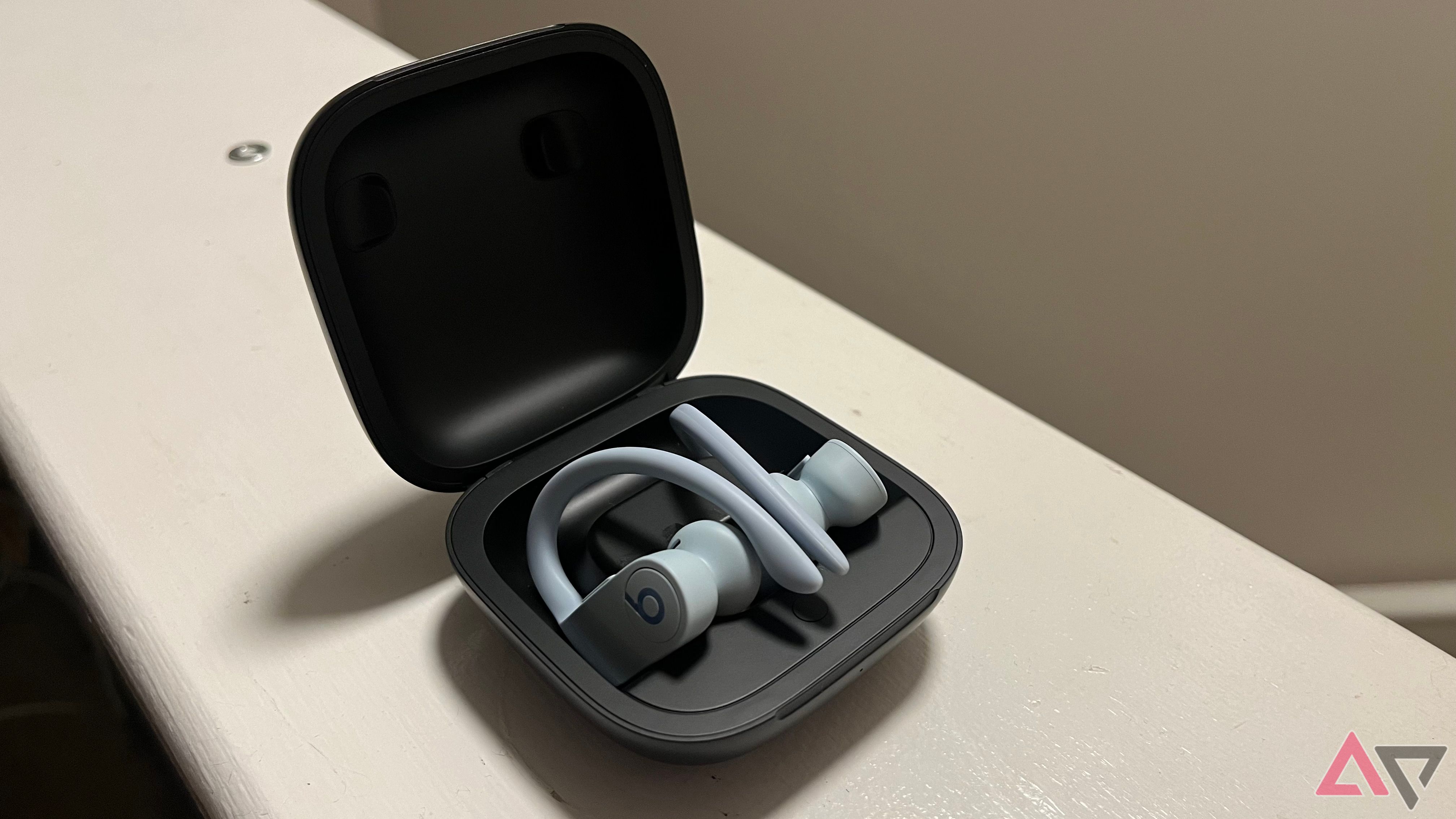
Use a wired connection (3.5mm or USB) when Bluetooth is not ideal
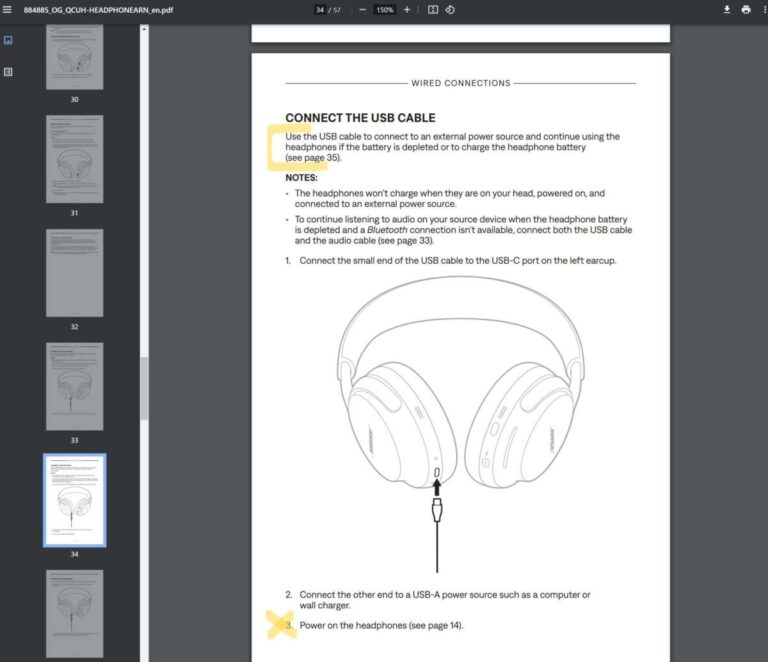
Wired gives stable sound and no lag. Many Beats models support a 3.5mm cable. Some newer models work with USB-C audio or adapter cables.
- Locate the audio cable
- Use the cable that came with your Beats or a compatible 3.5mm audio cable.
- For USB-C models, use a USB-C to USB-A adapter if your PC lacks USB-C.
- Plug into computer
- Insert the 3.5mm plug into your computer’s headphone jack or line-in.
- If your computer has separate mic and headphone jacks, plug into the headphone output.
- Choose the wired device in sound settings
- On Windows, right-click the speaker icon and choose Open Sound settings. Select the correct output.
- On Mac, go to Sound preferences and choose the output.
- Test audio
- Play audio and confirm sound is clear.
- Adjust volume on computer and headphones.
Notes
- Wired mode often bypasses Bluetooth controls like inline mic settings.
- Some Beats models disable noise cancelling when wired; check your model’s behavior.

Troubleshooting common pairing problems
If you have trouble, try these fixes. I’ve used these steps many times and they work in most cases.
- Beats not showing in Bluetooth list
- Turn the Beats off and back on.
- Reset the Beats (see model-specific reset below).
- Restart your computer’s Bluetooth service or the Mac/PC itself.
- Low or no sound after pairing
- Make Beats the default output device.
- Check app-level audio settings.
- Re-pair the device.
- Microphone not working
- Some Bluetooth profiles do not support high-quality audio and mic at the same time.
- Choose the correct input device in system sound settings.
- Use a wired connection for stable mic performance.
- Static, dropouts, or poor audio quality
- Move closer to the computer.
- Turn off other wireless devices that may interfere.
- Update Bluetooth drivers on Windows or macOS.
Model-specific reset (common method)
- With the Beats powered on, hold the power and volume down buttons for 10 seconds until the LED flashes. Then restart pairing.
Settings and drivers: what to check on your computer
A few settings and drivers help make connection smooth.
Windows tips
- Keep Bluetooth drivers up to date via Device Manager.
- Use the Bluetooth Troubleshooter in Settings if pairing fails.
- Enable Hands-Free Telephony for the mic if you need calls.
Mac tips
- Reset Mac’s Bluetooth module if devices act up (use Shift + Option and the Bluetooth icon).
- Keep macOS updated for the best Bluetooth compatibility.
Audio settings to review
- Default output and input devices.
- App-level audio settings (Zoom, Teams, games).
- Sample rate and format in advanced sound settings, if available.

Compatibility, limitations, and what to expect
Beats models vary. Know what your model supports.
Compatibility notes
- Most Beats support Bluetooth A2DP for stereo audio.
- Hands-Free Profile (HFP) enables phone calls but may lower audio quality.
- Older computers may lack modern Bluetooth versions and see more dropouts.
Limitations
- Bluetooth has inherent latency; not ideal for pro audio or fast-paced gaming.
- Noise-canceling features may behave differently between wired and wireless modes.
- Battery level reporting may be limited on some PCs.
What to expect
- Simple music listening works well.
- For low-latency needs, use a wired connection or a Bluetooth dongle that supports aptX Low Latency.

Personal experience, tips, and mistakes to avoid
I connect headphones for work and found a few things that save time.
What I learned
- Keep Beats firmware updated via the official app on a phone before pairing to a computer.
- If pairing fails, remove the device from computer Bluetooth list and from Beats’ known list by resetting.
- For meetings, test audio before you join. Assign the correct microphone in the meeting app.
Common mistakes
- Trying to pair while the Beats are connected to a phone. Disconnect other devices first.
- Ignoring system sound settings; many problems are fixed by selecting the right output.
- Not charging the headphones. Low battery can block pairing.
Practical tip
- Use a small Bluetooth adapter on older PCs to improve reliability and add modern codecs.
PAA-style quick questions
What if my computer has no Bluetooth?
- Use a USB Bluetooth adapter or connect wired with a 3.5mm or USB-C cable. Adapters are cheap and work well.
Do I need a driver for Beats on Windows?
- Usually no. Windows installs standard Bluetooth audio drivers. Update drivers if you see problems.
Will the mic work over Bluetooth?
- Yes for calls, but Bluetooth may lower audio quality. Wired connection gives better mic performance.
Frequently Asked Questions of how to connect beats headphones to computer
How do I pair Beats with a Windows laptop?
Turn on pairing mode on the Beats. Open Bluetooth settings on Windows, choose Add Bluetooth device, and select your Beats. Confirm pairing and set Beats as the default audio device.
Why won’t my Beats show up on my Mac?
Make sure Beats are in pairing mode and close other apps that might use Bluetooth. Restart Bluetooth on the Mac and try again; resetting the Beats often helps.
Can I use Beats as both speakers and microphone on my PC?
Yes, but Windows may show two profiles: stereo for high-quality audio and hands-free for mic use. Select the hands-free profile for calls or wired mode for best mic quality.
How do I reduce audio lag for gaming?
Use a wired connection or a Bluetooth dongle that supports low-latency codecs like aptX Low Latency. Turn off extra effects and close background apps to reduce delay.
How do I reset my Beats before pairing?
Hold the power button and volume down button together for around 10 seconds until the LED flashes. This clears stored pairings and helps fresh pairing attempts.
Conclusion
You can connect Beats headphones to computer with Bluetooth or a cable in a few clear steps. Follow the pairing steps for Windows or macOS, use a wired option for the best latency and mic quality, and try the troubleshooting tips if things go wrong. My main takeaway: charge your Beats, put them in pairing mode, and check system sound settings before you panic. Now go try the steps, test your apps, and enjoy your music—leave a comment if you hit a snag or want help with a specific Beats model.

Everett Ashford is a tech reviewer at mytechgrid.com specializing in SSDs, cameras, TVs, earbuds, headphones, and other consumer electronics. He provides honest, data-driven reviews based on hands-on testing and real-world performance analysis. Everett simplifies complex tech details to help readers make smart, confident buying decisions.