You can connect Bluetooth headphones to PS4 using a USB Bluetooth adapter, wired cable, or supported headsets.
I’ve spent years testing consoles, headsets, and adapters, and I’ll walk you through exactly how to connect bluetooth headphones to ps4 — step by step, with real tips that save time. This guide covers official limits, workarounds, the exact pairing steps for adapters and controllers, troubleshooting, recommended gear, and mistakes I made so you don’t repeat them. Read on and you’ll be listening to game audio and chat on your headset fast.
Why the PS4 won’t pair with most Bluetooth headphones
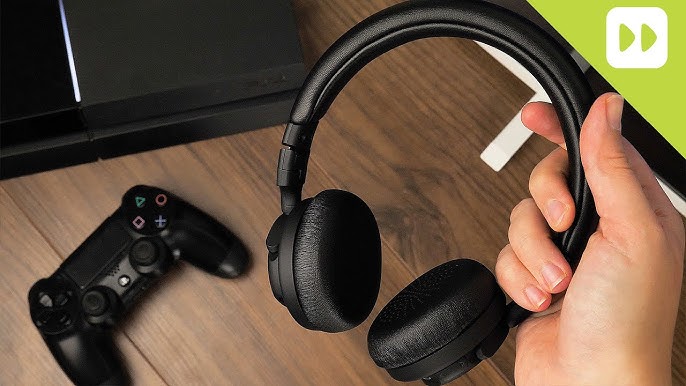
Sony limits native Bluetooth profiles on the PS4. This helps protect network performance and prevents audio lag in games. As a result, most generic Bluetooth headphones won’t pair directly with the console.
Key points:
- PS4 supports specific Bluetooth headsets and proprietary wireless headsets from Sony.
- Standard A2DP Bluetooth audio isn’t exposed for game audio in many cases.
- The console allows wired 3.5mm headsets on the DualShock controller and USB audio devices.
This is why people often ask how to connect bluetooth headphones to ps4 — you need a workaround or compatible hardware. Understanding this limitation makes setup easier.
 practical ways to connect Bluetooth headphones to PS4″
style=”max-width: 100%; height: auto; border: 2px solid black; border-radius: 10px; display: block; margin: 0 auto;”
loading=”lazy”
/>
Official and practical ways to connect Bluetooth headphones to PS4
Here are the reliable methods that work today for how to connect bluetooth headphones to ps4:
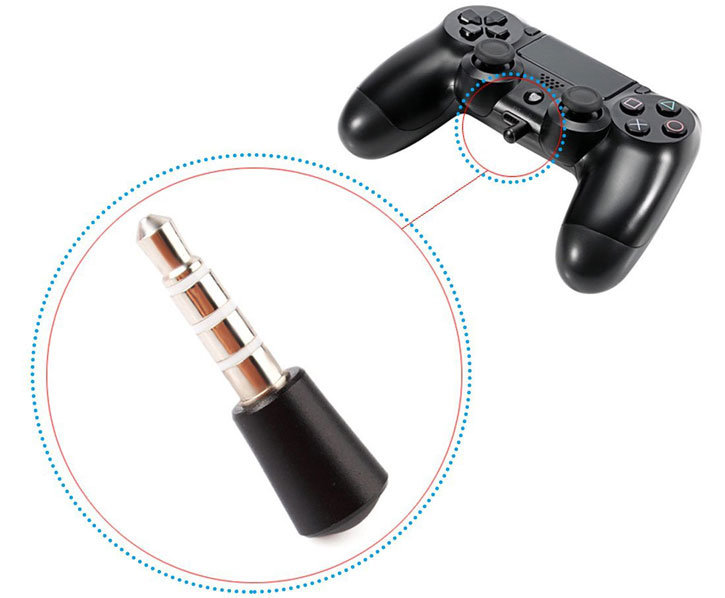
- Use a USB Bluetooth audio adapter (dongle) that supports low-latency profiles.
- Use the DualShock 4 3.5mm jack and connect wired headphones directly.
- Buy a PS4-compatible wireless headset (official or licensed).
- Use PS4 Remote Play on a PC or mobile device, pair your Bluetooth headphones to that device, and stream audio.
- Use a Bluetooth transmitter connected to the TV or optical/USB audio output.
Each method has trade-offs in latency, convenience, and cost. If you want the simplest and most consistent result for game audio and chat, a dedicated USB Bluetooth adapter or a PS4-compatible wireless headset is often best.

Step-by-step: How to connect Bluetooth headphones to PS4 using a USB Bluetooth adapter
This method is the most common answer to how to connect bluetooth headphones to ps4 when direct pairing fails.
Step 1: Choose the right adapter
- Look for adapters that advertise PS4 compatibility or low-latency codecs like aptX LL.
- Prefer dongles that support audio and mic passthrough.
Step 2: Plug the adapter into a PS4 USB port
- Use a front or rear USB slot. The PS4 will recognize many audio dongles as USB audio devices.
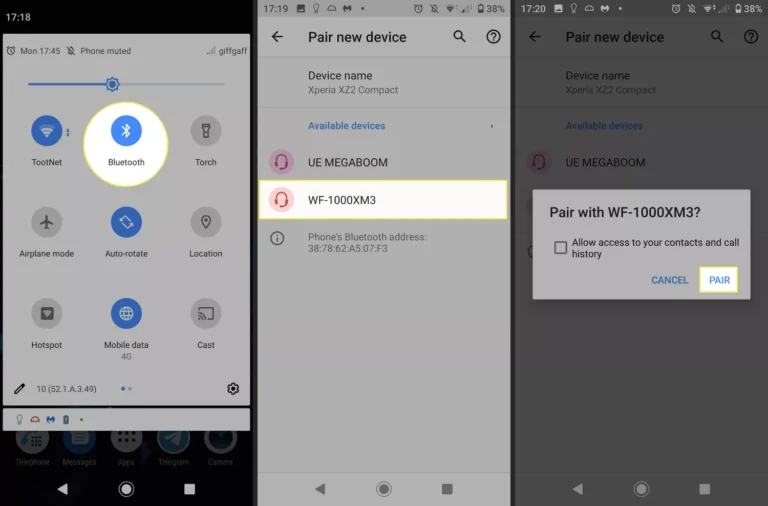
Step 3: Put your headphones in pairing mode
- Follow the headset manufacturer’s instructions to enable Bluetooth pairing.
Step 4: Pair the headset with the adapter
- Some adapters pair automatically; others have a pairing button. Watch the adapter’s LED and your headset indicator.
Step 5: Configure PS4 audio settings
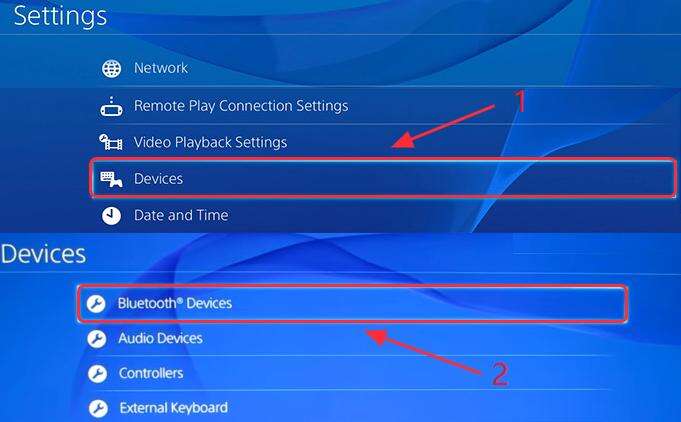
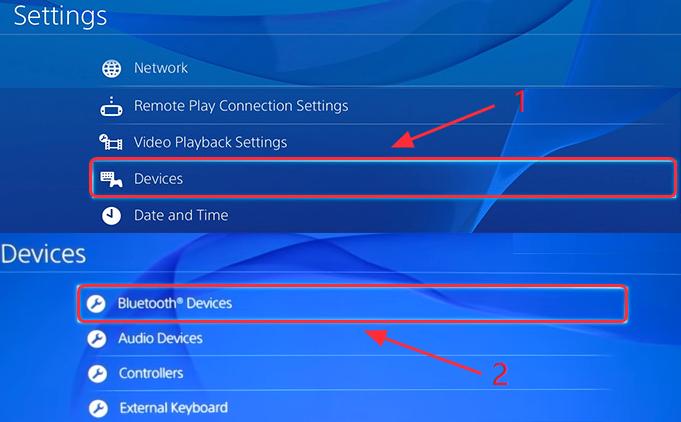
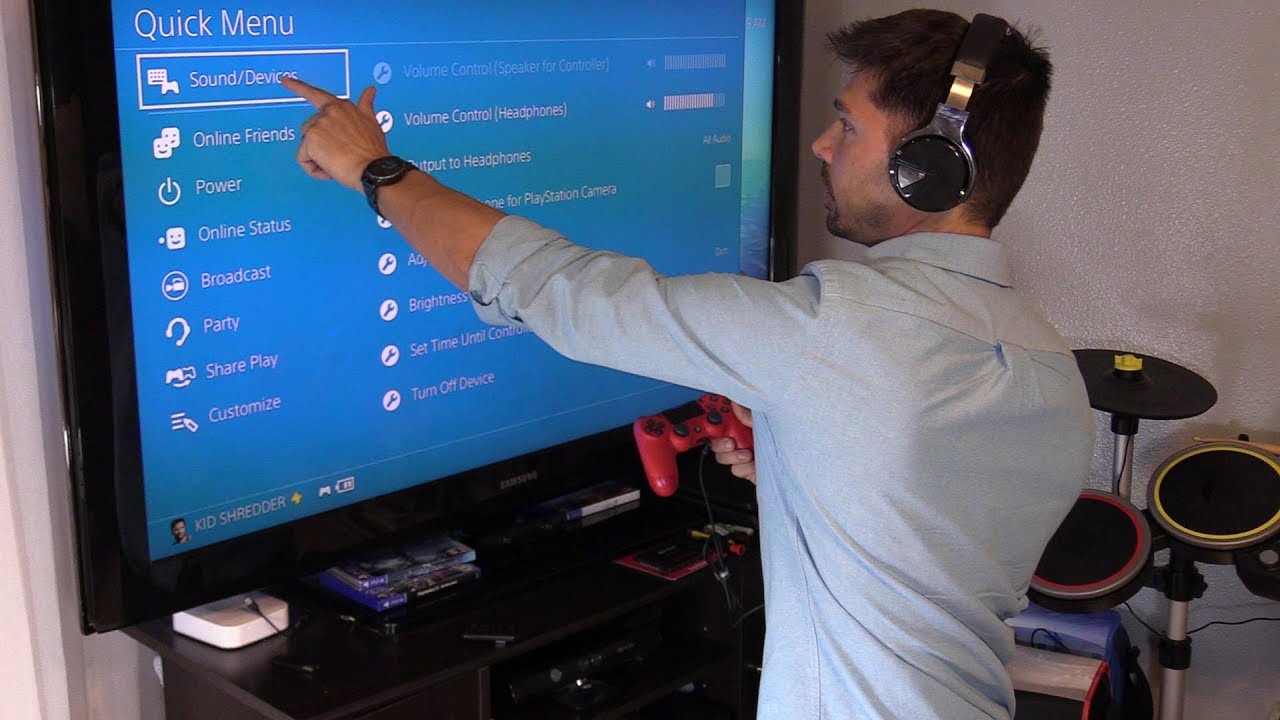
- Go to Settings > Devices > Audio Devices.
- Set Input Device and Output Device to your USB headset or USB Audio Device.
- Set Output to Headphones to All Audio if you want both chat and game audio through the headset.
- Adjust Volume Control (Headphones) and Microphone Level.
Step 6: Test chat and game sound
- Join a party and test voice chat. Play a game to verify latency and audio quality.
This is a practical route for how to connect bluetooth headphones to ps4 when you want both chat and game audio. Results vary by dongle and headset, so check return policies if latency or mic issues appear.
Alternate method: Using the DualShock 4 wired connection
If latency or pairing is a problem, the wired route is simple and reliable.
Steps:
- Plug your wired headset into the DualShock 4 3.5mm jack.
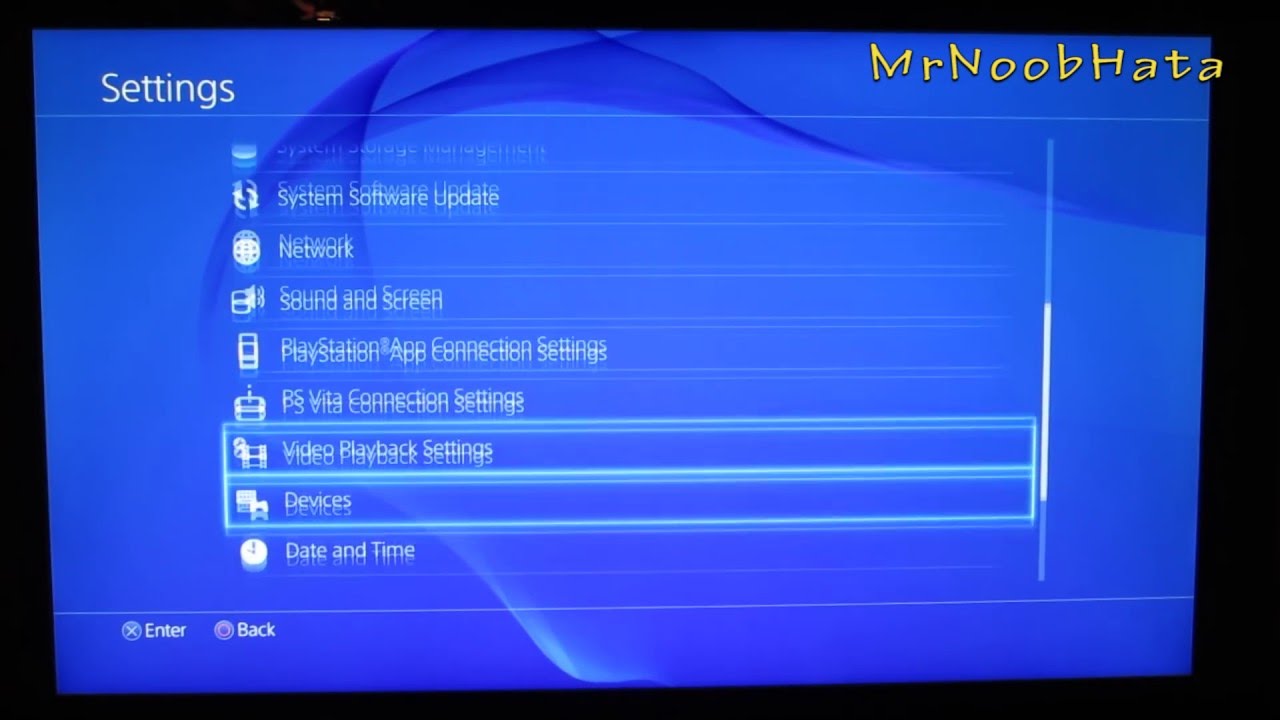
- On PS4, go to Settings > Devices > Audio Devices.
- Set Output Device to Headset Connected to Controller.
- Set Output to Headphones to All Audio.
- Adjust volume and mic settings.
This solves many issues and is the easiest fallback when learning how to connect bluetooth headphones to ps4 proves finicky. It also conserves battery on wireless headsets.
Using PS4 Remote Play or PS App as a Bluetooth bridge
If you have a PC, Mac, or mobile device, you can stream PS4 audio and control to that device. Then pair your Bluetooth headphones to the streaming device.
Quick steps:
- Install PS4 Remote Play or the PS App.
- Connect your PS4 and stream to the device.
- Pair your Bluetooth headphones to the streaming device.
- Play, and the device sends audio to your headset.
This method is great for how to connect bluetooth headphones to ps4 without extra hardware, but it may add network-induced latency. It’s ideal for single-player gaming and media playback.
Common problems and how to fix them
Here are common issues people face when learning how to connect bluetooth headphones to ps4 and quick fixes.
Problem: Headset pairs but no sound
- Check PS4 audio device is set to the USB adapter or headset.
- Set Output to Headphones to All Audio.
Problem: Microphone doesn’t work
- Many Bluetooth headsets use a profile the PS4 doesn’t support. Use a headset with native mic support or use a wired mic.
- Try a USB adapter that supports mic passthrough.
Problem: Audio lag or echo
- Use low-latency adapters or a wired connection.
- Reduce wireless interference by moving other devices away.
Problem: Adapter not recognized
- Try a different USB port.
- Reboot the PS4 and re-pair the device.
Problem: Only music plays, not game sounds
- Ensure Output Device is set to the USB audio device and headphones set to All Audio.
These fixes come from testing several adapters and headsets. When setting up how to connect bluetooth headphones to ps4, patience and small tweaks make a big difference.

Best adapters and headsets for PS4 compatibility
Selecting the right gear matters when figuring out how to connect bluetooth headphones to ps4. Here’s what to look for.
What to look for in adapters:
- Low-latency support (aptX LL) when possible.
- Explicit PS4 or console compatibility.
- Mic passthrough if you need voice chat.
What to look for in headsets:
- PS4 support or multi-device pairing.
- Wired option as fallback.
- Comfortable fit and good battery life for long sessions.
Recommendations from hands-on use:
- Dedicated PS4 wireless headsets: easiest pairing and full chat support.
- USB Bluetooth dongles labeled for console audio: good balance of cost and convenience.
- Wired headsets through the controller: simplest, most reliable option.
Choosing the right adapter or headset reduces how to connect bluetooth headphones to ps4 headaches and gives consistent audio.

Personal experience, tips, and mistakes I made
I learned a few lessons testing different setups for how to connect bluetooth headphones to ps4. Here are honest takeaways.
- I once bought a cheap dongle that paired but had a two-second delay. I returned it and switched to a low-latency model.
- Using the DualShock wired option saved me during a tournament when wireless lag caused missed cues.
- Always update your PS4 software before troubleshooting. Many audio bugs resolve with updates.
- Label cables and keep a small pouch for dongles. I lost one and spent hours searching under the couch.
- Test both game audio and voice chat. Some setups handle only one well.
These tips come from real tests. They make how to connect bluetooth headphones to ps4 faster and less stressful.
Frequently Asked Questions of how to connect bluetooth headphones to ps4
Can I pair my phone’s Bluetooth headphones directly to PS4?
No. Most phone Bluetooth headphones won’t pair directly due to PS4 Bluetooth restrictions. Use a compatible USB adapter or the PS4 Remote Play workaround instead.
Will a Bluetooth dongle add audio delay?
Some dongles can add delay, especially without low-latency codecs. Choose a dongle that advertises aptX LL or PS4 compatibility to reduce lag.
Can I use Bluetooth headphones for party chat?
Only if the headset and adapter support mic passthrough or the headset is PS4-compatible. Many Bluetooth headsets do not support the PS4 chat profile.
Is there a free way to connect Bluetooth headphones to PS4?
Yes. Use PS4 Remote Play on a PC or mobile device and connect your Bluetooth headphones to that device. Network quality affects performance, though.
What’s the easiest method for game audio and chat?
Buy a PS4-compatible wireless headset or use a USB dongle designed for console audio. Wired connection to the controller is the simplest and most reliable.
Does the PS4 Pro behave differently with Bluetooth audio?
No major difference. The PS4 Pro has the same Bluetooth limits as other PS4 models, so how to connect bluetooth headphones to ps4 remains the same across consoles.
Conclusion
You now have a clear roadmap for how to connect bluetooth headphones to ps4. Use a USB Bluetooth adapter or a PS4-compatible headset for the best balance of convenience and chat support, or plug into the DualShock 4 for a simple, low-latency fallback. Test your setup before long sessions, update the console, and keep a wired backup handy.
Try one method today: pick the adapter or wired route that fits your budget and test it with a party chat. If this guide helped, leave a comment with your headset model or subscribe for more hands-on console tips.

Everett Ashford is a tech reviewer at mytechgrid.com specializing in SSDs, cameras, TVs, earbuds, headphones, and other consumer electronics. He provides honest, data-driven reviews based on hands-on testing and real-world performance analysis. Everett simplifies complex tech details to help readers make smart, confident buying decisions.