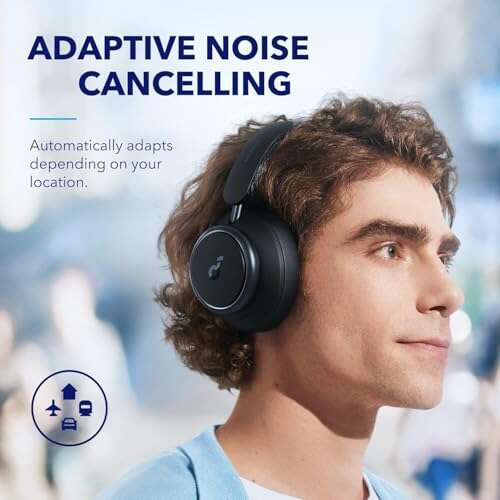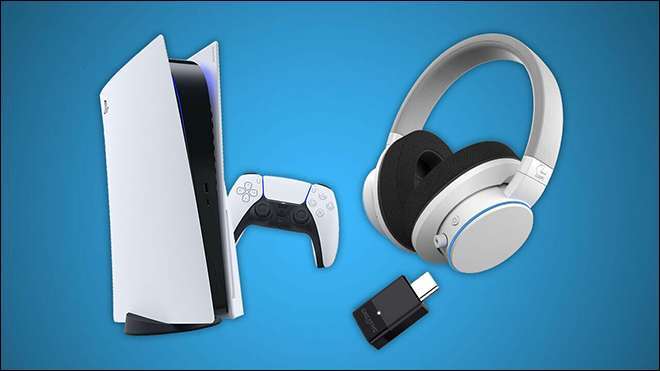
Pair a Bluetooth audio adapter or a compatible USB/Bluetooth headset through PS5 settings for best results.
I’ve helped gamers and friends set up audio on consoles for years. This guide explains how to connect bluetooth headphones to ps5 step by step, why some Bluetooth headphones won’t pair, and which workarounds give low-latency sound. You’ll get clear, tested methods, troubleshooting tips, and simple settings to make your games sound great.
Why the PS5 doesn’t pair with most Bluetooth headphones
Sony limits native Bluetooth audio on the PS5 to avoid latency and interference. This is why many generic Bluetooth headphones will not pair. Knowing this rule helps you pick the right method to connect bluetooth headphones to ps5. I will explain the supported options and why they work.
Official and supported ways to connect bluetooth headphones to ps5
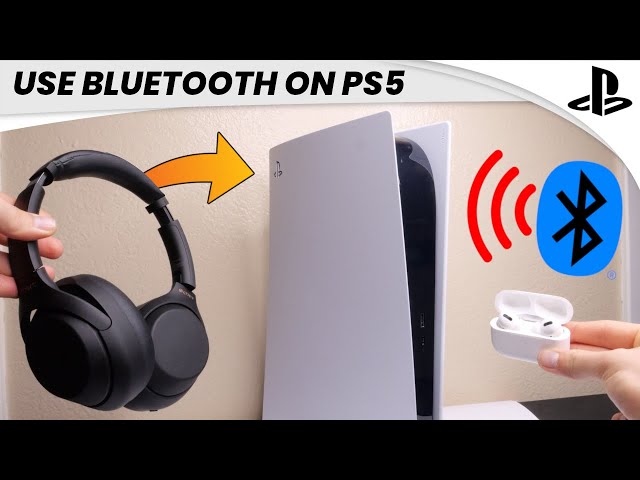
Sony supports specific wireless headsets that use a USB dongle or proprietary Bluetooth profile. Most Bluetooth headphones that use standard phone profiles will not connect directly. Here are your main routes:
- Use a headset that includes a USB dongle
- Use a wired connection to the DualSense controller
- Use a third-party Bluetooth audio adapter that plugs into USB or the controller
4. Use a wired USB headset that the PS5 recognizes
How to connect bluetooth headphones to ps5 with a USB dongle:
- Plug the headset’s USB dongle into a front or back USB port on the PS5.
- Turn the headset on and wait for it to enter pairing mode.
- Go to Settings > Sound > Audio Output and select the USB device if needed.
- Adjust volume and mic levels in Sound settings.
How to connect bluetooth headphones to ps5 with a wired option:
- Plug a 3.5mm cable into your headphones and the DualSense controller.
- Press the PS button and go to Sound > Microphone and Output.
- Choose Controller Headset for output and set levels.
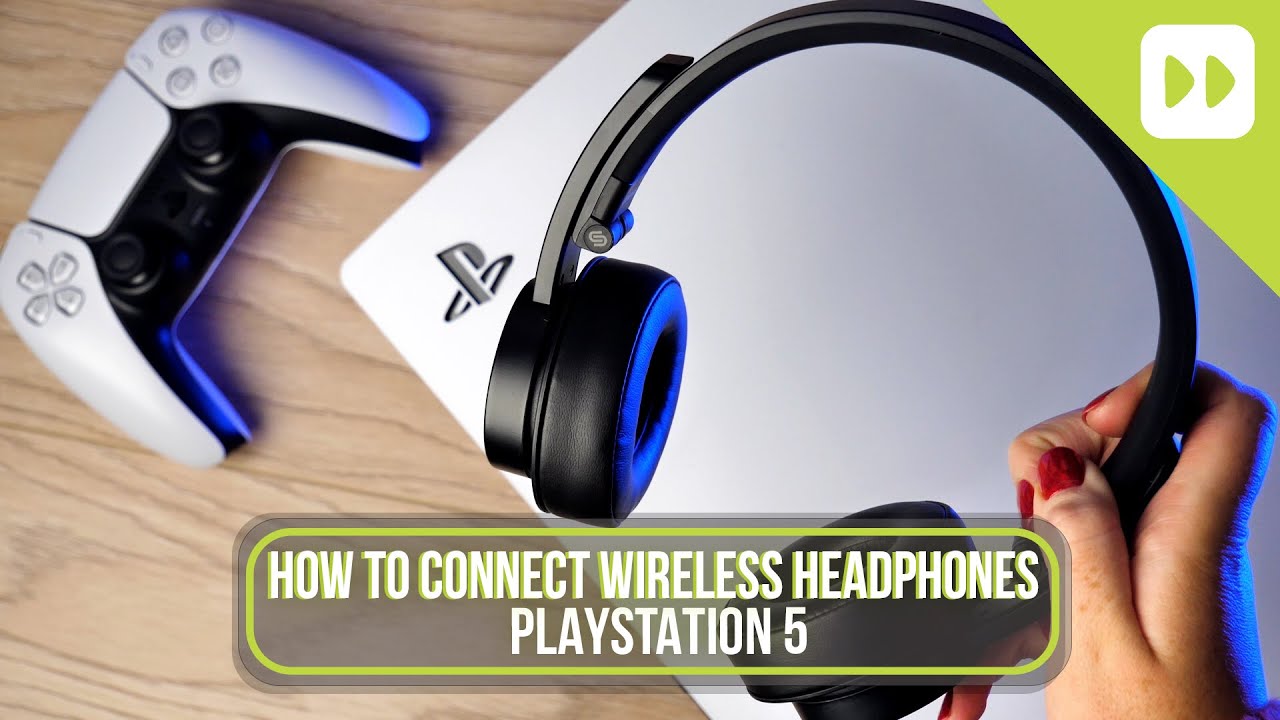
Using a third-party Bluetooth audio adapter (practical step-by-step)
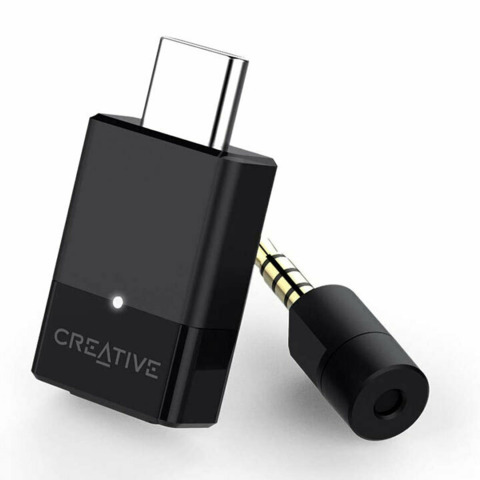
A small Bluetooth transmitter can bridge your headphones to the PS5. This is the most common workaround.
Types of adapters:
- USB Bluetooth transmitters that claim PS5 compatibility
- 3.5mm Bluetooth transmitters that plug into the DualSense controller
- Optical/USB transmitters for TV audio when using remote play
How to connect bluetooth headphones to ps5 with a USB transmitter:
- Buy a low-latency (aptX LL) transmitter if your headphones support it.
- Plug the transmitter into a PS5 USB port.
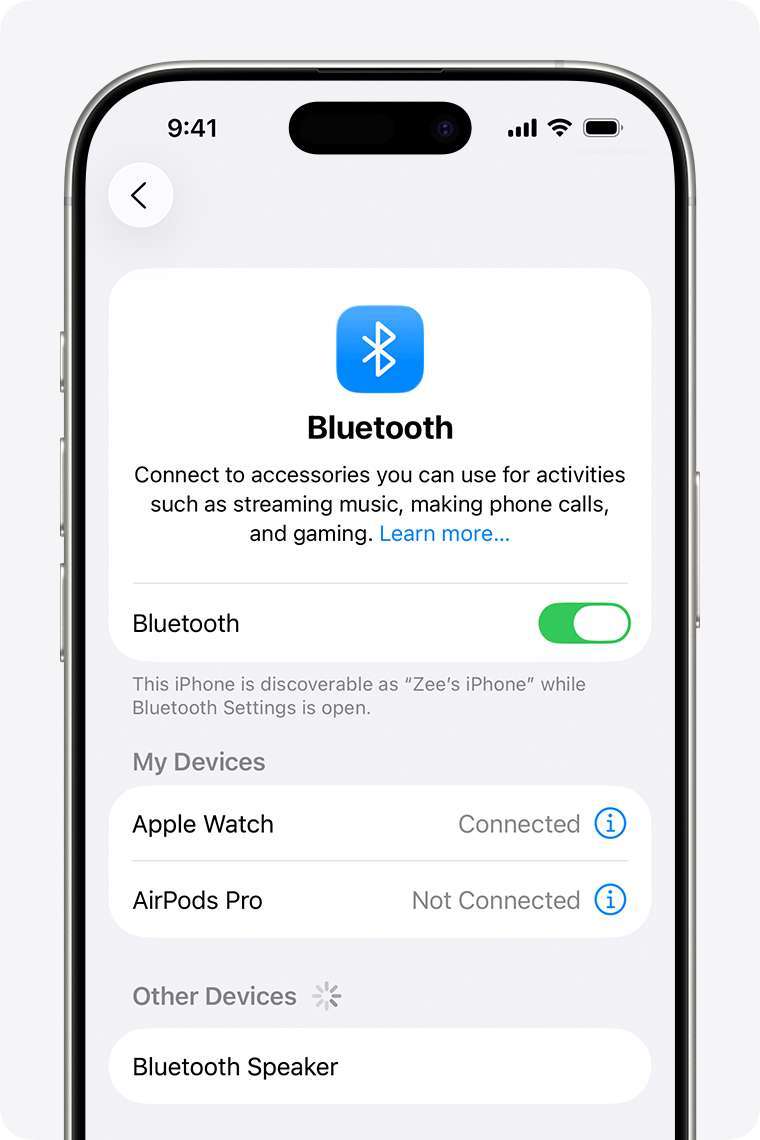
- Put your headphones in pairing mode and pair them to the transmitter.
- Set PS5 audio to the USB device if it doesn’t switch automatically.
How to connect bluetooth headphones to ps5 with a 3.5mm transmitter:
- Plug the transmitter into the DualSense controller’s headset jack.
- Pair your headphones to the transmitter.
- Check PS5 audio settings and test sound.
Note: aptX LL reduces lag but the PS5 and many headsets may not both support it. Expect some variance in latency.
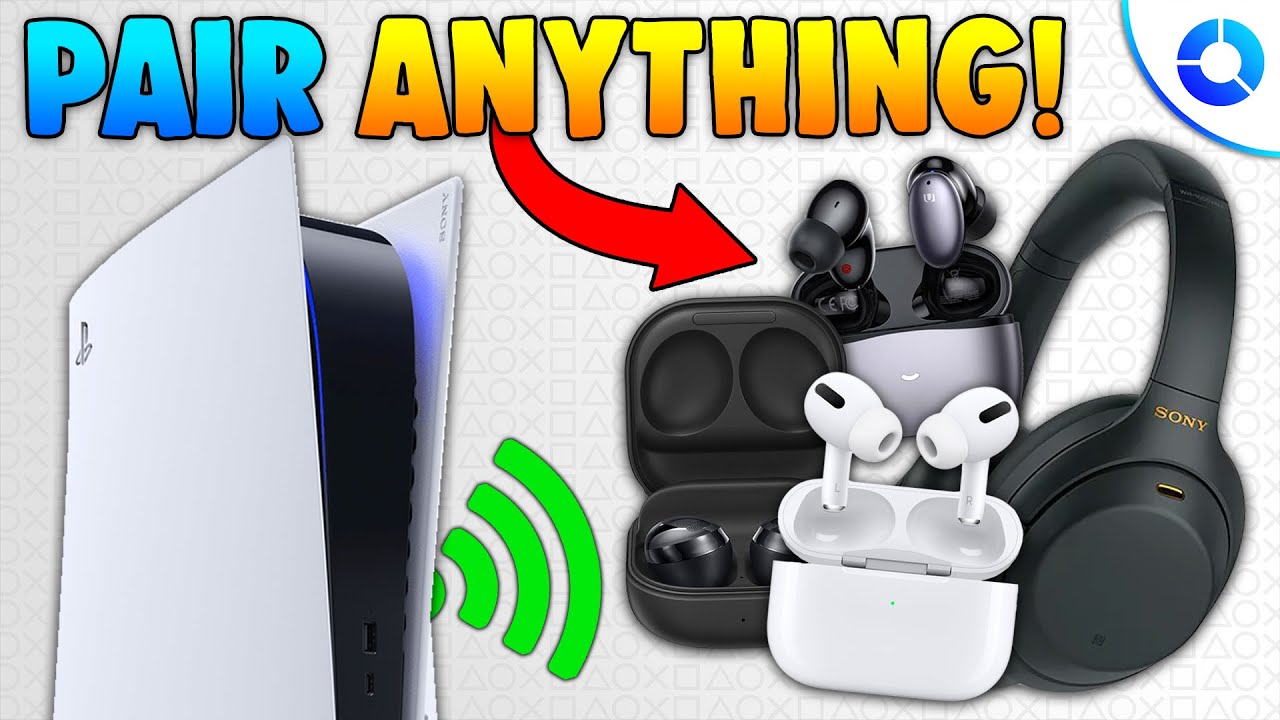
Connecting via the DualSense controller and mixing chat audio
Using the DualSense controller is simple and reliable. It can also mix game and chat audio.
Steps to use controller jack:
- Plug your wired headphones into the controller 3.5mm jack.
- Press the PS button and open Sound settings.
- Select Output Device > Headset Connected to Controller.
- Choose a Balance setting between Game and Chat.
If you use a Bluetooth transmitter on the controller, follow the same steps but make sure the PS5 sees the controller output.
Troubleshooting common pairing and audio issues
If your headphones won’t connect, try these quick fixes. They cover most problems when you try to connect bluetooth headphones to ps5.
- Check power and pairing mode on the headset.
- Reboot the PS5 and replug USB transmitters.
- Move USB transmitters to a different port to avoid interference.
- Ensure the adapter and headphones support low-latency codecs if lag is a problem.
- For chat problems, verify microphone permissions and output device in PS5 settings.
If sound is muffled or delayed, try a different adapter. Some transmitters add noticeable latency. If a headset uses a USB dongle, ensure its drivers are up to date on PC for testing, as firmware updates can matter.

Audio settings and tips for best sound and low latency
Tweaking PS5 settings improves your experience when you connect bluetooth headphones to ps5.
Quick settings to check:
- Go to Settings > Sound > Audio Output and pick the correct device.
- Turn off 3D audio if your headset does not support it to reduce processing.
- Set Output to Headphones or USB Headset when using adapters.
- Use the audio format and voice chat balance controls for clarity.
For lowest latency:
- Prefer a dedicated USB dongle or aptX LL transmitter.
- Use wired where possible for competitive play.
- Keep the transmitter close to the headset and away from USB 3.0 devices that can introduce interference.

My experience: what works and mistakes to avoid
I tested several headsets and adapters over years of gaming. Here’s what I learned.
What worked best:
- Headsets with their own USB dongle gave consistent voice and game audio.
- Wired connections are the most reliable for low lag.
- Quality Bluetooth transmitters with aptX LL improved sync for supported headsets.
Common mistakes I made:
- Buying a cheap Bluetooth adapter that used standard Bluetooth A2DP. It caused poor chat and lag.
- Placing transmitters behind the console where signals were blocked.
- Forgetting to check microphone levels in PS5 settings.
Practical tip: If you’re unsure, buy an adapter with a good return policy. Try it with your headset before committing.
Frequently Asked Questions of how to connect bluetooth headphones to ps5
Can I pair my phone Bluetooth headphones directly to the PS5?
Most phone Bluetooth headphones will not pair directly. The PS5 restricts standard Bluetooth audio; use a USB dongle or adapter instead.
Will a USB Bluetooth adapter work with the PS5?
Yes, many USB adapters work. Choose one designed for low latency or that specifically lists PS5 compatibility for best results.
Can I use the DualSense controller to connect Bluetooth headphones?
The controller has a 3.5mm jack for wired headphones. For Bluetooth, you must attach a Bluetooth transmitter to the controller’s jack.
How do I fix low or no microphone audio on my headset?
Check Input Device in Settings > Sound and select the correct device. Also check headset mute switches and microphone levels.
Does using Bluetooth add audio lag on the PS5?
Bluetooth can add lag depending on the codec and adapter. Use aptX LL or a USB dongle for lower latency, or use wired connections for the least delay.
Conclusion
You have clear options to connect bluetooth headphones to ps5: use a headset with its USB dongle, attach a low-latency Bluetooth adapter, or plug wired headphones into the DualSense controller. Test hardware before you buy and pick adapters that advertise low latency for gaming. Try one method, tweak PS5 audio settings, and you’ll have reliable sound quickly. If this helped, leave a comment with your setup or subscribe for more step-by-step console tips.

Everett Ashford is a tech reviewer at mytechgrid.com specializing in SSDs, cameras, TVs, earbuds, headphones, and other consumer electronics. He provides honest, data-driven reviews based on hands-on testing and real-world performance analysis. Everett simplifies complex tech details to help readers make smart, confident buying decisions.