Put your Bose headphones in pairing mode, open Bluetooth on the new device, and select the headphones.
I’ve paired dozens of Bose headphones with phones, laptops, and TVs. This guide shows step-by-step instructions, real troubleshooting tips, and clear examples for how to connect Bose headphones to new device across iPhone, Android, Windows, Mac, and smart TVs. You’ll get fast wins, fixes for common problems, and my own lessons from testing Bose models in real life. Read on to pair quickly and keep them connected.

Quick checklist before you pair
Make sure both devices are ready before you start. This saves time and stops simple errors.
- Charge your Bose headphones at least 20 percent so they don’t cut out while pairing.
- Turn off other nearby Bluetooth devices or disable their Bluetooth to avoid interference.
- Make sure the new device’s Bluetooth is on and visible.
- Update the phone, laptop, or TV OS if possible; new updates fix many Bluetooth bugs.
- Note the model name of your Bose headphones so you can follow model-specific steps.

Step-by-step: how to connect bose headphones to new device (Bluetooth)
These are simple steps that work for most Bose models like QuietComfort and Headphones 700. Follow them slowly.
- Turn on your Bose headphones.
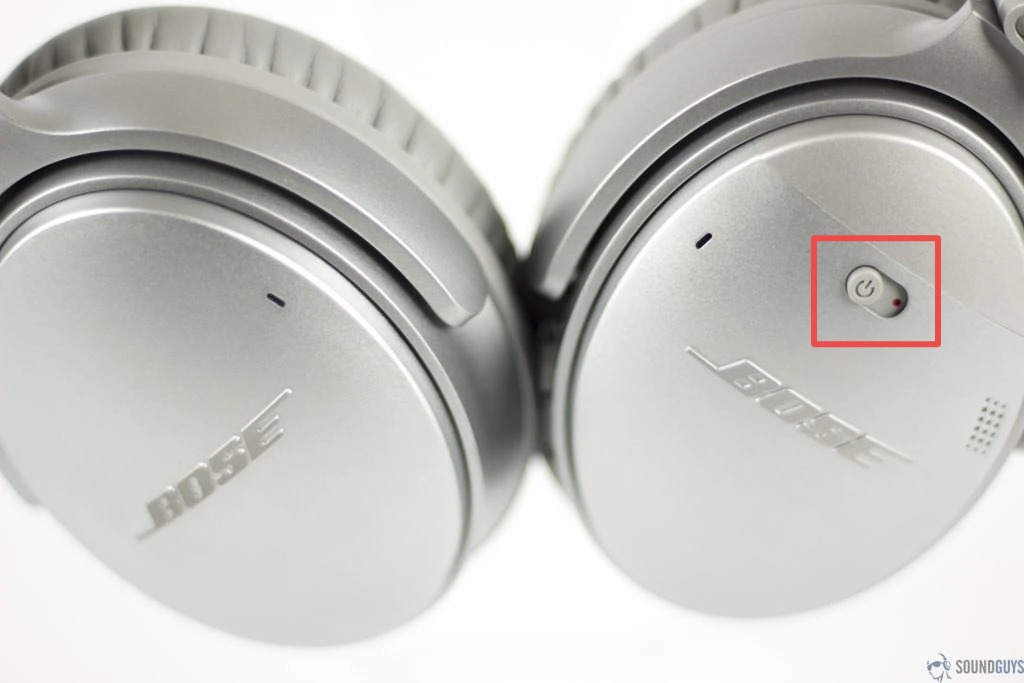
- Put the headphones in pairing mode. For most Bose models, press and hold the power/Bluetooth button until the LED blinks blue or you hear “Ready to pair.”
- Open Bluetooth settings on the new device.
- Look for the Bose model name under available devices.
- Tap the name to connect. You may hear a confirmation beep or voice prompt.
- Test audio and mic. Play a song and speak into the mic if you need voice calls.
If the device asks for a PIN, try 0000 or 1234. Most modern Bose models pair without a PIN.
how to connect bose headphones to new device — iPhone and iPad
Apple devices pair fast and usually auto-switch between devices linked to the same Apple ID.
- Open Settings > Bluetooth and toggle it on.
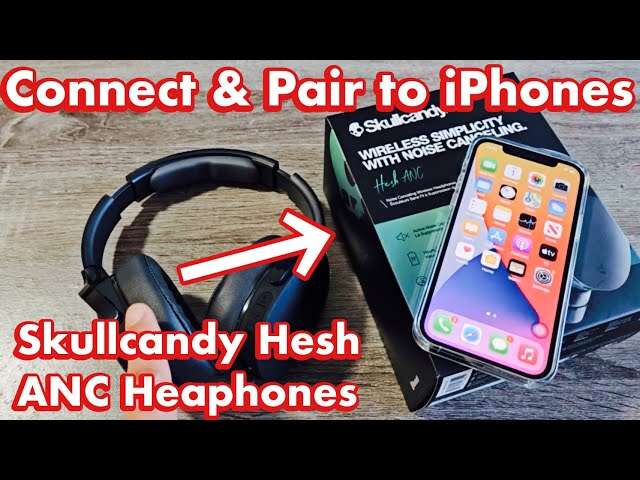
- Put your Bose headphones in pairing mode, then tap the Bose name in the list.
- For AirPlay-style switching, use Control Center > audio output to switch to Bose.
If you use iCloud and have multiple Apple devices, enable automatic device switching in the Bose app for smoother transitions. This helps when you want audio to move from iPhone to iPad without re-pairing.
how to connect bose headphones to new device — Android
Android steps vary by phone, but the core flow is the same.
- Open Settings > Connections > Bluetooth (or similar) and turn it on.
- Put your Bose headphones in pairing mode.
- Tap the Bose name when it appears.
- For Android phones with fast-pair, confirm the prompt to pair.
If your Android device keeps reconnecting to an old headphone, forget the old device in Bluetooth settings first. I once spent 15 minutes troubleshooting until I remembered to clear the old pairing list.

how to connect bose headphones to new device — Windows and Mac
Pairing to computers is slightly different but simple.
For Windows:
- Open Start > Settings > Devices > Bluetooth & other devices.
- Turn on Bluetooth and select Add Bluetooth or other device.
- Choose Bluetooth and select the Bose name.
For Mac:
- Open System Settings > Bluetooth.
- Turn on Bluetooth, then click Connect next to your Bose headphones.
If audio or mic doesn’t work on Windows, set the Bose device as the default playback and recording device in Sound settings. On Mac, check Sound preferences for input and output selection.
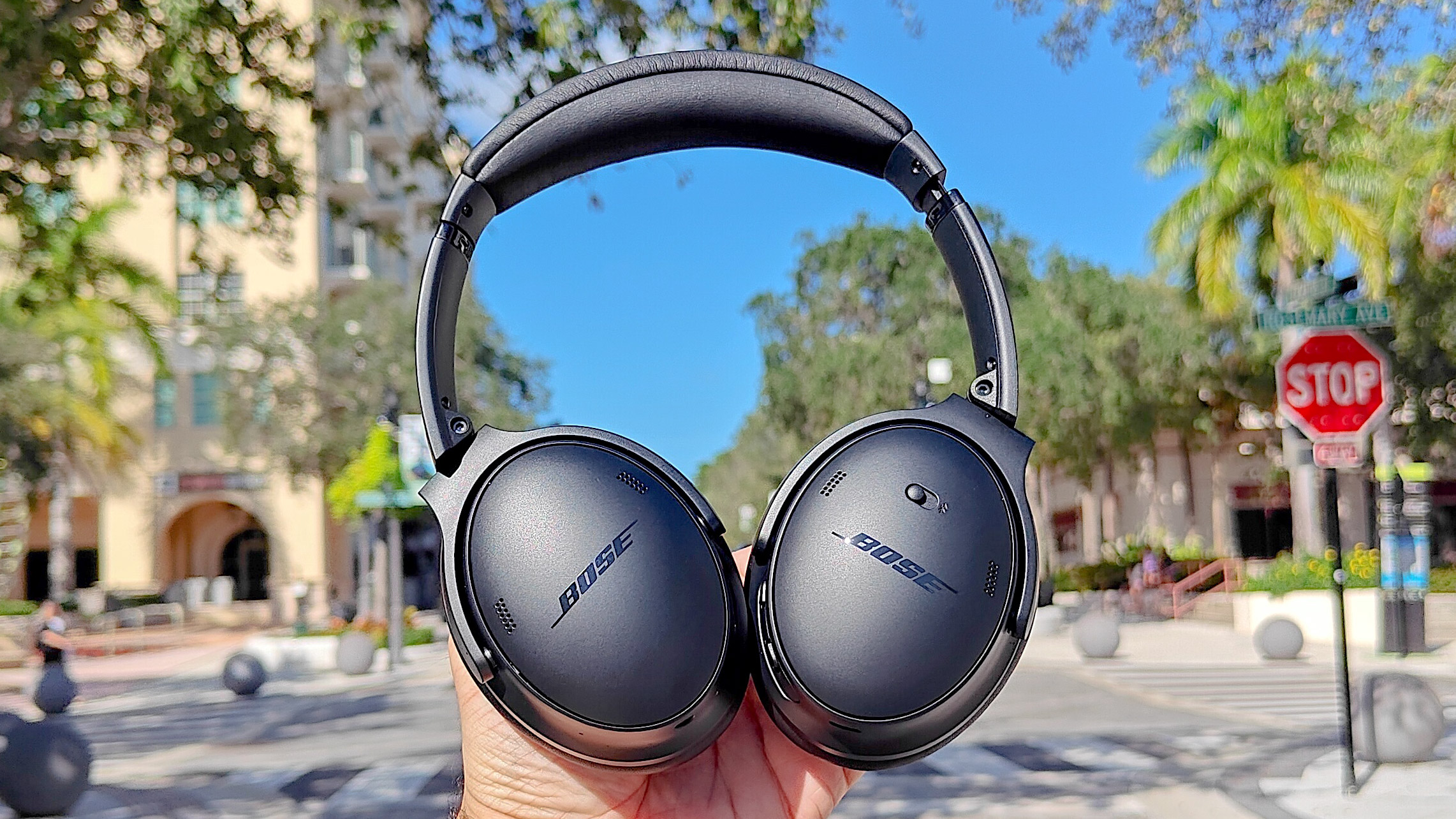
how to connect bose headphones to new device — smart TVs and streaming boxes
Some TVs need manual pairing; others support Bluetooth directly.
- Put headphones in pairing mode.
- Open your TV’s Bluetooth or sound settings and search for devices.
- Select the Bose headphones to pair.
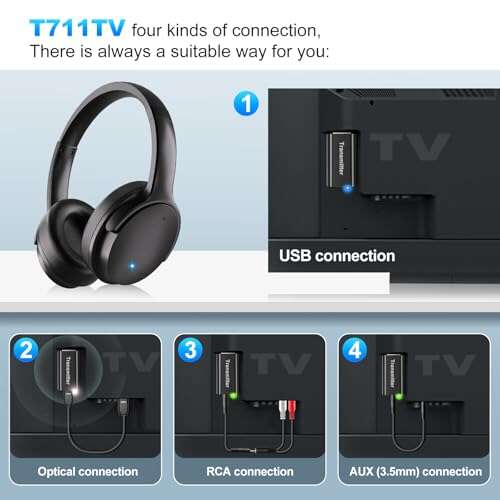
If your TV lacks Bluetooth, use a Bluetooth transmitter plugged into the TV’s audio out. I’ve used a small transmitter to pair Bose headphones to older TVs with great success.
Wired connections and USB options
Not every device needs Bluetooth. Wired connections can be the most reliable.
- Use the included audio cable for models with a 3.5mm jack.
- For USB-C or USB audio, connect the cable and choose the headphone output in device settings.
- Some Bose models support direct USB audio on computers; select the device in sound preferences.
Wired use saves battery and avoids pairing steps, and it’s my go-to when I want no lag during video calls.
Using the Bose Music app and Bose Connect
The apps add features and simplify device management.
- Download the Bose Music or Bose Connect app on your phone.
- Use the app to add or switch devices, update firmware, and adjust settings.
- The app often detects pairing issues and offers guided fixes.
I’ve learned that keeping firmware updated via the app reduces random disconnects and improves battery performance.
Troubleshooting: common pairing issues and fixes
If pairing fails, try these quick fixes. They fix most problems.
- Restart both the headphones and the new device.
- Forget the headphones in Bluetooth settings and re-pair from scratch.
- Move closer to the device and remove physical obstructions.
- Reset the headphones to factory settings (check your model manual for steps).
- Update device firmware and the Bose app.
If you still have problems, test the headphones with another device to isolate whether the issue is the headphones or the new device.
Best practices and tips for stable connections
Small habits keep your connection strong and battery healthy.
- Keep software and firmware updated.
- Charge regularly and avoid letting battery drop to zero often.
- Limit the number of actively paired devices if your model struggles to switch.
- Use wired mode for long flights or when you need zero lag.
- Note that heavy interference can come from crowded Bluetooth environments and microwave ovens.
I once fixed repeated drops by updating both phone and headphone firmware. Simple updates often solve complex problems.
Frequently Asked Questions of how to connect bose headphones to new device
How do I put my Bose headphones in pairing mode?
Press and hold the power or Bluetooth button until the LED flashes blue or you hear a “ready to pair” prompt. The exact button and light pattern vary slightly by model.
What if my new device does not see the Bose headphones?
Make sure the headphones are in pairing mode, turn Bluetooth off and on on the device, and move closer. If that fails, forget other paired devices and try again.
Why do my Bose headphones connect but have no sound?
Check that the headphones are set as the audio output in the device’s sound settings. Also verify media volume and try restarting the app or device.
Can I connect Bose headphones to two devices at once?
Some Bose models support multipoint and can connect to two devices simultaneously, but not all models do. Check your model specs and use the Bose app to manage multipoint connections.
How do I reset my Bose headphones to factory settings?
Reset steps depend on the model, but usually involve powering off, holding certain buttons, or using the Bose app. Consult your manual for exact steps and try this only if other troubleshooting fails.
Conclusion
You now have clear, tested steps for how to connect Bose headphones to new device across phones, computers, and TVs. Use pairing mode, keep software updated, and try a wired connection when you need full reliability. Start with the quick checklist and follow the step-by-step pairing for your device type. Try the fixes if you hit problems, and use the Bose app to manage updates and settings. If this helped, leave a comment with your model and device so others can learn, or subscribe for more practical guides.

Everett Ashford is a tech reviewer at mytechgrid.com specializing in SSDs, cameras, TVs, earbuds, headphones, and other consumer electronics. He provides honest, data-driven reviews based on hands-on testing and real-world performance analysis. Everett simplifies complex tech details to help readers make smart, confident buying decisions.