Power on earbuds, enable Bluetooth, and pick the Bose device in your phone’s Bluetooth list.
I’ve spent years testing and helping people connect wireless audio gear. This guide walks you through how to connect bose wireless earbuds step by step. You’ll get clear instructions for iPhone, Android, Windows, and Mac. You’ll learn resets, firmware tips, and the exact fixes I use when earbuds won’t pair. Read on and you’ll have a fast, reliable connection in minutes.
Preparing your earbuds and device
Before pairing, ready both sides. This reduces fuss and saves time. Follow these simple checks for how to connect bose wireless earbuds.
- Make sure earbuds and case are charged. Low battery stops pairing.
- Close any active audio apps on your device. They can block Bluetooth.
- Turn off other Bluetooth devices nearby to avoid interference.
- Install the Bose Music app on your phone for firmware and guided pairing. The app often fixes odd pairing quirks.
If you’re about to pair older Bose models, check the manual briefly. Some models use different button combos for pairing. Preparing right helps pairing go smoothly.
Step-by-step pairing guide (iPhone and iPad)
Pairing on iOS is usually the fastest way to connect. Follow these steps for how to connect bose wireless earbuds to an iPhone or iPad.
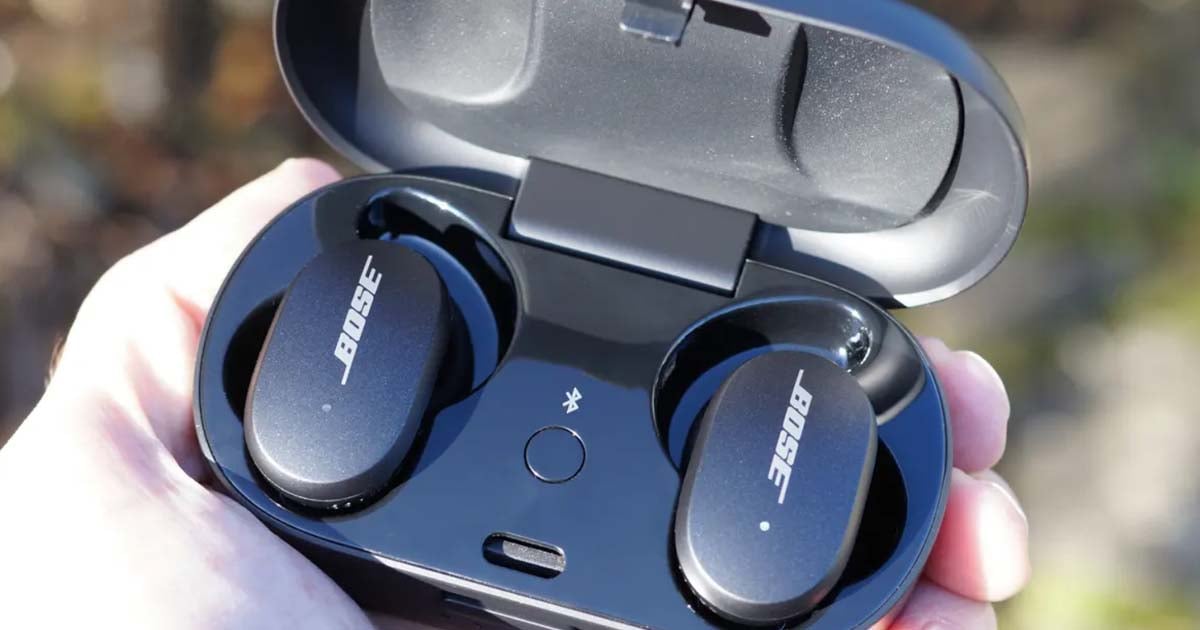
- Put earbuds in the case and open the lid. Keep them near your device.
- On your iPhone, go to Settings > Bluetooth. Keep that screen open.
- Remove earbuds from the case or press and hold the power/pair button on the earbuds until the LED flashes. This enters pairing mode.
- Look for a device name like "Bose QuietComfort Earbuds" in Bluetooth. Tap it to pair.
- Confirm any prompts. Allow permissions if the Bose app asks for them.
If you use the Bose Music app, it may guide you through setup and install firmware automatically. Repeat these steps if the initial attempt fails.
Step-by-step pairing guide (Android)
Android phones can vary by maker. These steps cover most Android devices and show how to connect bose wireless earbuds.
- Charge and power the earbuds. Place them near the phone.
- Open Settings > Connections > Bluetooth or Settings > Bluetooth.
- Put earbuds into pairing mode by removing them from the case or holding the power button until the LED flashes.
- Find the Bose name in the available devices list and tap to connect.
- Open the Bose Music app if prompted to finish setup or update firmware.
If your phone supports Fast Pair, a prompt may appear when the earbuds are close. Tap the prompt for quicker setup.
Pairing with Windows and Mac
Pairing on a computer is quick. Here’s how to connect bose wireless earbuds to Windows and Mac.
Windows
- Open Settings > Bluetooth & devices > Add device > Bluetooth.
- Put earbuds in pairing mode. Choose the Bose device from the list.
- Confirm pairing and set the earbuds as the default audio device if needed.
Mac
- Open System Settings > Bluetooth.
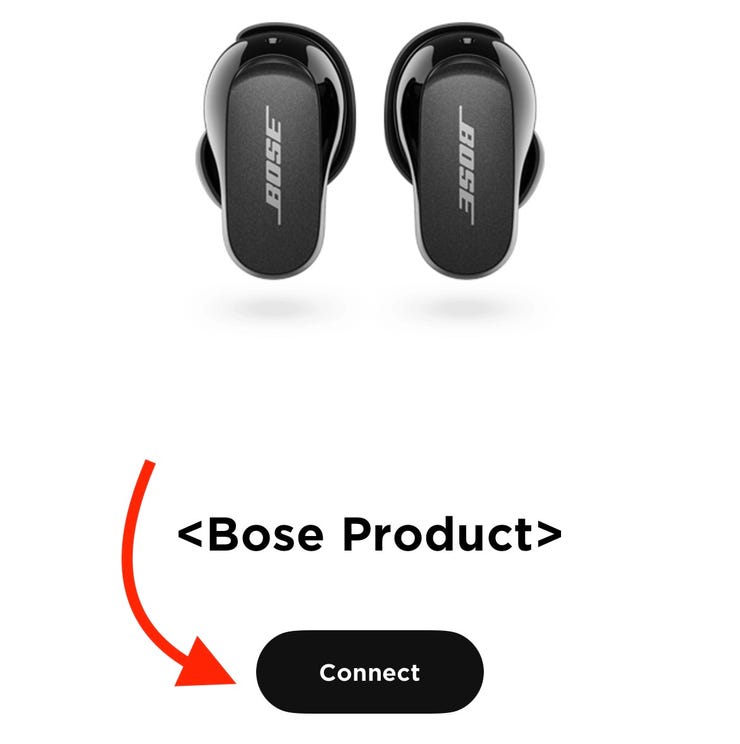
- Put earbuds in pairing mode. Click Connect next to the Bose entry.
- Set sound output in System Settings > Sound.
If your computer shows audio dropouts, try updating Bluetooth drivers on Windows or restarting Bluetooth on Mac.
Reset and factory pairing methods
When earbuds fail to connect, a reset often fixes things. These reset steps cover most Bose models. Learning them helps when troubleshooting how to connect bose wireless earbuds.
- Soft reset
- Place earbuds back in the case and close the lid for 30 seconds. Re-open and try pairing.
- Factory reset (general)
- Remove earbuds from all paired devices in Bluetooth settings.
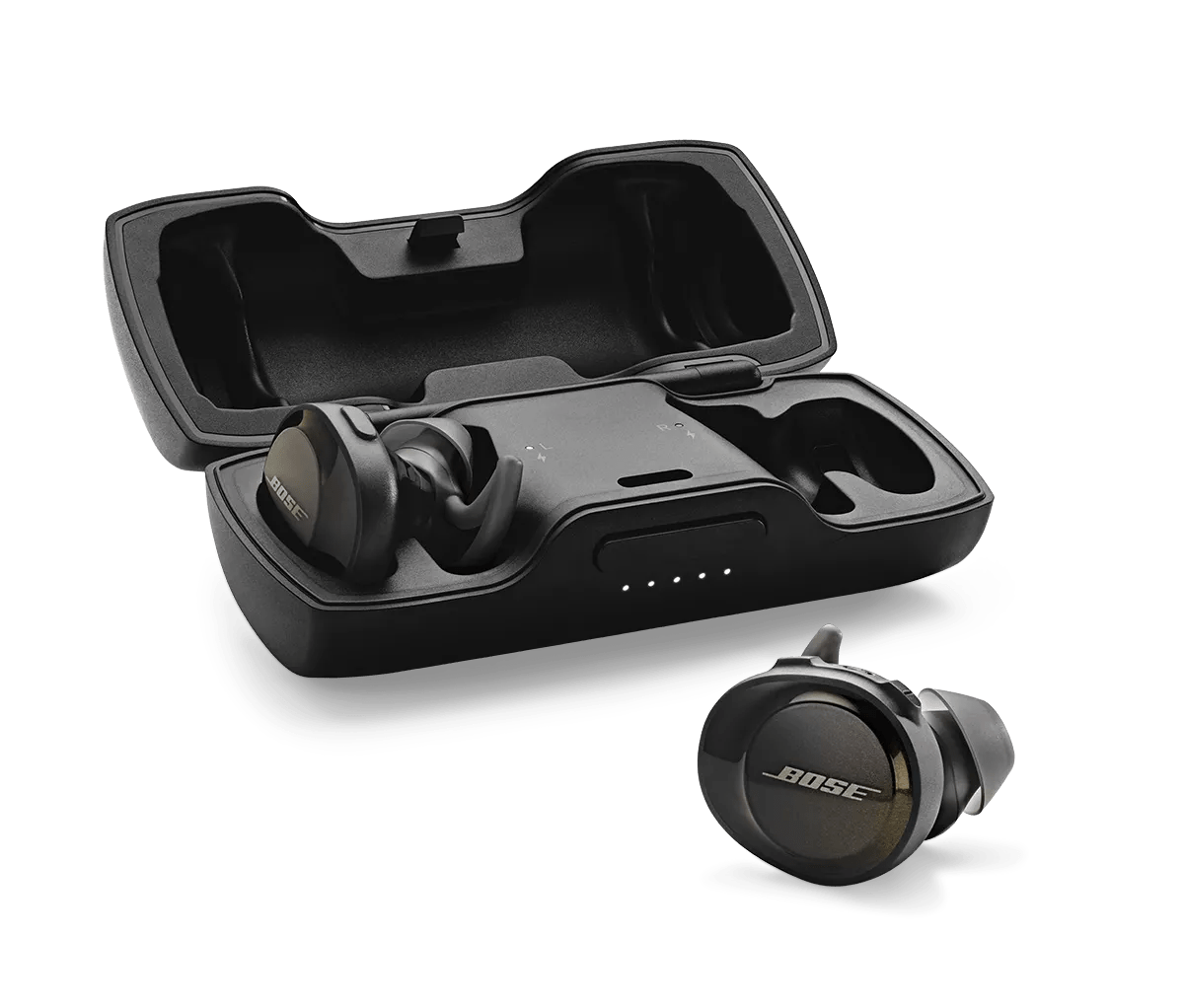
- Place earbuds in the case and hold the case button (or follow model-specific steps) until the LED flashes multiple times.
- Re-pair as a new device.
Model-specific resets vary. If a general reset fails, check the manual or the Bose app for the exact button sequence.

Firmware updates and the Bose Music app
Keeping firmware updated fixes bugs and improves Bluetooth stability. This helps when learning how to connect bose wireless earbuds the first time.
- Install the Bose Music app on iOS or Android.
- Open the app and follow prompts to add your earbuds.
- If an update is available, the app will guide the install. Keep earbuds in the case and plugged in while updating.
I’ve seen firmware fixes stop recurring drops and speed pairing. Always update before extensive troubleshooting.

Troubleshooting common connection problems
Problems happen. Here are clear fixes for typical issues when you try to connect. These steps target the real causes and save time when how to connect bose wireless earbuds doesn’t work.
- Earbuds not showing in Bluetooth list
- Ensure earbuds are in pairing mode and charged. Restart your phone’s Bluetooth. Reset earbuds if needed.
- Paired but audio not playing
- Check device sound output. Reconnect in Bluetooth settings. Restart the audio app.
- One earbud only works
- Place both earbuds in the case and close it. Wait 30 seconds, then reinsert and pair again. Update firmware.
- Frequent dropouts
- Move closer to your device. Turn off Wi‑Fi or other Bluetooth devices that may interfere. Update firmware and drivers.
- Can't pair to another device
- Unpair from the current device. Use the Bose app to remove device links or perform a factory reset.
If problems persist, contact support or test earbuds with another phone to isolate the issue.

Multi-point pairing and switching devices
Some Bose earbuds support multi-point, letting you connect to two devices at once. This helps if you switch between phone and laptop.
- Check the specs for your model to see if multi-point is supported.
- Use the Bose app to enable or manage multi-point where available.
- If your earbuds support multi-point, you can answer calls on your phone while listening to music on a laptop. The switching is usually automatic.
If you need to switch devices manually, turn off Bluetooth on the current device, then connect using the new one. This method is reliable when automatic switching fails.
Tips, best practices, and real-life lessons
I’ve paired and fixed dozens of Bose earbuds. These are the practical tips I follow. They help when thinking about how to connect bose wireless earbuds in everyday life.
- Keep the Bose Music app installed for updates and troubleshooting tools.
- Store earbuds in a cool, dry place. Heat and moisture can change Bluetooth behavior.
- Charge both earbuds regularly. Uneven charge often causes one earbud to drop.
- When trying a new phone, forget the earbuds on the old phone first. This clears device conflicts.
- If you travel, carry a small cable for firmware updates or a power bank for the case.
One time I thought a pair was dead. A firmware update via the app fixed it. Small steps often solve big problems.
Security and privacy notes
Bluetooth pairing is secure but you should still be mindful. These simple steps protect your data and devices when you connect.
- Accept pairing requests only from devices you own. Unknown prompts may be malicious.
- Keep firmware updated to get security fixes.
- Remove pairing from lost or sold devices immediately.
Practicing these habits reduces risk and keeps your audio secure.
PAA-style quick questions
Q: How long does pairing take?
A: Pairing usually takes 10–30 seconds once the earbuds are in pairing mode.
Q: Will firmware updates erase my audio settings?
A: Updates rarely erase settings. Still, note your preferences before updating.
Q: Can I use Bose earbuds with non-Bluetooth devices?
A: Not directly. You can use a Bluetooth adapter for non-Bluetooth devices to connect.
Q: Do Bose earbuds work with voice assistants?
A: Yes. Most models support Siri, Google Assistant, and Alexa via the Bose app or in-device button.
Q: How often should I update firmware?
A: Update when prompts appear. Regular updates keep performance and security sharp.
Frequently Asked Questions of how to connect bose wireless earbuds
How do I put my Bose earbuds into pairing mode?
Hold the power button or open the case with earbuds out. Watch for a flashing LED or listen for a voice prompt indicating pairing mode.
Why won't my phone find my Bose earbuds?
Make sure the earbuds are in pairing mode and charged. Turn Bluetooth off and on on your phone and remove nearby Bluetooth interference.
How do I update my Bose earbuds' firmware?
Install the Bose Music app, add your earbuds, and follow the in-app prompts to update while the case is charged.
Can I connect my Bose earbuds to two devices at once?
Some Bose models support multi-point. Check your model specs and enable multi-point in the Bose app if available.
What if only one earbud connects?
Place both earbuds in the case, close it, then reinsert them. If the issue persists, perform a reset and update firmware.
How do I unpair and reset my Bose earbuds?
Forget the earbuds on your device’s Bluetooth list. Then perform the model-specific factory reset by following the manual or Bose app instructions.
Are Bose earbuds compatible with older Bluetooth versions?
Yes. Bose earbuds are backward compatible, but older Bluetooth versions may have limited range or features.
Conclusion
You now have clear, practical steps for how to connect bose wireless earbuds across phones, tablets, and computers. Start with simple checks: charge, enable pairing mode, and use the Bose Music app for firmware and guidance. When things go wrong, reset and update before replacing hardware. Try the tips above and you’ll cut setup time and avoid common errors. Want better audio and fewer issues? Give these steps a try, update firmware, and leave a comment with your model if you need help.

Everett Ashford is a tech reviewer at mytechgrid.com specializing in SSDs, cameras, TVs, earbuds, headphones, and other consumer electronics. He provides honest, data-driven reviews based on hands-on testing and real-world performance analysis. Everett simplifies complex tech details to help readers make smart, confident buying decisions.