Pair Bluetooth earbuds in System Settings or plug wired earbuds into the headphone/USB-C port.
I’ve helped dozens of people connect earbuds to MacBooks, and I’ll walk you through every step. This guide explains how to connect earbuds to MacBook for Bluetooth and wired models, covers common issues, and gives practical tips from real-world testing. Read on and you’ll be listening in minutes.
Understanding earbuds, MacBooks, and compatibility
MacBooks handle earbuds in two main ways: wireless via Bluetooth and wired via a headphone jack or a USB-C adapter. Knowing which type of earbuds you have makes the process simple and fast. This section explains the basics and what to check before you start.
Mac models and macOS versions affect menus and names. Newer macOS uses System Settings, older ones use System Preferences. Some MacBooks lack a headphone jack and need an adapter. Knowing this helps when you learn how to connect earbuds to MacBook.

Connecting Bluetooth earbuds to MacBook
Follow these steps to pair most Bluetooth earbuds to your MacBook. These are universal and work for AirPods and many third-party earbuds.
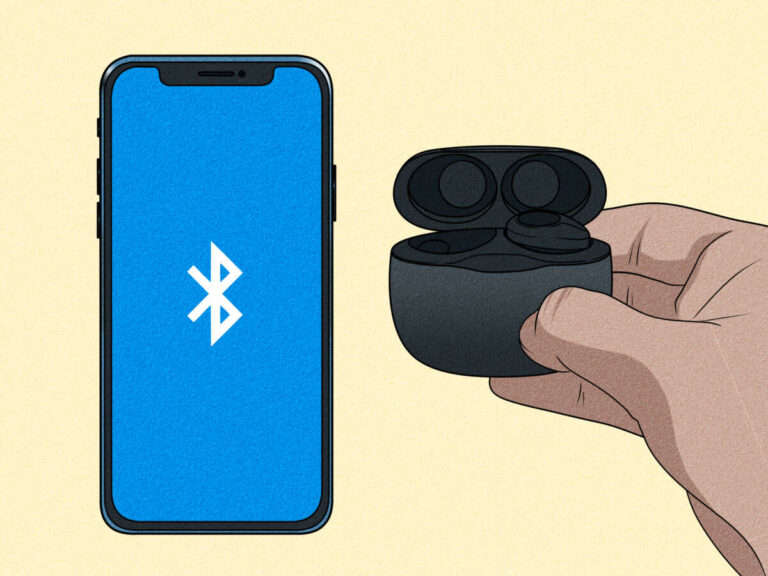
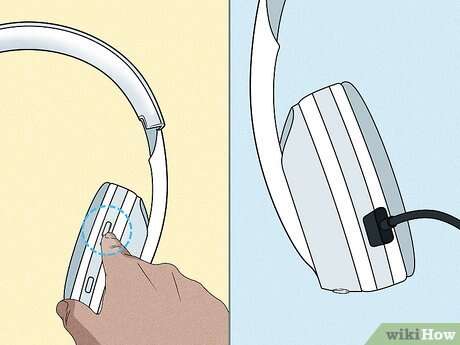
- Turn on your earbuds and put them in pairing mode. The method varies by brand; usually holding the case button or a side button enables pairing.
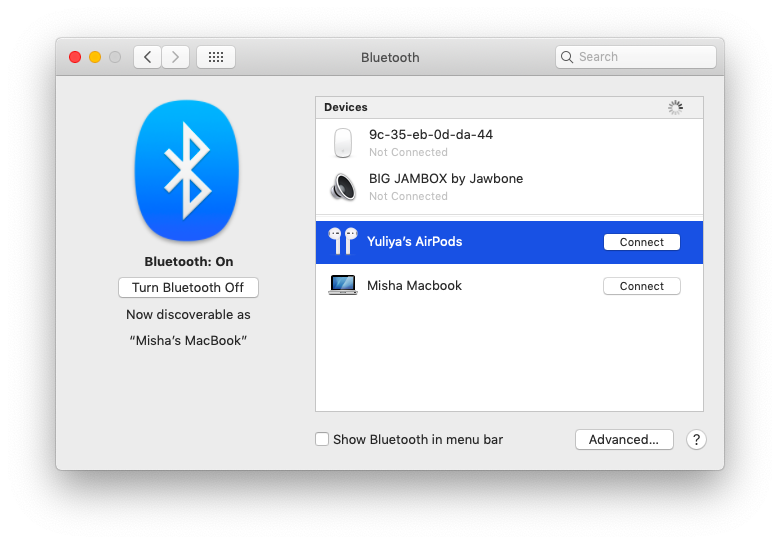
- On your MacBook, open System Settings (or System Preferences on older macOS).
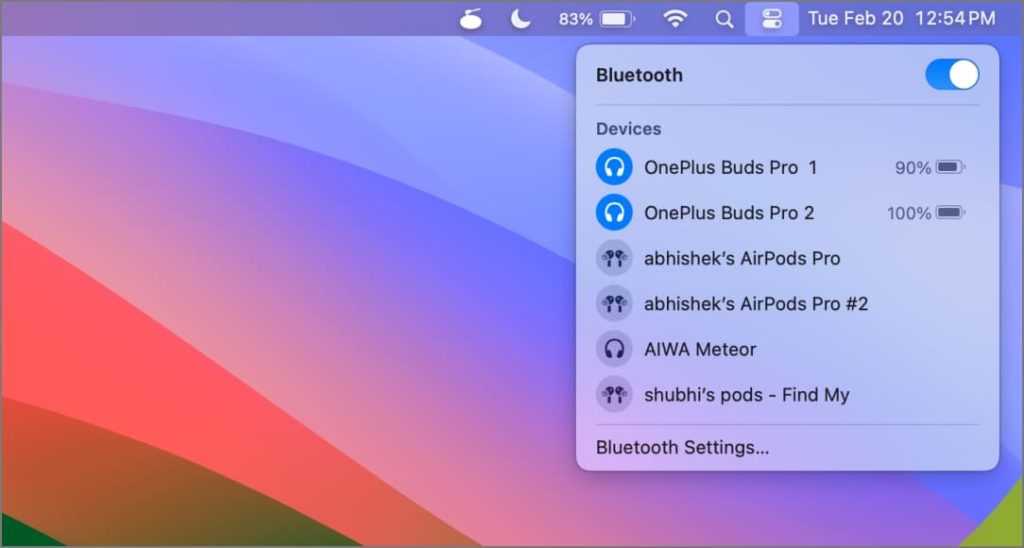
- Select Bluetooth and wait for your earbuds to appear in the device list.
- Click Connect next to the earbuds’ name. If prompted for a code, try 0000 or follow the earbuds’ manual.
- Once connected, choose the earbuds as the output device in Control Center or Sound settings.
If your device is an AirPods model and you use the same iCloud account on the MacBook, they may appear automatically. For other earbuds, manual pairing is typical. If you encounter trouble, reconnecting or removing and re-pairing the device usually fixes things.
How to connect earbuds to MacBook works the same whether you need clear voice calls or music playback. Keep the earbuds close to the Mac and away from other Bluetooth devices during pairing for best results.

Connecting wired earbuds to MacBook
Wired earbuds are often the simplest to use. Here’s how to connect wired earbuds to MacBook depending on the ports available.
- If your MacBook has a headphone jack, plug your earbuds in.
- If your MacBook only has USB-C ports, use a USB-C to 3.5mm adapter, or a USB-C audio adapter, then plug your earbuds.
- If your earbuds are USB-C or Lightning, plug them directly into the matching port.
- After plugging in, go to System Settings > Sound to confirm the Mac recognizes the earbuds as an output device.
For USB audio devices, you may need to select them as input or output in Sound settings. If you hear no sound, try unplugging and re-plugging, testing a different adapter, or testing the earbuds on another device to confirm they work.
Wired setups avoid Bluetooth latency and battery worries, which is useful when recording or gaming. Learning how to connect earbuds to MacBook this way is quick and reliable.

Troubleshooting common connection issues
Even with clear steps, things can go wrong. These quick fixes solve most problems when you try to connect earbuds to MacBook.
- No audio after connection: Check Sound settings and confirm the earbuds are selected as output.
- Earbuds not appearing in Bluetooth: Turn Bluetooth off and on, restart your Mac, and reset the earbuds’ pairing mode.
- Low volume or muffled sound: Make sure the correct audio format is chosen, disable audio enhancements on the earbuds’ companion app, and test a different audio source.
- Microphone not working: Check Input in Sound settings and grant microphone permission for apps in System Settings > Privacy & Security.
- Frequent disconnects: Keep the MacBook and earbuds updated, reduce distance, and remove interfering devices.
If problems persist, update macOS, reset your Mac’s Bluetooth module by turning Bluetooth off and on or removing the device and re-adding it. In rare cases, reinstalling drivers (for third-party USB audio) or contacting the earbuds manufacturer helps.
PAA-style quick Q: Why won’t my earbuds connect to my MacBook? Often because the earbuds aren’t in pairing mode, Bluetooth is off, or the Mac has cached an old connection. Try removing the device and pairing again.
Tips for better sound, latency, and battery life
Once your earbuds are connected, a few tweaks improve sound and endurance. These tips help whether you are learning how to connect earbuds to MacBook for work calls or music.
- Use Higher-Quality Codecs: When possible, enable AAC on the earbuds for better audio with Apple devices.
- Manage Background Apps: Close apps that use audio to reduce processing load and improve stability.
- Turn Off Unused Features: Disable automatic ear detection or spatial audio if they cause glitches.
- Save Battery: Lower the volume and disable always-on voice assistants to extend earbud life.
- Keep Firmware Updated: Earbud firmware updates often fix bugs and improve pairing reliability.
Testing different settings and apps helps. I’ve found that lowering Bluetooth interference in crowded spaces can dramatically reduce skips and dropouts.

Advanced settings and audio routing
MacOS gives you audio routing controls that matter when you connect earbuds to MacBook. These options help with multi-app workflows and recording.
- Open Control Center and click Sound to quickly switch outputs between internal speakers and earbuds.
- Use Sound settings to control input and output volumes independently.
- For apps that use specific devices, check their audio settings (video editors and DAWs often let you choose a dedicated input/output).
- Use Audio MIDI Setup to create aggregate devices or change sample rates for pro audio work.
If you run virtual meetings, make sure both microphone and speaker are set to your earbuds in the meeting app. This avoids echoes and ensures others hear you clearly.

Personal experience, mistakes to avoid, and practical tips
I pair earbuds with MacBooks daily. Here are lessons I learned the hard way that save time and frustration.
- Always check the earbuds’ battery and place them in pairing mode before opening System Settings. That prevents long waits.
- If using an adapter, buy a reputable one. Cheap adapters sometimes fail to pass mic signals.
- Don’t assume auto-pairing will work across devices. Logging into the same iCloud helps, but manual pairing is more reliable.
- Keep a small USB-C to 3.5mm adapter in your bag if you use multiple Macs. It’s a simple life-saver.
One time I spent 30 minutes troubleshooting intermittent audio and found a nearby USB hard drive causing interference. Moving the drive fixed it. Small environment changes can matter more than settings.

Frequently Asked Questions of how to connect earbuds to macbook
How do I pair AirPods with my MacBook?
Open System Settings > Bluetooth, put your AirPods in pairing mode, and click Connect when they appear. If you use the same Apple ID, AirPods may show up automatically.
Why won’t my wired earbuds work with my MacBook’s USB-C ports?
You likely need a USB-C to 3.5mm adapter or a compatible USB-C earbud. Try a known-good adapter and check Sound settings to confirm the Mac recognizes the device.
How do I set my earbuds as the sound output on Mac?
Open Control Center or System Settings > Sound and pick your earbuds under Output. You can also change this per app in some software.
What if my earbuds connect but the mic doesn’t work?
Check Input settings and app microphone permissions in System Settings > Privacy & Security. Some earbuds require a separate driver or app to enable the mic.
How can I fix constant Bluetooth drops with earbuds?
Move closer to the Mac, close interfering devices, update firmware and macOS, and remove and re-pair the earbuds to clear cached issues.
Conclusion
You now have clear, practical steps for how to connect earbuds to MacBook—whether Bluetooth or wired—plus troubleshooting and real-world tips. Start by identifying your earbuds type, follow the pairing or plug-in steps, and use the troubleshooting checklist when needed. Try the tips above to improve sound and avoid common mistakes.
Take action now: pair your earbuds, test a call or song, and leave a comment with your model if you hit a snag. I’ll help you troubleshoot the next step.

Everett Ashford is a tech reviewer at mytechgrid.com specializing in SSDs, cameras, TVs, earbuds, headphones, and other consumer electronics. He provides honest, data-driven reviews based on hands-on testing and real-world performance analysis. Everett simplifies complex tech details to help readers make smart, confident buying decisions.