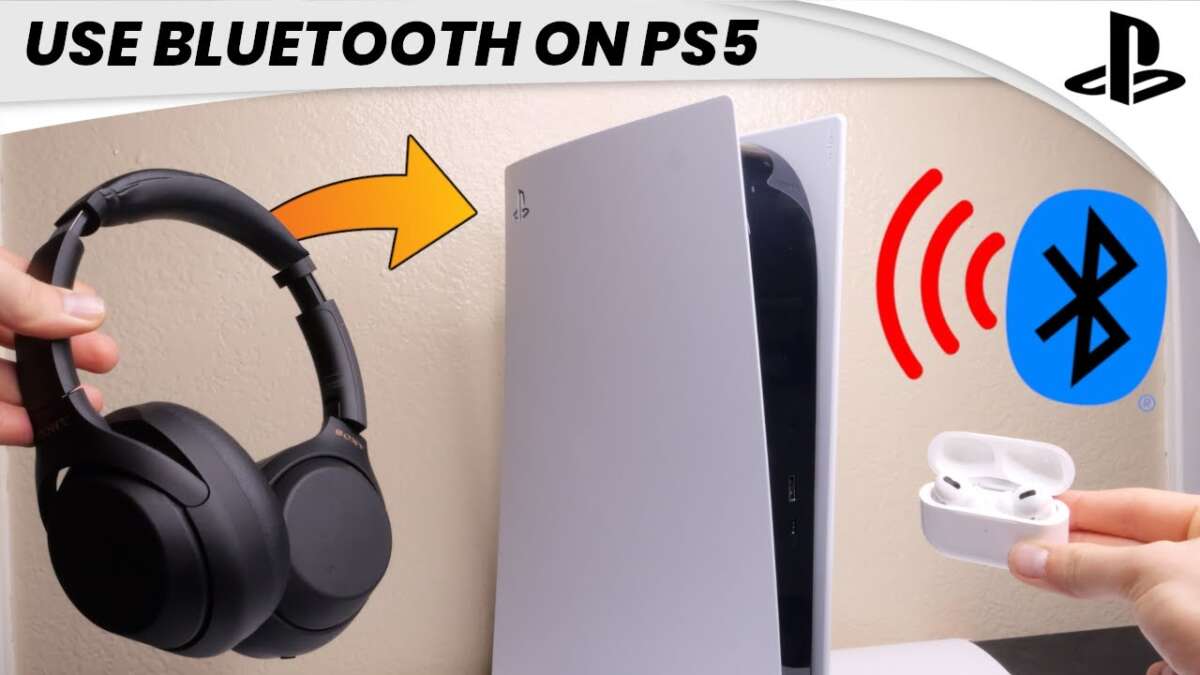
Plug wired earbuds into the DualSense jack or pair Bluetooth earbuds through PS5 settings or a USB dongle.
I’ve helped gamers and wired tens of headsets to consoles, so I know how to connect earbuds to PS5 the right way. This guide walks you through wired hookups, Bluetooth pairing, USB adapters, troubleshooting, and tips to get clear game audio and chat working fast.
Why connect earbuds to PS5 and your options
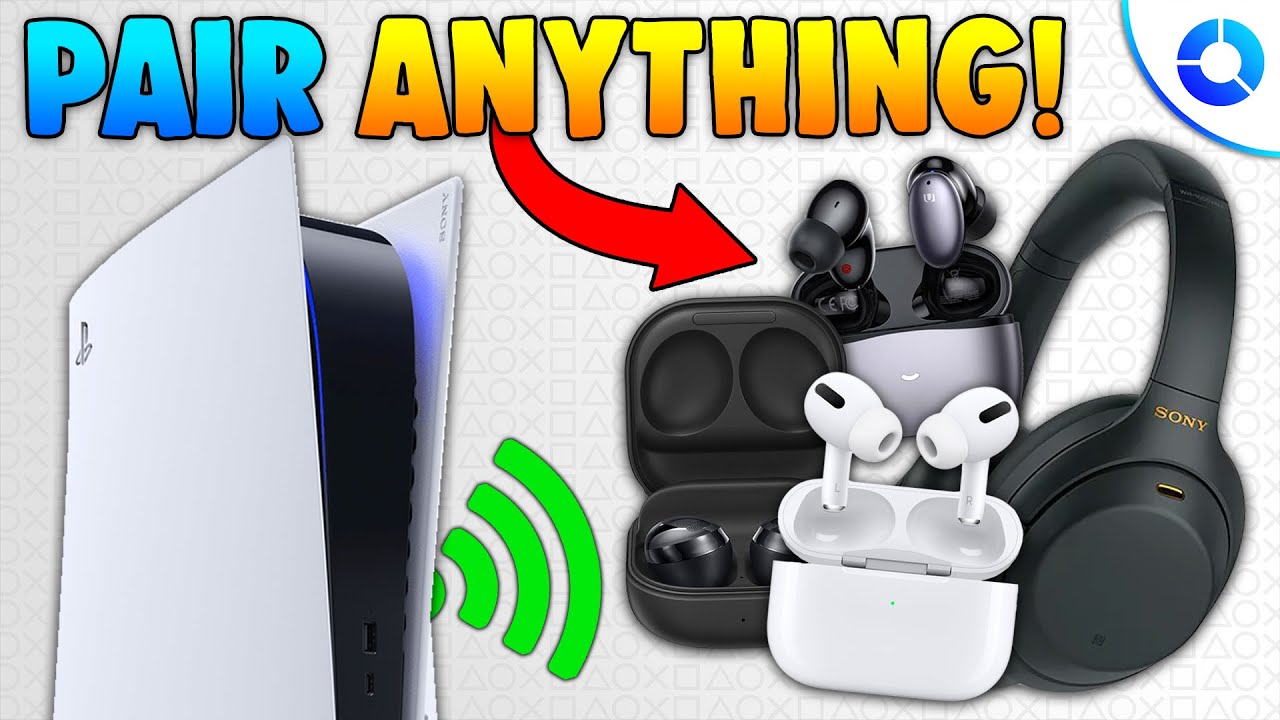
Using earbuds on PS5 gives private game audio and clearer chat. You can use wired earbuds, Bluetooth earbuds, a USB Bluetooth dongle, or the DualSense controller’s 3.5mm jack. Each option has trade-offs in sound quality, latency, and mic support.
- Wired earbuds offer the simplest setup and low latency.
- Native Bluetooth support is limited, so some earbuds won’t pair directly.
- USB adapters can add full Bluetooth audio support.
- Remote Play or TV output are workarounds when direct pairing fails.
How to connect earbuds to PS5 with a wired connection
Wired earbuds are the fastest way to hear in-game sound and use a mic. Follow these steps to plug in and configure your audio.
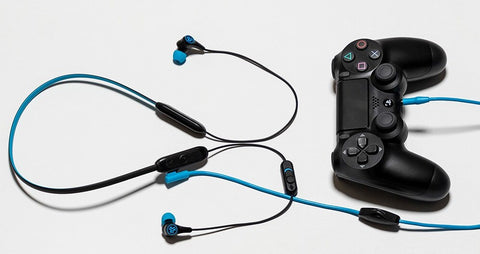
- Plug your earbuds into the DualSense controller 3.5mm jack.
- Press the PS button to wake the console or open the control center.
- Go to Settings > Sound > Audio Output.
- Choose "Controller Headset" or select "Output Device" to route chat and game audio to the controller.
- Adjust Output to Headphones and set the volume and chat mix as needed.
Tips:
- If you use a headset splitter, ensure it supports mic and audio.
- If the mic is not detected, check Settings > Sound > Microphone and select the controller mic.
I use wired earbuds for competitive play because latency is negligible and setup is always reliable. Avoid cheap splitters that don’t carry mic signals.
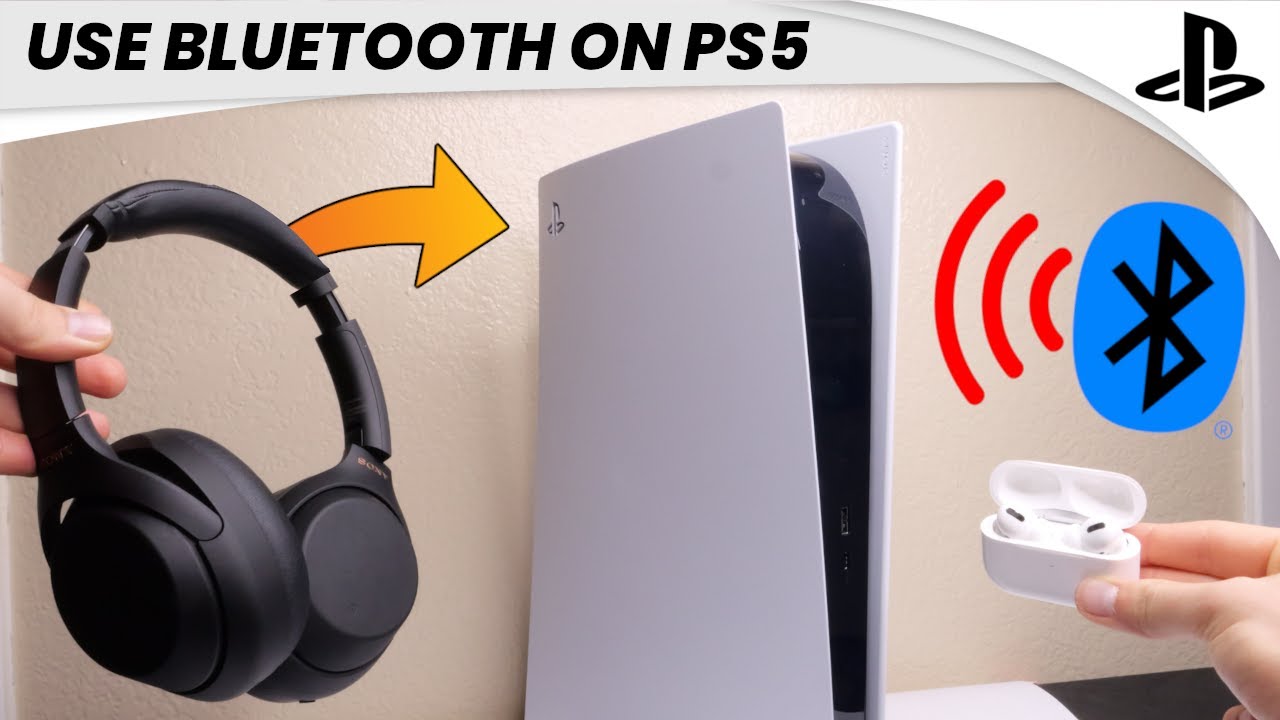
How to connect earbuds to PS5 via Bluetooth (native and limitations)
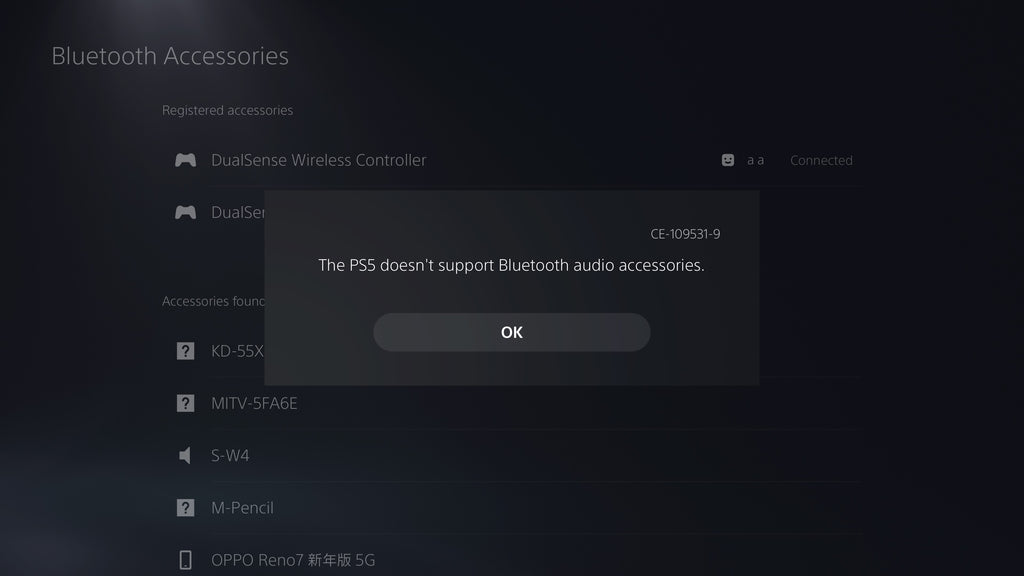
PS5 does not natively support all Bluetooth earbuds for game audio. Many Bluetooth earbuds won’t pair through Settings, and that’s by design to avoid latency or interference.
To try native pairing:
- Put your Bluetooth earbuds in pairing mode.
- On PS5, go to Settings > Accessories > Bluetooth Accessories.
- Wait for the earbuds to appear and select them.
If they pair, set the Output Device to the paired earbuds under Settings > Sound > Audio Output. If they do not appear, the PS5 likely blocks that profile. Many earbuds will pair only for voice calls or not at all.
Workarounds include:
- Using a USB Bluetooth adapter (next section).
- Using your TV’s Bluetooth if the TV supports audio output to earbuds.
- Using PS Remote Play on a phone or PC and pairing earbuds there.
Because I’ve tested several earbuds, I recommend checking the manufacturer’s notes. Low-latency codecs help but are not always supported by the PS5.

How to connect earbuds to PS5 using a USB Bluetooth adapter
A USB Bluetooth adapter can add audio support when native pairing fails. Choose a dongle that supports the Bluetooth audio profiles and low-latency codecs.
Steps:
- Plug a compatible USB Bluetooth dongle into a PS5 USB port.
- Put the dongle into pairing mode and also put your earbuds into pairing mode.
- Wait for the dongle to connect to the earbuds. The PS5 should detect the dongle as an audio device.
- On PS5, go to Settings > Sound > Audio Output and select the USB device or the dongle.
Notes:
- Not all dongles work. Choose one marketed for consoles or low latency.
- USB adapters may handle both audio and microphone if they support HFP/HSP or HSP/HFP profiles.
- Some adapters require pairing on a PC first or come with a specific pairing button.
I’ve used a USB dongle to connect earbuds that would not otherwise pair. It fixed chat issues and reduced lag compared to TV Bluetooth.

Using the DualSense controller and Remote Play as alternatives
The DualSense controller’s 3.5mm jack is the easiest path. If Bluetooth and USB adapters aren’t options, try Remote Play as a flexible workaround.
DualSense method:
- Plug earbuds into the controller and route audio to the “Controller Headset.”
- Enable “Output to Headphones” > “All Audio” for full sound through earbuds.
Remote Play method:
- Install PS Remote Play on your phone or PC.
- Connect your earbuds to that device and sign in to your PSN account.
- Stream PS5 audio to the device and use earbuds for low-latency private audio.
I often use Remote Play when living room TV settings block direct audio. Remote Play lets me game quietly with full headset control.
Tips, troubleshooting, and best practices
If you have audio glitches, low mic volume, or lag, try these simple fixes.
- Restart the PS5 and reconnect earbuds.
- Update PS5 system software: Settings > System > System Software.
- Test the earbuds on a phone to confirm they work.
- Lower the chat/game balance in Settings > Sound if one source is too loud.
- Use wired mode for minimal delay in competitive games.
- Check for firmware updates for both earbuds and USB dongle.
Common problems:
- No audio after pairing: select the right Output Device in sound settings.
- Mic not working: confirm the microphone source is set to the controller or USB device.
- Bluetooth disconnections: move away from Wi‑Fi routers or other interference sources.
From my experience, most connection problems come from wrong output selection on the PS5 or incompatible Bluetooth profiles. Trying a wired connection first often isolates the issue.
Frequently Asked Questions of how to connect earbuds to ps5
How do I connect Bluetooth earbuds to PS5?
Go to Settings > Accessories > Bluetooth Accessories and put earbuds in pairing mode. If they don’t appear, the PS5 may not support that model without an adapter.
Can I use the DualSense jack for both sound and mic?
Yes. Plug earbuds into the controller and select Output to Headphones > All Audio in Settings > Sound.
Why won’t my wireless earbuds show up on PS5?
Many Bluetooth earbuds use profiles not supported by PS5. A USB Bluetooth adapter or Remote Play often fixes this.
Will a USB Bluetooth dongle introduce latency?
Some dongles add minimal latency, but good low-latency adapters are often much better than TV Bluetooth. For competitive play, wired is best.
Can I use Remote Play to get earbuds working with PS5?
Yes. Use Remote Play on your phone or PC, connect earbuds to that device, and stream PS5 audio to the device.
Conclusion
You have clear paths to connect earbuds to PS5: plug them into the DualSense controller, try native Bluetooth pairing, use a USB Bluetooth dongle, or stream audio via Remote Play. Start with a wired test to set expectations, then try Bluetooth or a dongle if you need wireless. Try the steps, test settings, and pick the method that gives the best sound and lowest lag for your games. Let me know which earbuds you use or which method worked for you, and subscribe or comment to get more console audio tips.

Everett Ashford is a tech reviewer at mytechgrid.com specializing in SSDs, cameras, TVs, earbuds, headphones, and other consumer electronics. He provides honest, data-driven reviews based on hands-on testing and real-world performance analysis. Everett simplifies complex tech details to help readers make smart, confident buying decisions.