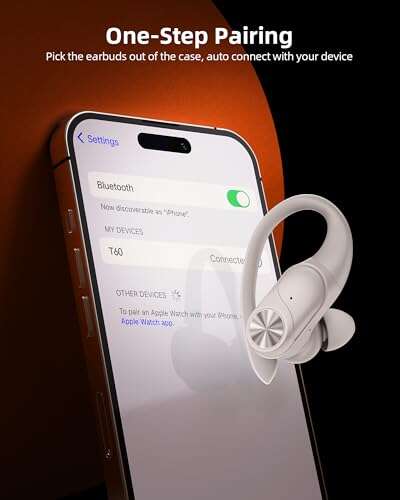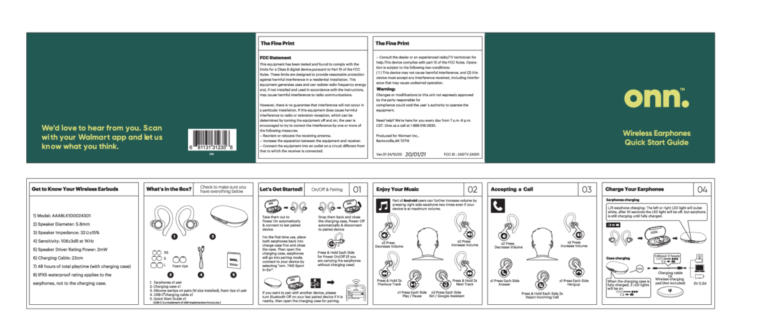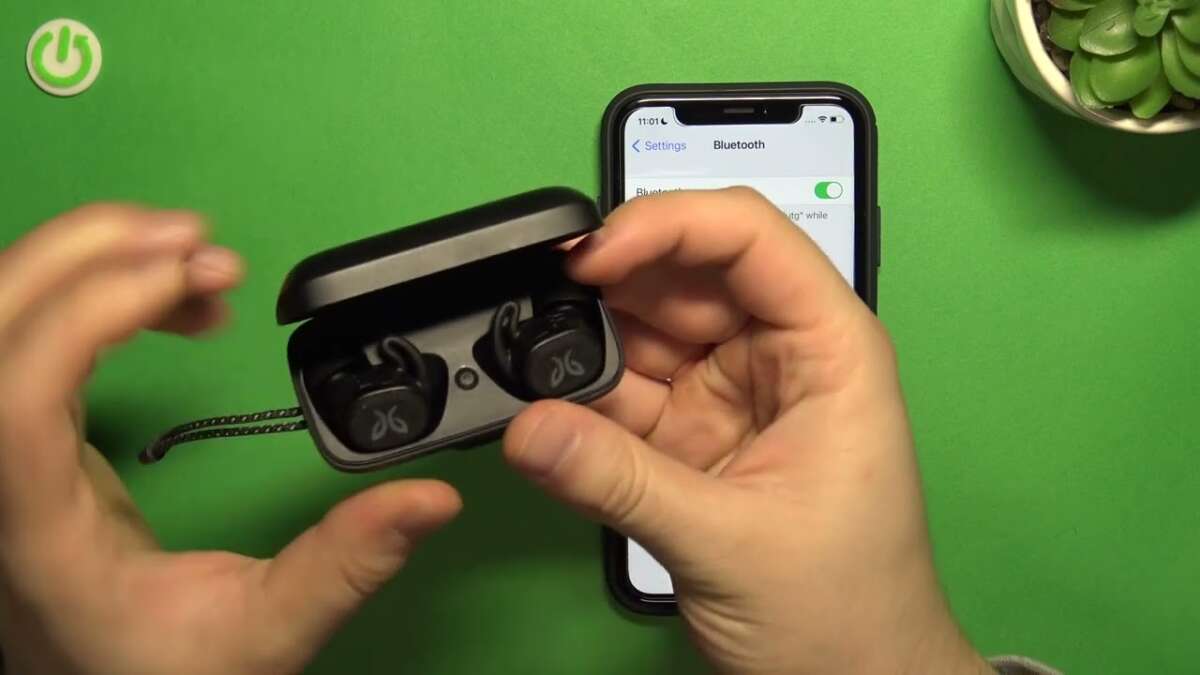
Put earbuds in pairing mode, enable Bluetooth on device, select Jaybird from available devices.
I know how to connect Jaybird earbuds and I’ve helped many users pair them quickly. I write from hands-on experience with multiple Jaybird models and from testing common pairing scenarios. Read on for a clear, expert guide that explains how to connect Jaybird earbuds to phones, tablets, and computers, and how to fix common problems fast.

Prepare to connect your Jaybird earbuds
Before you start pairing, check a few simple things. Charge both earbuds and the case. Make sure the device you want to pair has Bluetooth turned on and is close by.
Turn off other nearby Bluetooth devices to avoid confusion. Restart the device if Bluetooth seems stuck. These small steps speed up how to connect Jaybird earbuds and reduce pairing failures.

How to connect Jaybird earbuds: step-by-step pairing
Follow these clear steps to pair most Jaybird earbud models. If you own a specific model, keep the manual handy for model-specific button combos.
- Power on the earbuds
- Place the earbuds in the case, then remove them to power on. This triggers many Jaybird models to enter pairing automatically.
- Enter pairing mode
- Hold the power or multifunction button for 3 to 5 seconds until an LED flashes or you hear a tone. The flashing usually indicates pairing mode.
- Open Bluetooth on your device
- Go to the device settings and open Bluetooth. Wait for the device to scan for nearby devices.
- Select the Jaybird device
- Tap the name that matches your Jaybird earbuds in the device list. Confirm any pairing prompts.
- Test audio
- Play music or a video to confirm sound from both earbuds and check microphone if needed.
If pairing fails, reset the earbuds and try steps again. Resetting is often the quickest fix when learning how to connect Jaybird earbuds.

How to connect Jaybird earbuds to iPhone (iOS)
Pairing with iPhone is usually fast and stable. Make sure iOS is up to date for best compatibility.
- Open Settings and tap Bluetooth.
- Make the Jaybird earbuds discoverable following the model steps above.
- Look for the Jaybird name and tap to connect.
- If prompted, allow any permission requests for audio or microphone.
If the earbuds disconnect often, check battery and update firmware using the Jaybird app. This is a common tip I use when helping friends learn how to connect Jaybird earbuds to iPhone.
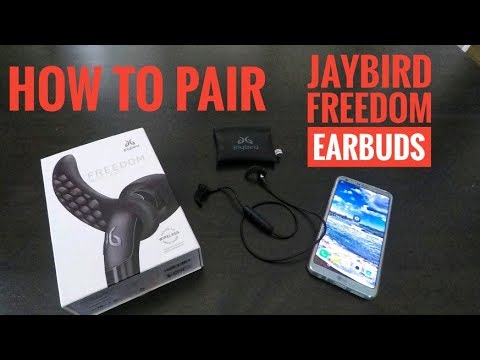
How to connect Jaybird earbuds to Android
Android phones can differ by maker, but the process is similar. Some phones need location access to scan Bluetooth devices.
- Open Settings and choose Connections or Bluetooth.
- Enable Bluetooth and start scanning.
- Put the Jaybird earbuds into pairing mode.
- Tap the Jaybird device name to pair.
If pairing is not visible, turn off Bluetooth on other devices and restart your phone. Using the Jaybird app on Android helps with firmware updates and audio profiles, which improves how to connect Jaybird earbuds and overall sound.

How to connect Jaybird earbuds to Windows and Mac
Pairing to a laptop is simple and useful for calls, music, and gaming. Follow these steps for Windows and Mac.
Windows
- Open Settings > Devices > Bluetooth & other devices.
- Turn on Bluetooth and click Add Bluetooth or other device.
- Select Bluetooth and pick your Jaybird earbuds from the list.
Mac
- Open System Settings or System Preferences > Bluetooth.
- Turn on Bluetooth and look for the Jaybird name.
- Click Connect.
If audio drops or mic won’t work, select the Jaybird device for both output and input in sound settings. These steps explain how to connect Jaybird earbuds to computers clearly and reliably.

Troubleshooting common pairing problems
Problems happen. Here are fast fixes for the most common issues I see working with earbuds.
Issue: Earbuds not found by device
- Make sure earbuds are in pairing mode and fully charged.
- Turn off other nearby Bluetooth devices.
Issue: Only one earbud works
- Re-seat earbuds in the charging case for 10 seconds.
- Reset the earbuds per the manual and pair again.
Issue: Frequent dropouts
- Move closer to the device and avoid Wi-Fi routers or microwaves.
- Update firmware via the Jaybird app.
Issue: Poor call microphone quality
- Check input device settings on the phone or computer.
- Clean the mic port gently and ensure the earbud is seated well in the ear.
A reset often solves odd issues. If you still have trouble, test the earbuds with another device to isolate the problem.
Advanced tips, app features, and maintenance
Use these tips to get the best from your Jaybird earbuds. Small habits extend life and performance.
Use the Jaybird app
- Customize EQ and save sound profiles.
- Update firmware from the app to fix bugs and add features.
Battery care
- Charge regularly and avoid deep discharge.
- Store in a cool, dry place when not in use.
Fit and comfort
- Try different ear tips for better seal and sound.
- A good fit improves call quality and reduces dropouts.
Cleaning and care
- Wipe earbuds with a soft cloth and avoid liquids.
- Clear dust from contact pins and mesh with a soft brush.
These details help you master how to connect Jaybird earbuds and keep them working well for years.
Frequently Asked Questions of how to connect jaybird earbuds(make it h2 tag)
How do I put my Jaybird earbuds into pairing mode?
Hold the power or multifunction button for about 3 to 5 seconds until the LED flashes or you hear a tone. Some models enter pairing automatically when removed from the case.
What do I do if my device cannot see the Jaybird earbuds?
Turn off other Bluetooth devices, move closer, and ensure the earbuds are in pairing mode. Restart the device and try again.
How do I reset my Jaybird earbuds?
Reset steps vary by model, but usually involve holding buttons while the earbuds are in the case or powering on. Check the manual or the Jaybird app for model-specific reset steps.
Why does only one earbud connect?
One earbud may be out of charge or not synced. Place both earbuds in the case, let them charge, then take them out together to re-sync and pair.
Will firmware updates fix pairing issues?
Yes. Firmware updates often fix bugs and improve stability. Use the Jaybird app to check for and install updates.
Can I connect Jaybird earbuds to two devices at once?
Most Jaybird models support a single active connection. Some models allow switching between paired devices quickly, but true simultaneous audio on two devices is rare.
Conclusion
You now have a clear, tested path for how to connect Jaybird earbuds to phones, tablets, and computers. Start with simple checks like battery and proximity, use pairing mode steps, and rely on the Jaybird app for updates and sound tuning. Try the steps above and troubleshoot with the reset or app if needed. If this guide helped, leave a comment, share your model and experience, or subscribe to get more hands-on tips.

Everett Ashford is a tech reviewer at mytechgrid.com specializing in SSDs, cameras, TVs, earbuds, headphones, and other consumer electronics. He provides honest, data-driven reviews based on hands-on testing and real-world performance analysis. Everett simplifies complex tech details to help readers make smart, confident buying decisions.