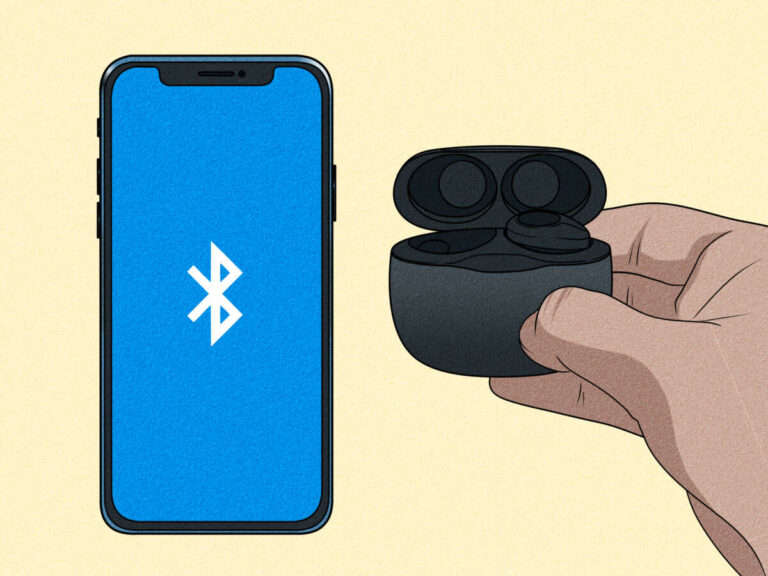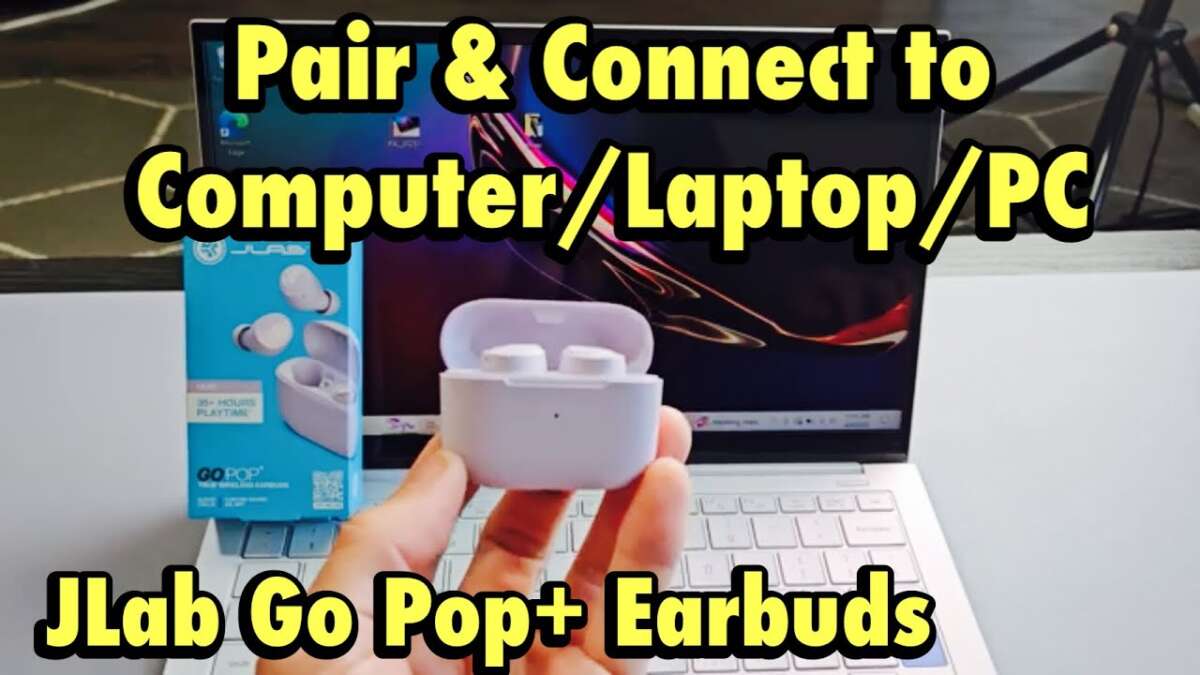
Turn on Bluetooth, put your JLab earbuds in pairing mode, then add them in your computer's Bluetooth settings.
I’ve spent years fixing audio and connectivity problems for friends and clients. In this guide I’ll show you clear, reliable steps on how to connect jlab earbuds to computer for Windows and macOS. You’ll get quick pairing steps, easy troubleshooting, and practical tips I use myself. Read on to pair smoothly and get better sound fast.

What you need before you start
This section explains the basics to make pairing quick and easy. It helps avoid needless delays.
- Make sure your computer has Bluetooth. Many desktops need a dongle.
- Charge your JLab earbuds and the case. Low battery can block pairing.
- Know your JLab model name and whether it supports true wireless pairing.
- Close other Bluetooth devices or apps that might interfere.
- Update your computer’s Bluetooth drivers or macOS to the latest version when possible.
This prep saves time when you try to connect jlab earbuds to computer. Check these items first.
How to connect jlab earbuds to computer — Windows 10 and Windows 11
Follow these step-by-step instructions to pair quickly on Windows. I keep steps short and simple.
-
Turn on Bluetooth on your PC
- Select Start > Settings > Devices > Bluetooth & other devices.
- Turn Bluetooth on.
-
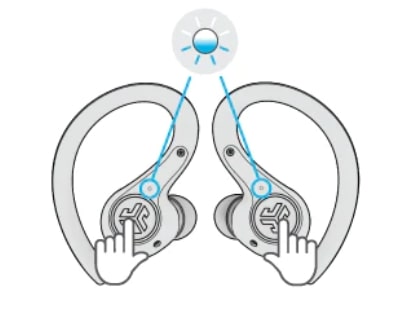
Put your JLab earbuds in pairing mode
- Remove both earbuds from the case or press the button per your model’s manual.
- Watch for a blinking LED, or hear the voice prompt that says “pairing.”
-
Add the device on Windows
- In Bluetooth & other devices, click Add Bluetooth or other device.
- Choose Bluetooth and wait for your JLab name to appear.
- Click the JLab device name to connect.
-
Set JLab as the audio output
- Click the speaker icon on the taskbar.
- Choose your JLab earbuds for output and input if needed.
-
Verify sound and mic
- Play a short audio clip.
- Open Sound settings to test the microphone if you plan to call or record.
If Windows fails to find the earbuds, turn Bluetooth off and on, remove the earbuds from the list, or restart your computer. These steps solve most issues when you want to connect jlab earbuds to computer.

How to connect jlab earbuds to computer — macOS
Mac pairing is straightforward. These steps work for most MacBooks and iMacs.
-
Open Bluetooth settings
- Click the Apple menu > System Settings (or System Preferences) > Bluetooth.
- Make sure Bluetooth is on.
-
Put earbuds in pairing mode
- Take the earbuds out or press the pairing button.
- Look for the blinking light or voice cue.
-
Pair on your Mac
- In Bluetooth, find your JLab earbuds name.
- Click Connect. macOS may confirm with a sound.
-
Choose the earbuds for sound
- Click the Control Center icon, open Sound, and pick your JLab earbuds.
- For calls, choose the earbuds in the Input section too.
If the Mac says “Not Connected,” remove the device and retry pairing. These steps help you easily connect jlab earbuds to computer on macOS.
Troubleshooting common issues
Here are quick fixes for the most common pairing problems.
- No Bluetooth option on PC
- Your PC may lack Bluetooth hardware. Use a USB Bluetooth dongle.
- Earbuds won’t appear in pairing list
- Turn earbuds off and on, reset them, or move closer to the PC.
- Audio plays but microphone doesn’t work
- Re-select the earbuds as both input and output in sound settings. Some apps need permission to use the mic.
- Only one earbud connects
- Put both earbuds back in the case, then take them out together to re-sync.
- Frequent dropouts
- Close nearby apps that use heavy wireless traffic. Update drivers and firmware.
PAA-style questions
Why can’t my computer find my JLab earbuds?
Most often Bluetooth on the PC is off, or the earbuds aren’t in pairing mode. Turn on Bluetooth and make sure the earbuds show a blinking light or voice prompt.
How do I reset JLab earbuds for pairing?
Hold the touch area or press the reset button per your model until LEDs flash, then restart pairing. This usually clears stubborn pairing problems.
Do I need a special driver to connect JLab earbuds to computer?
No special driver is usually needed; modern Windows and macOS include Bluetooth support. Update generic Bluetooth drivers if you have trouble.

Advanced settings and tips for better sound and reliability
Use these tips to improve audio and call quality once your earbuds connect.
- Pick the right audio profile
- Windows may use “Hands-Free” mode for calls, which lowers audio quality. Choose “Stereo” for music in sound settings.
- Update firmware
- Use the JLab app or firmware tool if available to update earbuds for stability and features.
- Manage Bluetooth interference
- Move away from Wi-Fi routers or USB 3.0 ports, which can cause interference.
- Use equalizer and presets
- Adjust the sound with your system EQ or the JLab app for clearer voice or richer bass.
- Re-pair when switching devices
- To move from phone to computer, turn Bluetooth off on the other device or remove the earbuds from that device’s paired list.
These settings help you get the best performance when you connect jlab earbuds to computer.

My experience: common mistakes and practical tips
I’ve paired JLab earbuds with many laptops and desktops. Here are honest lessons from real use.
- I once tried pairing with a nearly dead case battery. The earbuds flashed but never fully connected. Charge first.
- I’ve seen users leave other Bluetooth devices active. That splits pairing and causes delays. Turn off extra devices.
- When audio drops during calls, switching the app’s audio device to the JLab headset fixed it instantly.
- If you use a desktop, buy a reliable Bluetooth dongle with aptX support if you want lower latency. It helped my video calls feel smoother.
Tip: label your earbuds in your Bluetooth list if your computer supports renaming. It saves time when multiple devices are nearby.
These small steps improve success when you connect jlab earbuds to computer.

Frequently Asked Questions of how to connect jlab earbuds to computer
How long does it take to pair JLab earbuds with a computer?
Pairing usually takes less than a minute once Bluetooth is on and the earbuds are in pairing mode. Firmware updates can add extra time.
Can I use JLab earbuds for Zoom or Teams calls?
Yes. Choose the earbuds as both microphone and speaker in the app’s audio settings for clear calls.
Why is my sound low after pairing?
Check the volume on both your computer and the earbuds. Also verify the audio profile is set to Stereo for music playback.
How do I update JLab firmware on my earbuds?
Use the JLab mobile app or firmware tool if your model supports it. Firmware updates often fix bugs and improve connectivity.
Will my JLab earbuds connect to two devices at once?
Most JLab models do not keep two active connections. Disconnect one device or turn Bluetooth off on the other to connect to your computer.
Conclusion
You now have clear, practical steps to connect jlab earbuds to computer on both Windows and macOS. Start by charging the earbuds, enabling Bluetooth, and following the short pairing steps. If you run into trouble, try the simple resets and checks above. Take action now: pair your earbuds, update firmware, and test audio in a call or music app. If this guide helped, leave a comment or subscribe for more straightforward tech tips.

Everett Ashford is a tech reviewer at mytechgrid.com specializing in SSDs, cameras, TVs, earbuds, headphones, and other consumer electronics. He provides honest, data-driven reviews based on hands-on testing and real-world performance analysis. Everett simplifies complex tech details to help readers make smart, confident buying decisions.