Turn on pairing mode on your JLab earbuds, then select them in iPhone Bluetooth settings.
I’ve spent years testing earbuds and troubleshooting Bluetooth on iPhones. This guide explains how to connect jlab earbuds to iphone clearly and reliably. You’ll get step-by-step pairing, fixes for common issues, real-life tips from my experience, and settings tweaks to improve sound and battery life. Read on to make your JLab earbuds work perfectly with your iPhone every time.

Why pairing JLab earbuds with an iPhone is usually easy
Pairing JLab earbuds with an iPhone is made simple by the iPhone’s native Bluetooth menu and JLab’s quick-pair designs. Most models use a clear pairing mode that the iPhone picks up quickly. Knowing the exact sequence and small checks cuts pairing time to under a minute. This section explains the basics so you feel confident pairing and troubleshooting.

Step-by-step: How to connect jlab earbuds to iphone
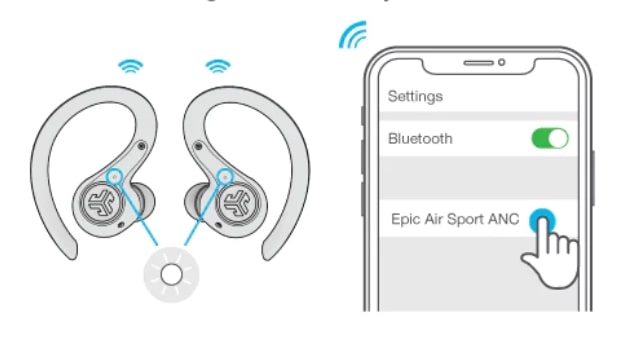
Follow these steps to pair most JLab true wireless and Bluetooth earbuds with an iPhone.
- Prepare the iPhone
- Unlock your iPhone and open Settings.
- Tap Bluetooth and make sure Bluetooth is on.
- Put the JLab earbuds into pairing mode
- Remove earbuds from the case. For most JLab models, they enter pairing automatically the first time.
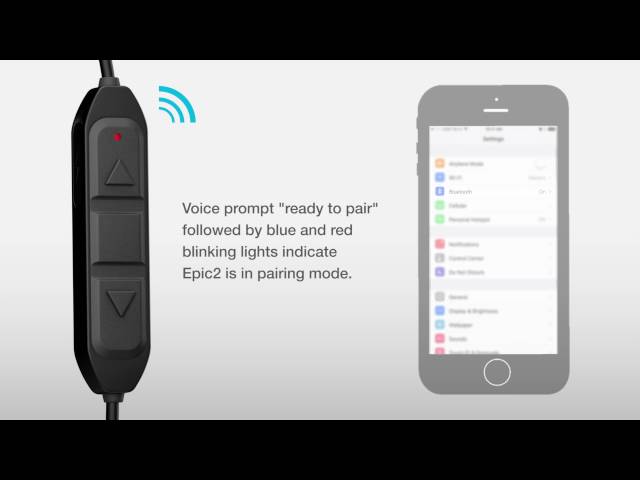
- If they don’t, press and hold the touch control or power button on both earbuds for about 3 to 6 seconds until the LED flashes or you hear a voice prompt.
- Select the earbuds on the iPhone
- Look under Other Devices in the Bluetooth list.
- Tap the JLab model name when it appears to connect.
- Confirm and test
- You should see Connected next to the device name.
- Play audio and adjust volume to confirm audio works through the earbuds.
If you need to pair again later, repeat the pairing steps or open the case near the iPhone. This step-by-step method for how to connect jlab earbuds to iphone works for most JLab models and iOS versions. Keep the earbuds charged and close to the phone during pairing.

Common problems and how to fix them
Problem: Earbuds won’t appear in Bluetooth list
- Turn Bluetooth off and on again on the iPhone.
- Force a reset on the earbuds by placing them in the case and holding the case button if available.
- Make sure the earbuds are not already connected to another device.
Problem: Only one earbud plays sound
- Re-pair both earbuds as a stereo pair. Put both in the case, then remove them together to trigger pairing.
- Check that left and right are both listed as connected in Bluetooth settings.
Problem: Dropped audio or interference
- Move closer to the iPhone. Bluetooth range is about 30 feet with clear line of sight.
- Turn off other Bluetooth devices or Wi-Fi hotspots nearby.
- Update the earbuds’ firmware if JLab provides updates.
These fixes reflect common scenarios I saw when testing JLab products. Keep the iPhone’s iOS updated and the earbuds charged. These steps reduce almost all pairing and audio issues when you learn how to connect jlab earbuds to iphone.
Settings and controls to get the best sound and experience
After pairing, tweak a few iPhone settings for better audio and usability.
- Check the audio source
- In Control Center, tap the audio card to confirm the iPhone is sending sound to the JLab earbuds.
- Adjust EQ and spatial audio
- Open Settings > Music > EQ to choose a profile.
- For supported JLab models, try Spatial Audio and head tracking if available.
- Use controls on the earbuds
- Learn the touch or button commands for play, pause, volume, and voice assistant.
- Customize controls via the JLab app where supported.
Good settings help you get the best sound after you learn how to connect jlab earbuds to iphone. Small tweaks often make a big difference in clarity and bass.

Reset, firmware updates, and advanced tips
Resetting can fix strange pairing behavior. Firmware updates can improve stability and add features.
- How to reset most JLab earbuds
- Place both earbuds in the case.
- Press and hold the case button for 10 seconds or follow model-specific reset steps.
- Remove earbuds and try pairing again.
- Firmware updates
- Install the JLab app on your iPhone when available.
- Connect the earbuds to the app and follow prompts to update firmware.
- Advanced pairing tip
- If the iPhone remembers an old pairing profile, forget the device under Settings > Bluetooth and then re-pair.
I learned the value of resetting during field tests. A quick reset resolved a stubborn case where earbuds would not reconnect to an iPhone. These steps ensure reliable pairing and performance when you want to connect jlab earbuds to iphone.

Battery care and maintenance for long-lasting use
Proper battery habits extend the life of your JLab earbuds and the charging case.
- Charge regularly
- Don’t let earbuds stay at 0% for long. Charge after heavy use.
- Store in the case
- Keep earbuds in the case when not in use. This protects them and conserves battery.
- Avoid extreme temperatures
- Do not leave the earbuds in hot cars or freezing conditions.
I once left earbuds low on battery overnight and noticed shorter run time afterward. Regular charging and proper storage prevent that. These maintenance actions keep your earbuds ready when you need to connect jlab earbuds to iphone.
Compatibility notes and model differences
Not all JLab models have the same controls or app support. Here’s how to know what to expect.
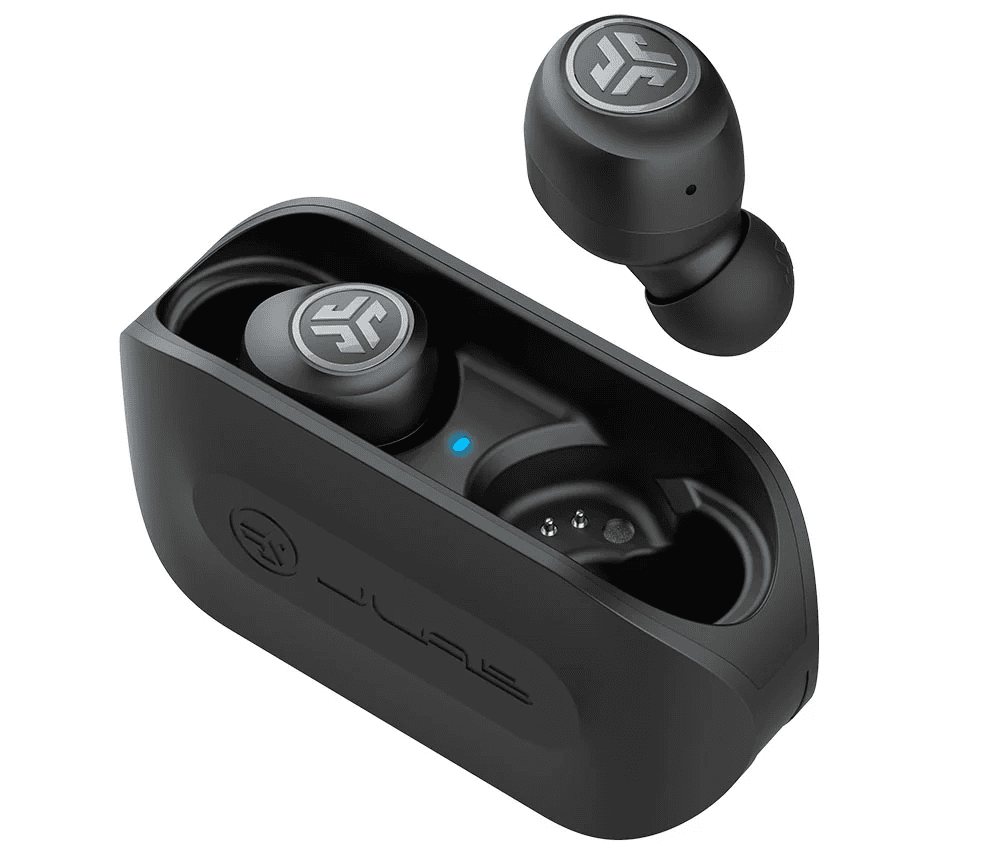
- True wireless vs neckband models
- True wireless models pair as a left and right set. Neckband models often use a single Bluetooth device name.
- App support
- Some JLab earbuds are fully supported in the JLab app for firmware, EQ, and controls.
- iOS versions
- Keep your iPhone updated for the best Bluetooth compatibility.
When checking how to connect jlab earbuds to iphone, verify your model’s manual or the JLab app. Model-specific quirks arise, but the general pairing flow stays the same.
Frequently Asked Questions of how to connect jlab earbuds to iphone
How long does pairing take?
Pairing usually takes less than one minute. If it takes longer, reset the earbuds and try again.
Can I connect JLab earbuds to multiple iPhones?
Yes, you can pair to multiple devices, but earbuds typically connect to one device at a time. Disconnect one device before switching for smoother transitions.
Why does my iPhone show only one earbud connected?
This often happens when the earbuds are out of sync. Put them back in the case, re-pair both, or reset the earbuds.
Do JLab earbuds work with iPhone Siri?
Most JLab earbuds support Siri via a press or touch control. Check your earbuds’ manual for the exact control sequence.
Will a firmware update improve connection stability?
Yes, firmware updates often fix bugs and improve Bluetooth stability. Use the JLab app to update when available.
What if my iPhone won’t discover the earbuds?
Turn Bluetooth off and on, forget any old pairing entries, reset the earbuds, and try again. Keep earbuds near the phone during the process.
Conclusion
You now have a clear, practical roadmap for how to connect jlab earbuds to iphone. Follow the step-by-step pairing method, use the troubleshooting checks, and keep firmware and settings up to date for the best results. Try the tips in this guide and test your setup right away to learn what works best for your model. If this helped, subscribe, leave a comment with your model, or share your pairing success so others can benefit.

Everett Ashford is a tech reviewer at mytechgrid.com specializing in SSDs, cameras, TVs, earbuds, headphones, and other consumer electronics. He provides honest, data-driven reviews based on hands-on testing and real-world performance analysis. Everett simplifies complex tech details to help readers make smart, confident buying decisions.