Set your dish remote into pairing mode, enter the TV code or use auto-search, and confirm the signal.
I’ve taught and fixed dozens of setups, so I know the common snags and simple wins when learning how to connect remote to tv dish. This guide walks you from checking batteries to pairing complex universal remotes. You’ll get clear steps, real-life tips, and quick fixes so you can control your dish receiver with confidence.

Why pairing your remote to the dish matters
Pairing a remote to the dish receiver is the link between you and your TV channels. If the remote is not paired, you may not be able to change channels, adjust volume, or access menus. Learning how to connect remote to tv dish saves time and avoids pointless replacements.
Good pairing improves responsiveness and reduces repeated clicks. It also enables advanced features like guide control and DVR operation when supported by the receiver.
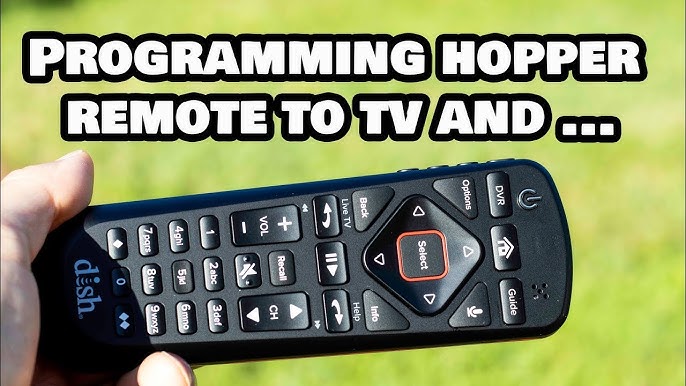
What you need before you start
Prepare these basic items before attempting to connect remote to tv dish.
- A working dish receiver and TV powered on.
- Fresh batteries in the remote.
- The receiver remote code list or the receiver model number.
- A short ladder or stable step if you need to check outdoor hardware.
- The instruction manual for your remote or the universal remote code list.
I once tried pairing without fresh batteries and lost 20 minutes troubleshooting. New batteries are a tiny fix that makes a big difference when you learn how to connect remote to tv dish.
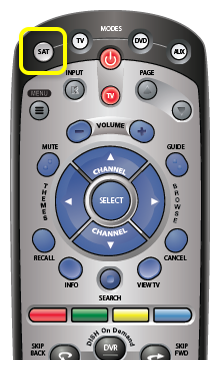
Step-by-step: how to connect remote to tv dish
Follow these steps for most dish receivers and remotes. Read each short step, then try it.
- Check batteries and power
- Replace remote batteries with new ones.
- Ensure the receiver and TV are plugged in and powered on.
- Wait 10 seconds after power-up to let the receiver boot.
- Identify your remote type
- Is it the original dish remote or a universal remote?
- Find the remote model number on the back or inside the battery cover.
- Locate the receiver model and pairing method
- Look on the receiver for a model sticker or in the setup menu for “Remote” options.
- Some receivers use IR (line-of-sight) and some use RF (no line-of-sight). This changes the pairing method.
- Pair the original remote (infrared)
- Point the remote at the receiver and press the menu or setup button.
- Follow on-screen prompts to “Pair Remote” or “Link Remote”.
- Press the requested button sequence until the receiver confirms.
- Pair the original remote (RF or Bluetooth)
- Put the remote in pairing mode; hold the pairing button for 3–10 seconds.
- On the receiver, go to Settings > Remote or Bluetooth and choose “Add Remote”.
- Wait until the receiver confirms the remote is connected.
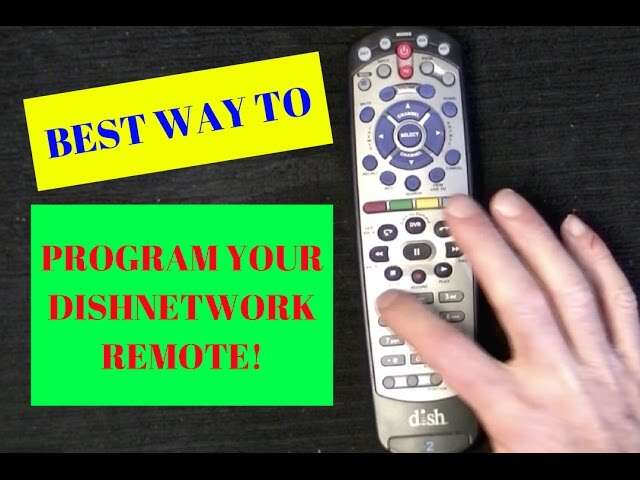
- Program a universal remote
- Put the universal remote in programming mode by holding the setup button.
- Enter the code for your dish receiver from the code list or use auto-search.
- Test buttons like power and volume and save the code if they work.
- Use auto-code search if you don’t have a code
- In programming mode, use the search function to cycle codes.
- Stop when the receiver responds to a command and save the code.
When you practice how to connect remote to tv dish, stay patient. Rarely does it work on the first try, but these short steps fix most setups.
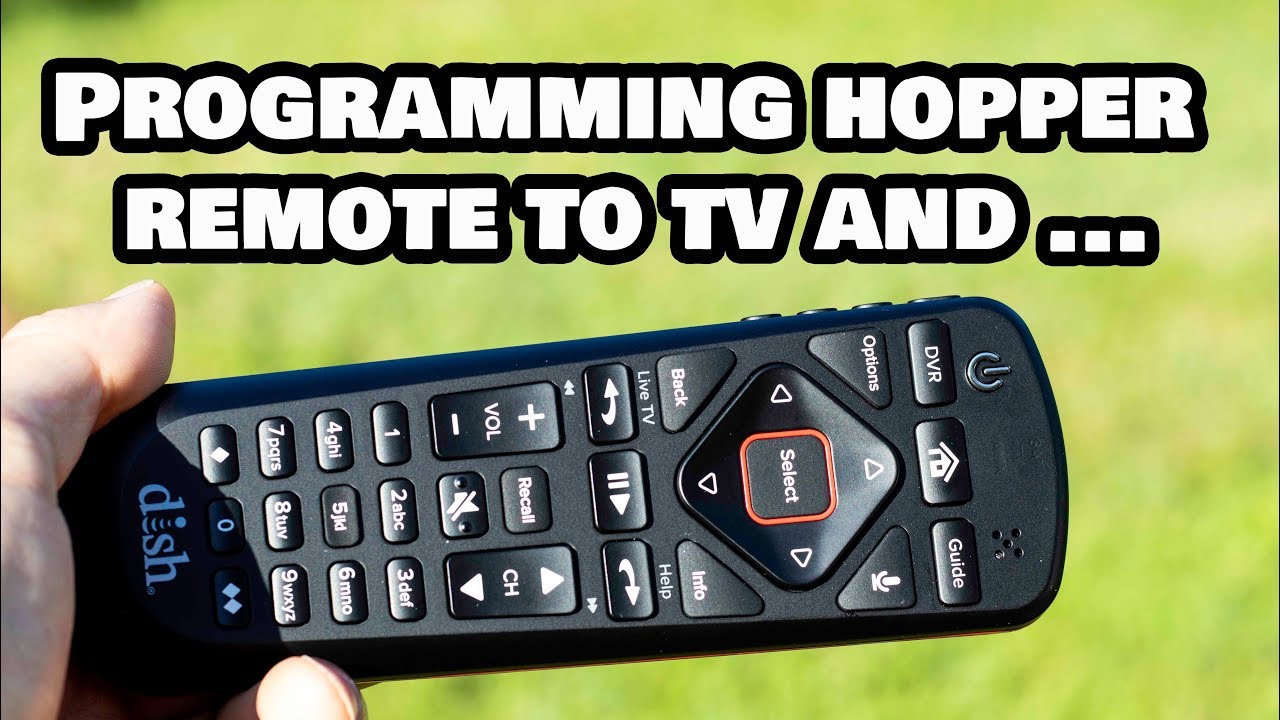
Troubleshooting common issues
If pairing fails, try these fast checks and fixes.
- Remote not responding
- Replace batteries and verify the battery contacts are clean.
- Test remote on another device or use a phone camera to see IR flashes.
- Receiver doesn’t enter pairing mode
- Restart the receiver by unplugging it for 10 seconds.
- Check for firmware updates in the receiver’s settings.
- Volume controls don’t work after pairing
- Reprogram the TV’s volume code on the universal remote.
- Enable HDMI-CEC on both TV and receiver if available.
- Intermittent control or lag
- Move wireless devices away that might cause interference.
- If RF remote, ensure the RF antenna or extender is connected and in range.
- Remote linked to wrong device
- Reset the remote to factory defaults and repeat pairing steps.
I once spent an hour troubleshooting a sluggish remote before realizing the receiver had a pending software update. After updating, the remote paired immediately. When learning how to connect remote to tv dish, don’t skip basic firmware checks.
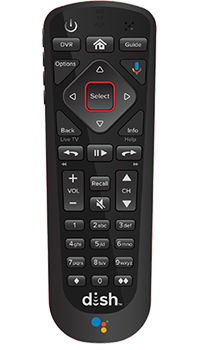
Advanced tips, universal remotes, and safety
These tips help when standard pairing does not solve the problem.
- Use a universal remote with a learning function
- You can copy key presses from an original remote to the universal one.
- This is useful for rare codes or mixed brands.
- Keep firmware current
- Firmware updates often fix pairing and connectivity bugs.
- Check monthly if you use the system heavily.
- Label and store codes
- Write down working codes with the receiver model and store them safely.
- This saves time if you reset equipment later.
- Understand remote types
- Infrared requires line-of-sight. RF and Bluetooth do not.
- Choosing the correct method is key to how to connect remote to tv dish.
- Safety and mounting
- If checking outdoor equipment, use a ladder safely and avoid the dish during storms.
- Turn off power before making swaps to avoid short circuits.
I recommend a universal remote as a travel kit. It handled my neighbor’s mix of brands during a move. Knowing how to connect remote to tv dish with a universal remote has rescued many setups in my experience.

Frequently Asked Questions of how to connect remote to tv dish
How do I put my dish remote into pairing mode?
Most dish remotes enter pairing by holding a Menu, Setup, or Pair button for 3–10 seconds. Follow on-screen prompts on the receiver to complete pairing.
Can I pair a universal remote without the receiver code?
Yes. Many universal remotes have an auto-search feature that cycles codes until a command works. Save the code when the receiver responds.
Why does my remote only work from close range?
If your remote uses infrared, it needs line-of-sight to the receiver. Replace batteries and clear obstructions between the remote and receiver.
Will firmware updates affect remote pairing?
Yes. Firmware updates can add or restore pairing compatibility. Check the receiver’s settings for updates and install them if pairing fails.
What if the remote pairs but volume controls my TV instead?
Volume may be set to control the TV. Reprogram the remote’s volume code to the receiver or enable HDMI-CEC if you want unified control.
Conclusion
You now have a clear path to how to connect remote to tv dish, from basic checks to advanced fixes. Start with fresh batteries, identify your remote type, and follow the pairing steps. If things go wrong, use the troubleshooting tips, update firmware, and try a universal remote or learning features. Take action now: try pairing with the receiver on hand, note the working code, and save time in the future. If this guide helped, leave a comment or subscribe for more practical setup guides.

Everett Ashford is a tech reviewer at mytechgrid.com specializing in SSDs, cameras, TVs, earbuds, headphones, and other consumer electronics. He provides honest, data-driven reviews based on hands-on testing and real-world performance analysis. Everett simplifies complex tech details to help readers make smart, confident buying decisions.