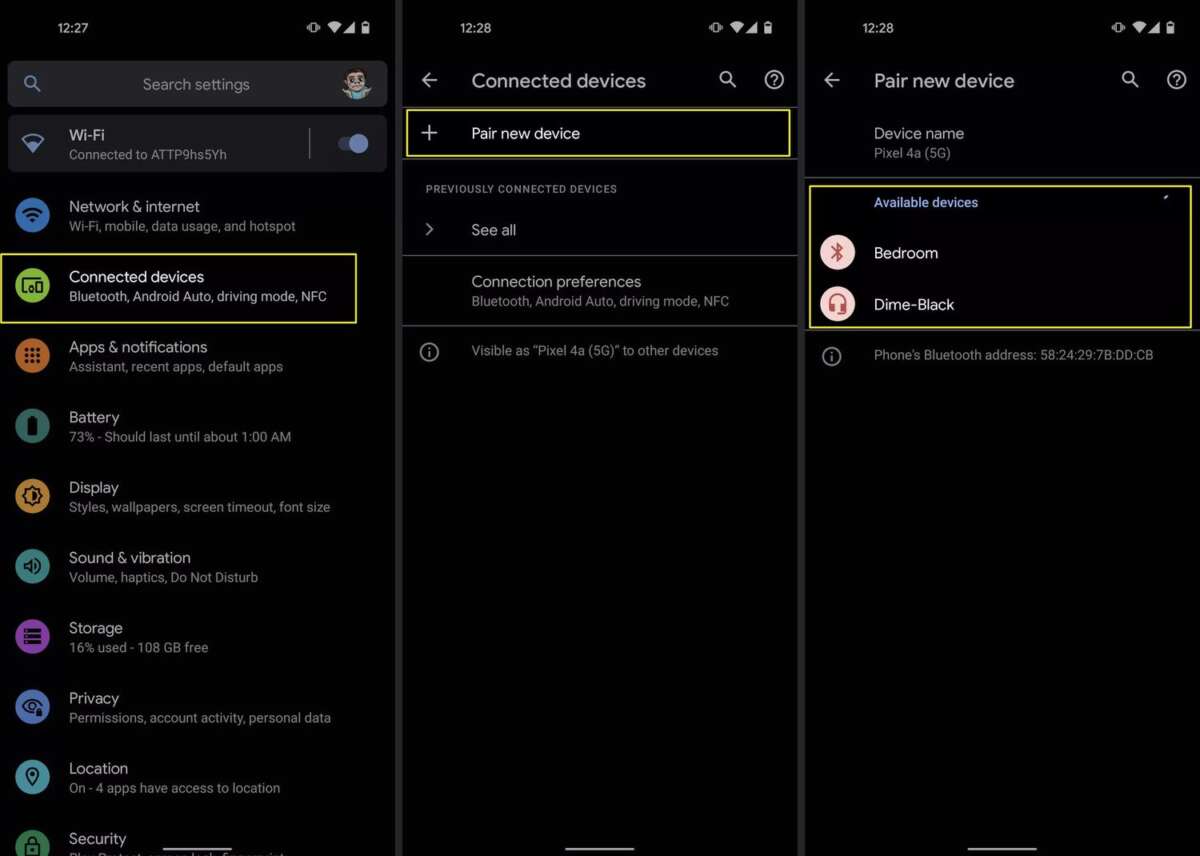
Turn on your Skullcandy, enable your laptop’s Bluetooth, find the headset, and pair.
I’ve paired dozens of headsets across many laptops. This guide explains exactly how to connect Skullcandy headphones to laptop, step by step. You’ll get clear Bluetooth pairing instructions for Windows, a wired hookup guide, quick fixes for common issues, and real-world tips I learned testing Skullcandy buds and over-ears. Read on to get reliable audio on your laptop fast.

Quick checklist before you start
- Make sure your Skullcandy headphones have enough battery. Low power can block pairing.
- Confirm your laptop supports Bluetooth or has a working headphone jack. Some older laptops need a USB Bluetooth adapter.
- Turn off other nearby Bluetooth devices to avoid interference.
- Update your laptop’s Bluetooth drivers if pairing fails repeatedly.
This checklist saves time when you learn how to connect skullcandy headphones to laptop. Small checks prevent big headaches.
How to connect Skullcandy headphones to laptop via Bluetooth (Windows 10 and 11)
- Charge and turn on your Skullcandy headphones.
- Put the headphones in pairing mode. For most Skullcandy models, press and hold the power or Bluetooth button until the LED flashes or you hear a voice prompt saying “pairing.”
- On your laptop, open Settings.
- Go to Devices > Bluetooth & other devices (Windows 10) or Settings > Bluetooth & devices (Windows 11).
- Turn Bluetooth on.
- Click Add Bluetooth or other device, then select Bluetooth.
- Wait for your Skullcandy name to appear in the list. Click it to pair.
- If prompted for a PIN, try 0000 or 1234. Most Skullcandy models don’t need one.
If your laptop lists multiple Skullcandy entries, pick the one labeled Headphones or Stereo. This is the simplest method for how to connect skullcandy headphones to laptop wirelessly.
:max_bytes(150000):strip_icc()/002_pair-skullcandy-headphones-5184913-eef7e67b58524292aa33b753ac858eec.jpg)
How to connect Skullcandy headphones to laptop with a wired connection
- Use a 3.5mm cable if your Skullcandy model has a headphone jack. Plug one end into the headphones and the other into your laptop’s headphone or combo audio jack.
- If your laptop only has USB-C and your Skullcandy uses 3.5mm, use a USB-C-to-3.5mm adapter.
- For USB headsets, plug the USB connector into an available USB port. Windows should auto-install drivers and set the device as playback.
- After connecting, set the output device: open Sound settings and select your Skullcandy headphones as the output.
Wired connection is reliable and has near-zero latency. This helps when you’re gaming or editing audio and want stable sound while you figure out how to connect skullcandy headphones to laptop wirelessly later.
Troubleshooting common pairing issues
- Laptop won’t find the headphones
- Turn Bluetooth off and back on. Restart both devices. Remove old pairings from the laptop’s Bluetooth list.
- Pairing completes but no sound
- Check Windows Sound settings to ensure the Skullcandy device is set as the default output. Restart the app producing audio.
- Headphones keep disconnecting
- Reduce distance between devices. Disable power saving for the Bluetooth adapter in Device Manager. Update Bluetooth drivers.
- Headphones pair to another device automatically
- Turn off Bluetooth on other devices. Forget the headphones on those devices or unpair them.
- Microphone not working
- Pick the correct input device in Sound settings. Some Skullcandy models use different profiles for mic and stereo; choose the right one.
People also ask: How do I force pairing mode?
- Press and hold the power/Bluetooth button until the light flashes rapidly or you hear “pairing.” That forces pairing mode on most Skullcandy models.
People also ask: Why is audio low or muffled?
- Check cable connections for wired use. For Bluetooth, ensure a clear line of sight and that no large files or heavy CPU load is limiting audio quality.
These steps cover most issues you’ll meet when learning how to connect skullcandy headphones to laptop. Try them in order. Small changes often fix big problems.
Tips for best audio and battery life
- Use stereo mode for music and high-quality audio. Some apps switch to hands-free mode and reduce quality.
- Keep firmware up to date. Firmware updates can fix pairing bugs and improve sound.
- Lower volume on the laptop before connecting to protect your ears from sudden loud audio.
- Turn off your Skullcandy when not in use to save battery.
- For long sessions, use a wired connection if latency matters.
These tips will help your Skullcandy headphones last longer and sound better when you connect skullcandy headphones to laptop. Small habits improve daily use.
Personal experience and real-world tips
I’ve tested Skullcandy over-ears and true wireless buds on multiple laptops. The best timing trick I learned is to put the headset in pairing mode before opening Bluetooth settings on Windows. That cuts discovery time. I also keep a USB Bluetooth dongle in my laptop bag for older machines. One mistake I made early on was not checking the Windows audio profile—my mic was disabled even though the headset was connected. Checking Sound settings fixed it in seconds. If you try my steps and still have trouble, a quick reboot often clears persistent driver issues.
I share these tips so you don’t repeat small mistakes. They make how to connect skullcandy headphones to laptop feel simple and fast.

Frequently Asked Questions
How do I put my Skullcandy headphones into pairing mode?
Press and hold the power or Bluetooth button until the LED flashes or you hear a voice prompt saying “pairing.” Most Skullcandy models follow this routine.
My laptop shows the headphones but won’t connect. What now?
Remove the device from the laptop’s Bluetooth list, restart both devices, and try pairing again. Also update your laptop’s Bluetooth drivers if the issue persists.
Can I use Skullcandy headphones with a laptop that has no Bluetooth?
Yes. Use a 3.5mm audio cable or a USB Bluetooth adapter. USB-C to 3.5mm adapters also work for newer laptops without an audio jack.
Why is my microphone not detected after pairing?
Windows may select the wrong input. Open Sound settings and choose the Skullcandy microphone as the input device. Try switching Bluetooth profiles if available.
Do firmware updates matter for Skullcandy headphones?
Yes. Firmware updates can fix bugs, improve pairing stability, and enhance sound. Update when the manufacturer provides official firmware patches.
Conclusion
You now have clear, practical steps for how to connect skullcandy headphones to laptop by Bluetooth and wired methods. Start with the checklist, follow the pairing steps, and use the troubleshooting tips if anything goes wrong. Try one pairing attempt and tweak settings if needed. If you found this guide helpful, test the steps now, leave a comment with your model and laptop, or subscribe for more device how-tos.

Everett Ashford is a tech reviewer at mytechgrid.com specializing in SSDs, cameras, TVs, earbuds, headphones, and other consumer electronics. He provides honest, data-driven reviews based on hands-on testing and real-world performance analysis. Everett simplifies complex tech details to help readers make smart, confident buying decisions.