Open the earbuds' pairing mode, then select your Sony earbuds in your device’s Bluetooth settings to pair.
I’ve guided hundreds of users through Bluetooth pairing and troubleshooting. This article shows exactly how to connect sony bluetooth earbuds to phones, tablets, and computers. You’ll get clear, step-by-step instructions, common fixes, and real-world tips from hands-on experience so you can pair reliably every time.
Understanding Sony Bluetooth earbuds and pairing basics
Pairing means letting your device and earbuds find each other. Most Sony models use a dedicated pairing button or enter pairing when you open the case. Knowing the model helps, but the core steps are the same.
Key things to know about how to connect sony bluetooth earbuds:
- Sony earbuds use Bluetooth Low Energy and classic Bluetooth profiles for audio and calls.
- True wireless models often pair the left and right earbud before the phone.
- The Sony Headphones Connect app can simplify pairing and update firmware.
From my experience, a quick reset often fixes stubborn pairing issues. I once spent 20 minutes on a phone that wouldn't detect earbuds; a reset and firmware update fixed it instantly.
How to connect sony bluetooth earbuds to Android
Follow these steps to pair on Android. These steps cover most Sony models like WF-1000XM4, WF-1000XM3, and LinkBuds.
- Charge the earbuds and case for at least 20 minutes.
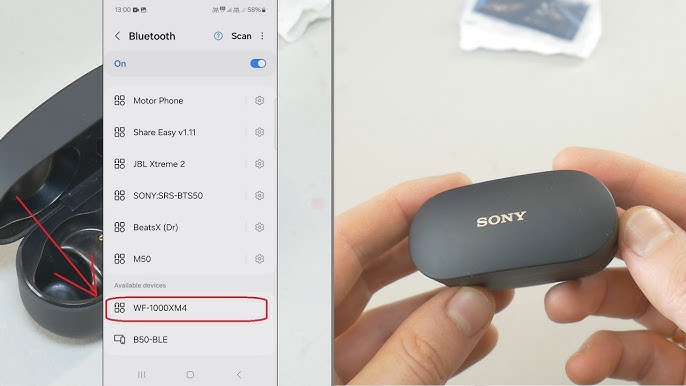
- Turn on Bluetooth on your Android: Settings > Connected devices > Connection preferences > Bluetooth.
- Put the earbuds in pairing mode:
- For case models, open the case and press and hold the case button until the LED flashes.
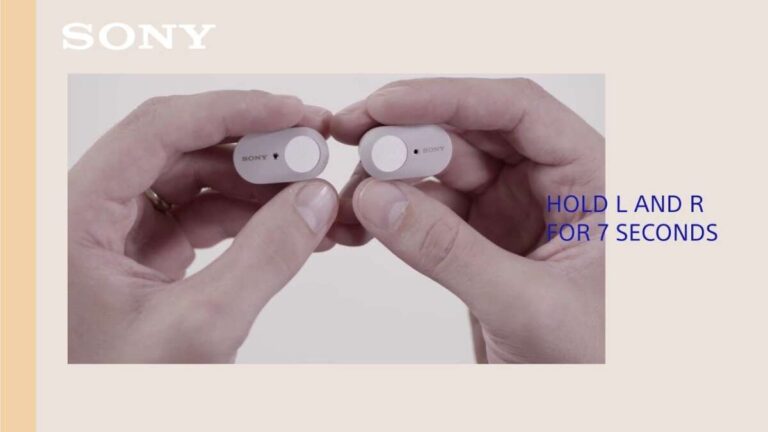
- For button-only models, press and hold the earbud power or pairing button for 7 seconds until the LED blinks.
- On Android, tap Pair new device or Scan. Select the Sony earbuds name when it appears.
- Confirm pairing and test audio playback.
If you use the Sony Headphones Connect app, the app will prompt pairing and help assign left-right channels. Saying exactly how to connect sony bluetooth earbuds on Android: follow the device Bluetooth page and the earbuds’ pairing-button steps.
How to connect sony bluetooth earbuds to iPhone
Pairing on iPhone is simple and similar to Android.
- Charge the earbuds and unlock your iPhone.
- Open iPhone Settings > Bluetooth and keep the screen active.
- Enter earbuds pairing mode: open the case or press the pairing button until LED blinks.
- Tap the earbuds name under Other Devices to pair.
- Use Control Center to check audio output and noise control settings.
I’ve paired Sony earbuds with iPhones dozens of times. If your iPhone won’t see the earbuds, toggle Bluetooth off and back on, then repeat the pairing steps. This fixes most issues when trying to connect sony bluetooth earbuds to an iPhone.

How to connect sony bluetooth earbuds to Windows PC
Windows pairing needs a few clicks but is fast.
- Charge earbuds and enable pairing mode on earbuds.
- On Windows 10/11, go to Settings > Bluetooth & devices > Add device.
- Select Bluetooth and pick the Sony earbuds from the device list.
- Wait for the confirmation and test sound through System > Sound.
If you have audio lag or only one earbud working, open Bluetooth settings and set the earbuds as the default output device. This resolves common issues when you connect sony bluetooth earbuds to a PC.
How to connect sony bluetooth earbuds to Mac
Mac pairing is straightforward.
- Ensure earbuds are charged and in pairing mode.
- On Mac, open System Settings > Bluetooth.
- Find your Sony earbuds in the list and click Connect.
- Check System Settings > Sound to verify output and input devices.
If macOS keeps reconnecting to another device, turn off Bluetooth on that device. Clearing saved pairings on the earbud helps when you frequently switch devices while connecting sony bluetooth earbuds to a Mac.

Using the Sony Headphones Connect app and firmware updates
The Sony Headphones Connect app adds features and fixes bugs. It helps with how to connect sony bluetooth earbuds and improves stability.
What the app does:
- Guides pairing for compatible models and prompts for firmware updates.
- Lets you set equalizer settings and noise-canceling modes.
- Shows battery levels for each earbud.
I always update firmware after pairing. Once, a firmware update fixed intermittent audio cutouts and made connecting much smoother. Updating can be the difference between repeated pairing failures and a stable connection.
Troubleshooting common pairing problems
Pairing issues are common but solvable. These steps address most problems when learning how to connect sony bluetooth earbuds.
Quick fixes:
- Restart your phone or computer and retry pairing.
- Charge both earbuds and the case fully.
- Move away from other Bluetooth devices and Wi‑Fi routers during pairing.
Reset and factory reset steps:
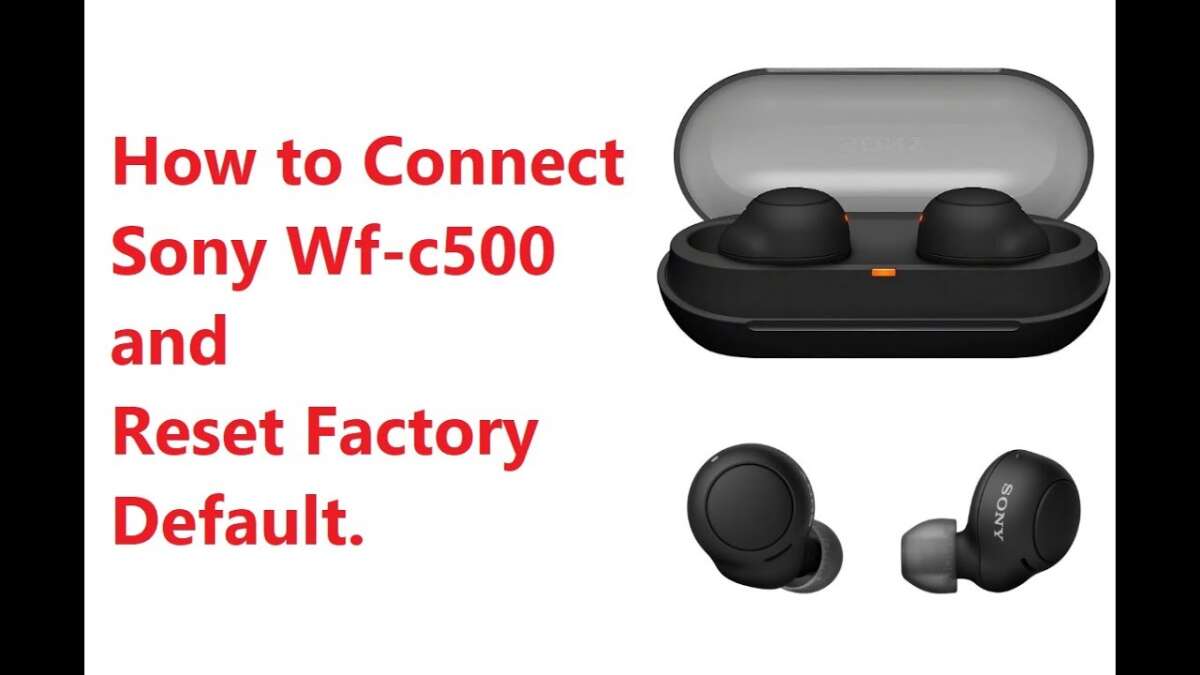
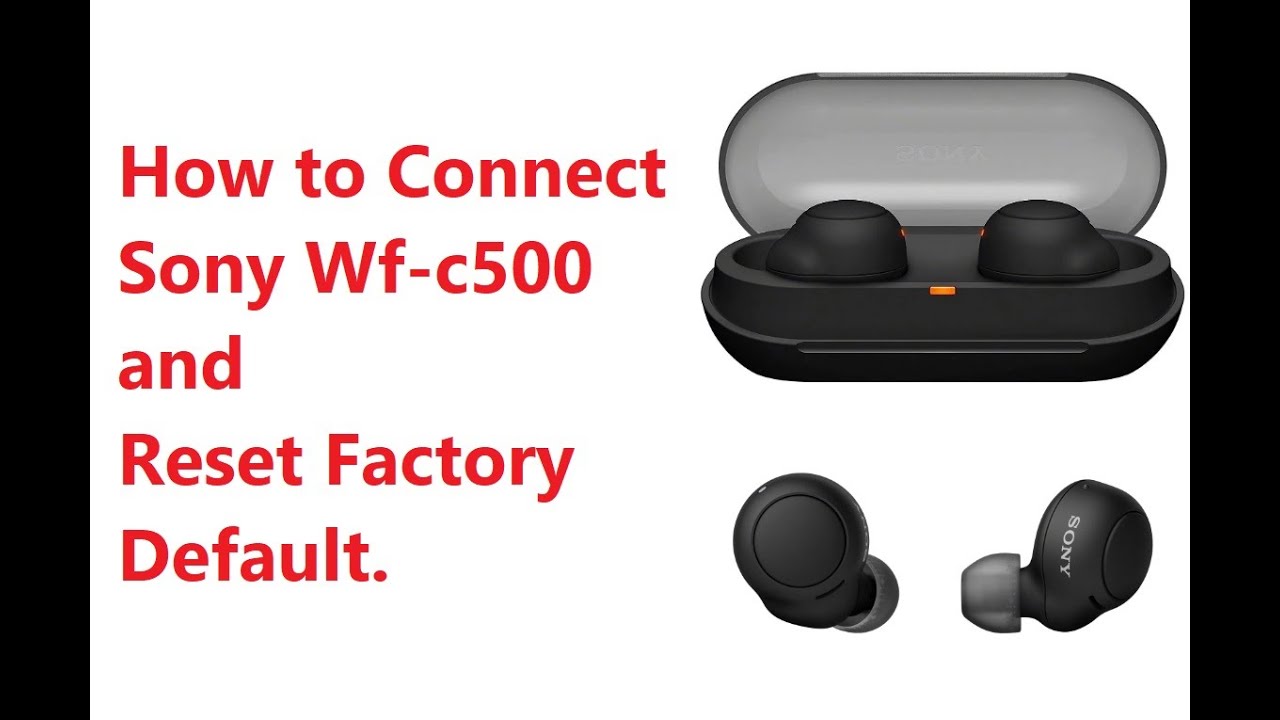
- For many Sony models, place earbuds in the case, hold the case button for 10 seconds to reset.
- For others, press and hold the earbuds’ buttons for 15 seconds until LEDs flash to clear pairings.
Advanced tips:
- Remove the device from your phone’s saved Bluetooth list before re-pairing.
- Update the Sony Headphones Connect app and earbud firmware.
- If one earbud won’t connect, re-pair both earbuds to each other first, then pair to your device.
From experience, the most overlooked step is clearing old pairings. A cleared Bluetooth list often fixes recurring issues when you try to connect sony bluetooth earbuds after switching devices.
Tips for better pairing, audio, and battery life
Small habits make pairing faster and listening better.
Practical tips:
- Keep the case firmware current via the Sony app.
- Store earbuds in the case when not in use to conserve battery.
- Avoid pairing near microwave ovens or crowded Bluetooth areas.
Listening tips:
- Use AAC or aptX codecs when supported for better audio quality.
- Turn off automatic noise cancellation if you need longer battery life.
A personal tip: label the earbuds in your device’s Bluetooth list if you own multiple Sony products. It saves time and reduces confusion when connecting sony bluetooth earbuds.
Frequently Asked Questions of how to connect sony bluetooth earbuds
What should I do if my device doesn't find the earbuds?
Turn Bluetooth off and on, then put the earbuds in pairing mode again. Remove old pairings from your device and reset the earbuds if needed.
Why do only one earbud play sound after pairing?
Often one bud lost sync or did not pair to its pair. Reset both earbuds, then pair them together and reconnect to your device.
How long does pairing usually take?
Pairing typically takes 5–30 seconds once the earbuds are in pairing mode. If it takes longer, restart your phone and try again.
Can I connect the earbuds to two devices at once?
Some Sony models support multipoint. Check your model specs and the Sony Headphones Connect app to enable multipoint pairing.
Will firmware updates affect my settings?
Firmware updates can reset some settings but usually improve stability and battery life. Back up custom settings, then update when prompted.
Conclusion
You now know clear, reliable methods for how to connect sony bluetooth earbuds to Android, iPhone, Windows, and Mac. Follow the step-by-step instructions, keep firmware updated, and use resets to fix persistent issues. Try the tips here the next time you pair, and you’ll save time and frustration. If this guide helped, subscribe for more troubleshooting tips or leave a comment with your model and issue so I can help further.

Everett Ashford is a tech reviewer at mytechgrid.com specializing in SSDs, cameras, TVs, earbuds, headphones, and other consumer electronics. He provides honest, data-driven reviews based on hands-on testing and real-world performance analysis. Everett simplifies complex tech details to help readers make smart, confident buying decisions.